1
...
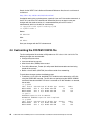
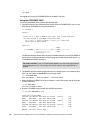
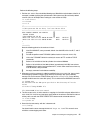
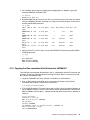
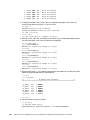
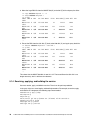
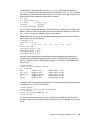
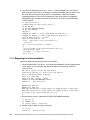
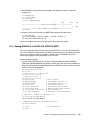
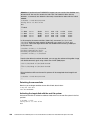
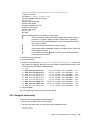
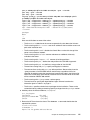
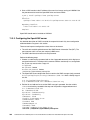
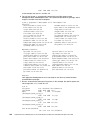
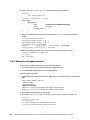
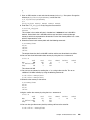
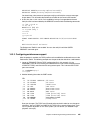
xsetroot -solid grey
vncconfig -iconic &
xterm -geometry 80x24+10+10 -ls -title "$VNCDESKTOP Desktop" &
mwm &
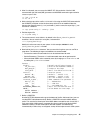
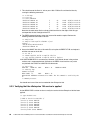
7. Restart the VNC server with the service command:
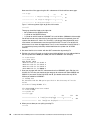
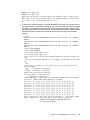
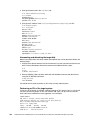
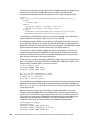
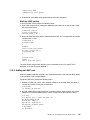
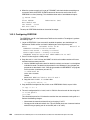
# service vncserver restart
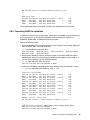
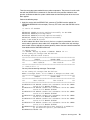
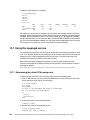
Shutting down VNC server: 1:root [ OK ]
Starting VNC server: 1:root
New 'gpok223.endicott.ibm.com:1 (root)' desktop is gpok223.endicott.ibm.com:1
Starting applications specified in /root/.vnc/xstartup
Log file is /root/.vnc/gpok223.endicott.ibm.com:1.log
[
OK
]
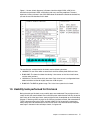
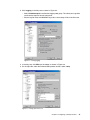
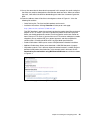
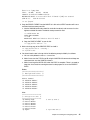
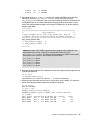
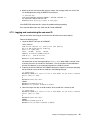
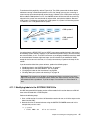
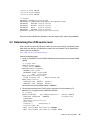
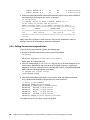
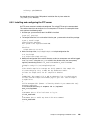
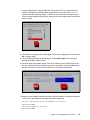
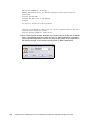
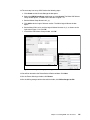
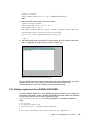
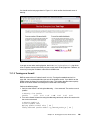
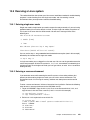
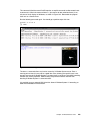
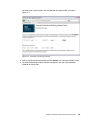
8. You should now be able to use the VNC client to connect to the IP address of the cloner
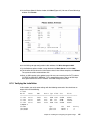
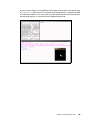
with a :1 appended. A sample session is shown in Figure 7-14.
Figure 7-14 VNC client session to the VNC server
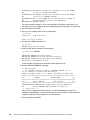
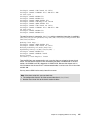
Note that the VNC server will not be started automatically across reboots. When you need a
graphical environment, you can either to start the vncserver process manually
(recommended), or you can use chkconfig to enable automatic startup.
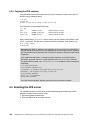
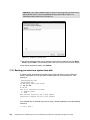
7.2.6 Setting a system to halt on SIGNAL SHUTDOWN
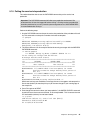
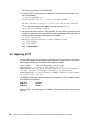
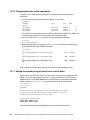
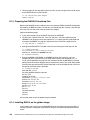
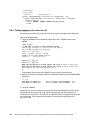
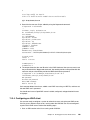
By default, RHEL 6 reboots when a Ctrl-Alt-Del key sequence is used. This key sequence is
simulated by z/VM when it issues a SIGNAL SHUTDOWN command. Rather than rebooting,
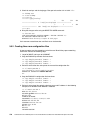
you want your system to halt. To set the system to halt, edit
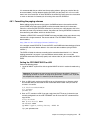
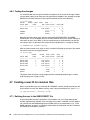
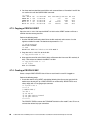
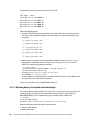
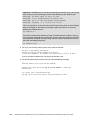
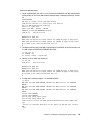
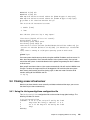
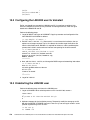
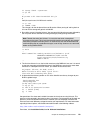
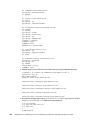
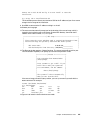
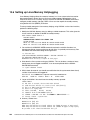
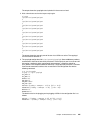
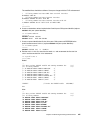
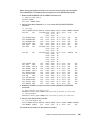
/etc/init/control-alt-delete.conf and change shutdown -r (reboot) to shutdown -h
(halt):
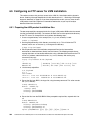
#
#
#
#
#
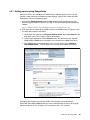
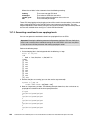
cd /etc/init
vi control-alt-delete.conf
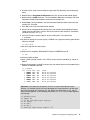
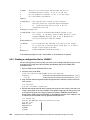
control-alt-delete - emergency keypress handling
This task is run whenever the Control-Alt-Delete key combination is
Chapter 7. Installing RHEL 6 on the cloner
131