1
Connections
•
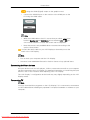
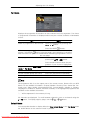
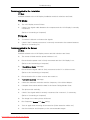
For an explanation of Component video, consult your DVD or external device's user
manual.
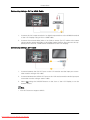
Connecting to a Camcorder
1.
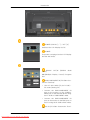
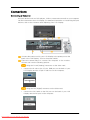
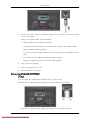
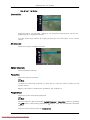
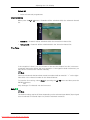
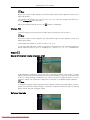
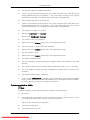
Locate the AV output jacks on the camcorder. They are usually found on the side
or back of the camcorder. Connect a set of audio cables between the AUDIO
OUTPUT jacks on the camcorder and the AV/COMPONENT AUDIO IN [R-AUDIOL] on the LCD Display .
2.
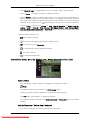
Connect a video cable between the VIDEO OUTPUT jack on the camcorder and the
AV IN [VIDEO] on the LCD Display .
3.
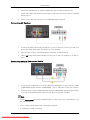
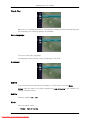
Select AV for the Camcorder connection using the SOURCE button on the front of
the LCD Display or on the remote control.
4.
Then, start the Camcorder with a tape inserted.
Note
The audio-video cables shown here are usually included with a Camcorder. (If not,
check your local electronics store.) If your camcorder is stereo, you need to connect a
set of two cables.
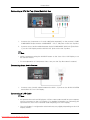
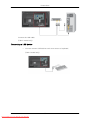
Connecting Using a HDMI Cable
1.
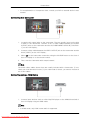
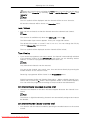
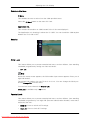
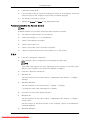
Connect input devices such as a Blu-Ray/DVD player to the HDMI IN terminal of
the LCD Display using an HDMI cable.
Note
•
In HDMI mode, only PCM format audio is supported.
34
Downloaded From TV-Manual.com Manuals