1
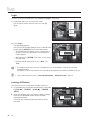
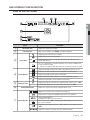
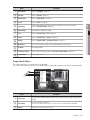
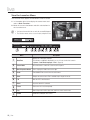
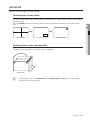
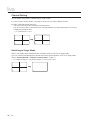
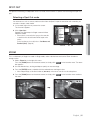
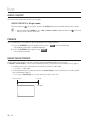
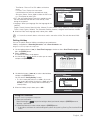
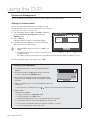
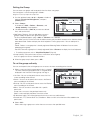
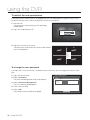
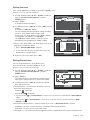
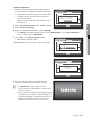
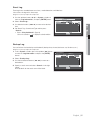
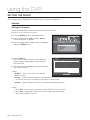
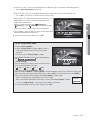
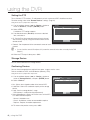
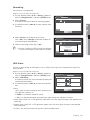
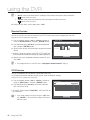
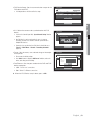
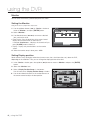
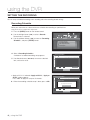
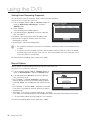
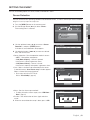
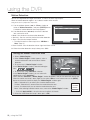
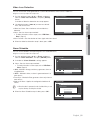
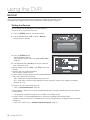
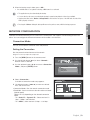
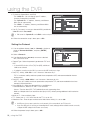
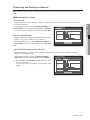
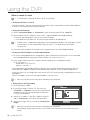
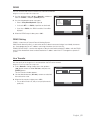
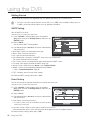
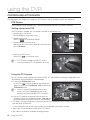
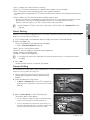
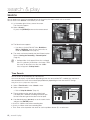
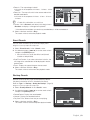
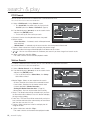
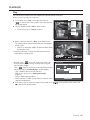
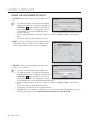
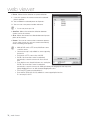
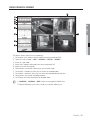
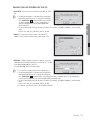
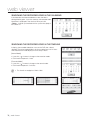
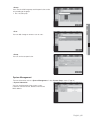
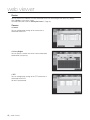
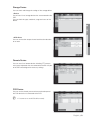
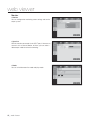
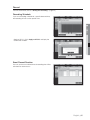
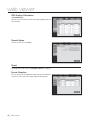
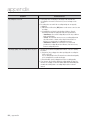
Video Loss Detection You can set the alarm to be generated on a camera disconnection, which causes a video loss. Using the mouse may help make setup easier. 1. Use the up/down buttons () in <Event> window to move to <Video Loss Detection>, and press [ENTER] button. A window of video loss detection area setup appears. Video Loss Detection CH Alarm Alarm Duration OFF None 10 sec 2 OFF None 10 sec 3 OFF None 10 sec 4 OFF None 10 sec • Video Loss State : Sets whether to activate video loss detection. • Alarm : Sets the alarm output method. Help OK Cancel For further information on alarm output, refer to “HDD Alarm > Alarm”. (Page 41) • Alarm Duration : Sets the duration of alarm signal and alarm sound. 3. When the video loss detection setup is done, press <OK>. Alarm Schedule You can set the conditions and operating hours for scheduled alarms. Using the mouse may help make setup easier. 1. Use the up/down buttons () in <Event> window to move to <Alarm Schedule>, and press [ENTER] button. Alarm Schedule Alarm1 2. A window of <Alarm Schedule> settings appears. All 0 1 2 3 4 5 6 7 8 9 10 11 12 13 14 15 16 17 18 19 20 21 22 23 Sun 3. Alarm : Sets the alarm output method. For further information on alarm output, refer to “HDD Alarm > Alarm”. (Page 41) • <ON> : Marked in orange, and always generates alarm on scheduled time. • <OFF> : Marked in white, no alarm is generated even if an event occurs. • Event Sync : Marked in Blue, generates alarm only when an event occurs. • Apply to All Alarm : Applies the configured schedule to all alarms. Mon Tue Wed Thu Fri Sat Hol OFF ON Apply to All Alarm Event Sync OK Cancel Alarm Schedule Alarm1 M When the alarm is generated on the scheduled time, you can stop the alarm by canceling the schedule. All Sun Mon 0 1 2 3 4 Tue Wed Apply the alarm scheduling to all? Thu 4. When the Alarm Schedule setup is done, press <OK>. 5 6 7 8 9 10 11 12 13 14 15 16 17 18 19 20 21 22 23 Apply to All Alarm Fri OK Sat Cancel Hol OFF ON Apply to All Alarm Event Sync OK Cancel English _51 USING THE DVR 2. Use direction buttons (◄ ►) to move to a desired item, and set the value. Video Loss State 1