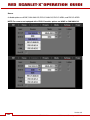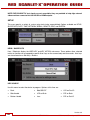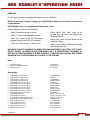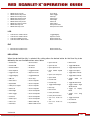
1
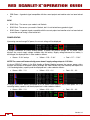
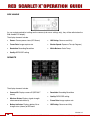
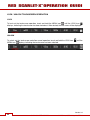
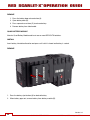
TABLE OF CONTENTS
TABLE OF CONTENTS ............... 1
DISCLAIMER ................................. 3
Copyright Notice........................ 3
Trademark Disclaimer ................ 3
COMPLIANCE ............................... 4
Industry Canada
Compliance Statements ............ 4
Federal Communications
Commission (FCC)
Compliance Statements ............ 4
Austrailia and New Zeland
Compliance Statements ............ 5
European Union
Compliance Statements ............ 5
Information ............................ 6
BEFORE YOU START ................... 8
Important Safety
Instructions ................................ 8
THEORY OF OPERATION........... 11
MYSTERIUM X® Sensor ......... 11
Image Processing .................... 11
HDRx™ .................................... 12
Magic Motion™ ....................... 13
Audio Recording ...................... 13
Microphone Level Analog
Inputs ....................................... 13
Line Level Analog Inputs.......... 14
Video Monitoring Outputs ........ 14
Bomb EVF ........................... 14
RED LCD ............................. 14
HD-SDI ................................ 14
HDMI ................................... 15
RED LCD / Bomb EVF® .......... 15
REDmote®............................... 16
Digital Magazine (Media).......... 16
Metadata ............................. 17
Clip Naming
Conventions ........................ 17
SMPTE Timecode ............... 18
Power Consumption ........... 18
CAMERA OPERATIONAL
CONTROLS ................................. 19
Brain ........................................ 19
Side SSD Module .................... 20
Side Handle ............................. 22
Top ...................................... 22
Front .................................... 23
Rear..................................... 24
Installation / Removal .......... 26
Quad Battery Module .............. 27
Installation / Removal .......... 28
REDmote ................................. 32
BOMB EVF............................... 34
Touchscreen LCD .................... 35
BASIC OPERATION .................... 36
Power Sources ......................... 36
Side Handle ......................... 36
Quad Battery Module .......... 37
External DC Power .............. 39
Power UP............................. 40
Power Down ........................ 41
Graphical User Interface
and Navigation ......................... 42
RED LCD/Touchscreen
LCD, BOMB EVF,
External Monitors................. 42
Side Handle ......................... 48
REDmote ............................. 48
Navigating Menus .................... 49
Using Touchscreen LCD .......... 50
Shortcuts ............................. 50
Power Down ........................ 51
Lock / Unlock
Touchscreen Opreration ...... 52
FIRST TIME USE – SETTING
UP YOUR RED SCARLET-X ........ 53
1. Attach Power Source ........... 53
Battery ................................. 53
DC Power ............................ 55
2. Power UP ............................. 55
3. Preparing to Record ............. 55
Connect and Format
Media ................................... 55
Perform a Black Shading
Calibration ........................... 56
Adjust Project Settings ........ 57
4. Recording ............................. 58
Record Indicator .................. 59
5. Playback............................... 59
MENU CONTROLS ...................... 61
Adjustments ............................. 61
Basic Setting
Adjustments ......................... 61
Advanced Setting Menus..... 62
MAIN MENU ................................. 63
FPS........................................... 63
Varispeed ............................. 63
Basic Settings ...................... 64
Advanced Settings............... 64
ISO (Sensitivity) ........................ 65
-.- (F Stop) ................................ 65
RED SCARLET-X DSMC
Ti PL Mount Installed ........... 65
DSMC Canon Mount
Installed ............................... 65
1/SEC (EXPOSURE) ................. 67
Basic Settings ...................... 67
Advanced Settings............... 68
White Balance .......................... 70
Basic Settings ...................... 70
Version 3.0
955-0003_V3.0, REV-A
©2011-2012 RED.COM INC.
Advanced Settings .............. 71
Resolution ................................ 73
REDcode® ............................... 74
REDcode Options for
Various Frame Rates ........... 74
SECONDARY MENUS ................. 75
HDR Menu ............................... 75
HDR ON / OFF .................... 75
Stops ................................... 76
Focus Menu ............................. 76
Mode ................................... 76
DSMC Canon Mount
Electronically Supported
Lenses ................................. 79
Zones .................................. 80
RED SCARLET-X DSMC
Ti PL Mount + Lens ............. 83
DSMC Canon Mount +
Lens..................................... 83
Exposure Menu ........................ 83
Presets Menu ........................... 83
Create Preset ...................... 84
Export / Import Preset ......... 85
Delete Preset ....................... 87
Media Menu ............................. 88
Select Media ....................... 88
Format Media ...................... 88
Eject Media ......................... 89
Utilities................................. 90
Settings Menu .......................... 91
Display................................. 91
Look .................................. 105
Project ............................... 108
Audio/Video ....................... 111
Setup ................................. 118
Maintenance ...................... 132
Playback............................ 141
Power..................................... 150
Power Status ..................... 150
Shutdown .......................... 151
APPENDIX A: UPGRADING
CAMERA FIRMWARE ............... 152
Verify Current Camera
Firmware ................................ 152
Upgrade Procedure ............... 152
Multiple Cameras .............. 153
APPENDIX B: MANAGING
DIGITAL MEDIA ......................... 154
Media ..................................... 154
Formatting Media ................... 154
Media Capacity Remaining
Status..................................... 155
Eject Media from Camera
(Unmount) .............................. 156
1
Using REDmote /
Touchscreen LCD ............. 156
Using Side Handle ............ 157
Using Side SSD................. 157
Copying Media ...................... 157
Erasing Media ........................ 157
Macintosh OS X ................ 157
Windows ........................... 158
APPENDIX C: CHARGING
BATTERIES................................ 159
REDVOLT............................... 159
Battery LED Array.............. 159
Battery Performance ......... 159
RED Travelcharger™ ............. 160
Operation .......................... 160
Charging Batteries ............ 161
APPENDIX D: INPUT /
OUTPUT CONNECTORS .......... 162
Brain Front ............................. 162
MIC-1, MIC-2
(Microphone Audio) ........... 163
Brain Rear .............................. 164
HD-SDI .............................. 165
Headphone ....................... 166
SYNC (Video Sync) ........... 167
CTRL (RS232 Control) ....... 169
GIG-E (Ethernet) ................ 170
DC IN (Power Input) .......... 171
HDMI Out .......................... 172
Side SSD Module .................. 173
REDmote ............................... 174
APPENDIX E: REDMOTE
OPERATION .............................. 175
Control, Connectors and
Display ................................... 175
Controls ............................. 175
Operation ............................... 178
REDmote Menus................ 178
Charging / Battery Life ....... 183
Connecting / Removing ..... 185
Wireless Connection .......... 186
Power Up / Down .............. 192
Accessing Camera
Controls / Settings ............. 194
Recording .......................... 196
Maintenance ........................... 196
Upgrading REDmote
Firmware ............................ 196
Operating Multiple Cameras
Using a Single REDmote ........ 209
APPENDIX F: 3D SETUP /
OPERATION ............................... 210
Overview ................................ 210
Camera Setup ........................ 210
Master Camera .................. 210
Slave Camera .................... 211
Clip Naming Conventions....... 211
Reel No. / Slate (Camera
ID) / Camera Position ......... 211
Connecting Cameras ............. 213
Operation ............................... 213
Changing Settings ............. 213
Recording .......................... 214
Power Down ...................... 214
APPENDIX G: EXPOSURE –
USING FALSE COLOR AND
ISO .............................................. 215
Underexposure (~ 2 stops) ..... 215
Overexposure (~ 2 stops) ....... 217
Appropriate Exposure ............ 220
Adjusting the ISO Rating........ 223
APPENDIX H: POST
PRODUCTION ........................... 225
Software Tools ....................... 225
REDCINE-X® PRO ............ 226
APPENDIX I:
MAINTENANCE ......................... 227
Cleaning ................................. 227
Camera And Accessory
Exterior Surfaces ............... 227
Brain .................................. 227
LCD Screen
(Touchscreen / NonTouchscreen)..................... 227
EVF .................................... 228
REDmote Screen ............... 228
Lenses ............................... 228
Side Handle LCD ............... 228
Back Focus Adjustment ......... 229
APPENDIX J:
TROUBLESHOOTING ............... 232
No Media Attached ................ 232
Recording Halted: Record
Error - Shutdown ................... 232
Preset Could Not Be
Applied ................................... 232
Camera Cannot Be Paired
to REDmote ........................... 232
APPENDIX K: TECHNICAL
DATA .......................................... 233
Technical Specifications ........ 233
APPENDIX L: MENU MAPS ...... 234
RED SCARLET-X™ Operation Guide
Version 3.0
955-0003_v3.0, REV-A
Version 3.0
2
©2011-2012 RED.COM INC.
MARCH 2, 20955-0003_v3.0, REV-A
DISCLAIMER
RED® has made every effort to provide clear and accurate information in this Operation Guide, which is
provided solely for the user’s information. While thought to be accurate, the information in this document
is provided strictly “as is” and RED will not be held responsible for issues arising from typographical errors
or user’s interpretation of the language used herein that is different from that intended by RED. All safety
and general information is subject to change as a result of changes in local, federal or other applicable
laws.
RED reserves the right to revise this Operation Guide and make changes from time to time in the content
hereof without obligation to notify any person of such revisions or changes. In no event shall RED, its
employees or authorized agents be liable to you for any damages or losses, direct or indirect, arising from
the use of any technical or operational information contained in this document.
For comments or questions specifically about the Operations Guide content, please send a detailed
message to [email protected].
COPYRIGHT NOTICE
© 2011 Red.com, Inc.
All trademarks, trade names, logos, icons, images, written material, code, and product names used in
association with the accompanying product are the copyrights, trademarks or other intellectual property
owned and controlled exclusively by Red.com, Inc.
TRADEMARK DISCLAIMER
All other company, brand and product names are trademarks or registered trademarks of their respective
holders. RED has no affiliation to, is not associated or sponsored with, and has no express rights in thirdparty trademarks. MAC® and QuickTime® are registered trademarks of Apple, Inc. Intel® is the
registered trademark of Intel Corporation. Windows®, Microsoft Windows® and Windows Vista® are the
registered trademarks of Microsoft Corporation. AVID® is a registered trademark of Avid Technology, Inc.
NUKE is a trademark of The Foundry Visionmongers Ltd. Torx® is a registered trademark of Textron, Inc.
Canon® and EOS® are registered trademarks of Canon Kabushiki Kaisha Corporation. Torx® is a
registered trademark of Textron, Inc.
Version 3.0
955-0003_V3.0, REV-A
©2011-2012 RED.COM INC.
3
COMPLIANCE
INDUSTRY CANADA COMPLIANCE STATEMENTS
This device complies with Industry Canada license-exempt RSS standards RSS 139 and RSS 210.
Operation is subject to the following two conditions: (1) this device may not cause interference, and (2)
this device must accept any interference, including interference that may cause undesired operation of the
device.
This Class B digital apparatus complies with Canadian ICES-003.
Le présent appareil est conforme aux CNR d'Industrie Canada applicables aux appareils radio exempts
de licence. L'exploitation est autorisée aux deux conditions suivantes : (1) l'appareil ne doit pas produire
de brouillage, et (2) l'utilisateur de l'appareil doit accepter tout brouillage radioélectrique subi, même si le
brouillage est susceptible d'en compromettre le fonctionnement. Cet appareil numérique de la classe B
est conforme à la norme NMB-003 du Canada.
FEDERAL COMMUNICATIONS COMMISSION (FCC) COMPLIANCE
STATEMENTS
This equipment has been tested and found to comply with the limits for a Class B digital
device, pursuant to part 15 of the FCC Rules. These limits are designed to provide
reasonable protection against harmful interference in a residential installation. This
equipment generates, uses and can radiate radio frequency energy and, if not installed
and used in accordance with the instructions, may cause harmful interference to radio
communications. However, there is no guarantee that interference will not occur.
in a particular installation. If this equipment does cause harmful interference to radio or television
reception, which can be determined by turning the equipment off and on, the user is encouraged to try to
correct the interference by one or more of the following measures:
1. Reorient or relocate the receiving antenna.
2. Increase the separation between the equipment and receiver.
3. Connect the equipment into an outlet on a circuit different from that to which the receiver is
connected.
4. Consult the dealer or an experienced radio/TV technician for help.
In order to maintain compliance with FCC regulations, shielded cables must be used with this equipment.
Operation with non-approved equipment or unshielded cables is likely to result in interference to radio
and TV reception. The user is cautioned that changes and modifications made to the equipment without
the approval of manufacturer could void the users authority to operate this equipment.
Note: This device complies with Part 15 of the FCC Rules
4
Version 3.0
©2011-2012 RED.COM INC.
MARCH 2, 20955-0003_v3.0, REV-A
Operations subjected to the following two conditions (1) this device may not cause harmful interference,
and (2) this device must accept any interference received, including that may cause undesirable
interference.
CAUTION: Exposure to Radio Frequency Radiation.
The device shall be used in such a manner that the potential for human contact is minimized
This equipment complies with FCC radiation exposure limits set forth for an uncontrolled environment.
This equipment should be installed and operated with a minimum distance of 20cm between the radiator
and your body.
Caution: Regulations of the FCC and FAA prohibit airborne operation of radio-frequency wireless devices
because there signals could interfere with critical aircraft instruments.
Caution: If the device is changes or modified without permission from RED, the user may void his
or her authority to operate the equipment.
AUSTRAILIA AND NEW ZELAND COMPLIANCE STATEMENTS
RED declares that the radio equipment described in this document comply with the following international
standards.
•
IEC 60065 - Product Safety
•
ETSI EN 300 328 - Technical requirement for radio equipment
RED declares digital devices described in this document comply with the following Australian and New
Zealand standards.
•
AS/NZS CISPR 22 – Electromagnetic Interference
•
AS/NZS 61000.3.2– Power Line Harmonics
•
AS/NZS 61000.3.3 – Power Line Flicker
EUROPEAN UNION COMPLIANCE STATEMENTS
RED declares that the radio equipment described in this document comply with the
R&TTE Directive (1999/5/EC) issued by the Commission of the European
Community.
Compliance with this directive implies conformity to the following European Norms (in brackets are the
equivalent international standards).
•
EN 60065 (IEC 60065) – Product Safety
•
ETSI EN 300 328 Technical requirement for radio equipment
•
ETSI EN 301 489 General EMC requirements for radio equipment.
Version 3.0
955-0003_V3.0, REV-A
©2011-2012 RED.COM INC.
5
INFORMATION
Products with the CE marking comply with the EMC Directive (2004/108/EC) and the Low Voltage
Directive (2006/95/EC) issued by the Commission of the European Community. Compliance with these
directives implies conformity to the following European Product Family Standards.
• EN 55022 (CISPR 22) – Electromagnetic Interference
• EN 55024-1 (CISPR 24) – Electromagnetic Immunity
• EN 61000-3-2 (IEC610000-3-2) – Power Line Harmonics
• EN 61000-3-3 (IEC610000) – Power Line Flicker
• EN 60065 (IEC60065) – Product Safety
USAGE RESTRICTIONS FOR PRODUCTS THAT INCORPORATE REDLINK
Products that fall into this category are denoted by inclusion of the Class 2 identifier symbol (exclamation
mark in a circle) accompanying the CE Mark on the products regulatory label, example below:
FRANCE
USAGE RESTRICTIONS - GEOGRAPHIC AREA WHERE RESTRICTION APPLIES : FRANCE
For mainland France
2.400 - 2.4835 GHz (Channels 1-16) authorized for indoor use
2.400 -2.454 GHz (Channels 1-10) authorized for outdoor use
RESTRICTIONS D'UTILISATION - ZONE GÉOGRAPHIQUE OÙ LES RESTRICTIONS
S'APPLIQUENT : FRANCE
Pour la France métropolitaine
2.400 - 2.4835 GHz (Canaux 1 à 16) autorisé en usage intérieur
2.400 -2.454 GHz (canaux 1 à 10) autorisé en usage extérieur
NORWAY
This subsection does not apply for the geographical area within a radius of 20 km from the centre of NyÅlesund
Dette gjelder ikke for det geografiske området innenfor en radius av 20 km fra sentrum av Ny-Ålesund
6
Version 3.0
©2011-2012 RED.COM INC.
MARCH 2, 20955-0003_v3.0, REV-A
The Waste Electrical and Electronic Equipment (WEEE) mark applies only to countries
within the European Union (EU) and Norway. This symbol on the product and
accompanying documents means that used electrical and electronic products should not
be mixed with general household waste. For proper treatment, recovery and recycling,
please take this product to designated collection points where it will be accepted free of
charge. Alternatively, in some countries you may be able to return your products to your
local retailer upon purchase of an equivalent new product.
Disposing of this product correctly will help save valuable resources and prevent any potential negative
effects on human health and the environment, which could otherwise arise from inappropriate waste
handling. Please contact your local authority for further details of your nearest designated collection point.
Penalties may be applicable for incorrect disposal of this waste, in accordance with you national
legislation.
For business users in the European Union, if you wish to discard electrical and electronic equipment,
please contact your dealer or supplier for further information.
Responsible party:
Red Digital Cinema®
34 Parker
Irvine, CA 92618
USA
Version 3.0
955-0003_V3.0, REV-A
©2011-2012 RED.COM INC.
7
BEFORE YOU START
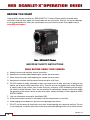
Congratulations on your purchase of a RED SCARLET-X™ camera. Please read the attached safety
instructions, and only then unpack the camera body and any accessories. If there is any physical damage
or missing components for either your camera body or any accessories, please file a support ticket at
www.RED.com/support.
Figure 1: RED SCARLET-X Camera
IMPORTANT SAFETY INSTRUCTIONS
READ BEFORE USING YOUR CAMERA
A. Heed all cautions and warnings in these instructions.
B. Read these instructions before operating the camera and accessories.
C. Follow these instructions while operating the camera and accessories.
D. Keep these instructions with the camera and accessories at all times.
E. DO NOT attempt to modify, dismantle or open your camera, lens or other accessory as doing so may
expose you to electric shock and serious injury. There are no user-serviceable parts inside. Alteration
or repairs made to the camera, lens or other accessory, except by a RED authorized service facility,
will void the Limited Warranty. Users are not permitted to make design changes or otherwise modify
the operation of the camera, lenses or other accessories, without the express written approval of RED
DIGITAL CINEMA.
F. Only use attachments/accessories specified by RED.
G. Install camera and accessories in accordance with the manufacturer’s instructions.
H. Avoid imaging of laser beams as they may cause damage to the sensor.
I.
8
DO NOT use the camera or accessories near water. Avoid exposing your camera to moisture. The unit
is not waterproof, so contact with water could cause permanent damage to the unit as well as electric
Version 3.0
©2011-2012 RED.COM INC.
MARCH 2, 20955-0003_v3.0, REV-A
shock and serious injury to the user. DO NOT use the camera in the rain or under other conditions with
high moisture without appropriate protection, and immediately remove power source if camera or
accessories are exposed to moisture.
WARNING: To reduce the risk of fire or electric shock, do not expose the camera or accessories to
rain or moisture.
J. DO NOT expose your camera to excessive vibration or impact (shock). Be careful not to drop your
camera. Internal mechanisms may be damaged by severe shock. Mechanical alignment of optical
elements may be affected by excessive vibration.
K. ELECTROMAGNETIC INTERFERENCE: The use of devices using radio or other communication
waves may result in the malfunction or interference with the unit and/or with audio and video signals.
L. Clean only using a dry cloth. When cleaning your camera, remember that it is not waterproof and
moisture can damage electronic circuitry. DO NOT rinse or immerse any element of the camera, lens
or other accessory, keep them dry at all times. DO NOT use soaps, detergents, ammonia, alkaline
cleaners, and abrasive cleaning compounds or solvents. These substances may damage lens
coatings and electronic circuitry.
M. Maintain sufficient ventilation - DO NOT block any ventilation openings or obstruct cooling fan airflow.
CAUTION: Proper camera ventilation requires a minimum .5” (1,25cm) clearance between the
camera ventilation openings and external surfaces. Verify airflow is not impeded by objects that
block or cover the ventilation openings. Failure to permit adequate airflow may result in
overheating of the camera, degraded operation and in extreme situations, damage to the camera.
N. DO NOT operate or store near any heat sources such as radiators, heat registers, stoves, or any other
apparatus that produce heat. Store in a protected, level and ventilated place. Avoid exposure to
temperature extremes, damp, severe vibration, strong magnetic fields, direct sunlight or local heat
sources during storage. Remove any batteries from the camera before storage. Recommended
storage and usage temperatures for your camera, lenses and other accessories are:
a. Operating range: 0°C to +40°C (32°F to 104°F)
o
Storage range: -20°C to +50°C (-4°F to 122°F)
If there are any performance issues with your camera or accessories when operating within this
temperature range, please file a support ticket on www.RED.com/support.
O. The Side Handle, Side SSD Module, rear modules and Lens Mount are NOT HOT SWAPPABLE –
meaning you cannot remove or install them while the camera is powered on. Before installing or
removing any of these accessories, you MUST power down the camera. Failure to do so may result in
damage to the accessory and / or camera brain that will not be covered under warranty.
P. Do not bypass the third prong of the grounding-type plug on the power cord of the AC Power
Adapter. A grounding-type plug has two blades and a third “grounding” prong. The third prong is
provided for your safety. A grounding-type plug shall be connected to an outlet with a protective
earthen connection. If the grounding-type plug does not fit into your outlet, do not attempt to modify
the plug or outlet, consult a qualified electrician.
Q. Protect all power cords from being pinched, walked on or driven over by a vehicle. Replace any power
cords suspected of sustaining damage due to crushing or other forms physical damage.
Version 3.0
955-0003_V3.0, REV-A
©2011-2012 RED.COM INC.
9
CAUTION: The power cord plug for the AC Power Adapter is used as the power disconnect. To
disconnect all power from the AC Power Adapter, unplug the power cord plug from the wall outlet.
During use, the power cord plug should remain easily accessible at all times.
R. Lithium Ion batteries may be subject to special handling requirements pursuant to federal and local
laws. Please refer to specific shipping instructions included with your battery regarding proper
transport of your battery. Do not handle your battery if it is damaged or leaking. Disposal of batteries
must be in accordance with local environmental regulations. For example, California law requires that
all rechargeable batteries must be recycled by an authorized recycle center. Storing batteries fully
charged or in high temperature, conditions may permanently reduce the life of the battery. Available
battery capacity may also be temporarily lessened after storage in low temperature conditions.
WARNING: Do not expose the battery to excessive heat.
WARNING: Danger of explosion if an incorrect battery is charged with the RED Charger or is used
to power the camera and accessories. Replace only with the same or equivalent type battery.
CAUTION: Refer all service and repair to qualified RED service personnel. To reduce the risk of
electric shock, and damage to the camera or accessories, DO NOT attempt to perform any
servicing other than any procedures that are recommended in the operating instructions.
10
Version 3.0
©2011-2012 RED.COM INC.
MARCH 2, 20955-0003_v3.0, REV-A
THEORY OF OPERATION
The RED SCARLET-X digital cinema camera provides high performance digital imaging over a wide range
of frame rates and optical formats including Super 35mm, 35mm and Super 16mm. The camera is
available with a Ti PL mount, and may be configured with mounts and 19 mm rods to accommodate most
cinematography lenses, matte boxes and follow focus systems. Adaptors for 15mm offset studio and
15mm lightweight rods are also available.
In addition to compatibility with existing PL mount cinematography lenses, a select range of S35mm
(APS-H) PL mount prime and zoom lenses are available from RED.
Other lens mounts, including the DSMC Canon Mount are available, permitting the use of Canon or Sigma
photographic lenses. Lens mounts can report lens iris, focus and zoom data when mated to an
appropriate lens. In addition, the iris and focus settings for select Canon lenses may be driven from the
camera. Lenses with small image circles may have restricted sensor coverage at wide angle.
Lens mounts may be exchanged in the field, however it is highly recommended that this be performed in a
dust-free environment, as the optical path will be exposed to the elements during this process.
A B4 mount to PL mount adaptor is also available to permit use of 2/3” HD lenses on the RED SCARLETX camera. The optical coverage it provides is approximately equivalent to 16mm hence the maximum
recording resolution with a B4 lens is 2K RAW (2048 x 1152 pixel) progressive scan.
MYSTERIUM X® SENSOR
The MYSTERIUM X sensor has been specifically designed for use with RED SCARLET-X cameras, and
provides variable frame rate imaging over 0.5 to 60 fps at 2K, 0.5 to 48 fps at 3K, 0.5 to 30 fps at 4K, and
0.5 to 12 fps at 5K.
Native color balance for the MYSTERIUM X sensor is 5,000 degrees Kelvin, but it may be electronically
compensated for any color temperature in the range 1,700 to 10,000 degrees Kelvin. White balance
preset values include Tungsten (3200K) and Daylight (5600K) light sources; the camera may also calculate
a color neutralizing White Balance value on demand by imaging on a standard white or 18% grey card.
The MYSTERIUM X sensor includes high precision analog to digital conversion, capable of delivering up
to 13.5 stops of dynamic range with daylight light sources over a camera sensitivity range of 320-800 ISO.
IMAGE PROCESSING
The digital image received from the sensor is formatted as a pixel defect corrected (but in all other
aspects unprocessed) 12-bit, 14-bit or 16-bit per pixel RAW data frame. When recording, successive
images (FRAMES) received from the sensor are collected together into a CLIP.
Each RAW frame or sequence of RAW frames in a clip is compressed using proprietary wavelet based
REDCODE® RAW compression, then stored to digital media such as a REDMAG™ 1.8” SSD.
The RAW data recorded is independent of any RGB domain signal processing choices such as ISO, White
Balance or other RGB color space adjustments made by the camera operator. These parameters are
saved with the RAW data as reference METADATA; they are not burned into the recorded RAW data.
This recording technique permits RGB color processing choices to be deferred to post production and/or
to be adjusted in the field to visualize alternative color treatments, without affecting the recorded image.
Version 3.0
955-0003_V3.0, REV-A
©2011-2012 RED.COM INC.
11
The camera’s monitoring path converts RAW sensor data to a white balanced 12-bit depth 2048 x 1080
pixel RGB 4:4:4 video signal. This signal may be modified using ISO, White Balance or other RGB color
space adjustments as desired by the operator, and is then scaled and gamma corrected to provide
VIEWFINDER, HD-SDI and HDMI monitor outputs at 10-bit depth in 4:2:2 Y,Cb,Cr, or at 8-bit depth in
4:4:4 RGB.
Frame guides and other camera data may be added as desired by the user to one or more of the outputs.
NOTE: If a specific set of RGB image processing values are desired to be repeatable on-set, a
.RMD “look” file may be created by supplied REDCINE-X® PRO application software. The camera
can generate preset files (.preset) which are more flexible as they can be image settings or other
settings. Go to SECONDARY MENUS > PRESETS for details.
HDRX™
HDRx is an option for extending dynamic range from +1 to +6 stops over the baseline Dynamic Range
offered by the camera. HDRx mode simultaneously shoots two images of identical resolution and frame
rate - a primary track (A-track) that is normally exposed, and a the secondary track (X-track) that has an
exposure value that reflects the additional stops of highlight protection desired.
EXAMPLE: If you select an HDR value of +2 and your primary exposure is 1/48th sec, the X-track
exposure will be 2 stops faster, 1/192 sec.
The ISO and Aperture remain the same for both exposures.
During acquisition and recording, the two tracks are "motion-conjoined", meaning there is no gap in time
between the two separate exposures. This is important to note because if they were two standard
alternating exposures, there would be a time gap between the two tracks that would show up as an
undesirable motion artifact. Both tracks (A & X) are stored in a single R3D® file. Since there are two
exposures, when in HDRx mode, the camera is recording double the amount of frames. For example, if
you are shooting 24fps, the camera is recording two 24fps tracks, which is the data rate equivalent of
48fps. However, after combining the two tracks in postproduction you see only one 24fps motion stream.
HDRx provides multiple options for exploitation in postproduction.
•
Blend the two tracks in post tools like REDCINE-X, Storm or any other application that supports the
SDK to create Magic Motion™. This blending of the two tracks comes with a slider so you can decide
just how much of each track you want to use. A preview window shows you the combined result of
your selection, or you can view each track individually.
•
Combine the two tracks using MNMB (More Normal Motion Blur). MNMB is designed to emulate the
motion of a traditional camera with full motion blur. This is a tool created by The Foundry that uses a
new motion estimation algorithm designed specifically for HDRx. The shorter exposure (sharper
image) is blended to match the motion blur of the normal exposure. Again, a preview window shows
the combined result of your selection, or you can view each track individually.
•
Use the X-track data for motion tracking, then combine the X-track with the A-track as in #1 or #2
above… or just motion stabilize the A-track using the motion analysis data extracted from the X-track.
•
Exporting to EXR file format will give you a multi-view EXR with both exposures (like a stereo EXR).
12
Version 3.0
©2011-2012 RED.COM INC.
MARCH 2, 20955-0003_v3.0, REV-A
NOTE: If you ignore the X-track completely, you will have a standard exposure with 13.5 stops of
native dynamic range just as if you had not enabled HDRx. For this reason, we encourage the Atrack exposure to be "normal" as it provides the most options. If you are tempted to shoot "overunder", you are then fully committed to using HDRx and your postproduction options are reduced.
NOTE: When recording in HDRx mode the camera records twice as many frames, so the maximum
frame rate, minimum REDCODE ratio, and maximum record time on your media will be cut in half.
MAGIC MOTION™
Shooting at 24fps and with an 180 degree (1/48th) shutter on a film or digital camera may create an
optical illusion we are familiar with, however it is not really the way the eye sees motion. To understand
this, ask someone to stand in front of you and swing their arm over their head from one side to the other.
What you would observe in the recording is a constant motion blur until the arm stopped. What your eye
sees though is both motion blur AND a sharper reference to the arm and hand all along the motion path.
"Magic Motion" provides such a combination of motion blur (A-track) and a sharper reference (X-track),
with the bonus of extreme dynamic range not available with any other motion capture camera system.
AUDIO RECORDING
The RED SCARLET-X can record up to two discreet channels of microphone level uncompressed 24-bit,
48 KHz audio (four channels of microphone level or line level audio inputs when equipped with a PRO I/O
Module), that are synchronized with video and timecode, to REDMAG 1.8” SSD media.
Input signals are routed via a high quality pre-amplifier and optional soft clip limiter in order to achieve the
desired audio reference / recording level and to maximize dynamic range.
To assist with audio reference level setup, the camera provides a color-coded Audio meter in the
Graphical User Interface. Meter range is –36dBu to +20dBu (-56dBFS to 0dBFS) with audio input type
and audio input clipping indication.
Audio monitor output options include a 2-channel headphone output on the camera Brain and 2-channel
line level analog outputs from the optional PRO I/O Module, plus 2-channel and 4-channel 24-bit 48KHz
uncompressed digital audio embedded in the HD-SDI and HDMI outputs.
MICROPHONE LEVEL ANALOG INPUTS
The recording level of Microphone inputs are affected by the sensitivity of the microphone and the Gain
setting of the camera’s pre-amplifier. Available pre-amplifier range is +8dB to +62dB, with a default value
of +32dB. The camera operator should choose a Gain value that aligns the input signal to the 0dBu
reference line drawn through the camera’s peak meter (or +4dBu line if referencing to that level).
This setting provides up to 30dB of input signal headroom above reference 0dBu level before clipping
(26dB for +4dBu reference level) and maximizes the signal to noise ratio of the 24-bit digital recording.
Version 3.0
955-0003_V3.0, REV-A
©2011-2012 RED.COM INC.
13
LINE LEVEL ANALOG INPUTS
The recording level of Line inputs are affected only by the signal provided by the field production sound
mixer or other external line level source. The sound mixer operator should choose a mixer output level
that aligns a reference tone signal to the 0dBu (0.775 volts RMS / -20dBFS) reference mark drawn
through the camera’s Peak Meter, or if using +4dB as reference level, a mixer output level that aligns a
reference tone signal to the +4dBu (1.23 Volts RMS / -16dBFS) reference mark.
The 0dBu setting provides up to 24dB of input signal headroom above reference level before clipping
(20dB for +4dBu reference level) and the maximum signal to noise ratio for the 24-bit digital recording.
VIDEO MONITORING OUTPUTS
In its default configuration, the RED SCARLET-X camera can simultaneously support one VIEWFINDER
output (suitable for use by a BOMB EVF®, or RED LCD) plus one HD-SDI based PROGRAM output and
one HDMI based PREVIEW output. Each output can support a set of overlay graphics including camera
GUI, timecode, clip name and framing guides; the specific overlay graphics for each type of output is user
configurable.
The default VIEWFINDER output is the EVF / LCD connector located on the front face of the Side SSD
Module. If neither of these is connected, VIEWFINDER output will be automatically transferred to the
HDMI output, or it may be selected by the operator to appear on the HD-SDI output of the camera Brain.
BOMB EVF
A 1280 x 784 pixel resolution progressive scan color image equivalent to viewing a 17” reference monitor
from a distance of about 3ft (1m), with Surround View™ look around area, frame guides and safe action /
title, zebra and false color exposure overlays, operational status and setup menus.
RED LCD
An 800 x 480 resolution RGB 4:4:4 progressive scan touchscreen video display with Surround View™
look around area, frame guides and safe action / title, zebra and false color exposure overlays, operational
status and setup menus.
HD-SDI
A 720p or 1080p output suitable for monitoring or recording to an external VTR or DDR device. May be
configured for 10-bit Gamma or 10-bit LOG encoded video data. Three different viewing options are
available, Preview (menus), Guides (frame guides only) and Program (clean feed). Refer to SECONDARY
MENUS > SETTINGS MENU > AUDIO/VIDEO > MONITOR CONTROL for complete details.
When an HD-SDI monitor is connected along with an LCD or EVF, only the main screen menu items will
be displayed in Grayed-out text. The menu items will reflect any changes made to Frame Rate, ISO,
Shutter Speed, White Balance, Resolution, and REDcode settings, and will not display the same
information as the LCD / EVF while making adjustments. Example, when the secondary menus are
accessed using the touchscreen LCD, the HD-SDI output will not show the secondary menus, only the
main screen menus.
14
Version 3.0
©2011-2012 RED.COM INC.
MARCH 2, 20955-0003_v3.0, REV-A
HDMI
A 720p or 1080p PREVIEW output suitable for monitoring via a PC monitor or most HDTV displays.
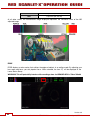
When an HD-SDI or HDMI monitor is connected WITHOUT an LCD or EVF, and in PREVIEW mode, the
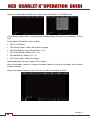
HD-SDI or HDMI monitor will display the menus as if it were the LCD or EVF as shown below, displaying
setting changes in real-rime.
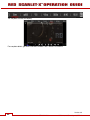
Figure 2: Example of Video Monitor Output – WITHOUT LCD or EVF Connected
RED LCD / BOMB EVF®
The optional RED LCD and BOMB EVF are specialized video monitors that provide the user with a variety
of tools to assist framing, focus and exposure, including:
-
Surround View™, which is an additional look around area, visible outside of the recorded image.
-
Frame Guides, showing common film presentation and television aspects such as 2.40:1 and 16:9.
-
Focus, aided by high display resolution, 1:1 Focus Check function and False Color overlay.
-
Exposure, aided by dual Zebras, False Color overlay, RAW “Traffic Lights” and RGB histogram.
-
System information including current frame rate, ISO rating, shutter speed, color temperature, record
resolution, record quality, clip name, timecode value and the remaining battery and media capacity.
For applications where use of an attached RED EVF or RED LCD is not desired – for example when
working on a crane – the VIEWFINDER output can be transferred to the HD-SDI or HDMI outputs,
supporting remote camera monitoring up to 200 ft away.
Version 3.0
955-0003_V3.0, REV-A
©2011-2012 RED.COM INC.
15
REDMOTE®
REDmote is a proprietary camera control unit for RED SCARLET-X cameras that attaches to the rear of
the camera Brain or the back face of the rearmost expansion module. The REDmote may also be
detached from the camera and operate over a proprietary REDlink™ 2.4Ghz wireless connection.
Whether operating attached or via wireless, REDmote supports all basic controls necessary to operate the
camera, including Record Start / Stop, Shutter Speed, White Balance, ISO and programmable User Keys.
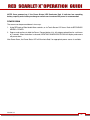
An integrated color LCD displays camera parameters, media and battery capacity and REDmote menus.
Figure 3: REDmote LCD display
REDmote includes a rechargeable Li-Ion battery, which automatically re-charges when attached to the
camera or rearmost module. It may also be re-charged by connecting to a USB 2.0 based power source
such as a laptop PC or cell phone charger. Under typical operating conditions, REDmote should operate
for up to 8 hours without requiring a re-charge and support a wireless communication range of
approximately 50 ft.
DIGITAL MAGAZINE (MEDIA)
REDCODE RAW compressed MOVIE clips and STILLS images, plus time code, multi-channel audio and
metadata may be recorded to REDMAG 1.8” SSD solid-state digital media of 64GB, 128GB or 256GB
capacity.
Each MOVIE clip is recorded with a unique name and with all the appropriate elements of the clip
including one or more REDCODE RAW.R3D files and associated metadata, placed in a clip folder with the
file extension .RDC. Refer to CLIP NAMING CONVENTIONS.
All Clips are placed in a master folder (i.e. root directory) for the Magazine with the file extension .RDM.
This folder contains all clips recorded on that digital magazine; therefore copying these clips from the
digital magazine to backup media may be performed by a single drag and drop operation.
16
Version 3.0
©2011-2012 RED.COM INC.
MARCH 2, 20955-0003_v3.0, REV-A
For additional information about digital magazines, refer to APPENDIX B: MANAGING DIGITAL MEDIA.
METADATA
RED SCARLET-X cameras record extensive Metadata, which is data that describes the precise
characteristics of the picture and sound signals in each frame of the recording. This includes camera
specific setup information, project and clip management information, Clip Name, Time Code, Date and
GMT, lens and shutter speed / angle parameters, audio settings and any video image processing
information.
CLIP NAMING CONVENTIONS
When you press RECORD, the camera automatically creates a unique name for the CLIP being recorded
to the REDMAG 1.8” SSD media. The format of the clip name is Camera Letter + Reel Number + Month +
Day + ** - where ** is a random two digit alphanumeric number used to prevent accidental duplication of
file names.
e.g. A001_C002_0502A6.RDC
Where: A = camera A, 001 = reel 001, C002 = clip 002, and 0502 = May 02, and the digits A 6 are the
random characters generated by the camera as described above. Other examples are shown below:
A001_C001_0502X3.RDC
A001_C001_0502G6.RDC
Version 3.0
955-0003_V3.0, REV-A
©2011-2012 RED.COM INC.
A001_C001_0502AB.RDC
17
MULTI CAMERA SHOOTS
The naming scheme means that three cameras, slated as A, B, C, will generate easily recognizable clips:
A001_C001_0502**.RDC
B001_C001_0502**.RDC
C001_C001_0502**.RDC
3D FOOTAGE
Refer to APPENDIX F: 3D SETUP / OPERATION > CLIP NAMING CONVENTIONS.
SMPTE TIMECODE
Edge Code is a SMPTE timecode track that always starts at 1.00.00.00 on the first frame recorded to the
digital media. It is a sequential code that is continuous from frame to frame and also continuous from clip
to clip. Edge Code is equivalent to RUN RECORD commonly found on broadcast cameras.
Time Code is a SMPTE timecode track that synchronizes to the camera’s clock, or if operated in Jam
Sync mode, to an externally supplied SMPTE master timecode signal. It is a sequential code that is
continuous from frame to frame, but is discontinuous from clip to clip.
The timecode counter always updates at the same frame rate as the recording, irrespective of whether the
camera is operating in normal or Vari-Speed recording mode. This ensures that a valid SMPTE timecode
is created without count jumps that would affect clip playback during editing. If operating in Jam Sync
mode referenced to an external timecode source, the clip’s master time reference point is the first frame
of the recorded clip.
NOTE: When in Loop Record mode, Edge Code will also become discontinuous from clip to clip,
because frames copied into the cache memory are discarded. This may lead to editing difficulties
with postproduction applications that assume continuous timecode.
POWER CONSUMPTION
The camera draws approximately 60 watts when recording in 4K resolution, 24fps MOVIE mode. The
camera is cooled by convection from the camera body assisted by a fan contained in a sealed air duct.
Under typical operating conditions, a REDVOLT® XL 90Wh battery will run the camera and accessories
for about 90 minutes. A REDVOLT® 30Wh battery will run the camera and accessories for about 30
minutes.
18
Version 3.0
©2011-2012 RED.COM INC.
MARCH 2, 20955-0003_v3.0, REV-A
CAMERA OPERATIONAL CONTROLS
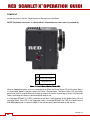
This section describes the available operational controls on the SCARLET-X camera Brain, Side SSD
Module, Side Handle and REDmote accessories.
BRAIN
A
A
B
C
A
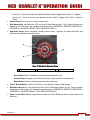
Power Status LED
B
Power / Record Button
C
Record Status LED
Figure 4: Power / Record Button / Status LEDs
•
Power / Record Button: Powers camera Up / Down and initiates Record Stop / Start
•
Power Status LED: Indicates Status of Power:
o
LED Red = Power Present
o
LED Yellow = Low Level Code Booting
o
LED Green = Running on AC
o
LED Green Blinking = Running on Battery
o
LED Yellow Blinking = Running on Battery below 10%
Version 3.0
955-0003_V3.0, REV-A
©2011-2012 RED.COM INC.
19
o
•
•
LED Red Blinking = Running on Battery Below 5%
Record Status LED: Indicates status of camera for recording:
o
LED Off = No Media
o
LED Green = Ready to Record
o
LED Red Constant = Recording
o
LED Red Slow Blink = Recording, 25% Media Left
o
LED Red Fast Blink = Recording, 5% Media Left
o
LED Yellow = Finalizing
Both LEDs: Indicates status of camera for recording:
o
Both LEDs Green Blink = FW Update in Progress
SIDE SSD MODULE
REAR
FRONT
E
B
C
A
D
A
SSD Slot
B
User Key 1
C
User Key 2
D
Focus / Record Button
E
Media Indicator
Figure 5: Side CF / SSD Controls
20
Version 3.0
©2011-2012 RED.COM INC.
MARCH 2, 20955-0003_v3.0, REV-A
•
SSD Slot: Slot for REDMAG 1.8” SSD Media.
•
User Key 1: Initiates user defined camera function. Undefined by Default.
•
User Key 2: Initiates user defined camera function. Undefined by Default.
•
User Key 1 + User Key 2 : Press both keys to Eject (unmount) REDMAG 1.8” SSD Media
•
Focus / Record Button: Touch for Auto Focus, fully depress to Start or Stop Record.
•
Media Indicator LED: Indicates status of media:
o
LED Off = No Media
o
LED Green = Ready to Record
o
LED Red Constant = Recording
o
LED Red Slow Blink = Recording, 25% Media Left
o
LED Red Fast Blink = Recording, 5% Media Left
o
LED Yellow = Finalizing
o
LED Yellow Blinking = Media Access (Format etc...)
Version 3.0
955-0003_V3.0, REV-A
©2011-2012 RED.COM INC.
21
SIDE HANDLE
TOP
B
A
C
E
D
F
A
Battery Release
D
LCD Menu Keys
B
Focus / Record Button
E
LCD Display
C
Adjustment Ring
F
LCD Backlight Button
Figure 6: RED Side Handle Controls - Top
•
Battery Door Release Button: Releases Side Handle battery door to permit battery exchange.
•
Focus / Record Button: Touch for Auto Focus, fully depress to Start or Stop Record.
•
Adjustment Ring: Selects and adjusts camera parameter values. Similar to the scroll wheel on the
navigation group.
•
LCD Menus Keys: Specific functions are defined by LCD screen.
1 – ISO
2 – F-Stop
•
LCD Display: Displays key camera parameter values.
•
LCD Backlight Button: Enables LCD backlight.
22
3 – Shutter Speed
4 – White Balance
Version 3.0
©2011-2012 RED.COM INC.
MARCH 2, 20955-0003_v3.0, REV-A
FRONT
A
A
Stills / Movie Slider
Figure 7: Side Handle Controls - Front
•
Stills / Movie Slider: Selects between STILLS and MOVIE modes of operation.
NOTE: This switch is not active at this time. Default camera operation is MOVIE
Version 3.0
955-0003_V3.0, REV-A
©2011-2012 RED.COM INC.
23
REAR
A
B
C
E
D
F
A
MENU Button
D
B
Rocker Switch
E
System Keys 1- 3
C
Navigation Group
F
Thumbwheel Lock
User Keys A-D
Figure 8: RED Side Handle Controls - Rear
•
Menu Button: Press to access / camera setup menus.
•
Rocker Switch: Increases or decreases selected value based on parameter selected in USER KEYs.
24
Version 3.0
©2011-2012 RED.COM INC.
MARCH 2, 20955-0003_v3.0, REV-A
•
Navigation Group: Allows navigation through camera menus, selection of camera parameter for
adjustment, and adjustment of selected camera parameter.
C
A
B
Figure 9: Side Handle Navigation Group
A
•
•
Scroll Wheel
B
Direction Keys
C
Enter Button
o
Scroll Wheel: Selects and adjusts camera parameter value.
o
Direction Keys: Navigates camera menus and may select parameter for adjustment.
o
Enter Button: Confirms selected parameter value adjustment.
User Keys: User Function Keys A-D (F). The specific function of these keys may be programmed by
the user. Default settings for User Function Keys A-D are as follow:
-
User Key A – Press to execute user defined function. Default: Toggles Focus Assist Indicator
-
User Key B – Press to execute user defined function. Default: Performs WB Calc
-
User Key C – Press to execute user defined function. Default: Toggles False Color > 1:1 Magnify
-
User Key D – Press to execute user defined function. Default: Toggles False Color > Exposure
Check
System Keys: Function is defined by System Firmware. The specific function of these keys may be
programmed by the user.
-
Upper: Toggles false color Exposure Check
-
Center: Not currently defined
-
Lower: Ejects (unmounts) the currently selected Media
Version 3.0
955-0003_V3.0, REV-A
©2011-2012 RED.COM INC.
25
INSTALLATION / REMOVAL
WARNING: THE SIDE HANDLE IS NOT HOT SWAPPABLE - MEANING YOU CANNOT REMOVE OR
INSTALL WHILE THE CAMERA IS POWERED ON. BEFORE INSTALLING OR REMOVING THE SIDE
HANDLE, YOU MUST POWER DOWN THE CAMERA. FAILURE TO DO SO MAY RESULT IN
DAMAGE TO THE SIDE HANDLE AND / OR CAMERA BRAIN THAT IS NOT COVERED BY
WARRANTY.
To install the side handle:
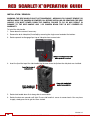
1. Power down the camera if necessary.
2. Remove the brain side plate (if installed) by removing the single screw located at the bottom.
3. Rotate upwards to disengage lip at top of side plate from camera brain.
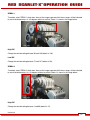
Remove screw and rotate side
plate upwards to remove.
4. Insert the lip at the top of the side handle into the area where the lip from the side plate was installed.
Insert lip into top of
camera brain.
Rotate thumbscrew
upwards until tight.
Press side handle flush
against camera brain.
5. Rotate side handle down flush along side of camera brain.
6. Rotate thumbscrew upwards until tight. Ensure side handle is secure to camera brain. You may have
to apply steady pressure to get the screw started.
26
Version 3.0
©2011-2012 RED.COM INC.
MARCH 2, 20955-0003_v3.0, REV-A
To remove the side handle:
1. Power down the camera if necessary.
2. Rotate the thumbscrew downwards until detached from camera body.
Disengage lip from top
of camera brain.
Rotate side handle
upwards to remove.
Rotate thumbscrew
downwards until loose.
3. Rotate upwards and pull down to disengage lip at top of side handle from camera brain.
4. Remove side handle from camera.
QUAD BATTERY MODULE
A
A
B
B
Figure 10: Quad Battery Module
A
Battery Status LED
B
Battery Eject Button
•
Battery Status LED: Indicate current status of corresponding battery.
•
Battery Eject Button: Ejects corresponding battery to permit battery exchange.
Version 3.0
955-0003_V3.0, REV-A
©2011-2012 RED.COM INC.
27
INSTALLATION / REMOVAL
WARNING: THE QUAD BATTERY MODULE IS NOT HOT SWAPPABLE - MEANING YOU CANNOT
REMOVE OR INSTALL WHILE THE CAMERA IS POWERED ON. BEFORE INSTALLING OR
REMOVING THE QUAD BATTERY MODULE, YOU MUST POWER DOWN THE CAMERA. FAILURE
TO DO SO MAY RESULT IN DAMAGE TO THE QUAD BATTERY MODULE AND / OR CAMERA
BRAIN THAT IS NOT COVERED BY WARRANTY.
To install the Quad Battery Module to the camera, an Adaptor plate must be purchased seperately. The
following procedure details installation of the Adaptor Plate and Quad Battery Module:
1. Power down the camera if necessary.
2. Remove the REDmote if necessary.
3. Install the Adapter Plate.
a. Place the adapter plate over the v-mount on the rear of the camera brain.
28
Version 3.0
©2011-2012 RED.COM INC.
MARCH 2, 20955-0003_v3.0, REV-A
b. Using a T-20 Torx, tighten the four (4) screws snug.
c. Tighten the screws again in a cross pattern until tight.
4
2
1
3
Version 3.0
955-0003_V3.0, REV-A
©2011-2012 RED.COM INC.
29
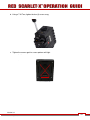
4. Install the Quad Battery Module
a. Insert the lip at the top of the battery module into the recess at the top of the adaptor plate.
Rotate Battery Module Down
Until Flush with Adaptor
Insert Lip At Top of Adaptor Plate
Similar to Side Handle Installation
b. Rotate battery module down flush with the rear of the adaptor plate.
30
Version 3.0
©2011-2012 RED.COM INC.
MARCH 2, 20955-0003_v3.0, REV-A
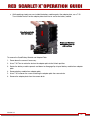
c. While applying steady pressure to hold the battery module against the adaptor plate, use a T-20
Torx to rotate the lock on the adapter plate clockwise to secure the battery module.
Press Battery Module
Flush with Adaptor
Rotate Lock Clockwise
Until Red Dot Lines Up
with Lock Icon
To remove the Quad Battery Module and Adaptor Plate:
1. Power down the camera if necessary.
2. Use a T-20 Torx to rotate the lock on the adapter plate to the Unlock position.
3. Rotate the battery module upwards and down to disengage lip at top of battery module from adaptor
plate.
4. Remove battery module from adapter plate.
5. Use a T-20 to loosen the screws attaching the adaptor plate the camera brain.
6. Remove the adaptor plate from the camera brain.
Version 3.0
955-0003_V3.0, REV-A
©2011-2012 RED.COM INC.
31
REDMOTE
This section describes the physical controls on the REDmote. For complete details on REDmote control,
refer to APPENDIX E: REDMOTE OPERATION.
IMPORTANT: For your REDmote to operate with this camera build version, ensure your REDmote
has been upgraded to the latest firmware. Refer to APPENDIX E: REDMOTE OPERATION >
MAINTENANCE > UPGRADING REDMOTE FIRMWARE.
C
D
A
L
K
E
H
I
B
M
F
N
G
J
Figure 11: REDmote Controls
A
Still/Motion Slider
F
User Keys A-D
K
Soft Menu Keys 4-8
B
Release Button (L)
G
MENU Button
L
Power/Lock Slider
C
Record LED
H
Soft Menu Keys 1-3
M
Release Button (L)
D
Power LED
I
Navigation Group
N
USB Connector
E
Rocker Switch
J
Focus / Record Button
•
Stills / Motion Slider: Allows selection of STILLS or MOVIE operational modes.
•
Rocker Switch: Provides continuous adjustment of parameter specified in USER KEYS menu.
•
User Keys: Press to initiate camera functions as defined in USER KEY menu.
Default settings for User Function Keys A-D are as follow:
32
-
User Key A – Press to execute user defined function. Default: Toggles Focus Assist Indicator
-
User Key B – Press to execute user defined function. Default: Toggles False Color > RAW Check
Version 3.0
©2011-2012 RED.COM INC.
MARCH 2, 20955-0003_v3.0, REV-A
-
User Key C – Press to execute user defined function. Default: Toggles False Color > 1:1 Magnify.
-
User Key D – Press to execute user defined function. Default: Toggles False Color > Exposure
Check
•
Menu Button: Press to access / camera setup menus.
•
Soft Menus Keys 1-3: Below the LCD are three (3) Soft Menu buttons 1-3 (H) whose functions are
defined on the LCD screen. For complete information refer to APPENDIX E: REDMOTE OPERATION >
OPERATION > REDMOTE MENUS > SOFT MENU BUTTONS 1-3.
•
Navigation Group: Allows navigation through camera menus, selection of camera parameter and
adjustment of selected camera parameter.
C
A
B
Figure 12: Side Handle Navigation Group
A
Scroll Wheel
B
Direction Keys
C
Enter Button
-
Scroll Wheel: Selects and adjusts selected camera parameter value.
-
Direction Keys: Navigates camera menus and may select parameter for adjustment.
-
Enter Button: Confirms selected parameter value adjustment.
•
Focus / Record Button: Touch for Auto Focus, fully depress to Start or Stop Record.
•
Soft Menus Keys 4-8: To the right of the LCD are five (5) Soft Menu buttons 4-8 (H). These are pages
displaying camera settings. For complete information refer to APPENDIX E: REDMOTE OPERATION >
OPERATION > REDMOTE MENUS > SOFT MENU BUTTONS 4-8.
•
Power / Lock Slider: Slide and hold down to power up / down REDmote and or camera. Slide up to
lock keys.
Version 3.0
955-0003_V3.0, REV-A
©2011-2012 RED.COM INC.
33
BOMB EVF
D
A
B
C
Figure 13: BOMB EVF
A
Focus Ring
B/C
Brightness Control
D
EVF Tally Light
•
Focus Ring: Adjusts optimal subject focus for your eye. Available diopter range is +2.0 to -5.0.
•
EVF User Key (B): Increases EVF display brightness.
•
EVF User Key (C): Decreases EVF display brightness.
NOTE: The specific function of EVF user keys (B/C) may be programmed by the user.
34
Version 3.0
©2011-2012 RED.COM INC.
MARCH 2, 20955-0003_v3.0, REV-A
TOUCHSCREEN LCD
B
A
C
Figure 14: RED Touchscreen LCD
A
Backlight Adjust
B
LCD User Key C
C
LCD User Key D
•
Backlight Adjust: Adjusts LCD backlight intensity. Upper button +, Lower button -
•
LCD User Key C (B): Press to execute user defined function. Default: Toggles False Color > 1:1
Magnify.
•
LCD User Key D (C): Press to execute user defined function. Default: Toggles False Color >
Exposure.
NOTE: The specific function of keys C and D may be programmed by the user.
NOTE: The touchscreen LCD also allows navigation of camera menus and selection and
adjustment of camera parameters by directly touching icons on the screen. Gestures supported
include:
•
Tap: Tap on an icon to bring up a quick adjustment display.
•
Hold: Touch and hold on an icon to bring up an advanced interface display.
•
Slide: Touch and slide on an icon to increment a value.
•
Pinch: Touch with two fingers, then open or close to magnify or normalize the video image.
Version 3.0
955-0003_V3.0, REV-A
©2011-2012 RED.COM INC.
35
BASIC OPERATION
This section describes basic operation, starting from power up, Viewfinder layout and Menu navigation.
WARNING: THE SIDE HANDLE, SIDE SSD MODULE, REAR MODULES AND LENS MOUNT ARE NOT
HOT SWAPPABLE – MEANING YOU CANNOT REMOVE OR INSTALL THEM WHILE THE CAMERA IS
POWERED ON. BEFORE INSTALLING OR REMOVING ANY OF THESE ACCESSORIES, YOU MUST
POWER DOWN THE CAMERA. FAILURE TO DO SO MAY RESULT IN DAMAGE TO THE
ACCESSORY AND / OR CAMERA BRAIN THAT WILL NOT BE COVERED UNDER WARRANTY.
POWER SOURCES
SIDE HANDLE
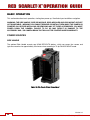
The optional Side Handle accepts one 30Wh REDVOLT® battery, which can power the camera and
typical accessories for approximately 30 minutes when recording in 12 fps RAW 5K MOVIE mode.
Figure 15: Side Handle Battery Compartment
36
Version 3.0
©2011-2012 RED.COM INC.
MARCH 2, 20955-0003_v3.0, REV-A
QUAD BATTERY MODULE
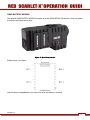
The optional QUAD BATTERY MODULE accepts up to four 30Wh REDVOLT® batteries, which can power
the camera and typical accessories.
Figure 16: Quad Battery Module
Battery layout is as shown:
Uses the lowest charged battery first when more than one battery is installed.
Version 3.0
955-0003_V3.0, REV-A
©2011-2012 RED.COM INC.
37
Called out as Rear Module (RM Bx) Bay number on lower UI and Rear 1-4 in POWER status.
LED on Battery module flashes showing the battery currently being used (even if only one battery, LED will
flash).
Current battery LED indicates status as follow:
•
LED Off = No Battery
•
LED Constant Green = Battery Not used but Charged
•
LED Green Blinking = Battery Used (100% - 11%)
•
LED Yellow Blinking = Battery (10% - 6%)
•
LED Red Blinking = Battery (5%- 1%)
•
LED Constant Red = Battery Discharged
Remaining batteries will have a steady LED on module.
When current battery reaches 4% charge, the battery module will switch to next battery with the lowest
charge (if installed).
Display shows battery location in lower UI. In this case RM (Rear Module) B1 (Bay 1).
38
Version 3.0
©2011-2012 RED.COM INC.
MARCH 2, 20955-0003_v3.0, REV-A
Also shows battery location and status on REDmote. In this case RM (Rear Module) B3 (Bay 3).
POWER shows installed batteries and state of charge.
EXTERNAL DC POWER
SCARLET-X accepts input voltages between 11.5V - 17V D.C and can draw a maximum current of 12
Amps.
•
An appropriate 150W supply with DC output rated at 15V 10A such as AC Power Adapter P/N 7400019 available from RED DIGITAL CINEMA.
•
RED Charger. For RED Charger you must use 2B-to-1B Power Adapter Cable P/N 790-0138.
•
RED BRICK® 140Wh batteries may be used with Backpack Quickplate, RED Quickplate, Battery Belt
Clip, or RED Cradle via 2B-to-1B Power Adapter Cable P/N 790-0138.
•
4-pin XLR DC power sources may be used with the camera via adaptor cable P/N 790-0164.
Version 3.0
955-0003_V3.0, REV-A
©2011-2012 RED.COM INC.
39
POWER UP
Locate the camera’s Power / Record button on the right face of the Brain.
NOTE: This button also serves as a Record Start / Stop button once the camera is powered up.
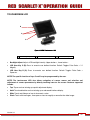
A
B
C
A
A
Power Status LED
B
Power / Record Button
C
Media Status LED
Figure 17: Power / Record Button / Status LEDs
When an appropriate power source is connected to the Brain, the Power Status LED will illuminate Red. If
it is illuminated, depress and then release the Power / Record button. The Power Status LED will initially
go out and within 5 seconds illuminate Orange to confirm the camera is powering up, then it will illuminate
Green, confirming the camera is powered up and ready to use.
If a formatted REDMAG 1.8” SSD is attached to the Brain, once powered up the Media Status LED will
illuminate Green. If this LED is not illuminated, verify a formatted REDMAG 1.8” SSD is inserted into the
Side SSD Module and / or format the SSD if it has not previously been formatted on the camera.
40
Version 3.0
©2011-2012 RED.COM INC.
MARCH 2, 20955-0003_v3.0, REV-A
NOTE: Once powered up, if the Power Status LED illuminates Red, it indicates low remaining
battery capacity and a battery exchange or switch over to external DC power is recommended.
POWER DOWN
The camera can be powered down in two ways:
1. Using REDmote or Side Handle Menu controls, or via Touch Screen LCD icons. Refer to SECONDARY
MENUS > POWER.
2. Depress and continue to hold the Power / Record button in its fully depressed position for a minimum
of 5 seconds. When the button is released, INITIATING CAMERA SHUTDOWN will display and camera
will power down.
After Power Down, the Power Status LED will illuminate Red, if an appropriate power source is available.
Version 3.0
955-0003_V3.0, REV-A
©2011-2012 RED.COM INC.
41
GRAPHICAL USER INTERFACE AND NAVIGATION
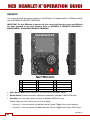
RED LCD/TOUCHSCREEN LCD, BOMB EVF, EXTERNAL MONITORS
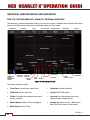
The following is a general description of the structure of the camera’s Graphical User Interface (GUI) which
overlays the video monitor signal on the Viewfinder output(s) of the camera.
FRAME RATE
F STOP
ISO RATING
SHUTTER SPEED
WHITE BALANCE
FRAME GUIDE
LENS INFO
RESOLUTION
QUALITY
TITLE GUIDE
ACTION GUIDE
PICTURE CENTER
OVERLAY GRID
HDRx MODE
FALSE COLOR MODE
TEMPERATURE
NEXT CLIP
FILENAME
TC
DROP
REDMOTE
LAN
MEDIA
SOURCE / STATUS
TIMECODE
HISTOGRAM
RESOLUTION /
PROJECT
FRAME RATE /
QUALITY
RAW NOISE
LEVEL BAR
RIG STATUS
RAW CLIP
LEVEL BAR
RAW CLIP
METER
FAN
SPEED
GENLOCK
MAGNIFY
JAMSYNC
POWER
SOURCE / STATUS
AUDIO METER
Figure 18: GUI Display Elements
The display elements include:
•
Frame Rate: Current frame capture rate
•
Resolution Record Resolution
•
ISO Rating: Camera sensitivity
•
Quality: REDCODE setting
•
F Stop: Functional when optional mount and
lens are installed
•
Lens Info: Lens information when using
specific Canon or Cooke lenses.
•
Shutter Speed: Exposure Time (or Degrees)
•
•
White Balance: Color Temp
Cursors: Reference cursors – Safe Action /
Safe Title, Picture Center, Grid Overlay
42
Version 3.0
©2011-2012 RED.COM INC.
MARCH 2, 20955-0003_v3.0, REV-A
•
Frame Guide: Record or Projection area
•
•
Next Clip Filename: Filename of the clip that
will be shot next
Genlock: Indicates presence of valid
Genlock signal / sensor sync to genlock
•
•
Project Frame Rate: Current project TIME
BASE
Jam Sync: Timecode Jam Sync status / time
code jam
•
RM: Indicates communication to REDmote
•
Noise Level Bar: Relative number of RAW
pixels in noise
•
LAN: Indicates communication via Ethernet
connection
•
Histogram: RGB Histogram.
•
RIG: Indicates 3D rig metadata is present
•
Clip Level Bar: Relative number of RAW
pixels near clip
•
Media Status: Media location and remaining
media capacity in %
•
Clip Meter: RGB sensor RAW clipping status
•
•
Temperature: Displays camera sensor and
core temperature in that order (xx/xxC)
Power: Indicates D.C supply voltage or % of
remaining battery capacity Including current
supply voltage
•
Drop: Indicates if any frames were dropped
during recording of the clip
•
Audio Meter: Audio input selection and
levels
•
Fan Speed: Displays fan speed in %
•
Timecode: Current timecode value
•
HDR Mode: Displays HDRx mode status
•
•
False Color Mode: Displays false color
overlay mode
Menu ICON
: In the upper Right corner
on the touchscreen LCD - Opens the
Secondary Menus
•
Playback ICON : In the upper Left corner
on the touchscreen LCD - Accesses the
Playback Function
•
Magnify: Tallies 1:1 if magnify is selected
•
TC: Indicates presence of valid SMPTE
timecode signal
Version 3.0
955-0003_V3.0, REV-A
©2011-2012 RED.COM INC.
43
The GUI is broken down into the following three main sections: the Upper Status Row, the Live Action
Area, and the Lower Status Row. On VIEWFINDER output(s), all three sections are visible, on PREVIEW
outputs only the Live Action Area and associated graphic overlays are visible. On PROGRAM outputs,
none of the graphic overlays are visible, i.e. a PROGRAM output is defined to be a CLEAN FEED output.
UPPER STATUS ROW
Provides immediate feedback on the most critical image composition parameter settings, including (from
Left to Right):
•
Playback Access (Touchscreen)
•
White Balance
•
Current frame capture rate
•
Record Resolution
•
ISO Rating
•
Record Quality
•
Shutter Speed (or Shutter Angle)
•
Secondary Menus Access (Touchscreen)
Whichever parameter is underlined with a red bar may be immediately adjusted by pressing ENTER in the
Navigation Group of the Side Handle or REDmote, then using the Scroll Wheel to change the value of that
parameter. To confirm the parameter change press ENTER a second time.
NOTE: Shutter angle is displayed in Relative mode by default, as indicated by Yellow text.
If the red bar is not on the parameter you wish to change, first use the Scroll Wheel to position the red bar
under that parameter, then press ENTER, adjust with the Scroll Wheel and press ENTER a second time to
confirm the value change.
In the above GUI example, the Scroll Wheel has been used to move the red cursor to the Shutter Speed
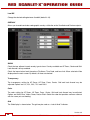
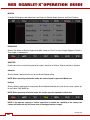
parameter; and the ENTER key has been pressed. This reveals the Parameter Adjust Widow. Adjust the
value using the Scroll Wheel and then press ENTER to confirm the value change, then close the submenu.
44
Version 3.0
©2011-2012 RED.COM INC.
MARCH 2, 20955-0003_v3.0, REV-A
LIVE ACTION AREA
Contains the recorded image area plus Surround View™ look around area, plus overlays for Frame Guide,
Safe Action / Safe Title and the current Clip Name and Timecode values. Each overlay may be color
coded in one of 5 colors to maximize the contrast between the guide(s) and scene being captured.
LOWER STATUS ROW
The Lower Status Row provides feedback on key systems level camera values, including:
• Clip Settings
• Temperature, Power and Sync
• Power Status
• Exposure (Histogram)
• Media Status
• Audio Levels
ICON BEHAVIOR
TC
•
TC Gray - No analog time code is currently detected.
•
TC Red - Analog time code is being detected, but the use of it is not enabled.
•
TC Green - Analog time code is being used to jam the time of day time code. TC will revert to gray if
the signal is no longer detected.
GEN
•
GEN Gray - No genlock signal is currently detected.
Version 3.0
955-0003_V3.0, REV-A
©2011-2012 RED.COM INC.
45
•
GEN Green - A genlock signal compatible with the current project and monitor rates has been locked
to.
SYNC
•
SYNC Gray - The sensor sync mode is not Genlock.
•
SYNC Red - The sensor sync mode is Genlock, but it is not locked to any genlock signal.
•
SYNC Green - A genlock signal compatible with the current project and monitor rates has been locked
to and the sensor timing is also locked to it.
POWER STATUS
If powering camera through DC power, the current voltage will be displayed.
If using a REDBRICK or similar external battery to power the camera through DC IN, power status
displays the current supply voltage available from the battery. Supply voltage decreases as battery is
discharged, the displayed text is color coded as follows:
•
Green = 12.0 V and up
•
Yellow = 11.9 – 11.8 V
•
Red = 11.7 – 11.6 V
NOTE: The camera will automatically power down if supply voltage drops to 11.5 Volts.
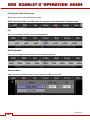
If using a REDVOLT battery in the Side Handle or Battery Module to power the camera, power status
displays the location of the power source (example: SH: Side Handle; RM: Rear Module) and reports the
% of remaining battery capacity and the displayed text is color coded as follows:
•
Green = 99% - 11%
•
Yellow = 10% - 6 %
•
Red = 5% - 0%
If using a RED BRICK battery connected to DC IN, power status displays BRICK and reports the % of
remaining battery capacity and the displayed text is color coded as follows:
•
46
Green = 99% - 11%
•
Yellow = 10% - 6 %
•
Red = 5% - 0%
Version 3.0
©2011-2012 RED.COM INC.
MARCH 2, 20955-0003_v3.0, REV-A
RAW CLIP METER
The RAW Clip meter looks a traffic light style meter and indicates if either of the Red, Blue or
Green channels of the RAW sensor data are clipping. This meter is unaffected by White Balance,
ISO, VIEW or LOOK settings and therefore represents a true measurement of the exposure
levels of the sensor at all times.
RAW NOISE LEVEL BAR
The RAW noise level bar displays the amount of pixels in the image that are in noise. For example, if the
bar is about 1/8 of the total height, this would indicate approximately 1/8 of the total pixels in the image
are at an exposure level at risk of displaying noise when pushed at higher ISO or FLUT values in
postproduction.
RAW CLIP LEVEL BAR
The RAW clip level bar displays the amount of pixels in the image that are clipping. For example, if the bar
is about 1/4 of the total height, this would indicate approximately 1/8 of the total pixels in the image are at
an exposure level at risk of clipping and may not be recoverable by lowering ISO or FLUT values in
postproduction.
Version 3.0
955-0003_V3.0, REV-A
©2011-2012 RED.COM INC.
47
SIDE HANDLE
As you navigate and adjust settings on the camera (main menu settings only), they will be reflected on the
Side Handle LCD display.
The display elements include:
•
Power: Camera power status (DC Shown)
•
ISO Rating: Camera sensitivity
•
Frame Rate: Image capture rate
•
Shutter Speed: Exposure Time (or Degrees)
•
Resolution Recording Resolution
•
White Balance: Color Temp
•
Quality: REDCODE setting
•
Resolution Recording Resolution
•
Quality: REDCODE setting
•
Frame Rate: Image capture rate
•
ISO Rating: Camera sensitivity
REDMOTE
The display elements include:
•
Camera ID: Displays camera ID (DEFAULT
shown)
•
Wireless Status: Displays signal strength
when connected wirelessly
•
Battery Indicator: Displays battery life or
charge status (shown) of REDmote
48
Version 3.0
©2011-2012 RED.COM INC.
MARCH 2, 20955-0003_v3.0, REV-A
•
Frame Rate: Current frame capture rate
•
Gen: Indicates presence of valid Genlock
signal
•
Shutter Speed: Exposure Time (or Degrees)
•
White Balance: Color Temp
•
Sync: Timecode Jam Sync status
•
Resolution Record Resolution
•
RIG: Indicates 3D rig metadata is present
•
Quality: REDCODE setting
•
LAN: Indicates communication via Ethernet
connection
•
Clip Filename: Filename of the clip that will
be shot
•
Media Status: Media location and remaining
media capacity in %
•
Project Frame Rate: Current project TIME
BASE
•
•
Clip Meter: RGB sensor RAW clipping status
Power: Indicates D.C supply voltage or % of
remaining battery capacity Including current
supply voltage
•
HDR Mode: Displays HDRx mode status
•
Audio Meter: Audio input selection and
levels
•
False Color Mode: Displays false color
overlay mode
•
Timecode: Current timecode value
•
Magnify: Tallies 1:1 if magnify is selected
•
Histogram: Displays histogram
•
TC: Indicates presence of valid SMPTE
timecode signal
NAVIGATING MENUS
The primary method to navigate Menus is via the Scroll Wheel on the REDmote or Side Handle. Rotate
clockwise to move right, counter clockwise to move left. However, the Left and Right direction Navigation
Keys (REDmote or Side Handle) or Adjustment Ring (Side Handle) may also be used for this purpose.
The Up and Down direction Navigation Keys provide additional navigation functions when pressed:
UP
Selects Advanced Settings menu.
DOWN Selects standard Settings menu.
As an example, position the Cursor under the Shutter Speed (24FPS) icon and press the UP Direction Key
to access advanced adjustment values for Shutter Speed.
Version 3.0
955-0003_V3.0, REV-A
©2011-2012 RED.COM INC.
49
USING TOUCHSCREEN LCD
If operating a Touchscreen LCD, camera menu navigation may be made through finger gestures.
•
To adjust a parameter value, simply touch it, and then swipe the finger left / right to adjust its value.
•
To access an advanced parameter settings display, press and hold down on the parameter icon.
•
Touch anywhere outside the overlay windows to enter the value changes and to hide the sub-menus.
•
To enter the Secondary Menus, touch the MENU icon.
•
To return to the Main Menus, touch the MENU icon again.
•
To access the Playback function, touch the arrow.
•
To exit the Playback function, touch the circle.
SHORTCUTS
Along the lower status row, menu items can be accessed by simply touching that section of the screen.
NOTE: The upper menu options do not change when you select the below items. You are taken
directly inside of that menu item.
•
Touching Clip Settings at the lower Left corner of the LCD will display the System Status screen. Refer
to SECONDARY MENUS > SETTINGS > MAINTENANCE > SYSTEM STATUS for complete
information.
•
Touching the RGB Histogram will bring up the False Color overlay menu. Refer to SECONDARY
MENUS > SETTINGS > DISPLAY > FALSE COLOR for complete information.
•
Touching System Status in the lower Center of the screen will bring up the Settings menu. Refer to
SECONDARY MENUS > SETTINGS for complete information.
•
Touching Media Status indicator will bring up the Media menu. Refer to SECONDARY MENUS >
MEDIA for complete information.
•
Touching Power Status indicator will bring up the Power menu. Refer to SECONDARY MENUS >
POWER for complete information.
50
Version 3.0
©2011-2012 RED.COM INC.
MARCH 2, 20955-0003_v3.0, REV-A
•
Touching the Audio Meter will display the Audio Input menu. Refer to SECONDARY MENUS >
SETTINGS > AUDIO/VIDEO for complete information.
POWER DOWN
NOTE: Camera will automatically power down if supply voltage drops to 11.5 Volts.
THROUGH POWER MENU
1. Select the MENU icon
Menus.
in the right corner of the Upper Status Bar to reveal the Secondary
2. Select POWER.
3. Select SHUTDOWN.
4. The camera will immediately power down.
USING POWER STATUS DISPLAY
1. Select the POWER status located between the audio channels and media remaining indicator, to
reveal the same menu illustrated above.
2. Select SHUTDOWN.
3. The camera will immediately power down.
Version 3.0
955-0003_V3.0, REV-A
©2011-2012 RED.COM INC.
51
LOCK / UNLOCK TOUCHSCREEN OPRERATION
LOCK
To lock out the touchscreen operation, touch and hold the MENU icon
until the LOCK icon
displays; indicating the touchscreen has been locked out. When locked, the main menu will be displayed.
UNLOCK
To unlock out the touchscreen and allow normal operation, touch and hold the LOCK icon
MENU icon
displays; indicating the touchscreen has been unlocked.
52
until the
Version 3.0
©2011-2012 RED.COM INC.
MARCH 2, 20955-0003_v3.0, REV-A
FIRST TIME USE – SETTING UP YOUR RED SCARLET-X
1. ATTACH POWER SOURCE
If a REDVOLT battery is installed in the Side Handle and DC power is connect through the DC IN
connector, the DC IN power supply has priority and will power the camera instead of the battery.
BATTERY
Connect a RED battery to the camera in one of the following ways:
SIDE HANDLE
Attach a Side Handle and insert a REDVOLT battery.
A
C
B
INSTALL
1. Press the battery door release button (A).
2. Open battery door (B).
3. Press upwards on retainer (C).
4. Insert a REDVOLT battery until it is fully seated and retainer (C) clicks into place.
5. Close battery door.
Version 3.0
955-0003_V3.0, REV-A
©2011-2012 RED.COM INC.
53
REMOVE
1. Press the battery door release button (A).
2. Open battery door (B).
3. Press upwards on retainer (C) to release battery.
4. Remove battery from side handle.
QUAD BATTERY MODULE
Attach a Quad Battery Module and insert one or more REDVOLT® batteries.
INSTALL
Insert battery into desired location and press until a click is heard and battery is seated.
REMOVE
B
B
A
1. Press the battery eject button (A) for desired battery.
2. When battery pops out, remove battery from battery module (B).
54
Version 3.0
©2011-2012 RED.COM INC.
MARCH 2, 20955-0003_v3.0, REV-A
RED BRICK
Attach to the camera using a V-Plate and 2B-to-1B Power Adapter Cable P/N 790-0138 to the DC IN
connector.
DC POWER
Connect a DC power source to the camera in one of the following ways:
•
Plug the RED AC Power Adapter into AC power, and the LEMO connector to the DC IN connector.
•
Plug the RED CHARGER into AC power, and the LEMO connector to the DC IN connector via 2B-to1B Power Adapter Cable P/N 790-0138.
•
Plug a 12V XLR based power source into the DC IN connector via adaptor cable P/N 790-0164.
NOTE: The maximum sustainable power load of the SCARLET-X AC Power Adapter is 150W
(15V@10A). The output of the adapter is over current protected, and will shut down if an excess
load condition occurs. If the output trips for any reason, remove any external loads from the
camera, such as lights, motors etc, turn off the Adapter and repeat the above procedure.
2. POWER UP
Locate the camera’s Power ON / OFF button on the right face of the Brain. If the Power Status LED is
illuminated Red, depress and then release the Power / Record button. If not illuminated, check your
battery charge status or external power source cable connection. Once powered up the Power Status
LED will illuminate Green, confirming the camera is ready to use.
3. PREPARING TO RECORD
Before each days recording, the camera should be prepared as follows:
-
Physically set-up camera as desired.
-
Verify camera is using the latest firmware version at www.RED.com/support and if appropriate,
upgrade the camera firmware. Refer to APPENDIX A: UPGRADING CAMERA FIRMWARE.
-
Insert a blank (or previously used but erasable) REDMAG 1.8” SSD and format it.
-
Perform a BLACK SHADING CALIBRATION of the Sensor.
-
Check your PROJECT SETTINGS (Time Base, Record Resolution, Record Quality, etc.).
-
Frame, focus and record.
CONNECT AND FORMAT MEDIA
Identify a REDMAG 1.8” 64GB, 128GB or 256GB SSD that has not previously been recorded to, or is not
a camera master and may therefore be erased and re-used. Aligned the RED logo of the SSD to the
outside, and then push the SSD firmly, but without excessive force, into the slot in the Side SSD Module.
Version 3.0
955-0003_V3.0, REV-A
©2011-2012 RED.COM INC.
55
NOTE: When fully inserted, the SSD media protrudes slightly from the SSD slot as indicated above.
When SSD media is inserted into the camera, the camera will recognize if the media is unformatted:
-
On LCD, EVF and external monitors, in the media section of the GUI, NONE will be displayed twice (as
opposed to when no media is inserted, the GUI displays NONE with three dashes below “---“).
-
On REDmote, NONE will be displayed twice (as opposed to when no media is inserted, the GUI
displays NONE with three dashes below “---“).
-
On the Side Handle, NA will be displayed (same as if no media is present).
To format the media select SECONDARY MENUS > MEDIA > FORMAT MEDIA.
When FORMAT is selected, a SLATE dialog box will appear allowing you to add Camera Identity and 3D
Position properties when formatting. When desired options are set, select FORMAT.
NOTE: If any clips will be erased on the attached media, you will be informed of the number.
PERFORM A BLACK SHADING CALIBRATION
Refer to SECONDARY MENUS > SETTINGS > MAINTENANCE > CALIBRATION for complete details for
performing a Black Shading Calibration.
56
Version 3.0
©2011-2012 RED.COM INC.
MARCH 2, 20955-0003_v3.0, REV-A
ADJUST PROJECT SETTINGS
TIME BASE
To adjust the project TIME BASE, press the MENU button on the Side Handle or REDmote. Then use the
Scroll Wheel or Direction Keys to navigate to SETTINGS > PROJECT > TIME BASE and press ENTER.
Adjust to the desired value using the Scroll Wheel and press ENTER once more to confirm.
If using a Touch Screen, select SECONDARY MENUS > SETTINGS > PROJECT > TIME BASE. Adjust by
sliding your finger up / down or tapping on the desired value, and then press anywhere else on the touch
screen to confirm.
The following TIME BASES are currently available:
• 23.98 fps
• 25.00 fps
• 47.96 fps
• 50.00 fps
• 24.00 fps
• 29.97 fps
• 48.00 fps
• 59.94 fps
NOTE: A project can only support one Time Base as this defines the frame count to be used for
time code and as the clip playback and editing frame rate. It is also the primary frame rate for
acquisition, but variable speed (over-crank and under-crank) recordings can be made above and
below this base frame rate using the VARISPEED menu.
RECORD RESOLUTION
Version 3.0
955-0003_V3.0, REV-A
©2011-2012 RED.COM INC.
57
To adjust Record Resolution, navigate the Cursor to the RESOLUTION icon in the Upper Status Row and
press the Navigation Group ENTER key. Adjust to the desired value using the Scroll Wheel and press
ENTER a second time to confirm.
If using a Touch Screen, press the RESOLUTION ICON, adjust RESOLUTION by sliding your finger left /
right, or tap on the desired resolution, and then press anywhere else on the touch screen to confirm.
The following Recording Resolutions are currently available:
• 5K
• 4K
• 4K HD
• 3K
• 2K
RECORD QUALITY (REDCODE)
To adjust Record Quality, navigate the Cursor to the QUALITY (RC) icon using the Navigation Group
Scroll Wheel, then press the ENTER key. Adjust to the desired value using the Scroll Wheel and then
press ENTER to confirm. Available REDCODE compression options are RC 3:1 through RC 18:1.
If using a Touch Screen, press the QUALITY icon, adjust the REDCODE value by sliding your finger left /
right or tap on the desired value, and then press anywhere else on the touch screen to confirm.
Default value for REDCODE is 8:1.
CAMERA ID (SLATE)
If operating on a multi-camera production, enter a different Camera ID for each camera; otherwise skip
this step; the camera is ready to shoot.
The Camera ID is set when the media is formatted. Refer to ADVANCED MENU > MEDIA for details.
4. RECORDING
Ensure a formatted REDMAG 1.8” SSD is inserted in the camera’s Side SSD Module, then fully depress
any one of the RECORD buttons located on the Brain, Side SSD Module, Side Handle or REDmote.
Fully depress again to stop recording. The camera will automatically create a unique and sequential file
name for each clip recorded on the SSD based on the Camera’s I.D set in the MEDIA menu.
REDCODE RAW data recordings store the Color Temperature and Exposure (ISO) and any RGB color
processing values you use in the monitor path as metadata. This metadata is used in REDCINE-X or
other postproduction software as initial white balance, exposure and color correction points however,
you are free to change these values at any time when you process the RAW footage.
Time Code and Edge Code values used by the camera are Non Drop Frame (NDF); Drop Frame (DF) is
not supported. Audio is captured uncompressed at 24-bit resolution, 48KHz sample rate per channel.
58
Version 3.0
©2011-2012 RED.COM INC.
MARCH 2, 20955-0003_v3.0, REV-A
Digital media such as REDMAG 1.8” SSDs are very robust, but should be treated with equal care as
exposed film or a videotape master. We recommend storing digital media that contains your footage in a
secure location and backing up the data to a digital archival media, such as data tape or hard disk drive.
RECORD INDICATOR
When recording, the RED SCARLET-X camera provides a variety of record indications (tallies):
-
Timecode, normally displayed in white colored text, will be displayed in red colored text.
-
A small Red dot will appear in the top right corner of the VIEWFINDER output(s).
-
The REC LED on the right side of the camera Brain will illuminate Red.
-
REDmote upper LED will illuminate Red, and the Timecode will turn Red.
-
If using a BOMB-EVF, the LED on the front will illuminate Red if Tally is enabled
-
SMPTE-RP188 timecode VITC-2 HANC metadata record flag will be enabled on HD-SDI outputs.
-
If enabled in the USER KEYS menu, the GPO trigger output in the CNTL connector will pulse.
5. PLAYBACK
Playback is available on RED SCARLET-X. Playback is accessed by going to SECONDARY MENUS >
SETTINGS > PLAYBACK or by touching the Playback arrow icon in the upper Left corner of the GUI.
Version 3.0
955-0003_V3.0, REV-A
©2011-2012 RED.COM INC.
59
The Playback function will display.
For complete details, go to SECONDARY MENUS > SETTINGS > PLAYBACK.
Version 3.0
60
©2011-2012 RED.COM INC.
MARCH 2, 20955-0003_v3.0, REV-A
MENU CONTROLS
Displayed in the Upper Display Group of the VIEWFINDER output(s), are FRAMERATE (FPS),
EXPOSURE (ISO), _._ (F/Stop), WHITE BALANCE, RESOLUTION, and QUALITY (REDcode). These
parameters are adjustable directly through this screen. When using the touchscreen, directly to the right
of these parameters is the MENU icon
which when pressed will take you to the secondary camera
set up menus.
ADJUSTMENTS
BASIC SETTING ADJUSTMENTS
SIDE HANDLE / REDMOTE
•
The MENU button can be used to ENTER the secondary menus, as well as CANCEL inside lists and
for navigating back up menus.
•
Navigate to the desired setting using the NAVIGATION GROUP direction keys and press ENTER.
•
Use the Scroll Wheel or Adjustment Ring to increase or decrease the parameter value.
•
When the desired value has been selected, press ENTER to set.
BASIC ADJUSTMENTS USING SIDE HANDLE ONLY
Although not recommended, the Side Handle can be used stand alone to make basic adjustments to
FPS, ISO, Shutter Speed, Resolution and REDcode located on the Main Menu screen. Use the
Navigation Group to make these adjustments while watching the cursor placement under the desired
setting on the side handle LCD. When desired setting is selected, press the Enter button to access, then
use the Scroll Wheel, Directional Pad or Adjustment Ring to make changes. When done, press the Enter
button again to set the changed parameter. The MENU button can be used to ENTER the secondary
menus, as well as CANCEL inside lists and for navigating back up menus.
TOUCHSCREEN
•
The MENU ICON can be used to ENTER the secondary menus, as well as CANCEL inside lists and
for navigating back up menus.
•
Touch the desired parameter for adjustment.
•
Slide your finger across the screen to scroll through the available parameter values.
•
When desired the parameter value has been selected, touch anywhere in the screen area to set.
Version 3.0
955-0003_V3.0, REV-A
©2011-2012 RED.COM INC.
61
•
To close an alpha numeric keypad when entering information directly, tap anywhere on the screen
outside the keypad.
ADVANCED SETTING MENUS
At this time, only FRAMERATE, F-STOP, SHUTTER SPEED and WHITE BALANCE on the MAIN MENU
have advanced settings and
SIDE HANDLE / REDMOTE
1. Navigate to the desired setting using the NAVIGATION GROUP direction keys and then press the UP
directional key.
2. Use the direction keys to navigate to the desired parameter adjustment field and press ENTER to
confirm.
3. Use the Scroll Wheel to adjust the selected parameter value.
4. When desired selection is made, press the MENU button to set.
TOUCHSCREEN
1. Press and hold the desired parameter to gain access to advanced setting adjustments.
2. Press the field - a keypad type menu may appear to allow adjustments.
3. Press the desired parameter settings to adjust.
4. When desired selection is made, press anywhere in the screen area to set and exit the advanced
settings submenu.
Version 3.0
62
©2011-2012 RED.COM INC.
MARCH 2, 20955-0003_v3.0, REV-A
MAIN MENU
Available options under the MAIN MENU are FRAMERATE (FPS), ISO (SENSATIVITY), F STOP, 1/SEC
(EXPOSURE), WHITE BALANCE, RESOLUTION, and QUALITY (REDcode).
FPS
Used to select an image capture frame rate that differs from the Project’s TIME BASE frame rate.
Ranges are as follows:
•
0.5 to 60 fps at 2K
•
0.5 to 30 fps at 4K / 4K HD
•
0.5 to 48 fps at 3K
•
0.5 to 12 fps at 5K
Default is 24 fps (or the selected Project TIME BASE frame rate if not 23.98 or 24.00 fps). 1 sec
translates to 1 second per frame.
Available frame rate is dependent on Resolution and REDcode settings. Refer to RECODE > REDCODE
OPTIONS FOR VARIOUS FRAME RATES table.
VARISPEED
When a frame rate other than the current TIME BASE has been selected, the FPS text will turn Yellow
and VARISPEED will be shown where the Audio Meter is normally displayed at the lower right of the
display.
Version 3.0
955-0003_V3.0, REV-A
©2011-2012 RED.COM INC.
63
If you press record with a frame rate set too high for the selected record quality, you will be prompted to
allow the camera to change the REDCODE setting to the maximum quality that enables that frame rate.
REDmote will also display this message.
BASIC SETTINGS
Provides quick selection of the most common Varispeed frame rates.
ADVANCED SETTINGS
When selected a numerical keypad will appear allowing the desired Varispeed Framerate to be entered
in 1 fps increments. Maximum frame rate is a function of RECORD RESOLUTION and REDCODE
settings. Granularity is 0.5 FPS.
On Touchscreen systems, a Keypad is available for direct numeric entry of the Varispeed FPS value.
Touch the value bounded by the + and – labels to bring up, press outside the keypad to confirm the
value.
Version 3.0
64
©2011-2012 RED.COM INC.
MARCH 2, 20955-0003_v3.0, REV-A
ISO (SENSITIVITY)
Adjusts the camera’s ISO rating. The sensitivity value is adjustable in 1/3rd stop increments. When the
ISO rating is adjusted, the camera logs the change as metadata and the monitor path reacts
accordingly. Higher ISO values lead to brighter images in the monitor path, and vice versa.
Range is ISO 250 – 12800
Default is ISO 800
-.- (F STOP)
Aperture controls the depth of field of the subject imaged by the camera, and in combination with the
shutter speed / angle setting controls the amount of light falling on the sensor. i.e. exposure. Increasing
the F stop to a higher number reduces exposure as well as increases the depth of field, decreasing the F
stop to a lower number increases the exposure and decreases the depth of field. You can chose either
1/3 or 1/4 stops.
RED SCARLET-X DSMC TI PL MOUNT INSTALLED
When a lens equipped with Cooke’s S4/i system is attached to the DSMC Ti PL Mount, the camera will
display the current aperture (F stop) of the attached lens. This is for information only and on-camera
adjustment is NOT available, manual adjustment only as indicated by being Grayed out.
DSMC CANON MOUNT INSTALLED
This menu will appear when a DSMC Canon Mount is installed and a Canon EF or EF-S Lens or
equivalent is attached (a Non-Canon EF or EF-S Lens may not function as smoothly or accurately).
Adjusts the aperture (F stop) of the attached lens.
The attached lens for the example shown is a Canon EF 24-70mm.
Version 3.0
955-0003_V3.0, REV-A
©2011-2012 RED.COM INC.
65
BASIC SETTINGS
Allows adjustment of the aperture (F stop) of the attached lens. The range will vary depending on the
attached lens.
ADVANCED SETTINGS
When selected, the advanced settings menu allows fine control over the f-stop value under APERTURE
and focal distance under FOCUS.
APERTURE (F STOP)
Provides the ability to enter the F stop value directly.
Range depends on attached lens.
Default depends on attached lens.
Version 3.0
66
©2011-2012 RED.COM INC.
MARCH 2, 20955-0003_v3.0, REV-A
FOCUS
Provides the ability to enter the focal distance directly.
Range depends on attached lens.
Default depends on attached lens.
1/SEC (EXPOSURE)
BASIC SETTINGS
Adjusts the exposure of each frame captured by the MYSTERIUM X sensor. Shutter speed presets are
provided for all common speeds (and shutter angles) for 24 / 25 fps and 50 / 60 fps project frame rates.
Decreasing Shutter Speed shortens the amount of time over which light falls on the sensor, increasing
exposure and motion blur on any objects moving within the frame. Increasing Shutter Speed increases
the amount of time over which light falls on the sensor, decreasing exposure and motion blur on objects
moving within the frame.
Range is 1/24 th sec – 1/8000th sec - Slowest available speed is 1 second per frame / frame rate, so for
24 fps it is 1/24th sec.
Default is 1/48th Sec.
Version 3.0
955-0003_V3.0, REV-A
©2011-2012 RED.COM INC.
67
ADVANCED SETTINGS
When selected, the advanced settings menu allows fine control over the Exposure value, and permits
entry in any of the three following common units – EXPOSURE (Shutter Speed), INTEGRATION TIME or
ABSOLUTE ANGLE (Shutter Angle).
EXPOSURE (SPEED)
Provides the ability to enter the Exposure value as a Shutter Speed (1/xx sec).
Range is 1/24th – 1/75301th Sec - Slowest available speed is 1/frame rate, so for 24 fps it is 1/24th Sec.
Default is 1/48th Sec.
Version 3.0
68
©2011-2012 RED.COM INC.
MARCH 2, 20955-0003_v3.0, REV-A
INTEGRATION TIME
Provides the ability to enter the Exposure value as a Shutter Integration Time (xx milliseconds).
Range is 0.125 to 41.708 mS (milliseconds)
Default is 20.833 MS
ABSOLUTE ANGLE
Provides the ability to enter the Exposure value as a Shutter Angle (xx Degrees).
Range is 1.000 to 360.000 Degrees
Default is 180.0 Degrees
As you adjust any of these three parameters, the camera will automatically calculate the equivalent value
in the other units, but as a quick reference here are some common Speeds and Angles.
Version 3.0
955-0003_V3.0, REV-A
©2011-2012 RED.COM INC.
69
To Convert Shutter Speed to Angle Equivalent:
Equivalent Degrees = (Shutter Speed x Frame Rate x 360)
E.g. = (1/48 x 24 x 360) = (8640/48) = 180
SHUTTER
DEGREES
SHUTTER
DEGREES
1/32
270
1/120
72
1/48
180
1/192
45
1/50
172.8
1/348
22.5
1/60
144
1/696
11
1/96
90
1/1000
8.6
Equivalent Shutter = 1 / (Frame Rate x 360 / Angle)
E.g. = 1/ (24 x 360/180) = 1/ (8640/180) = 1/48
DEGREES
SHUTTER
DEGREES
SHUTTER
270
1/32
72
1/120
180
1/48
45
1/192
172.8
1/50
22.5
1/348
144
1/60
11
1/696
90
1/96
8.6
1/1000
WHITE BALANCE
BASIC SETTINGS
Allows you to manually set Color Temperature in the range from 1,700 to 100,000 degrees Kelvin.
Range is 1,700 K to 10,000 K.
Default is 5600K.
Version 3.0
70
©2011-2012 RED.COM INC.
MARCH 2, 20955-0003_v3.0, REV-A
ADVANCED SETTINGS
When selected, allows additional adjustment of the White Balance. Available options are PRESET,
COLOR TEMP, TINT, and CALCULATE WHITE BALANCE. Press APPLY PRESET for settings to take
effect.
PRESET
Available preset options are:
SHADE
DAYLIGHT
FLOURESCENT
INCANDECENT
Preset to 9,000K
Preset to 5,600K
Preset to 4,500K
Preset to 2,800K
CLOUDY
FLASH
TUNGSTEN
Preset to 7,500K
Preset to 5,500K
Preset to 3,200K
Version 3.0
955-0003_V3.0, REV-A
©2011-2012 RED.COM INC.
71
COLOR TEMP
Allows you to manually set Color Temperature in the range from 1,700 to 100,000 degrees Kelvin.
Default is 5600K.
TINT
Color Temperature calculations assume a pure light source that may not be true in the specific scene
the camera is imaging. To compensate for any residual colorcast, the TINT parameter can adjust the
RGB color balance with a compensating Magenta - Green color component. Default is 0.000. When
selected, a secondary keypad will appear allowing you to enter the desired Tint value directly.
NOTE: Selecting Calc White Balance calculates a new Tint value. This is maintained if the Color Temp is
adjusted via the Color Temp parameter. If you select ANY presets, Tint will be reset to zero, which is the
default value.
Version 3.0
72
©2011-2012 RED.COM INC.
MARCH 2, 20955-0003_v3.0, REV-A
CALC WHITE BALANCE
The Calc White Balance function analyzes the central 25% of the image visible in the monitor to
calculate a Color Temperature that will render a white object as white.
To use Calc White Balance function, place a White or Gray object under the ambient light, select the
Calc White Balance function and then press the Calc White Balance function box. Calc White Balance is
also assigned to a User Key on the REDmote and Side Handle as a factory default setting.
RESOLUTION
Allows adjustment of resolution.
Default is 4K HD
The following Resolution options are available:
•
5K
•
4K
•
4K HD
•
•
3K
2K
Current RED SCARLET-X resolutions listed below with their respective size (in pixels).
RESOLUTION
X (WIDTH)
Y (HEIGHT)
5K
5120
2700
4K
4096
2160
4K HD
3840
2160
3K
3072
1620
2K
2048
1080
Version 3.0
955-0003_V3.0, REV-A
©2011-2012 RED.COM INC.
73
REDCODE®
Allows adjustment of REDCODE settings.
Range is 3:1 to 18:1
Default is 8:1
REDCODE OPTIONS FOR VARIOUS FRAME RATES
Min. frame rate is 1s per frame; max. frame rate is a function of REDCODE setting and record resolution:
Version 3.0
74
©2011-2012 RED.COM INC.
MARCH 2, 20955-0003_v3.0, REV-A
SECONDARY MENUS
Press the Menu button on the REDmote / Side Handle or touch the MENU icon
access the Secondary Menus.
on the LCD to
Available options in this menu screen are HDR, FOCUS, PRESETS, MEDIA, SETTINGS, and POWER.
EXPOSURE is not implemented at this time.
HDR MENU
Available options are HDR OFF, HDRx and STOPS.
NOTE: HDR mode cannot be modified when in Magnify 1:1 mode.
HDR ON / OFF
By default, HDRx is OFF (HDR button is illuminated Blue). In the Lower Status Group of the Viewfinder
screen, the HDR text is Gray, indicating HDRx is inactive.
To turn HDRx on, navigate to the HDRx button using the Nav Group and press ENTER, or from the
touchscreen directly touch the HDRx button. In the Lower Status Group of the Viewfinder screen, the
HDR text will turn White, indicating HDRx is active.
Version 3.0
955-0003_V3.0, REV-A
©2011-2012 RED.COM INC.
75
STOPS
To adjust the STOPS parameter, select the Stops box and use the UP / DOWN arrows to adjust.
Range is 1 to 6.
Default is 2.
FOCUS MENU
The Focus Menu is used to enable and select Focus parameters including MODE and ZONES.
MODE
MANUAL FOCUS
To adjust the MODE parameter, select the Menu box and use the UP / DOWN arrows to adjust.
Available options are MANUAL and CONFIRM. Default is MANUAL.
MANUAL
When selected all focus operations are manual.
CONFIRM
Enables the Center or Spot focus square for use with manual focus. This mode provides additional
focus assistance to the photographer using RED, YELLOW, and GREEN color changes to the focus spot
window. Inadequate subject illumination and/or contrast may interfere with normal Focus Confirm
operation.
Version 3.0
76
©2011-2012 RED.COM INC.
MARCH 2, 20955-0003_v3.0, REV-A
For best results with Focus Confirm, operators should 'rock' the focus ring -- focusing through the point
of optimum focusing and back again in decreasing amplitude -- as when 'zeroing-in' for precision
manual focus.
AUTO FOCUS
NOTE: The following menus will ONLY appear if a DSMC Canon Mount is installed with a Canon
or Sigma lens attached.
With a DSMC Canon Mount installed and a Canon EF or Sigma Lens attached, available options
become MANUAL, CONFIRM, SINGLE, CONTINUOUS, TOUCH TRACK, and RACK. Default is
MANUAL.
All settings except MANUAL places a single square (Center) or a single rectangle (Spot) on the screen
(depending on the ZONES selection) that indicate where the image is in focus.
Pressing the designated button for spot focus (REDmote / Side Handle button A default) will cycle you
through each Focus Mode option in order as you press the button repeatedly.
Performance of Auto Focus may be reduced under the following conditions:
•
The subject is dark or distant.
•
There is inadequate contrast between the subject and background.
•
The scene has reflective highlights.
•
The subject is backlit.
•
There is inadequate surface contrast/detail inside the window.
Version 3.0
955-0003_V3.0, REV-A
©2011-2012 RED.COM INC.
77
NOTE: Edge Mode can be used for additional assistance in these conditions. Refer to SETTINGS
MENU > DISPLAY > TOOLS > EDGE.
MANUAL
When selected all focus operations are manual.
CONFIRM
Enables the Center or Spot focus square for use with manual focus. This mode provides additional
focus assistance to the photographer using RED, YELLOW, and GREEN color changes to the focus spot
window. Inadequate subject illumination and/or contrast may interfere with normal Focus Confirm
operation.
For best results with Focus Confirm, operators should 'rock' the focus ring -- focusing through the point
of optimum focusing and back again in decreasing amplitude -- as when 'zeroing-in' for precision
manual focus.
SINGLE
A Focus / Record Button half-press performs single-shot AF. Optimized for rapid focus even under lowcontrast conditions. Works with both Center and Spot Zones.
CONTINUOUS
Once engaged with half-press, will attempt to keep objects in AF window in focus. Works best with
good lighting and contrast. Works with both Center and Spot Zones.
TOUCH TRACK
Dynamically updating positionable AF using touschscreen. Works with Spot Zone only. Keep AF Spot on
subject while moving across frame, will continuously focus on spot.
RACK
For quickly selecting two focus points and executing rack focus between them. Focus points are
selected using the Touchscreen. Shutter half-press executes rack movement. Works with Spot Zone
only.
Rack mode remembers the last Center or Spot position and focus setting as the first rack point. A
second rack point needs to be defined by moving the spot window to the desired second location. If the
spot window is not moved, a shutter half-press will only cause the lens to execute a single AF
adjustment on the original Spot. On the other hand, when two rack points have already been defined,
the rack point can be updated by moving the spot to a new location. This will replace the rack point that
is not in focus at that moment.
Version 3.0
78
©2011-2012 RED.COM INC.
MARCH 2, 20955-0003_v3.0, REV-A
DSMC CANON MOUNT ELECTRONICALLY SUPPORTED LENSES
•
Canon EF 100-400mm f/4.5-5.6L IS
•
Canon EF 400mm f/5.6L
•
Canon EF 100mm f/2.0 USM
•
Canon EF 500mm f/4L IS
•
Canon EF 100mm f/2.8L Macro IS USM
•
Canon EF 50mm f/1.2L
•
Canon EF 135mm f/2.0L
•
Canon EF 50mm f/1.4 USM
•
Canon EF 135mm f/2.8 Soft focus
•
Canon EF 50mm f/2.5 Compact Macro
•
Canon EF 14mm f/2.8L II USM
•
Canon EF 600mm f/4L IS
•
Canon EF 15mm f/2.8 Fisheye
•
Canon EF 70-200mm f/2.8L IS
•
Canon EF 16-35mm f/2.8L II
•
Canon EF 70-200mm f/2.8L IS II USM
•
Canon EF 17-40mm f/4L
•
Canon EF 70-200mm f/4L
•
Canon EF 180mm f/3.5L Macro
•
Canon EF 70-300mm f/4-5.6 IS USM
•
Canon EF 200mm f/2.0L IS
•
Canon EF 70-300mm f/4.5-5.6 DO IS USM
•
Canon EF 200mm f/2.8L II
•
Canon EF 800mm f/5.6L IS
•
Canon EF 20mm f/2.8 USM
•
Canon EF 85mm f/1.2L II
•
Canon EF 24mm f/1.4L II
•
Canon EF 85mm f/1.8 USM
•
Canon EF 24-105mm f/4L IS
•
Canon EF-S 10-22mm f/3.5-4.5 USM
•
Canon EF 24-70mm f/2.8L
•
Canon EF-S 17-55mm f/2.8 IS USM
•
Canon EF 24mm f/2.8
•
Canon EF-S 18-200mm f/3.5-5.6 IS
•
Canon EF 28-300mm f/3.5-5.6L IS
•
Canon EF-S 60mm f/2.8 Macro USM
•
Canon EF 28mm f/1.8 USM
•
Sigma 10-20mm f/3.5 EX DC HSM
•
Canon EF 28mm f/2.8
•
Sigma 20mm f/1.8 EX DG ASP RF
•
Canon EF 300mm f/2.8L IS
•
Sigma 24-70mm f/2.8 IF EX DG HSM
•
Canon EF 300mm f/4L IS
•
Sigma 50mm f/1.4 EX DG HSM
•
Canon EF 35mm f/1.4L
•
•
Canon EF 35mm f/2
Sigma 70-200mm f/2.8 EX DG APO Macro
HSM II
•
Canon EF 400mm f/2.8L IS
•
Sigma 85mm f/1.4 EX DG HSM
•
Canon EF 400mm f/4.0 DO IS
•
Sigma APO 50-150mm f/2.8 II EX DC APO
HSM
Version 3.0
955-0003_V3.0, REV-A
©2011-2012 RED.COM INC.
79
ZONES
Available options are CENTER and SPOT. Default is CENTER. This control allows selection of the boxes
used to indicate objects in/out of focus.
CENTER
Provides a large, square target for focus. When objects located in the circle are in focus, the square will
be Yellow or Green. When objects located in the square are out of focus, the square will be Red.
Version 3.0
80
©2011-2012 RED.COM INC.
MARCH 2, 20955-0003_v3.0, REV-A
SPOT
Provides a small, square target for precise focus (similar to Center focus, only smaller). When objects
located in the square are in focus, the square will be Yellow or Green. When objects located in the
square are out of focus, the square will be Red.
SPOT FOCUS INDICATOR
Moving
The spot focus square can be moved around the screen.
Touchscreen
Tap on the spot focus square directly on the touchscreen and drag to the location you wish to relocate
the spot focus circle.
Version 3.0
955-0003_V3.0, REV-A
©2011-2012 RED.COM INC.
81
Side Handle / REDmote
1. Navigate to the focus menu.
2. Press the down arrow on the Navigation Group.
3. The spot focus square line weight will increase and the Red cursor under FOCUS will dim slightly.
4. Press the ENTER button.
5. Use the directional arrows to move the Spot Focus square to the desired location.
6. To exit:
-
Press the ENTER button, the spot focus square line weight will increase, then press the UP arrow
to go back to the FOCUS menu.
-
Press the MENU button.
Resizing
The spot focus square can be resized using the Navigational Wheel or the Touchscreen.
Touchscreen
Tap two times on the square directly on the touchscreen to increase size. You can increase the size 3
times. After that, when you double-tap the spot focus square, it will decrease in size.
Version 3.0
82
©2011-2012 RED.COM INC.
MARCH 2, 20955-0003_v3.0, REV-A
RED SCARLET-X DSMC TI PL MOUNT + LENS
When a RED SCARLET-X DSMC Ti PL Mount is installed and a Lens equipped with Cooke’s S4/i system
(or equivalent is attached, the Focal Length and Focal Distance is displayed on the LCD, EVF and
external monitors.
The focal length and focal distance values and range will vary depending on the attached lens. When the
focal length or focal distance of the lens is manipulated, the current values are displayed.
DSMC CANON MOUNT + LENS
When a DSMC Canon Mount is installed, and a Canon EF or EF-S Lens or equivalent is attached, the
Focal Length and Focal Distance is displayed on the LCD, EVF and external monitors. When AF is set to
Manual or Confirm mode, the focus distance displays as a pair of Near - Far distances. When it is in AF
mode, a single estimated Focus distance is displayed.
The focal length and focal distance values and range will vary depending on the attached lens. When the
focal length of the lens is manipulated, the current value is displayed under Focal Length. The Focal
Distance can be changed under MAIN MENU > -.- (F-STOP) > ADVANCED SETTINGS.
EXPOSURE MENU
Not implemented at this time.
PRESETS MENU
Presets are stored inside the camera. They can be imported / exported to the SSD. The Presets menu is
used to create, save and import presets. Available options are APPLY, CREATE, IMPORT/EXPORT and
DELETE.
If presets are available, they will be accessible by using the arrow keys in the Preset name field.
Version 3.0
955-0003_V3.0, REV-A
©2011-2012 RED.COM INC.
83
CREATE PRESET
When selected allows you to create your own preset and decide which information will be stored with
that preset.
After Preset name is entered and Preset information is highlighted, select CREATE to create your preset
and will be taken back to the Preset Main Menu – your new preset shown.
PRESET NAME
Press the Enter button on the New Name field, a keyboard will appear allowing you to enter the desired
preset name.
Use the arrow keys and Enter button, enter the desired name. When finished, press the Menu button to
close the keyboard.
Version 3.0
84
©2011-2012 RED.COM INC.
MARCH 2, 20955-0003_v3.0, REV-A
PRESET INFORMATION
Use the arrow keys and Enter button to select the information you want to be stored for your preset.
Available options are IMAGE, SYSTEM, PROJECT, KEYS, and/or OUTPUT.
When creating a new preset successfully completed, “Preset Created Successfully” will appear and the
preset will be listed. REDmote will also display this message.
You can then select APPLY to apply the preset to the camera.
When successfully completed, “Preset Applied Successfully” will appear. REDmote will also display this
message.
EXPORT / IMPORT PRESET
When selected you will be able to export presets from the camera to external memory (1.8” SSD), import
presets from the external memory (1.8” SSD) to the camera, or apply available RMD presets.
NOTE: Exported presets will be located in a folder labeled “Presets” on the CF or 1.8” SSD. This is
also the location to place any presets for importing.
CAMERA PRESETS
When EXPORT PRESET is selected, this will export the CAMERA PRESTS from the camera to the
external memory (1.8” SSD). Once a preset is exported, it will appear as a selection in the DISK
PRESETS field.
Version 3.0
955-0003_V3.0, REV-A
©2011-2012 RED.COM INC.
85
NOTE: If external memory is not connected, the Export Preset function cannot be performed.
When successfully completed, “Preset Exported Successfully” will appear. REDmote will also display
this message.
DISK PRESETS
When IMPORT is selected, the selected preset will import from external media (1.8” SSD) to the camera.
Once imported the preset will be listed under CAMERA PRESETS.
NOTE: If no media is connected or no presets are saved to the media, this selection will remain
Grayed out (until a preset is exported of course).
Version 3.0
86
©2011-2012 RED.COM INC.
MARCH 2, 20955-0003_v3.0, REV-A
You will then be asked if you want to apply the imported preset.
If No is selected, the preset will be imported and listed in the available Camera Presets.
If Yes is selected, “Preset Applied Successfully” will appear when successfully completed. The preset
will be listed in the available Camera Presets.
If the preset could not be applied, “Preset Could Not Be Applied” will appear to inform you. Try to set
again.
RMD PRESETS
If an RMD file exported from REDCINE-X or REDCINE-X PRO is on the SSD it can be imported from the
SSD to the camera. When APPLY is selected, the RMD file is transferred to active system memory.
DELETE PRESET
When selected will delete the selected preset from the camera. It will not delete the selected preset from
the external media (1.8” SSD).
IMPORTANT: You will not be warned of the deletion nor asked to confirm this deletion. Be sure to
save your preset to the external media (1.8” SSD) for later use before deleting the preset from the
camera. Once you have deleted the preset, you will either need to create a new one or import and
existing one from external media.
You will be asked to confirm if you want to delete the preset. REDmote will also display this message
allowing you to respond.
Version 3.0
955-0003_V3.0, REV-A
©2011-2012 RED.COM INC.
87
When successfully completed, “Preset Deleted Successfully” will appear. REDmote will also display this
message.
MEDIA MENU
The Media Menu is used to format media (SSD) prior to use on the camera as well as to Eject (unmount)
the media prior to removal from the camera. Available options when selected are SELECT MEDIA,
FORMAT MEDIA, EJECT MEDIA, and UTILITIES.
IMPORTANT: Media MUST be ejected from the camera before removal to prevent corruption
and/or loss of data on media.
SELECT MEDIA
Allows you to select the Media location to be used by the camera. Default is the Side SSD (S-SSD)
Module.
FORMAT MEDIA
When selected, a new dialog box will appear allowing you to add properties to the media highlighted in
the Current Media box when formatting. Available options are REEL NO, CAM ID, CAM POS, and
FORMAT to format the media with the values entered.
Version 3.0
88
©2011-2012 RED.COM INC.
MARCH 2, 20955-0003_v3.0, REV-A
NOTE: If clips are present on the media, you will be informed of how many clips will be erased
when you format the media.
REEL NO.
When selected a keypad will appear allowing you to enter a value between 1 and 999.
CAMERA ID (SLATE)
Identifies the camera with a letter A through Z. Default is A.
CAMERA POS (POSITION)
Identifies the camera position as Right, Left or Center. Default is Center.
FORMAT
When selected, formats the media and adds the selected properties.
•
During formatting, the camera will display “Formatting” with a Green status bar. REDmote will also
display this message.
•
When formatting is complete, camera will display “The magazine was successfully re-formatted. The
digital magazine is ready for immediate use. REDmote will also display this message.
EJECT MEDIA
When selected will Eject (unmount) the media highlighted in the Select Media box.
Version 3.0
955-0003_V3.0, REV-A
©2011-2012 RED.COM INC.
89
When ejected, camera will display “Media Ejected Successfully”. REDmote will also display this
message.
UTILITIES
Options are SECURE FORMAT.
SECURE FORMAT
Secure Format is a low-level format the rebuilds the SSD file system. It should only be used if the
performance of the SSD is in question.
NOTE: If clips are present on the media, you will be informed of how many clips will be erased
when you secure format the media.
Version 3.0
90
©2011-2012 RED.COM INC.
MARCH 2, 20955-0003_v3.0, REV-A
SETTINGS MENU
This section describes the various secondary controls available to configure the camera. Menu options
are DISPLAY, LOOK, SENSOR, PROJECT, MODES, AUDIO/VIDEO, SETUP, MAINTENANCE, and
PLAYBACK.
DISPLAY
Available options are TOOLS, ZEBRA, OVERLAY, MODES, FRAME GUIDE, AREA GUIDES, and
MONITOR.
TOOLS
The Tools menu permits the operator to adjust the GUI elements displayed on the Viewfinder output(s)
Available options are OFF, EXPOSURE, FOCUS, VIDEO, EDGE, MAGNIFY, and RAW. The Dialog is
available by either going to SETTINGS > DISPLAY > TOOLS or simply clicking on the histogram in the
lower left.
OFF
Turns off any of the display modes in the first line.
Version 3.0
955-0003_V3.0, REV-A
©2011-2012 RED.COM INC.
91
EXPOSURE
This will show areas of under exposure (Purple) or over exposure (Red) on top of a monochrome image.
The color is based on RAW data so over/under exposure refers to data actually close to clipping in the
sensor. When selected, the icon “E√” will be displayed in the Lower Status Group.
The EXPOSURE meter’s color bands provide the following information:
PURPLE
Minimum Exposure
RED
Maximum Exposure
Between minimum and maximum exposure values, the image is displayed as a monochrome image.
In the image, Purple areas represent sensor exposure levels that are likely to be noisy if gained up in
postproduction. Red areas represent sensor exposure levels that are at clipping.
NOTE: As EXPOSURE meters sensor RAW information, it is not affected by any RGB domain
adjustments - such as ISO rating, FLUT, White Balance, Video Gain or other LOOK information.
NOTE: Because the RAW data represents a wider color space than RGB, provided that the Red
(clip) color is not present in EXPOSURE view, even if Red (clip) color is present in VIDEO view, the
apparently clipped RGB highlights can be recovered in post production by adjustment of ISO,
FLUT or changing the KNEE and WHITE values of the CURVE box.
Version 3.0
92
©2011-2012 RED.COM INC.
MARCH 2, 20955-0003_v3.0, REV-A
FOCUS
This will emphasize edges in the image without changing brightness/image content so it is easier to
judge if the image is in focus. By adjusting your lens zoom and focus you can see which objects are
coming into and falling out of focus. When selected, the icon “F√” will be displayed in the Lower Status
Group.
VIDEO
VIDEO displays a multi-color color overlay that allows you to check the video level of the RGB monitor
path (calibrated to the SMPTE test signal) and any outputs driven from that path - such as HD-SDI and
HDMI. When selected, the icon “V √” will be displayedin the Lower Status Group.
Purple represents Super-Black, Dark Blue represents Black, Teal represents 3-stops under 18% Gray,
Green represents 18% Gray, Pink represents Skin Tone, Straw represents White, and Yellow, Orange
and RED represent various degrees of signal clipping in RGB space.
By adjusting ISO, FLUT and Shadow while looking at VIDEO check, the operator can ensure that Black,
White and 18% Gray values conform to the desired levels on the HD-SDI and /or HDMI outputs.
The VIDEO bands provide the following information:
PURPLE
Super Black (IRE 1-0)
BLUE
Black (IRE 1-3)
TEAL
Dark Gray (IRE 9-12)
GREEN
Typical Level for 18% Gray Card (IRE 44-47)
PINK
Typical level for Caucasian Skin (IRE 54-57)
STRAW
White (IRE 96-98)
YELLOW
Super White (IRE 101-104)
Version 3.0
955-0003_V3.0, REV-A
©2011-2012 RED.COM INC.
93
ORANGE
Super White (IRE 105-107)
RED
Super White (IRE 108-109)
At all other values, the monochrome image displayed represents the luminance value of the ISO
adjusted image.
EDGE
EDGE displays a color overlay that outlines the edges of objects in an outline mode. By adjusting your
lens zoom and focus you can pinpoint focus. When selected, the icon “F√” will be displayed in the
Lower Status Group.
WARNING: This will potentially interfere with recordings done via HDMI/HD-SDI in "Clean" Mode!
Version 3.0
94
©2011-2012 RED.COM INC.
MARCH 2, 20955-0003_v3.0, REV-A
MAGNIFY
Magnify displays the central region of the sensor in 1:1 pixel resolution. When enabled, the 1:1 text in the
Lower Status Group will change to Green. If in Magnify mode, when the Record button is pressed, the
system will automatically exit this mode. When using a touchscreen you can also perform this function
by pinching your fingers together and apart.
NOTE: HDR mode cannot be modified when in Magnify 1:1 mode.
NOTE: When in magnify mode, you will not be able to adjust frame rate or resolution. These
options will be Grayed out.
Version 3.0
955-0003_V3.0, REV-A
©2011-2012 RED.COM INC.
95
RAW
RAW displays the image without any ISO correction. When selected, OFF will be highlighted in the
Lower Status Group.
ZEBRA
Zebras enable and adjust the upper and lower values for two independent Zebra indicators. One zebra
may be used for highlight exposure, and the other for mid tone or shadows. Zebras will be visible when
in 1:1 zoom. By default, Zebra 1 and 2 are disabled.
Version 3.0
96
©2011-2012 RED.COM INC.
MARCH 2, 20955-0003_v3.0, REV-A
ZEBRA 1
To enable, select ZEBRA 1 check box. Areas of the image exposed within these ranges will be indicated
by crosshatched overlays at - 45 degrees relative to vertical. Zebra 1 is shown in the image below.
High IRE
Change the desired setting between 93 and 109 (default is 108).
Low IRE
Change the desired setting between 75 and 107 (default is 99).
ZEBRA 2
To enable, select ZEBRA 2 check box. Areas of the image exposed within these ranges will be indicated
by crosshatched overlays at + 45 degrees relative to vertical. Zebra 2 is shown in the image below.
High IRE
Change the desired setting between 1 and 99 (default is 47).
Version 3.0
955-0003_V3.0, REV-A
©2011-2012 RED.COM INC.
97
Low IRE
Change the desired setting between 0 and 84 (default is 44).
OVERLAY
Allows you to enable and color code graphic overlays visible the on the Viewfinder and Preview outputs.
SHOW
Check the box adjacent to each overlay type to show. Overlays available are AF Zones, Center and Grid.
Look Around is always enabled.
Check the boxes below Look Around are File Name, Time Code, and Lens Info. When selected will be
displayed on the main screen. By default, all three are checked.
Transparency
The transparency setting for AF Zones, AE Zone, Faces, Center, Grid and Look Around may be
adjusted. Options are 0%, 25%, 50%, 75% and 100%.
Color
The color setting for AF Zones, AE Zone, Faces, Center, Grid and Look Around may be adjusted.
Options are White, Blue, Yellow, Green, Red, or Black. Select the color that provides maximum contrast
with the scene you are shooting.
Grid
The Grid display is shown below. The grid may be used as a “rule of thirds” indicator.
Version 3.0
98
©2011-2012 RED.COM INC.
MARCH 2, 20955-0003_v3.0, REV-A
Look Around
Highlights the look around area.
Version 3.0
955-0003_V3.0, REV-A
©2011-2012 RED.COM INC.
99
MODES
Available GUI display mode adjustments are Exposure, Shutter Mode, Aperture, and Focal Distance.
EXPOSURE
Selects GUI display of Shutter Exposure on Main screen as Time (1/xx sec) or Angle (Degrees). Default is
Time. Angle is shown below.
SHUTTER
Enables one of two shutter timing (duration) modes: Absolute or Relative. Default selection is Absolute.
Absolute
Shutter Speed is defined exclusively by the Shutter Speed setting.
NOTE: When operating in Absolute mode, the shutter speed is reported in White text.
Relative
Shutter Speed is defined by the requested Shutter Speed divided by the ratio of the current capture fps
to the Project TIME BASE fps.
NOTE: When operating in Relative mode, the shutter speed is reported in Yellow text.
NOTE: If the operator requests a shutter speed that is outside the capability of the camera, the
camera will automatically limit them when a limiting parameter changes.
Version 3.0
100
©2011-2012 RED.COM INC.
MARCH 2, 20955-0003_v3.0, REV-A
APERTURE
Selects GUI display of f/stop as 1/4 f Stop or 1/3 f Stop. Default is 1/3.
FOCAL DISTANCE
Allows you to set the Lens Info to display in Metric or Imperial measurements. Default is Imperial.
FRAME GUIDE
This sub-menu provides a selection of frame guides and safe action and safe title guides. User definable
safe action and safe title guides may be saved as a USER PREFERENCE, thereby permitting the camera
guides to be fully customized for any application. Available options are Size, Color and Transparency.
Full is enabled by default.
SIZE
Available options are Off, Full, 4:3, 16:9, 1.85:1, 1.9:1, 2.4:1, or User.
User
Frame guides can be set to your own preferences through the User Settings. Available options are
Aspect Ratio, Scale X/Y and Offsets X/Y. Note that the selected size will be displayed in the bottom of
the Frame Guide box.
Version 3.0
955-0003_V3.0, REV-A
©2011-2012 RED.COM INC.
101
COLOR
Sets the frame guideline color to White, Gray, Teal, Purple, Yellow, Green, Blue, Red, or Black. Select
the color that provides maximum color contrast with the scene you are shooting. Default is White.
TRANSPARANCY
Sets the frame guide transparency. Available options are 0%, 25%, 50%, 75% and 100%.
AREA GUIDES
Area Guides displays Title Guides and Action Guides. Defaults are shown below.
Version 3.0
102
©2011-2012 RED.COM INC.
MARCH 2, 20955-0003_v3.0, REV-A
Solid Line Style shown below.
ASPECT RATIO
For both Title Guide and Action Guide, available options are OFF, 16:9, 14:9, 4:3, 2.4:1, 1.85:1, and
User. Default is OFF.
User
Title Guide and Action Guide can be set to your own preferences through User Settings. Available
options are Aspect Ratio and Scale. Bracket Line Style shown below.
Version 3.0
955-0003_V3.0, REV-A
©2011-2012 RED.COM INC.
103
COLOR
Sets Title Guide and Action Guide line color to White, Blue, Yellow, Green, Red, or Black. Select the
color that provides maximum color contrast with the scene you are shooting.
TRANSPARENCY
Sets Title Guide and Action Guide transparency. Options are 0%, 25%, 50%, 75% and 100%.
LINE STYLE
Sets Title Guide and Action Guide line style. Options are Solid, Dashed and Bracket.
MONITOR
Allows you to modify brightness of the LCD and EVF parameters through Brightness Control. Also allows
options for the LCD touchscreen to be changed through Touch Gestures.
BRIGHTNESS CONTROL
Slide to the right for a brighter display; slide to the left for a dimmer display.
TOUCH GESTURES
These options apply ONLY to the Touchscreen LCD.
Pinch to Magnify
When selected, allows you to use two fingers in a pinching motion on the screen to enable Focus Zoom.
To zoom out to normal view, slide fingers apart.
Version 3.0
104
©2011-2012 RED.COM INC.
MARCH 2, 20955-0003_v3.0, REV-A
Double-Click Right 25% to Record
When selected, the right 25% of the screen can be double-tapped to start and double-tapped again to
stop recording.
Double-Click Left 25% to Start AF
When selected, the left 25% of the screen can be double-tapped to start the Auto focus (when DSMC
Canon Mount and compatible lens are installed).
LOOK
The LOOK menu permits adjustment of COLOR, GAIN, FLUT®, and COLOR/GAMMA metadata values.
These parameters will affect the look of the monitor path, but do not affect the actual REDCODE RAW
data being recorded.
COLOR
The Color sub-menu permits adjustment of SATURATION, CONTRAST, and BRIGHTNESS.
SATURATION
Adjusts color saturation. Range is 0.0 (monochrome) to +3.8 (super color). Default is 1.0.
CONTRAST
Adjusts the overall contrast of the image. Range is -1.0 (flat) to +1.0 (max contrast). Default is 0.0.
Version 3.0
955-0003_V3.0, REV-A
©2011-2012 RED.COM INC.
105
BRIGHTNESS
Adjusts brightness without crushing highlights. Available range is – 10.0 to +10.0. Default is 0.0.
GAIN
The GAIN sub-menu permits adjustment of RED GAIN, BLUE GAIN and GREEN GAIN.
RED
Adjusts the gain of the RED channel only. Range is 0.0 (no Red) to 10.0. Default is 1.0.
BLUE
Adjusts the gain of the BLUE channel only. Range is 0.0 (no Blue) to 10.0. Default is 1.0.
GREEN
Adjusts the gain of the GREEN channel only. Range is 0.0 (no Green) to 10.0. Default is 1.0.
FLUT
The FLUT sub-menu permits adjustment of FLUT, EXPOSURE COMPENSATION and SHADOW.
Version 3.0
106
©2011-2012 RED.COM INC.
MARCH 2, 20955-0003_v3.0, REV-A
FLUT
FLUT (Floating Point Lookup Table) adjusts mid-range tone values. Range -8.0 to +8.0. Default is 0.0.
EXPOSURE
Adjusts exposure compensation. Available exposure range is –7.0 to +7.0. Default is 0.0.
SHADOW
Shadow adjusts the toe value of the FLUT or in other words, the tone near Black. Range is -2.0 to +2.0.
Default is 0.0. Increasing the Shadow value raises the video level of near Blacks. Lowering the Shadow
value crushes the video level of near Blacks.
COLOR/GAMMA
The COLOR/GAMMA sub-menu permits adjustment of the monitor output Color Space and Gamma
curve.
Available options are REDGamma2, REDGamma3 and REDLogFilm. Default is REDGamma3.
Version 3.0
955-0003_V3.0, REV-A
©2011-2012 RED.COM INC.
107
ENABLE USER CURVE
When checked will open more options allowing you to adjust the X and Y values for Black, Toe, Center,
Knee, and White of the curve.
PROJECT
The project menu sets the operating parameters the camera will use for a given project. Options
available are TIME BASE, TIME CODE and SLATE.
Version 3.0
108
©2011-2012 RED.COM INC.
MARCH 2, 20955-0003_v3.0, REV-A
TIME BASE
Sets the TIME BASE (fps) to be used for the project - the primary acquisition frame rate, time code count
and playback & editing frame rate. Setting is displayed in the lower left corner of VIEWFINDER output(s).
Available options are 23.98, 24.00, 25.00, 29.97, 47.96, 48.00, 50.00, and 59.94. Default is 23.98.
TIME CODE
Selects the TIME CODE source to be used. Options are EXTERNAL TC and INTERNAL USERPROVIDED TC.
TIME CODE DISPLAY
Allows you to choose between TOD and Edge display.
Version 3.0
955-0003_V3.0, REV-A
©2011-2012 RED.COM INC.
109
TIME CODE SOURCE
Available options are EXTERNAL and USER-PROVIDED.
User-Provided
The three numerical boxes below allow you to set hours, minutes and seconds (in that order).
Use RTC Time
When selected the camera uses the cameras Real Time Clock as the timecode counter source
(snapshot of the RTC.)
Set Manually
When selected allows the user to define a custom value as the timecode counter seed.
SLATE
When selected, a new dialog box will appear allowing you to add properties to the media. Available
options are CAM ID, CAM POS and SET to set the values entered.
CAMERA ID (SLATE)
Identifies the camera with a letter A through Z. Default is A.
Version 3.0
110
©2011-2012 RED.COM INC.
MARCH 2, 20955-0003_v3.0, REV-A
CAMERA POS (POSITION)
Identifies the camera position as Right, Left or Center. Default is Center.
AUDIO/VIDEO
Menu adjusts AUDIO INPUT, AUDIO OUTPUT, AUDIO CHANNELS, MONITOR CONTROL, and TEST
SIGNALS.
AUDIO INPUT
Allows you to enable / disable and adjust levels for audio inputs (CAM ANALOG). Default is unchecked.
Range 8 to 64 dB, default is 10 dB.
Version 3.0
955-0003_V3.0, REV-A
©2011-2012 RED.COM INC.
111
You can also directly input your desired audio levels.
Audio channel level inputs are displayed in the lower section of the UI.
When audio is enabled and an audio jack is plugged in (detected by the camera), the circle next to CH1,
CH2 etc… will be Green and the box around the signal will be highlighted.
When audio is enabled and an audio jack is not plugged in (not detected by the camera), the circle will
be Red.
Also, when audio is disabled and an audio jack is plugged in, the circle will remain Gray but the box
around the signal will be highlighted (jack is detected by the camera).
Version 3.0
112
©2011-2012 RED.COM INC.
MARCH 2, 20955-0003_v3.0, REV-A
AUDIO OUTPUT
Allows adjustment of audio output levels fed to the outputs. Available options for each channel are ON
and MUTE. Default is ON at -9 dB.
AUDIO CHANNELS
Allows selection of audio inputs and operational modes.
INPUT
Available inputs are CH 1/2 and CH 3/4.
NOTE: For cameras not equipped with a PRO I/O module, options are CH 1/2.
Version 3.0
955-0003_V3.0, REV-A
©2011-2012 RED.COM INC.
113
Source
Available options are NONE, CAM ANALOG, PRO I/O ANALOG, PRO I/O AES A, and PRO I/O AES B.
NOTE: For cameras not equipped with a PRO I/O module, options are NONE or CAM ANALOG.
Version 3.0
114
©2011-2012 RED.COM INC.
MARCH 2, 20955-0003_v3.0, REV-A
Mode
Available options are UNBALANCED and BALANCED.
Link
Enables linkage between Channel Gain controls.
Limiter
Enables signal limiter circuit. Limiter enabled adds 10dB of headroom for Microphone level inputs, or
4dB for Line Level inputs.
OUTPUT
Link
Enables linkage between Output Channel Attenuation controls.
Version 3.0
955-0003_V3.0, REV-A
©2011-2012 RED.COM INC.
115
MONITOR CONTROL
This sub-menu allows the monitor outputs settings to be modified. For changes to take effect, the
camera MUST be restarted.
MODE
Allows you to choose the output for the LCD/EVF, HDMI and HD-SDI monitors.
LCD/EVF
Options are MENUS, PREVIEW, CLEAN, OVERLAY, 3D LEFT, and 3D RIGHT.
If anything other than MENUS is selected on the LCD (such as CLEAN), to return to displaying the
MENUS, perform a double-tap on the LCD screen.
HDMI
Options are OFF, MENUS, PREVIEW, CLEAN, OVERLAY, 3D LEFT, and 3D RIGHT.
RES
Allows you to choose the output resolution for HDMI monitors. Available options are AUTO, 720p and
1080p.
Version 3.0
116
©2011-2012 RED.COM INC.
MARCH 2, 20955-0003_v3.0, REV-A
NOTE: Some HDMI monitors may have trouble when "AUTO" is selected. In these cases, it is
recommended to manually select the maximum monitor resolution provided.
HD-SDI
Options are OFF, MENUS, PREVIEW, CLEAN, OVERLAY, 3D LEFT, and 3D RIGHT.
RES
Allows you to choose the output resolution for HD-SDI monitors. Available options are AUTO, 720p and
1080p.
FREQ
Allows you to choose the output frequency in Hertz (Hz) for HD-SDI monitors. Available options are
AUTO, 23.976/24, 25, 29.976, 47.952/48, 50, and 59.94.
AUTOMATICALLY ASSIGN MENU SCREEN IF ENABLED
When checked will assign an attached external monitor to display the menus if none are selected.
TEST SIGNALS
Permits the video monitor outputs to be replaced with a video test pattern. Available test patterns are
CHIP CHART and SMPTE BARS.
To enable a desired test signal, select the desired test signal box. To exit the test signal, tap the
touchscreen one time or press the Enter or Menu button on the Side Handle or REDmote.
SMPTE BARS
CHIP CHART
Version 3.0
955-0003_V3.0, REV-A
©2011-2012 RED.COM INC.
117
NOTE: RED SCARLET-X test signals are not recordable, they are provided to help align external
video monitors connected via the HD-SDI or HDMI outputs.
SETUP
This menu permits a variety of system setup tasks to be accomplished. Options available are KEYS /
SHORTCUTS, DATE / TIME, NETWORK, SERIAL, REMOTE, GPIO, and SYSTEM.
KEYS / SHORTCUTS
Keys / Shortcuts display the USER KEY and KEY ACTION sub-menus. These options allow selected
menus or functions to be mapped to specific User Keys on the camera body and accessories. User keys
are also referred at as Soft Keys / Buttons.
KEY SOURCE
Use this menu to select the device to program. Options at this time are:
•
Brain
•
Side SSD/CF
•
LCD on Pro I/O
•
Side Handle
•
LCD on Brain
•
EVF on Brain
•
Bottom Handle
•
Lens
•
EVF on Pro I/O
Version 3.0
118
©2011-2012 RED.COM INC.
MARCH 2, 20955-0003_v3.0, REV-A
USER KEY
Use this menu to select and program the camera user keys (buttons).
NOTE: To reset keys to default settings, go to RESTORE. A reboot of the camera is necessary to
restore defaults.
NOTE: Multiple keys can be programmed to the same action.
Default settings by device are listed below.
-
“Down” indicates pressing of the key.
-
“Side CF” refers to the Side SSD Module.
-
“Brain LCD” refers to the EVF/LCD being
plugged into the brain EVF/LCD connector.
-
“Tele Level” refers to the +/- rocker switch.
-
“North, South, East, West” refers to the
Direction keys (Up, Down, Left, Right) on the
Navigation Group.
-
“Rotary Jog” refers to Scroll Wheel on the
Navigation Group.
-
“Rotary Front” refers to Adjustment Ring on
Side Handle near LCD.
WARNING: IT IS NOT ADVISABLE TO REMAP THE NAVIGATION KEYS (UP, DOWN, LEFT, RIGHT,
SELECT (ENTER), OR MENU) ON THE SIDE HANDLE AS IT IS THEORETICALLY POSSIBLE TO
GET INTO A SITUATION WHERE IT IS NOT POSSIBLE TO RESTORE THE FACTORY KEY PRESET
ANYMORE IF NO TOUCH SCREEN IS ATTACHED TO THE SYSTEM.
Brain
•
•
•
Brain GPI In High
Brain Record Full Button Down
Brain GPI In Low
Record Start
Toggle Record
Record Stop
Side Handle
•
•
•
•
•
•
•
•
•
•
•
•
•
•
•
•
•
•
•
•
Side Handle User Key A Down
Side Handle User Key B Down
Side Handle User Key C Down
Side Handle User Key D Down
Side Handle Function 1 Key Down
Side Handle Function 2 Key Down
Side Handle Function 3 Key Down
Side Handle Function 4 Key Down
Side Handle Function 5 Key Down
Side Handle Function 6 Key Down
Side Handle Function 7 Key Down
Side Handle Still Select
Side Handle Movie Select
Side Handle Record Half Button Down
Side Handle Record Full Button Down
Side Handle Tele Level +1
Side Handle Tele Level +2
Side Handle Tele Level +3
Side Handle Tele Level +4
Side Handle Tele Level -1
Toggle AF Mode
WB Calc
Toggle Magnify
Exposure Check
Activate ISO
Activate Aperture
Activate Shutter
Activate WB
Exposure Check
Toggle REDCode
Eject Media
Set focus mode for still
Set focus mode for movie
HALF Press Request
Toggle Record
Zoom In Speed 1
Zoom In Speed 2
Zoom In Speed 3
Zoom In Speed 4
Zoom Out Speed 1
Version 3.0
955-0003_V3.0, REV-A
©2011-2012 RED.COM INC.
119
•
•
•
•
•
•
•
•
•
•
•
•
•
•
•
Side Handle Tele Level -2
Side Handle Tele Level -3
Side Handle Tele Level -4
Side Handle Tele Level 0
Side Handle Backlight Key Down
Side Handle Menu Key Down
Side Handle North Key Down
Side Handle South Key Down
Side Handle West Key Down
Side Handle East Key Down
Side Handle Center Key Down
Side Handle Rotary Front CCW
Side Handle Rotary Jog CW
Side Handle Rotary Front CW
Side Handle Rotary Jog CCW
Zoom Out Speed 2
Zoom Out Speed 3
Zoom Out Speed 4
Zoom Stop
Toggle SH Backlight
Menu Toggle
Menu Up
Menu Down
Menu Right
Menu Left
Menu Select
Rotary Next Value
Rotary Next Value
Rotary Previous Value
Rotary Previous Value
Bottom Handle
•
•
•
•
•
•
•
•
•
•
•
•
Bottom Handle Record Half Button Down
Bottom Handle Record Full Button Down
Bottom Handle Tele Level +1
Bottom Handle Tele Level +2
Bottom Handle Tele Level +3
Bottom Handle Tele Level +4
Bottom Handle Tele Level -1
Bottom Handle Tele Level -2
Bottom Handle Tele Level -3
Bottom Handle Tele Level -4
Bottom Handle Rotary CW
Bottom Handle Rotary CCW
HALF Press Request
Toggle Record
Zoom In Speed 1
Zoom In Speed 2
Zoom In Speed 3
Zoom In Speed 4
Zoom Out Speed 1
Zoom Out Speed 2
Zoom Out Speed 3
Zoom Out Speed 4
Rotary Previous Value
Rotary Next Value
Side CF (SSD)
•
•
Side CF Function 3 Button Down (press 1 and 2 together)
Side CF Record Full Button Down
Eject Media
Toggle Record
REDmote
•
•
•
•
•
•
•
•
•
•
•
•
•
•
•
•
•
REDmote User Key A Down
REDmote User Key B Down
REDmote User Key C Down
REDmote User Key D Down
REDmote Function 1 Key Down
REDmote Function 2 Key Down
REDmote Function 3 Key Down
REDmote Record Half Button Down
REDmote Record Full Button Down
REDmote Tele Level +1
REDmote Tele Level +2
REDmote Tele Level +3
REDmote Tele Level +4
REDmote Tele Level -1
REDmote Tele Level -2
REDmote Tele Level -3
REDmote Tele Level -4
Toggle AF Mode
RAW Check
Toggle Magnify
Exposure Check
Open ISO List
Open Shutter Speed List
Open Color Temp List
HALF Press Request
Toggle Record
Zoom In Speed 1
Zoom In Speed 2
Zoom In Speed 3
Zoom In Speed 4
Zoom Out Speed 1
Zoom Out Speed 2
Zoom Out Speed 3
Zoom Out Speed 4
Version 3.0
120
©2011-2012 RED.COM INC.
MARCH 2, 20955-0003_v3.0, REV-A
•
•
•
•
•
•
•
•
•
REDmote Tele Level 0
REDmote Menu Key Down
REDmote North Key Down
REDmote South Key Down
REDmote East Key Down
REDmote West Key Down
REDmote Center Key Down
REDmote Rotary CW
REDmote Rotary CCW
Zoom Stop
Menu Toggle
Menu Up
Menu Down
Menu Right
Menu Left
Menu Select
Rotary Next Value
Rotary Previous Value
LCD
•
•
•
•
LCD Function 1 Button Down
LCD Function 2 Button Down
LCD Arrow Up Button Down
LCD Arrow Down Button Down
Toggle Magnify
Exposure Check
Brain LCD Br. Up
Brain LCD Br. Down
EVF
•
•
EVF Function 1 Button Down
EVF Function 2 Button Down
Brain LCD Br. Up
Brain LCD Br. Down
KEY ACTION
When the desired User Key is selected, this setting allows the desired action for that User Key to be
defined by the user. Available actions are as follow:
• Activate ISO
• Previous Value
• Open FPS List
• RAW Check
• Activate WB
• Shutdown
• Open ISO List
• Toggle HDR Mode
• Activate Shutter
• No Action
• Open Aperture List
• Toggle Display Mode
• Active Aperture
• Toggle AF Mode
• Toggle Color Space
• Toggle Record
• Exposure Check
• Open Shutter Speed
List
• Toggle Magnify
• Toggle REDCode
• WB Calc
• Zoom Stop
• Menu Select
• Zoom In Speed 1
• Eject Media
• Zoom In Speed 2
• HALF press request
• Zoom In Speed 3
• Menu Left
• Zoom In Speed 4
• Menu Right
• Zoom Out Speed 1
• Menu Toggle
• Zoom Out Speed 2
• No Action
• Zoom Out Speed 3
• Shutter Sync
• Zoom Out Speed 4
• False Color
• Brain LCD Br. Up
• Next Value
• Brain LCD Br. Down
• Open Color Temp List
• Open AF AE
• Toggle Zebra 1 Mode
• Toggle Zebra 2 Mode
• Record Start
• Toggle
Mode
• Record Stop
• Toggle Shutter Mode
• Toggle SH backlight
• Toggle Shutter Angle
Abs/Rel Mode
• Menu Up
• Menu Down
• Rotary Next Value
• Rotary Previous Value
Zebra
• Toggle
Mode
TC
• Toggle
Mode
Lens
1/2
Display
• Set focus mode for
still
• Toggle Fan Mode
• Set focus mode for
movie
• Key Disabled
Ring
• One Shot AF
Version 3.0
955-0003_V3.0, REV-A
©2011-2012 RED.COM INC.
121
DATE / TIME
This menu allows the user to reset the battery backed up clock of the RED SCARLET-X camera. These
values will be used to timestamp each recording as they are made to the RED MAG 1.8” SSD media.
NOTE: Enter time in 24-hour clock format. i.e. 2:35 pm should be entered as 14:35:00.
COMMUNICATION
Communication Menu allows you to set a NAME, GROUP, TARGET, set a SERIAL PROTOCOL,
ENABLE DHCP, C2C or EXT, set an IP ADDRESS, NETMASK, and/or GATEWAY. This function also
allows you to identify the camera (NAME). With the serial port or a direct link Ethernet cable (Via UDP)
only two cameras or devices can be connected, if the camera is connected to a hub or router multiple
cameras or devices can communicate.
NAME
Allows you to manually designate a unique camera NAME. Each device in the network needs to have a
unique NAME (Like "CAM_A_L" or CTRL_PAD"). The name is limited to 8 characters. This is also
required if only two devices are connected. The device name can be used to uniquely address a
command to a specific device.
When selected a keyboard will appear.
Version 3.0
122
©2011-2012 RED.COM INC.
MARCH 2, 20955-0003_v3.0, REV-A
GROUP
A device can also be part of a GROUP of devices. (For example, the group "RIG_A" could include the
two cameras on a stereo rig "CAM_A_L" and "CAM_A_R"). The default group is named "DEFAULT".
Groups (like names) can be used to send commands to a selected group of devices.
When selected a keyboard will appear.
Version 3.0
955-0003_V3.0, REV-A
©2011-2012 RED.COM INC.
123
TARGET
Commands can either be sent to ALL devices, to NONE of the devices (So this device will only listen) or
to a specific TARGET (Which can either be the NAME of a specific device or a whole GROUP). This
allows for a lot of flexibility in bigger setups. For example on a 3D shoot with multiple rigs one can either
send commands to individual cameras (Set CAM_A_L to 1/64th exposure), to a group of cameras (Set
"RIG_A" to 48 FPS), or to all cameras (Start Recording on all cameras). It is important to note that with
the exception of the NONE setting, all filtering is happening on the receiver side.
When selected a keyboard will appear.
SERIAL PROTOCOL
SCARLET-X can communicate to the outside world either via the Serial Port (RS-232, if RCP is selected
as the SERIAL PROTOCOL) or the Ethernet Port (Gigabit-Ethernet).
This menu allows the user to select the CTRL (RS232) Serial Port PROTOCOL. Available options are
NONE, ELEMENT TECHNICA, 3ALITY SPC 7100 and 3ALITY SPC 7000. Default is NONE.
Version 3.0
124
©2011-2012 RED.COM INC.
MARCH 2, 20955-0003_v3.0, REV-A
NETWORK
If the Ethernet connection is used, additional settings are required. Each Device requires a unique IP
ADDRESS. (Technically, with the camera-to-camera cable using UDP this is not required but good
practice). For simple camera-to-camera communication via UDP, all devices need to be in the same
sub-net. (Need the same NETMASK and GATEWAY and the first 3 parts of the IP address need to be
the same.
DHCP
If a DHCP-server is available in the network the DHCP option can be checked and the camera will obtain
the IP address, Netmask and gateway automatically from the DHCP -server.
C2C
If the camera-to-camera (C2C) check box is checked, changes to the settings on this camera will be
sent out via the network as UDP packets as a SET command (Which then sets the property on other
cameras). SET commands send to this camera will not be propagated.)
EXT
If the EXT check box is checked this camera can be controlled via TCP/IP from an external device.
IP Address
Permits the user to adjust the camera’s static IP address.
Netmask
Permits the user to adjust the Subnet Mask address.
Gateway
Permits the user to adjust the Gateway address.
Version 3.0
955-0003_V3.0, REV-A
©2011-2012 RED.COM INC.
125
REDMOTE
This function is used to pair the camera to a REDmote for wireless operation. For paring procedures, go
to APPENDIX E: REDMOTE OPERATION > OPERATION > WIRELESS CONNECTION.
SCAN FOR REDMOTES
When selected, the camera will look for REDmotes that are turned on with wireless enabled. Searching
will display.
Version 3.0
126
©2011-2012 RED.COM INC.
MARCH 2, 20955-0003_v3.0, REV-A
After scanning, the recognized REDmote MAC address will be listed in the drop down menu.
PAIR REDMOTE
Select the REDmote from the drop-down and select PAIR REDMOTE to pair the REDmote to the
camera.
You can also pair the attached REDmote by selecting ATTACHED REDMOTE.
Version 3.0
955-0003_V3.0, REV-A
©2011-2012 RED.COM INC.
127
CURRENTLY PAIRED
Displays the ID of the REDmote currently paired with the camera.
UNPAIR REDMOTE
When selected will un-pair the paired REDmote from the camera.
MANUAL CHANNEL SELECT
The Manual Channel Select option is for the wireless connection to the REDmote. You may choose the
manually select the desired channel (checked) or leave as automatic (unchecked). Auto (unchecked) will
pick the "cleanest" channel automatically on each camera boot. Default is channel 0.
GPIO
GPIO selects the GPIO preferences sub-menu.
CAMERA INPUT
Permits the function of the SYNC IN / GPI pin in the SYNC connector to be defined as:
Sync In
Accepts an Input Sync signal to control Shutter Start timing.
Version 3.0
128
©2011-2012 RED.COM INC.
MARCH 2, 20955-0003_v3.0, REV-A
General Purpose In
Accepts an Input Trigger signal to act as a General Purpose Input.
CAMERA OUTPUT
Permits the function of the SYNC OUT / GPO pin in the CNTL connector to be defined as:
Sync Out
Provides an Output Sync signal to act as a Shutter Start tally.
General Purpose Out
Provides an Output Tally to act as a General Purpose Output tally signal.
Version 3.0
955-0003_V3.0, REV-A
©2011-2012 RED.COM INC.
129
SYNC MODE
Allows the shutter timing (scan start) to be synced to an external signal.
Available options are OFF, GENLOCK, SHUTTER, INTERNAL, PROXY, and SLAVE. Default is Off.
OFF – Shutter start time is defined by internal camera timing.
GENLOCK – Shutter start time is slaved to an external RS170A tri-level sync signal .a.k.a “Genlock”.
SHUTTER – Shutter start time is slaved to an external Shutter Sync signal.
INTERNAL – Not implemented at this time.
PROXY – Not implemented at this time.
SLAVE – Not implemented at this time.
IMPORTANT: If Sync > Genlock mode is selected, DO NOT set fps to higher than 72fps, and to a
speed NOT a multiple of the project base rate and genlock input.
Version 3.0
130
©2011-2012 RED.COM INC.
MARCH 2, 20955-0003_v3.0, REV-A
SYSTEM
Available options are FAN CONTROL, RECORD SPEED and STANDBY SPEED as well as BEEP
SPEAKER and EVF TALLY LIGHT.
FAN CONTROL
Specifies cooling fan operation. Available options are AUTO and MANUAL. Manual will run the fan at the
speeds specified in RECORD SPEED and STANDBY SPEED. Default setting is AUTO.
Auto
This setting selects VARIABLE speed fan operation in standby based on the camera core temperature.
Manual
This setting allows you to set a fixed fan speed to be used during Record and Standby modes.
Record Speed
Sets a fixed fan speed to be used during Record. Range 25 – 100%. Default is 50%.
Standby Speed
Sets a fixed fan speed to be used during Standby. Range 25 – 100%. Default is 75%.
Version 3.0
955-0003_V3.0, REV-A
©2011-2012 RED.COM INC.
131
INDICATORS
Beep Speaker
Available options are OFF and RECORD/STOP. When RECORD/STOP is selected, an audible beep will
be heard when record is started and another when record is stopped.
EVF Tally Light
When checked, enables the Record Tally Red LED on the front of the EVF.
MAINTENANCE
The maintenance menu allows the user to check system status and information, save the camera
diagnostic LOG to attached media, perform a software update, calibrate the sensor, perform a camera
self test, and reset system settings to factory defaults.
Version 3.0
132
©2011-2012 RED.COM INC.
MARCH 2, 20955-0003_v3.0, REV-A
SYSTEM STATUS
When selected the Viewfinder output(s) will display the System Status screen. This screen provides a
summary of all operational settings currently applied to the camera.
SYSTEM INFO
When selected the Viewfinder output(s) will display the camera Model, current firmware Version, installed
and camera P.I.N.
SAVE LOG
Select to write camera’s .LOG file to the REDMAG 1.8” SSD. The .LOG file is a diagnostic tool that can
assist RED with camera troubleshooting. After capture, upload the .LOG file to the RED customer
service team contactable at www.RED.com/support.
Version 3.0
955-0003_V3.0, REV-A
©2011-2012 RED.COM INC.
133
After successfully writing the log file to media, viewfinder output(s) will display LOG SAVE COMPLETED.
REDmote will also display this message.
If media is not attached to the camera when attempting to perform a write log request, external monitors
will display NO MEDIA ATTACHED.
NOTE: Log files will be stored as *.txt files in the 1.8” SSD root directory.
SW UPDATE
NOTE: Firmware upgrade currently uses a force upgrade procedure as outlined in APPENDIX A:
UPGRADING CAMERA FIRMWARE.
Update SW initiates a camera software (firmware) update. If a software update is on the attached media,
you will be given the option to upgrade the camera (earlier firmware version shown for reference ONLY).
For complete, detailed procedure, go to APPENDIX A: UPDATING CAMERA FIRMWARE.
CALIBRATION
Sensor calibration is a process where the camera generates a calibration map to correct for pixel
defects and offsets based on current system and environmental settings. This allows you to perform a
Black Shading calibration of the MYSTERIUM X sensor two (2) different ways; Default (at 24 FPS @ 1/48
SEC) or using your current FPS/Exposure settings.
To calibrate the sensor the image needs to be as dark as possible:
•
At a minimum put a lens cap on the lens (WARNING: Not all lens-caps completely block IR. They are
made to protect the lens, not necessarily to block light...)
•
Preferably, take of the lens, and use the lens-mount cap provided by RED.
Version 3.0
134
©2011-2012 RED.COM INC.
MARCH 2, 20955-0003_v3.0, REV-A
•
If possible, use a dark room.
•
Just closing the Iris is NOT sufficient.
Additionally a SSD needs to be inserted in the camera to store the raw images during calibration.
Calibration is required:
•
If the temperature deviates significantly from the currently used calibration, it is recommended to
recalibrate the sensor.
•
If very long exposure (~longer then 1/24 Sec) is used it is recommended to recalibrate.
After Calibration with a lens cap on and ISO set to maximum, the sensor should show a uniform noise
profile over the whole area without any falloffs on any side. You can check at which
temperature/exposure time the currently used calibration was taken on under SETTINGS >
MAINTENANCE > SYSTEM STATUS under Calibration.
Calibration maps will still be available after performing a system restore under SETTINGS >
MAINTENANCE > RESTORE SYSTEM; however the factory calibration map will be reselected.
CURRENT CALMAP
Calibration maps are stored in the camera. Due to the nature of the camera, different calibration maps
are needed for different situations.
Factory
This the calibration map generated during production. This map is always present and selected as
default on first use after performing a system restore under SETTINGS > MAINTENANCE > RESTORE
SYSTEM.
User HS
The user can select the CURRENT CALMAP. The dialog only show the calmaps stored in memory
(FACTORY and USER HS in this case).
BLACK SHADING (DEFAULT)
This option uses fixed settings which are the same used for the factory calibration (around 23 Deg C).
Version 3.0
955-0003_V3.0, REV-A
©2011-2012 RED.COM INC.
135
BLACK SHADING (CURRENT FPS/EXPOSURE SETTINGS)
This option generates a calibration with the currently set frame rate/exposure. This can be used to
generate a calibration for long exposures. After calibration (Which takes about 10 min), the new map is
automatically selected.
BLACK SHADING PROCEDURE
The calibration procedures are the same for both BLACK SHADING options.
The calibration procedures are the same for both Black Shading (24 FPS @ 1/48 SEC) and Black
Shading (Current FPS/Exposure) options.
When selected, a screen will appear asking if you wish to proceed with Black Shading calibration.
REDmote will also display the following messages.
Black Shading calibration procedure:
1. Ensure the sensor is NOT exposed to the calibration light source by installing the lens cap properly.
2. Ensure a properly formatted SSD is attached to the camera and properly formatted.
3. Select OK to perform the Black Shading calibration. The calibration will make 2 passes.
4. A status screen will show progress of the Capturing step. Second pass shown.
Version 3.0
136
©2011-2012 RED.COM INC.
MARCH 2, 20955-0003_v3.0, REV-A
5. Once Capturing is complete, a status screen will show progress of the Analyzing step.
6. Once Analyzing is complete, a status screen will show progress of the Erasing step.
7. Once Erasing is complete, a status screen will show progress of the Programming step.
8. The camera will perform this procedure twice.
Version 3.0
955-0003_V3.0, REV-A
©2011-2012 RED.COM INC.
137
9. After Programming, CALIBRATION SUCCESSFUL will be displayed. Select OK to complete Black
Shading calibration.
SELF TEST
When selected allows you to perform a self-test for the sensor and LCD Touchscreen.
ENABLE / DISABLE SENSOR TEST PATTERN
When selected enables / disables the sensor test pattern (White Screen). To turn on, select ENABLE
SENSOR TEST PATTERN.
Version 3.0
138
©2011-2012 RED.COM INC.
MARCH 2, 20955-0003_v3.0, REV-A
To turn off, select DISABLE SENSOR TEST PATTERN.
TOUCHSCREEN
When selected allows you to perform a touchscreen self-test.
Version 3.0
955-0003_V3.0, REV-A
©2011-2012 RED.COM INC.
139
When the touchscreen self-test is on, you can verify all areas of the touch screen respond to touch.
Simply touch each box using your finger. The touchscreen responds to the touch and the Green box
turns Blue.
To exit the Touchscreen Self-Test:
•
Place your finger on the touchscreen and hold it there until the main screen appears.
•
Press the Enter or Menu button on the Side Handle or REDmote.
RESTORE SYSTEM
Restore System permits ALL camera configuration and setup data to be reset to factory default values.
When selected, you will be asked to confirm if you want to delete all settings and restore the factory
default settings. After settings are restored, “DEFAULT SETTINGS RESTORED, INITIALIZING
RESTART…” Camera will automatically power down and will require you to manually power it up.
NOTE: User key settings will be reset as well as any other changes from the cameras default
settings. The REDmote will also require paring to communicate wirelessly with the camera.
Version 3.0
140
©2011-2012 RED.COM INC.
MARCH 2, 20955-0003_v3.0, REV-A
REDISCOVER
Rediscovers all hardware and caches the data for future boot cycles.
When selected, you will be asked to confirm if you want to reset all hardware discovery settings. After
settings are reset, “RESET HARDWARE DISCOVERY SUCCESSFUL, INITIALIZING RESTART…”
Camera will automatically power down and will require you to manually power it up.
PLAYBACK
Playback allows you to view clips on media currently attached to the camera. It also allows you to
change the look of the playback clips be changing settings available when in playback mode.
UPPER CONTROLS
From Left to Right are ISO, WHITE BALANCE, VIEW, PRESETS, MEDIA, SEETINGS, and META. Below
the settings is the clip playback status bar.
Version 3.0
955-0003_V3.0, REV-A
©2011-2012 RED.COM INC.
141
Exit Playback ICON (Touchscreen)
Select the O on the Left to exit Playback mode.
NOTE: The Menu ICON on the Right does not respond to commands when in Playback mode.
ISO
Allows you to change the ISO in the clip during playback.
WHITE BALANCE
Allows you to change the White Balance in the clip during playback.
Advanced Menu
Opens the advanced White Balance settings without the ability to Calculate.
Version 3.0
142
©2011-2012 RED.COM INC.
MARCH 2, 20955-0003_v3.0, REV-A
VIEW
Allows you to select the items to be displayed in the playback window. Available options are Center, File
Name, Time Code, Frame Guide, Action Guide, and Title Guide.
PRESETS
Allows you to apply presets to the clip during playback.
MEDIA
When selected will list all available clips on the attached media.
Version 3.0
955-0003_V3.0, REV-A
©2011-2012 RED.COM INC.
143
Touchscreen
1. Double-Tap the desired clip to open in the playback window.
2. Load will also highlight. You can also select LOAD to load the clip in the player and allow playback.
Side Handle / REDmote
1. Select the desired clip to playback and press the ENTER button.
2. Load will highlight. Select LOAD to load the clip in the player and allow playback.
Version 3.0
144
©2011-2012 RED.COM INC.
MARCH 2, 20955-0003_v3.0, REV-A
SETTINGS
Available options are DISPLAY, LOOK and RECORD.
Display
Available options under Display are TOOLS and ZEBRA.
Tools
Allows you to toggle ON/OFF Exposure, Focus, Video, Edge, and RAW. Refer to SETTINGS MENU >
DISPLAY > TOOLS for complete details about these options.
Zebra
Allows you to toggle ON/OFF Zebras. Refer to SETTINGS MENU > DISPLAY > ZEBRA for complete
details about these options.
Version 3.0
955-0003_V3.0, REV-A
©2011-2012 RED.COM INC.
145
Look
Allows you to adjust the Color, Gain, FUT, and Curve of the image during playback. Refer to SETTTINGS
MENU > DISPLAY > LOOK for complete details about these options.
Record (Exit)
When selected will exit playback to the main menu.
META
Displays current clip META information.
Version 3.0
146
©2011-2012 RED.COM INC.
MARCH 2, 20955-0003_v3.0, REV-A
CLIP PLAYBACK STATUS BAR
Displays the progress of the clip during playback.
Touchscreen
When using the touchscreen you can swipe your finger Left or Right to open and allow playback of the
previous or next clip on the media.
Side Handle / REDmote
When using the Side Handle or REDmote you can use the navigation group to highlight the clip playback
status bar.
The navigation group will also allow you to perform the following actions to the clip:
C
A
B
A
Scroll Wheel
B
Directional Pad
C
Enter Button
•
Scroll Wheel: Rotating Clockwise or Counter-Clockwise will move through the clip on frame at a
time forwards or backwards.
•
Directional Pad: Pressing Left or Right to open and allow playback of the previous or next clip on
the media.
•
ENTER Button: Pressing the ENTER button controls Play / Pause of playback.
Version 3.0
955-0003_V3.0, REV-A
©2011-2012 RED.COM INC.
147
LOWER CONTROLS
From Left to Right, PLAYBACK SPEED, IN POINT MARKER, FRAME-BY-FRAME REVERSE,
PLAY/PAUSE, FRAME-BY-FRAME FORWARD, OUT POINT MARKER, PLAY ONCE/LOOP, and
PLAYBACK DIRECTION
RESOLUTION / PROJECT FRAMERATE / QUALITY
Display clip Resolution, Framerate and Quality (REDcode). When using the touchscreen, touch the
Resolution, Framerate and Quality (REDcode) to display the METADATA for the clip.
HISTOGRAM
Displays the clip histogram. The histogram will change based on any changes made in the Upper
Controls. When using the touchscreen, touch the histogram to display the TOOLS menu.
PLAYBACK SPEED
Allows you to select x1, x2, x4, x8, or x16 playback speed.
Version 3.0
148
©2011-2012 RED.COM INC.
MARCH 2, 20955-0003_v3.0, REV-A
IN / OUT POINT MARKER
Allows you to set In and Out Points during clip playback. This allows you to playback only a certain
portion of the clip as desired. Helps when the clip is rather long and you want to focus on a particular
segment. The In (Red) and Out (Green) points will be displayed in the Clip Playback Status Bar. You can
use the navigation group to select the exact location of the In and Out Points if desired.
FRAME-BY-FRAME REVERSE / FORWARD
Allows you to move through the clip frame-by-frame in the reverse direction.
PLAY / PAUSE
Allows you to play and pause the clip.
PLAY ONCE / LOOP
Allows you to choose to play the clip one time or to loop the clip in the player. Loop is shown below.
Version 3.0
955-0003_V3.0, REV-A
©2011-2012 RED.COM INC.
149
PLAYBACK DIRECTION
Allows you to play the clip forward or backwards. Reverse playback is shown.
ADDITIONAL CLIP/CAMERA INFORMATION
Will indicate if clip was recorded in HDRx and current camera power status as well as audio input
signals.
POWER
The power menu displays the current power status of all attached power sources as well as allows you
to shutdown the camera.
POWER STATUS
The power status is displayed for the BRAIN, SIDE HANDLE, REAR 1, REAR 2, REAR 3, and REAR 4.
Below is what is displayed when the camera is connected to DC power and a REDvolt is installed into
the side handle. REAR 1-4 denote the battery locations available in the optional QUAD BATTERY
MODULE.
Version 3.0
150
©2011-2012 RED.COM INC.
MARCH 2, 20955-0003_v3.0, REV-A
SHUTDOWN
Power OFF controls are interlocked to prevent accidental powering down of the camera. For details on
the different ways to power down your RED SCARLET-X, refer to BASIC OPERATION > POWER DOWN.
1. Enter the Secondary Menu using the touch screen, REDmote or Side Handle.
2. Select POWER.
3. Select SHUTDOWN.
4. The camera will immediately power down displaying SHUTTING DOWN…. If a REDmote is
connected, the same message will display.
Version 3.0
955-0003_V3.0, REV-A
©2011-2012 RED.COM INC.
151
APPENDIX A: UPGRADING CAMERA FIRMWARE
RED SCARLET-X camera functionality may be upgraded by installing the latest firmware.
Camera firmware is identified by Version and SVN number, which will be displayed by the camera on the
LCD display when SYSTEM INFO is selected. A higher number reflects a later release.
Make a habit of frequently visiting www.RED.com/support to check for later versions of camera
firmware, Operations Guide updates, and postproduction software.
Your REDmote also requires a firmware upgrade. Go to APPENDIX E: REDMOTE OPERATION >
MAINTENANCE > UPGRADING REDMOTE FIRMWARE.
VERIFY CURRENT CAMERA FIRMWARE
With the camera ON, select SECONDARY MENUS > SETTINGS > MAINTENANCE > SYSTEM INFO.
The camera’s P.I.N. number and current firmware version will be displayed.
UPGRADE PROCEDURE
IMPORTANT: ONCE YOU UPGRADE TO v2.0.5 you cannot roll the camera back to earlier
firmware.
1. Download v3.0.0 firmware from http://www.RED.com/support.
2. Uncompress the v3.0.0 firmware zip file.
3. Using RED STATION® REDMAG 1.8", copy the "force_upgrade" folder and its contents to the top
level of the REDMAG¨ 1.8" SSD directory.
Version 3.0
152
©2011-2012 RED.COM INC.
MARCH 2, 20955-0003_v3.0, REV-A
IMPORTANT: On MAC computers with REDCINE-X PRO installed, RED Watchdog will mount the
SSD as “READ-ONLY” by default and you cannot write the firmware to the SSD. RED Watchdog is
identified by the RED Coin icon located on the Right side of the Menu Bar. Right-click on the icon
to enter RED Watchdog settings and change to mount the drive as “READ-WRITE” to allow you to
save the firmware to the SSD. Refer to REDCINE-X PRO OPERATION GUIDE for complete RED
Watchdog instructions and details.
4. Eject or unmount the SSD, then remove the SSD from RED STATION.
5. Ensure camera is powered down.
6. Remove Side Handle and/or REDmote if installed on the camera.
7. Connect an AC power adapter to the camera.
IMPORTANT: DO NOT USE BATTERIES TO POWER CAMERA DURING THIS PROCEDURE.
8. Insert the SSD into your SCARLET-X and power up. Force upgrade will automatically run on power
up only and will not display anything on the external monitors. During upgrade, the fans will run at hi
speed and the PWR and REC LEDs will blink Green. After about 45 seconds, the LEDs will stop
blinking and the camera will power down.
9. Remove the SSD from the camera, wait 10 seconds.
10. Power up the camera. The green lights will flash for about a minute.
IMPORTANT: THE CAMERA MUST NOT BE SHUTDOWN OR LOSE POWER AT THIS POINT OR
THE CAMERA WILL NOT COME BACK UP.
11. Go to SECONDARY MENUS > SETTINGS > MAINTENANCE > SYSTEM INFO and verify that the
camera monitor output(s) report back - Version 3.0.0 and PIN (value specific to camera).
12. Installation is now complete.
NOTE: After the firmware upgrade, it is mandatory that you re-format the REDMAG SSDs before
use. Refer to APPENDIX B: MANAGING DIGITAL MEDIA > FORMATTING MEDIA.
NOTE: Once firmware is upgraded (on REDmote or camera), the REDmote must be paired to the
camera again.
IMPORTANT: Before formatting your media, be sure to copy any clips, presets or log files you
want to keep to your computer to prevent unwanted loss of your files. Refer to APPENDIX B:
MANAGING DIGITAL MEDIA > COPYING MEDIA.
MULTIPLE CAMERAS
If multiple cameras are to be upgraded, unmount the external media from the camera, and perform
STEPS 3 through 12 of the previous procedure for each camera.
Version 3.0
955-0003_V3.0, REV-A
©2011-2012 RED.COM INC.
153
APPENDIX B: MANAGING DIGITAL MEDIA
MEDIA
REDMAG 1.8” SSD is available with capacities of 64GB, 128GB or 256GB. Record duration is
dependent on resolution, quality and frame rate, but a 64GB SSD will typically provide 24 minutes of
24fps 5K RAW recording.
IMPORTANT: After connecting REDMAG 1.8” SSD to the camera and BEFORE recording, you
should format the media using the camera (even if formatting was previously performed on a
computer). Go to ADANCED MENU > MEDIA > FORMAT to properly format media before
recording.
FORMATTING MEDIA
Media must be formatted prior to using it for recording. Formatting is performed on camera, although
media may be erased on a Macintosh OS X personal computer, allowing the camera to just add the
necessary project profile and clip log data.
NOTE: Media formatted on-camera will use a name and root volume in the format:
Camera Letter + Reel Number + Month + Day + ** where ** is a two digit alphanumeric random number
generated by the camera for each file e.g. A001_0512A6.RDM
Clips recorded to the media follow similar naming conventions
A001_C001_0512A6_001.RDC and A001_C001_0512A6_H.mov etc.
IMPORTANT: Media must always be un-mounted prior to removal or disconnection from the
camera. This ensures power is removed from the digital media and any open data files are closed.
Failure to do so may result in lost data or corrupted files. Refer to REMOVE MEDIA FROM
CAMERA (UNMOUNT).
This procedure outlines the formatting of REDMAG 1.8” SSD media using the RED SCARLET-X camera.
Formatting the SSD media will take about 10 seconds.
1. Insert SSD into camera.
-
Insert the REDMAG 1.8” SSD with the RED logo facing outward (away from camera body). SSD
firmly into its slot, but without using excessive force to prevent damage.
2. When SSD media is inserted into the camera, the camera will recognize if the media is unformatted:
-
On LCD, EVF and external monitors, in the media section of the GUI, NONE will be displayed
twice (as opposed to when no media is inserted, the GUI displays NONE with three dashes
below “---“).
-
On REDmote, NONE will be displayed twice (as opposed to when no media is inserted, the GUI
displays NONE with three dashes below “---“).
-
On the Side Handle, NA will be displayed (same as if no media is present).
Version 3.0
154
©2011-2012 RED.COM INC.
MARCH 2, 20955-0003_v3.0, REV-A
3. To format the media select SECONDARY MENUS > MEDIA > FORMAT MEDIA.
4. You will be prompted to set the media and select FORMAT.
-
Viewfinder output(s) will display “FORMATTING”.
NOTE: If when selecting FORMAT, the display indicates FORMAT FAILED, refer to MEDIA
ERRORS.
5. Once formatting is completed, the Viewfinder output(s) will display “THE MAGAZINE WAS
SUCCESSFULLY FORMATTED THE DIGTAL MAGAZINE IS READY FOR IMMEDIATE USE”.
MEDIA CAPACITY REMAINING STATUS
The Viewfinder output(s) will display the remaining media capacity in the MEDIA indicator (100% is
shown).
Version 3.0
955-0003_V3.0, REV-A
©2011-2012 RED.COM INC.
155
At 10%, remaining capacity the media status will turn yellow, at 5% it will turn red. At 2%, remaining the
camera will cease recording. This reserves a small amount of capacity for ancillary data to be written to
the media.
NOTE: When media is full, the Side SSD LED will flash Red.
EJECT MEDIA FROM CAMERA (UNMOUNT)
IMPORTANT: Media must always be Ejected (un-mounted) prior to removal or disconnection from
the camera. This ensures power is removed from the digital media and any open data files are
closed. Failure to do so may result in lost data or corrupted files.
Removing an SSD without first un-mounting it will not physically damage the media, however it does
increase the risk of file corruption, so it’s good operational practice to un-mount the media if possible
before removing or disconnecting.
IMPORTANT: Unmounting the digital media takes a few seconds, protects the integrity of your
recorded data and helps clips mount instantly to your workstation once in postproduction, so it’s
a recommended habit to develop. If you do not un-mount the media the camera will offer a
warning – your files may not be damaged, but you will have been warned!
NOTE: The camera will respond to physical removal of the media without un-mounting and
display ”MEDIA REMOVED PRIOR TO UNMOUNT – DATA INTEGRITY RISK”.
USING REDMOTE / TOUCHSCREEN LCD
1. Go to SECONDARY MENUS > MEDIA.
2. Select EJECT MEDIA.
3. When media is ejected, Viewfinder output(s) will display “MEDIA EJECTED SUCCESSFULLY“.
4. Media can now be removed from the camera.
Version 3.0
156
©2011-2012 RED.COM INC.
MARCH 2, 20955-0003_v3.0, REV-A
USING SIDE HANDLE
1. By default, the lower of the three (3) SYSTEM KEYS is set to Eject Media when pressed.
2. When media is ejected, Viewfinder output(s) will display “MEDIA EJECTED SUCCESSFULLY“.
3. Media can now be removed from the camera.
USING SIDE SSD
1. Press both User Keys 1 and 2 at the same time to eject REDMAG 1.8” SSD Media.
2. When media is ejected, Viewfinder output(s) will display “MEDIA EJECTED SUCCESSFULLY“.
3. Media can now be removed from the camera.
COPYING MEDIA
For use when media is connected directly to your computer. When copying media, it is recommended
that you drag the complete .RDM folder on the digital magazine to the archive storage media. This
copies all the media and metadata files. You will not need to copy the log, magazine profile, or presets
files, but if you do so, it will do no harm.
ERASING MEDIA
NOTE: If the media was formatted using SECURE FORMAT, you cannot erase the media using an
external source. Erasing of the media must be performed by formatting on the camera.
MACINTOSH OS X
1. Connect the REDMAG 1.8” SSD via RED STATION REDMAG 1.8".
Version 3.0
955-0003_V3.0, REV-A
©2011-2012 RED.COM INC.
157
2. Open the Disk Utility.
3. Carefully choose the drive from the list on the left.
4. Select the Erase tab.
5. Choose MS-DOS (FAT) as the Volume Format. You can add a Name if desired, however the camera
will overwrite this.
IMPORTANT: Before performing the next step, double-check that this is the correct SSD that you
wish to erase DATA FROM.
6. Select Erase. When the pop up window appears click on the Erase button.
7. When the media is erased, drag its icon to the trashcan and physically disconnect it.
8. The media will need to be formatting by the camera before use. Refer to FORMATTING MEDIA.
WINDOWS
1. Connect the REDMAG 1.8” SSD via RED STATION REDMAG 1.8".
2. Open Windows Explorer (go to my computer icon, right click and select EXPLORE).
3. Double-click on the drive you wish to erase files from.
4. Select all the files on the drive you wish to erase.
IMPORTANT: Before performing the next step, double-check that this is the correct SSD that you
wish to erase DATA FROM.
5. Press the “DELETE” key on the keyboard, select FILE > DELETE or right-click on selected file and
choose DELETE. When the pop up window appears click YES.
6. The media will need to be formatting by the camera before use. Refer to FORMATTING MEDIA.
Version 3.0
158
©2011-2012 RED.COM INC.
MARCH 2, 20955-0003_v3.0, REV-A
APPENDIX C: CHARGING BATTERIES
REDVOLT
BATTERY LED ARRAY
The REDVOLT battery LED array consists of three (3) LED’s and a button.
REDvolt LED Array
When button is pressed, LEDs will illuminate in relation to battery life available (in 33.3% steps). If single
LED blinks or no LEDs illuminate when pressed, battery requires charging.
BATTERY PERFORMANCE
When fully charged to 16.4V (+/- 0.2V), the REDVOLT battery is designed to provide approximately 3045 minutes of operational time when powering in the RED SCARLET-X camera (this may vary depending
on installed accessories and loads).
DISCHARGE PROTECTION
The battery is equipped with discharge protection. When battery voltage reaches lower than 10V (+/0.12V) the battery stops supplying output voltage (discharging).
Version 3.0
955-0003_V3.0, REV-A
©2011-2012 RED.COM INC.
159
RED TRAVELCHARGER™
The RED Travelcharger has been designed to charge REDVOLT Li-ion batteries or equivalent. A
completely discharged battery can be fully charged in approximately 90 minutes. The battery can also
be partially charged, to approximately 80% capacity, in approximately 60 minutes.
RED Travelcharger with REDvolt Installed
OPERATION
INDICATOR
•
Red Solid = Charger ON, no battery connected.
•
Yellow Flashing = Charger ON, battery connected and charging.
•
Green Solid = Charger ON, battery fully charged.
•
Red/Green Alternate Flashing = Charger ON, fail condition.
PRE CHARGE
The battery can be partially charged to 80% of capacity in approximately 60 minutes.
Version 3.0
160
©2011-2012 RED.COM INC.
MARCH 2, 20955-0003_v3.0, REV-A
FULL CHARGE
The battery is fully charged when voltage reaches 16.4V (+/- 0.2V) in approximately 90 minutes.
CHARGER TIME-OUT
The charger automatically times-out after 105 minutes if battery does not reach full charge.
OVERCHARGE PROTECTION
Charging will automatically stop if battery voltage reaches higher than 17.0V (+/- 0.12V).
CHARGING BATTERIES
1. Plug the supplied AC power cord into the charger’s AC input and then into the AC power source.
2. Verify that the charger’s LED status bar is solid Red (indicating ready to receive battery for charging).
3. Insert a REDVOLT battery into the charger. Charger status LED flashes Yellow while charging.
4. Leave the battery to charge for the appropriate time as shown in the table (assuming battery is
discharged completely).
Charging REDVOLT using RED TRAVELCHARGER
CHARGE AMOUNT% (MINUTES)
80 (60)
100 (90)
5. The battery is completely charged when the charger status LED turns solid Green.
6. Remove the battery from the charger and repeat operation as necessary for additional batteries.
Version 3.0
955-0003_V3.0, REV-A
©2011-2012 RED.COM INC.
161
APPENDIX D: INPUT / OUTPUT CONNECTORS
BRAIN FRONT
Shown with PL Mount installed.
A
A
B
MIC-1 3.5mm Audio Jack
B
MIC-2 3.5mm Audio Jack
Figure18: Brain Connectors - Front
Version 3.0
162
©2011-2012 RED.COM INC.
MARCH 2, 20955-0003_v3.0, REV-A
MIC-1, MIC-2 (MICROPHONE AUDIO)
Two 3.5mm phone jacks on the front of the brain support two independent channels of balanced or
unbalanced analog microphone level audio inputs.
A
C
B
Figure 19: Microphone Input Connector
PIN
SIGNAL
DESCRIPTION
DIRECTION
A (TIP)
IN +
Mic Input (+48V Phantom Power)
In
B (RING)
IN -
Mic Input (+48V Phantom Power)
In
C (SLEEVE)
GND
Camera ground
--
Microphone Level analog audio input signals are routed via a high quality A/D and pre-amplifier, whose
Gain may be controlled using the Input Level control to achieve the desired audio reference / recording
level. Each microphone input supports +48V @ 10mA Phantom Power as a user selectable option.
To assist with reference level setup, the camera provides a color-coded Peak Level Meter in the
Graphical User Interface, with a solid vertical witness mark that indicates 0dBu / 0.775 v RMS /-20dbFS.
Peak Level Meter range is –36dBu to +20dBu (-54dBFS to 0dBFS) and provides input clip indication.
Version 3.0
955-0003_V3.0, REV-A
©2011-2012 RED.COM INC.
163
BRAIN REAR
G
C
A
A
D
B
E
F
HD-SDI
B
Headphone
C
SYNC (Video Sync)
D
CTRL (RS232 Control)
E
GIG-E (Ethernet)
F
DC IN (Power Input)
G
HDMI
Figure 20: Brain Connectors - Rear
Version 3.0
164
©2011-2012 RED.COM INC.
MARCH 2, 20955-0003_v3.0, REV-A
HD-SDI
A standard size BNC connector provides a high definition video output.
PIN
SIGNAL
DESCRIPTION
DIRECTION
Center
HD-SDI
SMPTE-292M HD-SDI
Out
Shield/Screen
GROUND
Camera ground
--
HD-SDI Output
The HD-SDI output provides a 720p or 1080p 10-bit 4:2:2 progressive scan video feed at 23.98, 24.00,
25.00 or 29.97 Hz when in 1.5GHz HD-SDI mode, and 50.00 or 59.94 Hz when in 3GHz HD-SDI mode.
The HD-SDI output may be specified as a PROGRAM output (clean feed video) or as a PREVIEW output
(with SurroundView™ look around, Clip Name, Timecode and Safe Action / Safe Title frame guides).
In addition to video data, the HD-SDI output also provides two (2) channels of embedded audio, Time of
Day timecode, record tally flag and Clip Name information as SMPTE RP-188 VITC2 HANC metadata.
NOTE: Default setting is PROGRAM.
NOTE: HD-SDI video output is Progressive Scan; it does not support 1080i or 1080PsF modes.
Version 3.0
955-0003_V3.0, REV-A
©2011-2012 RED.COM INC.
165
HEADPHONE
A 3.5mm stereo jack provides two channels of adjustable level analog audio for monitor headphones.
A
C
B
Figure 21: Headphone Output Connector
PIN
SIGNAL
DESCRIPTION
DIRECTION
A (TIP)
LEFT
Left channel audio
Out
B (RING)
RIGHT
Right channel audio
Out
C (SLEEVE)
GND
Camera ground
--
The camera’s four audio channels may be monitored in pairs: either 1L - 2R or 3L - 4 R or as a quad mix
of 1+3L – 2+4R based on the MIX parameter. Default is 1L-2R.
Output volume may be adjusted as follows.
Volume: (master volume) Adjusts headphone volume equally for left and right outputs.
Range is -18dB to 0dB in 1dB steps. Default is -9dB.
NOTE: for maximum output signal quality, only use high impedance headphones.
Version 3.0
166
©2011-2012 RED.COM INC.
MARCH 2, 20955-0003_v3.0, REV-A
SYNC (VIDEO SYNC)
A 4-pin LEMO connector supports shutter synchronization input, GPI, timecode and genlock signals.
The shutter Sync Input signal acts as an immediate response hardware trigger to commence a scan.
This is useful for motion control and other applications where the camera is driven by a master timing
device. When using SYNC as the camera shutter timing reference, fine shutter start time timing
(SHUTTER PHASE) is disabled, make any timing adjustments at the external SYNC generator itself.
Alternatively, this input pin may be used as a GPI (General Purpose Input) trigger, whose function is
programmed in the USER KEYS menu. Default is Record Start / Stop.
A SMPTE timecode input signal provides a frame accurate time stamp for each frame of recorded video.
External TC must be chosen in the Project > Timecode menu. When SMPTE timecode is detected it will
align the internal TC at every :00 frame crossing to the external time.
A Video Genlock input signal may be used as a vertical interval reference signal for applications that
require precise synchronization between cameras, such as 3D and live broadcasts. When using
GENLOCK as the camera shutter timing reference, fine shutter start time timing (SHUTTER PHASE) may
be adjusted. The HD-SDI monitor output will automatically be synced to the genlock when the signal is
detected.
Figure 22: View into camera SYNC (Video Sync) Interface connector
Mating Connector: FGG.00.304.CLAD27Z
PIN
SIGNAL
DESCRIPTION
1
GROUND
Common Ground
2
SS/GPI
Shutter Sync / GPI Trigger Input
3
TIMECODE
SMPTE unbalanced timecode Input
4
GENLOCK
RS170A Tri-Level Sync Input
NOTE: The Shutter Sync / GPI Trigger uses a Schmitt trigger; 5 volt tolerant; 3.3v recommended.
Current must be supplied by trigger source. Both edges of the input signal can be used as a
trigger event.
Version 3.0
955-0003_V3.0, REV-A
©2011-2012 RED.COM INC.
167
For example, when GPI trigger is used as a Record Start / Stop.
•
Start Record:
Ground - 3.3V Transition
•
During Record:
Hold at 3.3V
•
Stop Record:
3.3V - Ground Transition
•
During Stop:
Hold at Ground
NOTE: A pre-fabricated SYNC interface cable is available from RED Digital Cinema.
•
P/N 790-0154 – Video Sync – Camera to 3 BNC – 3 ft. (1m)
•
White BNC:
Shutter Sync / GPI
•
Yellow BNC:
SMPTE Timecode
•
Green BNC:
RS170A Genlock
Version 3.0
168
©2011-2012 RED.COM INC.
MARCH 2, 20955-0003_v3.0, REV-A
CTRL (RS232 CONTROL)
A 4-pin LEMO connector supports RS232 remote control for stereoscopic camera image capture, and
third party metadata ingest applications.
The shutter Sync Output signal acts as an immediate response hardware tally of a scan. This is useful
for 3D or motion control applications where a slave camera or lighting device needs to be synchronized
to a master camera.
Alternatively, this output pin may be used as a GPO (General Purpose Output) tally, whose function is
programmed in the USER KEYS menu. Default is Record Tally.
Figure 23: View into camera CTRL (RS232 Control) Interface connector
Mating Connector: LEMO FGG.00.304.CLAD27Z
PIN
SIGNAL
DESCRIPTION
1
GROUND
Common Ground
2
232 RX
RS232 RX
3
SS/GPO
Shutter Sync / GPO Output
4
232 TX
RS232 TX
NOTE: When active, the GPO tally presents 3.3V @ 0.04 Amps maximum between pins 1 and 3.
When used as Sync Out, the signal is rising edge pulse at start of exposure. As a Tally, it is rising
edge at start of record, falling edge at end of record.
NOTE: A pre-fabricated CTRL interface cable is available from RED Digital Cinema.
•
P/N 790-0152 – RS232 – Camera to DB-9 – 3 ft. (1m)
•
DB-9 Pin 1:
Shutter Sync / GPO
•
DB-9 Pin 2:
RS232 Tx
•
DB-9 Pin 3:
RS232 Rx
•
DB-9 Pin 4:
Ground
Version 3.0
955-0003_V3.0, REV-A
©2011-2012 RED.COM INC.
169
GIG-E (ETHERNET)
A 9-pin LEMO connector supports a Gigabit Ethernet port for remote camera setup, master / slave
camera-to-camera control and external metadata ingest.
Figure 24: View into Ethernet Interface connector
Mating connector:
FGG.0B.309.CLAD32Z
PIN
SIGNAL
DESCRIPTION
DIRECTION
1
B1_DC +
Data Pair C+
--
2
B1_DC -
Data Pair C-
--
3
B1_DD+
Data Pair D+
--
4
B1_DD -
Data Pair D-
--
5
B1_DA-
Data Pair A-
--
6
B1_DA+
Data Pair A+
--
7
B1_DB+
Data Pair B+
--
8
B1_DB-
Data Pair B-
--
9
-
Do Not Connect
--
NOTE: Two pre-fabricated Ethernet interface cables are available from RED Digital Cinema.
•
P/N 790-0163 – Ethernet – Camera to Camera – 3 ft. (1m)
•
P/N 790-0159 – Ethernet – Camera to RJ45 – 3 ft. (1m)
Version 3.0
170
©2011-2012 RED.COM INC.
MARCH 2, 20955-0003_v3.0, REV-A
DC IN (POWER INPUT)
The 6-pin LEMO connector accepts a DC voltage between +11.5V and +17V DC. Power conditioning
circuits provide protection against reverse-polarity connection, ESD, under voltage, and over current.
Figure 25: View into camera DC IN Power Input connector
Mating Connector:
PIN
1
2
3
4
5
6
LEMO FGJ.1B.306.CWLD72Z
SIGNAL
DESCRIPTION
+VBATT
Power input, +11.5 to +17VDC
SCL-BATT
Serial Battery Bus Clock
GROUND
Power Return (Camera Ground)
SCA-BATT
Serial Battery Bus Data
WARNING: It is very important that both pairs of +VBATT and GROUND pins are wired up. DO
NOT fabricate power cables with just one each of +VBATT and GROUND pins wired, as this may
cause damage to the camera’s power supply; this is not covered by Warranty.
NOTE: Two pre-fabricated DC Power input cables are available from RED Digital Cinema.
•
P/N 790-0138 – DC Power – REDBRICK® to Camera – 18 in. (0.5m)
•
P/N 790-0164 – DC Power – XLR to Camera – 10 ft. (3m)
Version 3.0
955-0003_V3.0, REV-A
©2011-2012 RED.COM INC.
171
HDMI OUT
The HDMI output supports an HDTV compatible 10-bit 4:2:2 progressive scan video signals (with
embedded audio) at 720p and 1080p resolution.
The HDMI output may be specified as a PROGRAM output (clean feed video) or as a PREVIEW output
(with SurroundView™ look around, Clip Name, Timecode and Safe Action / Safe Title frame guides).
In addition to video data, the HDMI output also provides 4 channels of embedded audio.
NOTE: Default setting is PREVIEW.
NOTE: HDMI video output is Progressive Scan; it does not support 1080i or 1080PsF modes.
Version 3.0
172
©2011-2012 RED.COM INC.
MARCH 2, 20955-0003_v3.0, REV-A
SIDE SSD MODULE
B
REAR
FRONT
A
A
SSD Slot
B
VIEWFINDER (LCD/EVF)
Figure 26: Side SSD Module
An optional Side SSD Module may be mounted on the left side of the camera Brain. On the rear face of
this module is a slot for inserting REDMAG 1.8”SSD media. Do not attempt to insert any other media
type, or any foreign objects into this slot, or damage to the Side SSD Module and / or the camera Brain
may occur.
The VIEWFINDER output Module to the front face of the Side SSD provides digital video,
communications and power interconnection between the camera and a RED EVF or RED LCD digital
display. Due to the requirement for absolute data integrity this requires a custom cable manufactured by
RED, the pin-out of this interface is not published.
NOTE: Pre-fabricated EVF / LCD cables are available from RED Digital Cinema.
•
P/N 790-0157 – EVF / LCD Cable – Right Angle to Right Angle – 6 in. (0.15m)
•
P/N 790-0153 – EVF / LCD Cable – Right Angle to Straight – 18 in. (0.5m)
Version 3.0
955-0003_V3.0, REV-A
©2011-2012 RED.COM INC.
173
REDMOTE
This section describes the physical connectors on the REDmote.
B
A
A
Mini USB
B
Camera Interface
Figure 27: REDmote Connections
The Mini USB connector (A) may be used to charge the REDmote from a 3rd party USB power source.
The REDmote interface connector (B) allows communication between the REDmote and SCARLET-X
Brain or any expansion module when installed. Make sure these contacts are kept clean and free of any
grease that may interfere with electrical contact.
Version 3.0
174
©2011-2012 RED.COM INC.
MARCH 2, 20955-0003_v3.0, REV-A
APPENDIX E: REDMOTE OPERATION
CONTROL, CONNECTORS AND DISPLAY
This section describes powering of the REDmote, physical controls, connectors and displays.
CONTROLS
This section describes the physical controls on the REDmote.
C
D
A
L
K
E
I
H
B
M
F
N
G
J
Figure 28: REDmote Controls
A
Still/Motion Switch
F
User Function Keys A-D
K
Soft Menu Buttons 4-8
B
Release Button - L
G
MENU Button
L
Power/Lock Switch
C
Record Status LED
H
Soft Menu Buttons 1-3
M
Release Button - R
D
Power Status LED
I
Navigation Group
N
USB Power Port
E
Zoom Rocker Switch
J
Focus / Record Button
STILL / MOTION TOGGLE SWITCH
On the upper left edge of the REDmote is the STILLS/MOVIE toggle switch (A) used to switch between
STILLS operation (DOWN) and MOVIE operation (UP). The toggle switch is set to the MOVIE position,
Version 3.0
955-0003_V3.0, REV-A
©2011-2012 RED.COM INC.
175
the camera settings and defaults become movie specific. When the toggle switch is set to the STILLS
position, the camera settings and defaults become still photography specific.
LEDS
UPPER
The upper LED is used to signal power and record status.
•
Red - Startup / Recording.
LOWER
The lower LED is used to signal connection status.
•
Green - Connected.
•
Blinking Green - Searching.
ZOOM ROCKER SWITCH
The pressure sensitive ZOOM rocker switch (E) may be assigned by the operator to one of a number of
operational controls. Refer to SECONDARY MENUS > SETTINGS > SETUP > KEYS / SHORTCUTS.
USER FUNCTION KEYS
Below the Menu buttons are four (4) User Function Keys A-D (F). The specific function of these keys may
be programmed by the user. Refer to SECONDARY MENUS > SETTINGS > SETUP > KEYS /
SHORTCUTS.
Default settings for User Function Keys A-D are as follow:
•
User Key A – Press to execute user defined function. Default: Toggles AF Indicator
•
User Key B – Press to execute user defined function. Default: Toggles False Color > RAW Check
•
User Key C – Press to execute user defined function. Default: Toggles False Color > 1:1 Focus
Check
•
User Key D – Press to execute user defined function. Default: Toggles False Color > Exposure Check
MENU BUTTON
Below and to the left of the User Keys is the MENU button (G) - press once enter the menus at the top
level, press twice in quick succession to re-enter menus at the last location from which you exited them.
SOFT MENU BUTTONS 1-3
Below the LCD are three (3) Soft Menu Buttons1-3 (H) whose functions are defined on the LCD screen.
For complete information refer to OPERATION > REDMOTE MENUS > SOFT MENU BUTTONS 1-3.
Version 3.0
176
©2011-2012 RED.COM INC.
MARCH 2, 20955-0003_v3.0, REV-A
NAVIGATION GROUP
The Navigation Group (I) allows navigation through allowing navigation of camera menus and adjustment
of selected parameters.
C
A
B
Figure 29: Side Handle Navigation Group
A
Scroll Wheel
B
Directional Pad
C
Enter Button
The Navigation Group has three (3) separate operational capabilities.
SCROLL WHEEL
The Scroll Wheel (A) allows the operator to select and adjust the values of selected camera parameters.
DIRECTIONAL PAD
The Directional Pad (B) allows Left / Right / Up / Down navigation thru camera menus to select a desired
parameter for adjustment.
ENTER BUTTON
The Enter button (C) located at the center, allows confirmation of a parameter adjustment. This may also
be referred to as the Center Key.
FOCUS AND RECORD BUTTON
Below the Navigation Group is the focus and record button (J). This is a dual throw action switch. A half
press initiates Auto Focus; a full press initiates still capture, or starts /stops a movie recording.
When recording, the upper LED will illuminate Red and a Red dot will appear to the immediate left of the
Timecode on the REDmote LCD display.
Version 3.0
955-0003_V3.0, REV-A
©2011-2012 RED.COM INC.
177
SOFT MENU BUTTONS 4-8
To the right of the LCD are five (5) Soft Menu buttons 4-8 (H). These are pages displaying camera
settings. For complete information refer to OPERATION > REDMOTE MENUS > SOFT MENU BUTTONS
4-8.
POWER / LOCK SWITCH
Below the ambient light sensor is the Power / Lock switch (T).
Sliding and holding in the switch in the POWER direction for longer than 2 seconds will Power UP or
Power DOWN the REDmote.
Moving the switch to the LOCK position will lockout all REDmote buttons to prevent unintentional
operation. When in the LOCK position, a padlock icon will be displayed in the REDmote LCD display.
USB POWER PORT
On the lower right side is a USB port that may be used to charge the REDmote internal battery. Refer to
CHARGING / BATTERY LIFE > CHARGING USING USB CONNECTOR for complete information.
OPERATION
REDMOTE MENUS
SOFT MENU BUTTONS 1-3
Located below the main screen are Soft Menu Buttons 1-3. Directly above those buttons are menu
options controlled by the corresponding button.
1 CONNECT
Used when wireless function is used. Pressing Soft Menu Button 1 Connect will display a list of cached
cameras (if previously connected), RESCAN and CANCEL or DISCONNECT.
Version 3.0
178
©2011-2012 RED.COM INC.
MARCH 2, 20955-0003_v3.0, REV-A
When the RESCAN is displayed, press the ENTER button to search for paired cameras. If previously
connected you will get a list of paired cameras.
The REDmote will ping for cameras it has been paired to. When a paired camera or cameras is/are
found, the available cameras will be displayed on the screen (DEFAULT in this case).
Select the desired camera to connect to for wireless operation and press the Enter button. The
REDmote will connect to the selected paired camera.
Version 3.0
955-0003_V3.0, REV-A
©2011-2012 RED.COM INC.
179
Select CANCEL to cancel out of the menu if you choose not to connect.
Disconnect
To stop communicating wirelessly with the camera, select Soft Menu Button 1 Connect, the select
DISCONNECT.
2 REMOTE
When selected will toggle between REMOTE and LOCAL (in Red text).
Remote
Allows you to control the camera settings, however to see these settings you must be able to see the
LCD or external monitors.
Version 3.0
180
©2011-2012 RED.COM INC.
MARCH 2, 20955-0003_v3.0, REV-A
Local
Allows you to control the camera setting directly on the REDmote as opposed to having to see the
setting on the LCD or external monitors to adjust. As the settings are changed, they will be reflected on
the camera LCD and external monitors, however the menus will not open on the camera as changes are
made.
NOTE: You can also enter local mode while in the REDmote is IDLE.
Customizing Available Adjustment Parameters
Local also gives you the options to setup what parameters you would like to be able to adjust directly,
using the REDmote. You can assign the parameters to one of the 5 pages of information available under
Soft Menu Buttons 4-8.
This feature allows you to put similar or frequently used setting together for ease of adjustment.
NOTE: You do not need to be connected (either wirelessly or wired) to setup the slot assignments.
To customize parameters:
1. Ensure camera is on and wirelessly connected to REDmote.
2. Press Soft Menu Button 2 to display LOCAL above Soft Menu Button 2.
3. Select the page you would like to set the parameter on. Refer to SOFT MENU BUTTONS 4-8.
4. Use the directional arrows on the Navigational Control to move the Red cursor to the desired
location to place the parameter.
5. Press Soft Menu Button 3 Setup. The Setup window will appear on screen.
Version 3.0
955-0003_V3.0, REV-A
©2011-2012 RED.COM INC.
181
6. Select “Setup Slot”.
7. A new Setup window will appear displaying available parameters to display.
8. Select the desired parameter and press the Enter button.
9. You may now control this parameter directly from the REDmote.
3 SETUP
When selected will give you the option to turn the WIreless connection ON or OFF or open the Setup
System menu screen.
Available options are REDmote LCD screen brightness, REDmote confirmation tone volume and Auto
Shutdown time.
Below those options is the MAC address for the REDmote and setting parameters of the REDmote. In
particular ”F:” indicates the current firmware build of the REDmote.
Auto Shutdown
When set will shut the REDmote down in the specified amount of time when the REDmote is detached
from the camera AND the buttons have not been pressed during that time.
Version 3.0
182
©2011-2012 RED.COM INC.
MARCH 2, 20955-0003_v3.0, REV-A
SOFT MENU BUTTONS 4-8
To the right of the LCD are five (5) Soft Menu buttons 4-8 (H). These are pages of information showing
camera settings and parameters. The available parameters can be customized. Refer to SOFT MENU
BUTTONS 1-3 > 2 REMOTE.
Page 1 (button 4)
Page 2 (button 5)
Page 3 (button 6)
Page 4 and 5 (button 7 & 8)
CHARGING / BATTERY LIFE
INDICATORS
CHARGE STATUS
Charge status is shown by a “Battery” indicator at the lower Right corner of the screen. When battery
charge is good, indicator is Green. When battery charge is marginal, indicator will be Yellow. When
battery charge is low, the indicator turns Red. Ensure the battery is fully charged to Green before
operating camera in a wireless configuration.
When disconnected from camera and ON, the indicator will reflect the current charge level (Green,
Yellow or Red). When connected to camera or connected to computer using USB cable, the indicator
will flash at the current charge level to indicate the battery is charging.
BATTERY STATUS (CURRENT CHARGE LEVEL)
Battery life is shown by an indicator at the lower Right corner of the screen (same indicator as charge).
When battery life is good, indicator is Green, when battery life is marginal, indicator will be Yellow. When
battery life becomes low and requires recharging, the indicator turns Red.
Version 3.0
955-0003_V3.0, REV-A
©2011-2012 RED.COM INC.
183
BATTERY LIFE
When using the REDmote in wireless configuration, the battery will last approximately 8 hours before
charging is necessary.
NOTE: When not using the REDmote, for maximum battery storage life, use the Power / Lock
Switch to power down the REDmote completely by pressing down in the power off position and
using the displayed menu to shut down the REDmote and/or the REDmote and camera. Refer to
POWER UP / DOWN > POWER DOWN. If the Power / Lock Switch is pressed down in the power
off position and held until the REDmote powers down, the battery storage life will be reduced
greatly as there will be a slight power draw on the REDmote when shut down using this
procedure.
CHARGING
CHARGE TIME
A fully discharged REDmote battery will be fully charged in approximately 7 hours.
USING CAMERA
While connected to the camera, the REDmote will automatically recharge its internal battery. Charge
status is indicated by the Green Battery Icon at the top-right of the REDmote LCD display screen. A fully
discharged REDmote battery will be re-charged in approximately 8 hours if connected to a powered
camera. A much faster charge time may be achieved with a USB based power source such as laptop
P.C.
USING USB CONNECTOR
The REDmote can be charged by connecting a Mini-USB-to-USB cable between REDmote and a
computer or a cell phone charger.
NOTE: The REDmote can be charged using the Mini-USB connector while connected and
controlling a camera wirelessly.
NOTE: If the computer / cable / hub do not provide enough voltage, the REDmote will not charge
and show an "Error Charging" message.
1. Connect the USB connector to any computer (computer must be ON to charge REDmote).
2. Connect the Mini-USB end to the REDmote USB Port located on the lower right side (under rubber
protective cover).
3. If the REDmote is powered down (and paired camera is OFF), the REDmote will power UP, display
STARTING UP, display SEARCHING (with flashing Green LED), then settle into IDLE mode.
4. Green battery indicator will blink, indicating REDmote is charging.
5. A fully discharged REDmote battery will be fully charged in approximately 7 hours.
Version 3.0
184
©2011-2012 RED.COM INC.
MARCH 2, 20955-0003_v3.0, REV-A
CONNECTING / REMOVING
This section describes how to physically connect / remove the REDmote to / from an SCARLET-X or
SCARLET-X Brain or to / from the back on an expansion module. On the lower left and right sides of the
REDmote are V-lock release buttons (B, M) that must be depressed to release the REDmote from the
camera or module.
PHYSICAL
CONNECTING (DOCKING)
1. Place the female V-Mount of the REDmote over the male V-Mount of the camera/module.
2. Press down until a click is heard which indicated the REDmote is securely attached.
3. The REDmote will confirm by displaying “DOCKED” momentarily (if REDmote is ON when docked).
NOTE: If the camera is ON and the REDmote is OFF, the REDmote will automatically power UP
when connected.
Version 3.0
955-0003_V3.0, REV-A
©2011-2012 RED.COM INC.
185
REMOVING (UNDOCKING)
1. Depress the two (2) release buttons located on the sides of the REDmote.
2. Slide the REDmote upward to release from the V-Mount of the camera/module.
3. Remove the REDmote.
4. If the REDmote is on when undocked, “Reconnecting” will be displayed and the Green LED will
flash. The REDmote will connect with the camera wirelessly (if the REDmote has been paired with
the camera previously).
WIRELESS CONNECTION
PAIR CAMERA WITH REDMOTE
When the REDmote is wirelessly connected to the camera, the camera ID will be stored in the REDmote
until the REDmote firmware is upgraded. After setting up the wireless connection, the REDmote will
automatically locate and connect to the camera whenever both are powered on.
The camera can be paired with one and only one REDmote. The REDmote has no knowledge of what
cameras are paired with it (until it searches for cameras).
To communicate to a desired camera wirelessly using the REDmote, perform the following procedure:
1. Ensure the REDmote and camera is both powered up.
2. Ensure REDmote is NOT physically connected to the camera.
Version 3.0
186
©2011-2012 RED.COM INC.
MARCH 2, 20955-0003_v3.0, REV-A
3. On REDmote, press Soft Menu Button 3 under SETUP.
4. Ensure Wireless is On (REDmote will display the option “Turn Wireless Off”). If “Turn Wireless On” is
displayed, select it and press the Enter button. In addition, if Wireless is Off, REDLINK OFF will be
displayed.
NOTE: If wireless needed to be turned on you, will need to press Soft Menu Button 3 again to get
back into Setup options.
5. Select “Setup System” to display the Setup System screen. Note the 16-digit number near the
bottom of the screen.
6. On the camera go to SECONDARY MENUS > SETTINGS > SETUP > REDMOTE.
IMPORTANT: Ensure REDmote displays IDLE on the screen in the lower Left before continuing to
the next step.
Version 3.0
955-0003_V3.0, REV-A
©2011-2012 RED.COM INC.
187
7. Under “SCAN FOR REDMOTES” there is a drop down menu. Locate the device with the same 16digit number as displayed on the REDmote Setup System screen.
8. You can also pair the attached REDmote by selecting ATTACHED REDMOTE.
9. Select “PAIR REDMOTE” on the camera.
CONNECT REDMOTE TO A PAIRED CAMERA
The REDmote is not aware of which cameras are paired with it (when you search for cameras to connect
to it will ask the camera if it is paired or not so it only displays paired cameras in the connection list).
1. On the REDmote press Soft Menu Button 1 under CONNECT.
Version 3.0
188
©2011-2012 RED.COM INC.
MARCH 2, 20955-0003_v3.0, REV-A
2. REDmote will display the name (DEFAULT in this case) and MAC address (in parenthesis) of the
camera. This can take 20-30 seconds if RESCAN is selected, otherwise a cached list of cameras
found during the last search will be displayed.
NOTE: The MAC address after the name will ONLY be displayed if multiple cameras have the
same name.
NOTE: If more than one camera has been PAIRED with a REDmote, multiple cameras will be
listed.
NOTE: The camera name can be setup on the camera under SETINGS > SETUP >
COMMUNICATION. Select NAME and a keyboard will appear, allowing you to select the camera
name. This can also be performed after pairing the REDmote.
3. Select the desired camera and press the Enter button.
Version 3.0
955-0003_V3.0, REV-A
©2011-2012 RED.COM INC.
189
4. The REDmote will connect to the camera and display the cameras current settings and status. The
wireless connection will be shown in the lower Right corner of the REDmote screen.
5. The camera LCD or external monitors will confirm the REDmote is connected by displaying RM in
Green with a signal symbol next to it.
RECONNECT WHEN SIGNAL IS LOST
The REDmote keeps track of which camera it was last paired with for quick re-connect on next startup,
undocking, or loss of wireless signal.
When the camera is turned off or the REDmote is turned on while the camera is off, REDmote will
display “Searching” and the Green LED will flash (as the REDmote attempts to connect with the camera
after losing the cameras wireless signal) until the REDmote is turned off or the camera is turned back on
and REDmote automatically connects.
Version 3.0
190
©2011-2012 RED.COM INC.
MARCH 2, 20955-0003_v3.0, REV-A
If no camera is found, REDmote will go into IDLE mode and display “Camera: RESCAN…”
When the camera is turned back on, the REDmote will not automatically pair (if the REDmote is left
powered up or is powered up before the camera).
1. To reconnect REDmote to the camera (assuming the camera and REDmote have been paired
before):
a. If the “Camera: RESCAN…” is NOT displayed, press Soft Menu Button 1 under CONNECT. The
REDmote will display “Searching”.
b. If the “Camera: RESCAN…” is displayed, press the ENTER button. The REDmote will display
“Searching”.
2. When a camera is found, the REDmote will display “Camera: RESCAN…” and below that the name
and MAC address (in parenthesis) of the camera.
NOTE: If more than one camera has been connected wirelessly to this REDmote, multiple
cameras may be listed.
Version 3.0
955-0003_V3.0, REV-A
©2011-2012 RED.COM INC.
191
3. Select the desired camera and press the Enter button. The REDmote will display “Connecting”.
4. The REDmote will connect to the camera and display the cameras current settings and status. The
wireless connection will be shown in the lower Right corner of the REDmote screen.
POWER UP / DOWN
Located on the upper right side of the REDmote is the Power / Lock Switch (refer to CONTROLS).
POWER UP
CONNECTED TO CAMERA
If the REDmote is physically attached to a camera, when the camera is powered UP the REDmote will
automatically power UP along with the camera.
NOT CONNECTED TO CAMERA
To manually power UP the REDmote, depress and hold the Power / Lock Switch in the Down direction
for 2 seconds then release.
Version 3.0
192
©2011-2012 RED.COM INC.
MARCH 2, 20955-0003_v3.0, REV-A
POWER DOWN
USING CAMERA
When the REDmote is connected to the camera and the camera is powered down, the REDmote will
also power down. When disconnected from the camera, the REDmote will not power down with the
camera.
USING REDMOTE
1. To power DOWN the REDmote, depress and hold the Power / Lock Switch in the Down direction
momentarily, then release.
2. A screen will display with options to power down the REDmote, the camera or both the REDmote
AND the camera together.
NOTE: Wireless connection shown above, when docked to camera, SHUTDOWN CAMERA will not
display.
3. Select the desired power down function.
NOTE: When not using the REDmote, for maximum battery storage life, use the Power / Lock
Switch to power down the REDmote completely by pressing down in the power off position and
using the displayed menu to shut down the REDmote and/or the REDmote and camera. Refer to
POWER UP / DOWN > POWER DOWN. If the Power / Lock Switch is pressed down in the power
off position and held until the REDmote powers down, the battery storage life will be reduced
Version 3.0
955-0003_V3.0, REV-A
©2011-2012 RED.COM INC.
193
greatly as there will be a slight power draw on the REDmote when shut down using this
procedure.
ACCESSING CAMERA CONTROLS / SETTINGS
The Navigation Group is used to navigate through the camera’s menus. Refer to CAMERA
OPERATIONAL CONTROLS > REDMOTE > NAVIGATION GROUP. The camera settings and status are
displayed on the REDmote Color LED display. Refer to BASIC OPERATION > GRAPHICAL USER
INTERFACE AND NAVIGATION > REDMOTE.
The operations will be the same whether connected physically to the camera, or wirelessly.
CHANGING CAMERA SETTINGS
USING CAMERA LCD / EXTERNAL MONITOR AS REFERENCE
To adjust a parameter value displayed on the camera’s Upper Status Group, first note the red colored
bar (located under 24fps in this example), indicating the currently active parameter for instant
adjustment.
Use the NAVIGATION GROUP directional pad to move the cursor to a different parameter if desired,
then press the ENTER key to select that parameter and use the Scroll Wheel to adjust that parameter’s
value. To confirm the change in parameter value and to exit the adjustment menu, press the ENTER
button.
To access the camera’s menus, press the MENU button at the lower left. The MENU displays on the
EVF, LCD or external monitors if the LCD and/or EVF are not connected disconnected.
Use the NAV GROUP to make changes to the cameras settings. Use the scroll wheel and directional
pad to move the cursor to navigate and make changes to the desired settings. When a desired setting
change is made, press the ENTER button or the directional pad UP arrow to exit from that setting.
Exiting Menus to Main Screen
To EXIT from the Secondary Menus and return to the main screen:
•
Press the MENU button until the main screen is displayed.
Version 3.0
194
©2011-2012 RED.COM INC.
MARCH 2, 20955-0003_v3.0, REV-A
USING REDMOTE LCD STAND-ALONE
The LOCAL function of the REDmote allows you to control the camera settings directly on the REDmote
LCD as opposed to having to see the settings on the camera LCD or external monitors. For complete
details refer to REDMOTE MENUS > SOFT MENU BUTTONS 1-3 > 2 REMOTE > LOCAL.
REDMOTE DISPLAYS CAMERA MESSAGES AND ON-SCREEN PROMPTS
When the REDmote is connected to the camera wirelessly and the camera displays a message
(example: trying to record with no media attached or ejecting media), the REDmote will display the same
message.
If there is a confirmation available (such as when performing a Black Shading Calibration) the REDmote
will allow you to respond to the same prompts displayed on the camera.
When the REDmote is docked to the camera, the messages and prompts will no longer display.
Version 3.0
955-0003_V3.0, REV-A
©2011-2012 RED.COM INC.
195
RECORDING
IMPORTANT: Before recording from a REDmote ensure the camera is properly powered, set up
and media is connected. Refer to BASIC OPERATION.
To record, press the Red REC (record) button on the REDmote (or any of the other available record
buttons).
•
If media is connected and properly formatted, the upper LED will illuminate Red and the Timecode
text will change to Red.
•
If media is NOT connected, the REDmote and camera LCD will indicate “NO MEDIA ATTACHED”.
To stop recording, press the record button a second time.
MAINTENANCE
UPGRADING REDMOTE FIRMWARE
The REDmote Update program allows you to upgrade the firmware on your REDmote.
NOTE: Once firmware is upgraded (on REDmote or camera) the REDmote must be paired to the
camera again.
IMPORTANT: After upgrading your REDmote firmware to v2.0.3, you CANNOT roll back the
firmware to lower than v771.
Version 3.0
196
©2011-2012 RED.COM INC.
MARCH 2, 20955-0003_v3.0, REV-A
SETUP
CONFIGURING REDMOTE CONNECTION WITH COMPUTER (MAC ONLY)
The first step in upgrading REDmote firmware is to establish communication between the MAC and the
REDmote.
1. Connect a USB to mini-USB cable between the computer and the USB connector on the REDmote.
2. Go to System Preferences and choose Network. This may open automatically when the REDmote is
connected.
3. Look for a device called RNDIS/ ...Gadget.
4. Change Configure IPv4 setting to “Manually” (as shown).
5. In the IP Address field, enter 192.168.0.1 (as shown).
6. The Status should change to “Connected” after changes.
Version 3.0
955-0003_V3.0, REV-A
©2011-2012 RED.COM INC.
197
NOTE: After entering the IP address as shown above you may not connect during the upgrade
procedure. When you go back and check the IP address you see that it is 0.0.0.0 HOWEVER the
status of the device is shown as “Connected”.
If this is the case, you may need to enter the IP address a second or possibly a third time to make
it stick.
7. Click “Apply’ at the bottom of the Network window.
8. Proceed to UPGRADING REDMOTE FIRMWARE.
UPDATING REDMOTE FIRMWARE
The following information will guide you through proper updating of your REDmote firmware.
MAC
1. Download
the
camera
http://www.red.com/support.
upgrade
SCARLET-X_vX.X.XX
zip
file
located
at
2. The file will unzip automatically when downloaded. The REDmote Upgrade is located in this
download.
3. Navigate to the downloads folder and open the newly created SCARLET-X_vX.X.XX folder; or open it
directly from the downloads window.
4. Open the REDmoteUpgrade_vXXX folder.
5. Open the MAC folder.
Version 3.0
198
©2011-2012 RED.COM INC.
MARCH 2, 20955-0003_v3.0, REV-A
6. Double-click the REDmoteUpgradeApp. A Terminal window will open and the REDmote Software
Wizard will open.
7. Click Connect. When REDmote has been established, “Connection to REDMOTE has been
achieved” will be displayed.
NOTE: If REDmote does not connect, verify that the IP address set under CONFIGURING
REDMOTE CONNECTION WITH COMPUTER (MAC) has held. If not, enter it again as outlined in
the procedure.
8. Click "Select File" and navigate to the redmote.1.bin file located in the REDmote_firmware_vXXX
folder.
Version 3.0
955-0003_V3.0, REV-A
©2011-2012 RED.COM INC.
199
9. Select "Start upgrade".
10. File transfer status will be displayed as a Blue bar.
11. “Updating Firmware” will be displayed with a Green status bar showing upgrade progress.
REDmote will also display UPGRADE during this process.
Version 3.0
200
©2011-2012 RED.COM INC.
MARCH 2, 20955-0003_v3.0, REV-A
12. Once the File Transfer Status is completed, the REDmote Software Wizard will display “Please Wait
and Don’t Unplug – Firmware Upgrade is in Progress on REDmote”.
13. After a few more seconds, the REDmote Software Wizard will display “Firmware Upgrade
Successfully Done”. Select OK.
14. The REDmote Software Wizard will disconnect from the REDmote.
15. REDmote will reboot.
16. REDmote upgrade is complete. REDmote will display “POWER UP”, then “SEARCHING” once the
upgrade has completed. Finally displaying “Camera: RESCAN…” and going into IDLE mode.
Version 3.0
955-0003_V3.0, REV-A
©2011-2012 RED.COM INC.
201
17. Verify the current REDmote firmware version by selecting SETUP > SETUP SYSTEM on the
REDmote.
18. REDmote upgrade is complete. You can now reconnect to the camera.
NOTE: Pairing of the REDmote may not be necessary after upgrading the REDmote firmware,
however after upgrading the camera firmware, you must pair the REDmote again.
WINDOWS
Install Upgrade Utility
This procedure outlines installation of the REDmote Upgrade Utility for Windows computers.
1. Download the REDmote Update zip file to your desktop.
2. Uncompress the zip file.
3. Open the newly created folder.
4. Double-click on the REDmote_upgrade_setup.exe file to install the program.
Version 3.0
202
©2011-2012 RED.COM INC.
MARCH 2, 20955-0003_v3.0, REV-A
5. Select “I Agree” to the license agreement.
6. On the Choose Components screen, select Install REDmote Firmware.
7. Select “Next”.
Version 3.0
955-0003_V3.0, REV-A
©2011-2012 RED.COM INC.
203
8. Choose location to install the REDmote Upgrade Utility .
9. Choose the location for the shortcut.
Version 3.0
204
©2011-2012 RED.COM INC.
MARCH 2, 20955-0003_v3.0, REV-A
10. The program will now install. A progress bar is displayed while installing. When complete, select
Close.
11. The REDmote Upgrade Utility installation is complete.
Upgrading REDmote Firmware
The following information will guide you through proper upgrading of your REDmote firmware on
Windows computers using the REDmote Upgrade Utility.
1. Connect a USB to mini-USB cable between the computer and the USB connector on the REDmote.
2. Ensure the REDmote wakes up and displays the “Total Cameras Found” screen.
NOTE: When properly connected to the PC, the battery charge indicator will be Green and blink.
3. Under Programs, locate REDmote_update and open the program.
4. The REDmote Upgrade Utility window will open.
5. Select “Connect” to establish communication between the REDmote and REDmote Update.
Version 3.0
955-0003_V3.0, REV-A
©2011-2012 RED.COM INC.
205
NOTE: If when connecting, communication is not established quickly, close the Upgrade Utility,
open it again and select Connect again. This may have to be repeated a few times until
communication is established.
6. When connected, ”Connection is Established with REDmote” is displayed.
7. To begin upgrade, click on “Select File”.
8. Navigate to the *.bin file for updating the REDmote firmware.
NOTE: If you choose an incorrect file, click on “Select File” again to locate the correct file.
NOTE: Only one file can be added for upgrade.
Version 3.0
206
©2011-2012 RED.COM INC.
MARCH 2, 20955-0003_v3.0, REV-A
9. The selected file is shown in the window. In this case the selected file is: redmote.1.bin.
10. After selecting and verifying the correct file for upgrading the REDmote, select “Start Upgrade”.
11. During the upgrade, the REDmote Software Wizard will display “Please Do Not Unplug” as well as a
status bar showing “File transfer progress.”
12. During the upgrade, the REDmote will display “Upgrading Firmware” as well as a status bar showing
upgrade progress.
Version 3.0
955-0003_V3.0, REV-A
©2011-2012 RED.COM INC.
207
13. When upgrade is complete, the REDmote will automatically reboot and display “REBOOTING” on
the screen.
14. The REDmote Software Wizard will display “Firmware Upgrade Successfully Done”.
15. Verify the current REDmote firmware version by selecting SETUP > SETUP SYSTEM on the
REDmote.
Version 3.0
208
©2011-2012 RED.COM INC.
MARCH 2, 20955-0003_v3.0, REV-A
16. Select “Disconnect” on the REDmote Upgrade Utility.
17. REDmote firmware upgrade is complete.
OPERATING MULTIPLE CAMERAS USING A SINGLE REDMOTE
To operate multiple cameras using a single REDmote, first the REDmote must be paired to multiple
cameras. Refer to OPERATION > WIRELESS CONNECTION for pairing instructions.
After pairing REDmote to the desired cameras, press Soft Menu Button 1 for CONNECT. Available
cameras will be listed to connect with wirelessly.
Select the camera you wish to control and press the ENTER button. When you want to switch to a
different camera, press Soft Menu Button 1 again to list available cameras and re-select. The above
image is shown for reference only. The MAC address will only display if two or more cameras have the
same name.
Version 3.0
955-0003_V3.0, REV-A
©2011-2012 RED.COM INC.
209
APPENDIX F: 3D SETUP / OPERATION
OVERVIEW
The following information outlines basic procedures to connect two (2) RED SCARLET-X cameras
together in a Master / Slave configuration for 3D operation, operation of cameras in Master / Slave
configuration and clip naming conventions for clips recorded on those cameras. The MASTER camera
will control only the METADAT parameters of both cameras. On the SLAVE camera, any other setting
outside of these will need to be manually changed before recording.
CAMERA SETUP
Select one camera to be designated as Master and a second to be designated as Slave.
NOTE: Cameras can be set up in a MASTER / MASTER and SLAVE / SLAVE configuration. To set
as MASTER / MASTER select ALL under TARGET for both cameras. This will allow either camera
to make changes and control record start/stop of both cameras. To set as SLAVE / SLAVE select
NONE under TARGET for both cameras.
MASTER CAMERA
Perform the following steps on the Master camera:
1. Go to SECONDARY MENUS > SETTINGS > SETUP > COMMUNICATION > NAME and give the
camera a unique NAME (CAM A, LEFT, etc…).
2. Under TARGET select ALL.
Version 3.0
210
©2011-2012 RED.COM INC.
MARCH 2, 20955-0003_v3.0, REV-A
3. Give the camera a unique IP address.
4. Go to SLAVE CAMERA.
SLAVE CAMERA
Perform the following steps on the Slave camera:
1. Go to SECONDARY MENUS > SETTINGS > SETUP > COMMUNICATION > NAME and give the
camera a unique NAME (CAM B, RIGHT, etc…).
2. Under TARGET select NONE.
3. Give the Slave camera a unique IP address different from the Master.
CLIP NAMING CONVENTIONS
REEL NO. / SLATE (CAMERA ID) / CAMERA POSITION
Before shooting in Master / Slave or Master / Master configuration for a Stereo / 3D production, make
sure the Camera Slate (Reel No. and Cam ID) are set to the same value for both Master and Slave
cameras. Then change the Cam Pos value from the system default of CENTER, to either LEFT or RIGHT
to identify the "left eye" and "right eye" camera in the stereo pair.
The Reel No, Cam ID and Cam Pos can be set when formatting the media or after formatting by using
the SET option. Refer to SECONDARY MENUS > MEDIA.
Version 3.0
955-0003_V3.0, REV-A
©2011-2012 RED.COM INC.
211
NOTE: ****** are month xx + day xx + wildcard xx
When Master is set to LEFT, Slave is set to RIGHT and both Cam IDs are A, the first clip recorded is:
-
Master: A001_L001_******.R3D
-
Slave: A001_R001_******.R3D
If Master and Slave are both accidentally set to CENTER and both Cam IDs are different (Master = A /
Slave = B), the first clip recorded is:
IMPORTANT: This position is NOT recommended when recording in Master / Slave configuration.
-
Master: A001_C001_******.R3D
-
Slave: B001_C001_******.R3D
If Master and Slave cameras are both accidentally set to CENTER and still share the same CAM ID, the
first clip recorded on each camera will have the same general file structure, with the exception of the
two-wildcard characters, which provide full protection against file name duplication:
IMPORTANT: This position is NOT recommended when recording in Master / Slave configuration.
-
Master: A001_C001_******.R3D
-
Slave: A001_C001_******.R3D
Version 3.0
212
©2011-2012 RED.COM INC.
MARCH 2, 20955-0003_v3.0, REV-A
CONNECTING CAMERAS
1. While still powered up, connect both cameras together using a Master/Slave GIG-E Cable P/N 7900163 connected between the GIG-E connectors on the rear of the camera body.
2. Power down both cameras, then power back up. When properly connected, LAN will illuminate
Green on the UI.
3. Connect a SYNC cable P/N 790-0154 to each camera and connect as desired to your 3rd party
device.
•
Yellow connector is for Timecode.
•
Green connector is for Genlock.
•
White connector is multi-purpose (example: for remote trigger for start/stop recording).
4. Go to SETTINGS > SETUP > GPIO/SYNC > SYNC MODE and select GENLOCK.
5. Adjust camera project frame rate to match the attached 3rd party device.
6. When properly connected and synchronized, TC, GEN and SYNC will illuminate Green on the UI.
OPERATION
CHANGING SETTINGS
When changes are made to the Master camera settings, the Slave camera setting will also change, but
not in real-time. For example, when you change the Frame Rate on the Master camera, you will not see
the change on the Slave camera until you set the Master camera at the new Frame Rate.
Version 3.0
955-0003_V3.0, REV-A
©2011-2012 RED.COM INC.
213
Also when making changes to the Secondary menu settings, the Slave camera will not display those
changes unless it effects items displayed on the main screen (example: when HDRx is enabled on the
Master camera, HDR will change to HDRx on the Slave camera).
RECORDING
When the power/record button is pressed on the Master camera to start/stop recording, the Slave
camera will also start/stop recording.
POWER DOWN
When the Master camera is powered down using the Secondary Menu > Power, the Slave camera will
also power down.
Version 3.0
214
©2011-2012 RED.COM INC.
MARCH 2, 20955-0003_v3.0, REV-A
APPENDIX G: EXPOSURE – USING FALSE COLOR AND ISO
NOTE: The following section uses a RED ONE camera display to illustrate exposure tools;
however, the same principles apply to SCARLET-X camera systems.
RED SCARLET-X provides several advanced exposure indication tools. In the following examples, we
will show how these tools respond to a reference scene that is under-exposed, over-exposed and then
correctly exposed. Each scene will have its unique characteristics so the “correct exposure” is a matter
of judgment, balancing the desire to avoid clipping any highlights and also avoiding underexpose of
elements in deep shadow – which may therefore be prone to noise when developed in post production.
The following reference scene includes highlight and shadow elements and was shot at ISO 800.
UNDEREXPOSURE (~ 2 STOPS)
ISO 800 - Monitor Output
In the image above it is obvious the camera is under exposed. The initial clues are the monitor is very
dark, and the histogram is justified to the left. Also note that red bar at the left edge of the histogram and
the vertical color stack to the right of the histogram is only at grey. These indicators are saying a
significant amount of the senor’s RAW data is “in the noise” and that the peak level of the sensor’s RAW
data is at a very low level – in fact less than halfway.
Version 3.0
955-0003_V3.0, REV-A
©2011-2012 RED.COM INC.
215
ISO 800 - False Color: Exposure
Select False Color – Exposure: note the√ E icon in the GUI when active. This mode allows us to
visualize where in the image underexposure is taking place. These areas are indicated in purple. It is
clear those areas are under the matchbox and coin, and between the bottle and cigar holder.
ISO 800 - False Color: Video
Version 3.0
216
©2011-2012 RED.COM INC.
MARCH 2, 20955-0003_v3.0, REV-A
Select False Color – Video: note the √ V icon in the GUI when active. This mode allows us to check the
RGB video levels of the scene. As the peak white chips on the test chart are showing up in green and
the underexpose areas are showing up in dark blue, this says the monitor path video levels are only
ranging between 44 IRE and 1 IRE.
Because the scene is under exposed, when the recorded .R3D file is color corrected in post-production,
the scene’s highlight information will certainly not be clipped, however the shadow information will
probably display with significant noise once pushed to an acceptable brightness.
OVEREXPOSURE (~ 2 STOPS)
ISO 800 - Monitor Output
In the image above it is obvious the camera is over exposed. The monitor is very bright and the
histogram is justified to the right. Note the red bar at the right edge of the histogram and the vertical
color stack to the right of the histogram is showing red plus the three traffic lights to the right of that are
all illuminated. These indicators are suggesting that a signification portion of the sensor’s RAW data is
“at clip”, and this clipping is occurring on Red, Green and Blue channels.
Version 3.0
955-0003_V3.0, REV-A
©2011-2012 RED.COM INC.
217
ISO 800 - False Color: Exposure
Select False Color – Exposure: note the√ E icon in the GUI when active. This mode allows us to
visualize where in the image over exposure is taking place. These areas are indicated in red. It is clear
those areas are on the highlight on coin, and at the top right edge of the color chip test chart.
Version 3.0
218
©2011-2012 RED.COM INC.
MARCH 2, 20955-0003_v3.0, REV-A
ISO 800 - False Color: Video
Select False Color – Video: note the √ V icon in the GUI when active. This mode allows us to check the
RGB video levels of the scene. As all the white chips on the test chart are Yellow, this suggests that a
significant portion of the monitor path video is at the maximum legal 100 IRE value.
Because the scene is over exposed, when the recorded .R3D file is color corrected in post-production,
the scene’s highlight information will almost certainly be clipped, however the shadow information will
probably display cleanly once pulled back down to an acceptable brightness.
Version 3.0
955-0003_V3.0, REV-A
©2011-2012 RED.COM INC.
219
APPROPRIATE EXPOSURE
ISO 800 - Monitor Output
In this image, the camera is appropriately exposed for this scene. The monitor is neither very dark nor
very bright and the histogram is spread evenly given that there are bright highlights on the coin we wish
not to blow out. Note that there is no red bar on either the left or the right edges of the histogram and
the vertical color stack to the right of the histogram is at yellow. These indicators suggest that there is no
significant amount of the sensor’s RAW data “in the noise” or “at clip”, and that the peak level of the
sensor’s RAW data is about 2/3 stop below clipping.
Version 3.0
220
©2011-2012 RED.COM INC.
MARCH 2, 20955-0003_v3.0, REV-A
ISO 800 - False Color: Exposure
Select False Color – Exposure: note the√ E icon in the GUI when active. This mode allows us to
visualize where there is under exposure (purple) or over exposure (red) in the image. In this case, there is
a very small area of purple under the cracker box, and just a suggestion of red on the highlight on the
coin, which suggested that the sensor is appropriately exposed for this scene.
Version 3.0
955-0003_V3.0, REV-A
©2011-2012 RED.COM INC.
221
ISO 800 - False Color: Video
Select False Color – Video: note the √ V icon in the GUI when active. This mode allows us to check the
RGB video levels of the scene. The two green squares in the upper right corner of the color chart and
green in the background indicate that the scene’s mid grey and skin tone elements, plus peak white and
blacks are all at appropriate levels.
Because the scene was well exposed, when the recorded clip is color corrected in post-production,
sufficient headroom exists for the scene’s highlight information to be displayed without clipping, and the
shadow information can be displayed without significant noise, even if the brightness of the shadow
information is pulled up.
Version 3.0
222
©2011-2012 RED.COM INC.
MARCH 2, 20955-0003_v3.0, REV-A
ADJUSTING THE ISO RATING
In the following two examples, the image exposed at ISO 800 rating have had the ISO rating adjusted
first to ISO 6400 and then to ISO 100.
NOTE: Although the image and Histogram both adjust to changes in the ISO rating, the sensor
RAW meters do not change – they always indicate what is happening at the sensor level and
hence where the image is truly in noise or at clipping.
ISO 6400 - No Exposure Adjustment
Version 3.0
955-0003_V3.0, REV-A
©2011-2012 RED.COM INC.
223
ISO 100 - No Exposure Adjustment
In these extreme examples, it is clear that the RGB domain images are respectively very bright and very
dark. The histogram data reflects that, however you can also see that the sensor RAW meters are
unchanged. The exposure at the sensor at this point in time is the same. If you choose to close the iris to
reduce the brightness of the first image you will be reducing exposure at the sensor – this biases
exposure in favor of protecting the scene highlight. Alternatively, if you choose to open the iris to
increase the brightness of the image of the second image you will be increasing exposure at the sensor
– this biases exposure in favor of minimizing noise in the scene shadows.
The technique is similar in principle to re-rating a film stock. With practice, the ISO rating can be used as
a tool to assist ideal exposure based on the dynamic range identified within the scene.
Version 3.0
224
©2011-2012 RED.COM INC.
MARCH 2, 20955-0003_v3.0, REV-A
APPENDIX H: POST PRODUCTION
RED workflow is quite easy to understand, especially if you have experience with photographic RAW
image processing, or shoot 16mm or 35mm film followed by a Telecine transfer to a non-linear video
editor and on-line conform.
RAW data has a wide dynamic range and color space, so you can freely change the white balance of the
footage, adjust exposure and alter highlight and shadow tonality in post-production.
The RED SCARLET-X camera records RAW sensor data using wavelet based REDCODE RAW
compression to REDMAG 1.8” SSD. The compressed RAW data is then transferred from the digital
media to a Macintosh OSX or Windows XP workstation running REDCINE-X PRO post production
software. These applications do not directly edit or conform the RAW data themselves, but prepare the
RAW data for editing and conforming by RGB domain post-production software applications.
In film processing terms, REDCINE-X PRO act as an integrated film laboratory, telecine, and one light
color corrector. They convert recorded REDCODE RAW data to RGB video, and provide basic one light
image processing and color correction. Using REDCINE-X PRO footage can also be cropped, resized, or
repositioned. These functions lessen the amount of time required for color correction or re-framing of
shots after the final cut has been completed.
REDCINE-X PRO can also encode 4K or 2K RAW footage into a variety of uncompressed RGB and
compressed 4:2:2 video formats. Provided the appropriate QuickTime codec’s are available on the host
computer workstation, compressed video choices include ProRes, DNxHD, DV100 and M-JPEG
QuickTime movies at 1080p or 720p resolution. For film out, multi-media or special effects applications,
REDCINE-X PRO may export a sequence of 2K or 4K image files in TIFF, Open EXR, DPX, JPEG, or
Photoshop PSD file formats.
Creating 4:2:2 at 1080p or 720p resolution QuickTime movies provides compatibility with the majority of
non-linear editing systems.
Depending on the QuickTime movie resolution, material may be taken directly to a broadcast delivery
videotape format, or after the editorial decisions have been made, video can be conformed at full image
resolution by replacing the lower resolution edit proxy (e.g. 720p at 8 bit quality) with a high resolution
4K, 2K or 1080p image file.
SOFTWARE TOOLS
RED Digital Cinema provides a variety of software tools to aid postproduction. For proper color rendition
using a Macintosh OSX computer, your monitor should be set to Adobe 1998, or to SMPTE-C display
profile. If you use the HD Cinema display profile, adjust the gamma to 2.2.
Version 3.0
955-0003_V3.0, REV-A
©2011-2012 RED.COM INC.
225
REDCINE-X® PRO
REDCINE-X PRO is available for Intel based Mac OSX and Windows XP platforms. In addition to
performing white balance and one light color correction, REDCINE-X PRO provides image pan/scan,
crop and scaling operations. The application can export either a single clip, or a sequence of clips, as 4K
or 2K resolution 10-bit DPX or 16-bit TIFF files. REDCINE-X PRO can also render clips into standalone
QuickTime movies using specific HD video codecs. As RED SCARLET-X shoots progressive scan
images, all QuickTime movies created by REDCINE-X PRO are also progressive scan.
REDCINE-X PRO is available for download at http://www.RED.com/support. Included with the
download is the REDCINE-X PRO Operation Guide to assist with understanding the tools available in
REDCINE-X PRO.
Version 3.0
226
©2011-2012 RED.COM INC.
MARCH 2, 20955-0003_v3.0, REV-A
APPENDIX I: MAINTENANCE
WARNING: DO NOT attempt to modify, dismantle or open your camera, lens or other accessory
as doing so may expose you to electric shock and serious injury. There are no user-serviceable
parts inside. Alteration or repairs made to the camera, lens or other accessory, except by a RED
authorized service facility, will void the Limited Warranty.
CLEANING
All RED products are designed for rugged durability, but precision instruments demand proper care.
Please note the following care guidelines:
WARNING: DO NOT rinse or immerse any element of the camera, lens or other accessory, keep
them dry at all times.
WARNING: DO NOT use soaps, detergents, ammonia, acetone, alkaline cleaners, abrasive
cleaning compounds, or solvents. These substances may damage lens coatings and electronic
circuitry.
CAMERA AND ACCESSORY EXTERIOR SURFACES
Clean ONLY using a dry cloth. When cleaning your camera and accessories, remember that it is not
waterproof and moisture can damage electronic circuitry.
BRAIN
OPTICAL LOW-PASS FILTER (OLPF)
If equipped with an OLPF, use Delkin Devices Digital Duster Kit (P/N DDSS-DUSTER2) or equivalent to
clean OLPF surface.
LCD SCREEN (TOUCHSCREEN / NON-TOUCHSCREEN)
The specialized AR and AS coatings on RED TOUCH LCD displays must be treated with special care to
avoid scratching. To help maintain the specialized AR and AS coatings on RED TOUCH LCD displays,
the RED TOUCH LCD comes with a RED MicroFiber bag for cleaning and storage. Using it will preserve
the superior quality of these coatings. Hand wash and air-dry the RED MicroFiber bag regularly.
NOTE: RED’s warranty does not cover any LCD display against scratches or damage due to use
of improper chemicals to clean the LCD.
ONLY USE a RED MicroFiber bag or equivalent Photographic Solutions PEC*PADs (P/N 05011) and
Isopropyl Alcohol (>95%) or equivalent Pancro Professional Lens Cleaner (P/N PANCROCLN) to clean
the screen on Touchscreen and Non-Touchscreen LCDs.
Version 3.0
955-0003_V3.0, REV-A
©2011-2012 RED.COM INC.
227
DO NOT USE any other solvents, chemicals or third party cleaning kits because they have not been
tested on RED TOUCH LCD displays and can possibly damage them. Not approved for use on RED
TOUCH LCD displays:
•
Rubbing Alcohol
•
Isopropyl Alcohol (<90%)
•
Windex
•
Pre-packaged lens cleaner containing any additives, such as detergent, anti-static, fragrance, etc.
For proper cleaning and storage, remember to protect the RED TOUCH LCD by storing it in the RED
MicroFiber bag.
EVF
Use Pancro Professional Lens Cleaner (P/N PANCROCLN) and Photographic Solutions PEC*PADs (P/N
05011) or equivalent to clean the viewfinder lens. Ensure your spray the solution onto the pad and not
directly onto the lens surface.
REDMOTE SCREEN
Use Pancro Professional Lens Cleaner (P/N PANCROCLN) and Photographic Solutions PEC*PADs (P/N
05011) or equivalent to clean the screen on Touchscreen and Non-Touchscreen LCDs.
LENSES
Use Pancro Professional Lens Cleaner (P/N PANCROCLN) and Photographic Solutions PEC*PADs (P/N
05011) or equivalent to clean the viewfinder lens. Ensure your spray the solution onto the pad and not
directly onto the lens surface.
SIDE HANDLE LCD
Use Pancro Professional Lens Cleaner (P/N PANCROCLN) and Photographic Solutions PEC*PADs (P/N
05011) or equivalent to clean the screen on the Side Handle LCD.
Version 3.0
228
©2011-2012 RED.COM INC.
MARCH 2, 20955-0003_v3.0, REV-A
BACK FOCUS ADJUSTMENT
WARNING: THERE IS A SCREW-IN METAL PLUG INSTALLED IN THE CAMERA BODY COVERING
THE BACK FOCUS SCREW. THIS PLUG MUST BE REMOVED BEFORE TO PERFORMING A BACK
FOCUS ADJUSTMENT. TO REMOVE THE PLUG, USE A T-10 TORX DRIVER.
NOTE: To be able to perform this procedure as written, you must have a PL mount and RED
Focus™.
Back focus is adjusted by turning the back focus adjustment on the top of the camera’s front plate using
a T-10 Torx driver. This screw is indicated by a Siemens Star with an arrow pointing to its location.
Back Focus Adjustment Location – EPIC-M Shown, Scarlet-X Similar
1. Remove the screw-in plug located in the back focus adjustment opening using a T-10 Torx driver.
2. Place the camera on a level, stable surface or mount the camera on a tripod.
Version 3.0
955-0003_V3.0, REV-A
©2011-2012 RED.COM INC.
229
3. Install RED Focus™ to the camera PL mount.
A. Remove the camera lens or sensor cover if equipped.
B. Install RED Focus onto the camera in the position shown.
C. Ensure RED Focus is secured to the camera with the camera lock ring.
RED Focus Properly Installed on Camera
4. Power up the camera.
5. Power up RED Focus. Refer to POWER UP / DOWN.
NOTE: Remember that RED Focus will AUTOMATICALLY power down after 3 minutes. Press
the Red button on the front to power back up.
6. Set the camera to Magnify. Go to SECONDARY MENUS > SETTINGS > DISPLAY > FALSE COLOR
> MAGNIFY.
NOTE: The “Focus” option located under SECONDARY MENUS > SETTINGS > DISPLAY >
FALSE COLOR > FOCUS can serve as a good double-check for proper focus during this
procedure.
RED Focus Displayed Image on Camera
Version 3.0
230
©2011-2012 RED.COM INC.
MARCH 2, 20955-0003_v3.0, REV-A
7. Insert a T-10 Torx® screwdriver into the back focus adjustment screw. The screw is oriented at
approximately 80° as shown.
Performing Back Focus Adjustment – EPIC-M Shown, Scarlet-X Similar
8. Carefully and slowly, rotate the back focus adjustment screw to achieve optimum focus.
-
Turning CLOCKWISE moves the sensor forward.
-
Turning COUNTER-CLOCKWISE moves the sensor rearward.
NOTE: The center of the image will never be in perfect focus as the lines are less than 1/3 of a
pixel in size.
9. The back focus adjustment mechanism is self-locking, and does not require a supplementary locking
screw.
10. Install the screw-in plug in the back focus adjustment opening using a T-10 Torx driver.
11. This completes the RED SCARLET-X back focus adjustment.
Version 3.0
955-0003_V3.0, REV-A
©2011-2012 RED.COM INC.
231
APPENDIX J: TROUBLESHOOTING
NO MEDIA ATTACHED
Displayed if media is not present or not formatted when pressing the record button. Connect media to
camera if necessary. If media is already connected, format media and attempt to record again. Refer to
APPENDIX B: MANAGING DIGITAL MEDIA for detailed information.
RECORDING HALTED: RECORD ERROR - SHUTDOWN
Displayed if media removed while recording. DO NOT remove media while camera is recording. Power
down the camera, verify the media is inserted properly (inspect connectors for damage), power up and
resume recording.
PRESET COULD NOT BE APPLIED
If the preset could not be applied, “Preset Could Not Be Applied” will appear to inform you. Power down
camera, power back up and attempt to apply the preset that failed.
CAMERA CANNOT BE PAIRED TO REDMOTE
•
Ensure REDmote display indicates IDLE before attempting to pair the camera to the REDmote.
•
Ensure the REDmote is detached from the rear of the camera body and powered on.
•
Ensure the REDmote wireless in turned on.
•
Ensure camera does not display REDLINK Upgrade Required.
Version 3.0
232
©2011-2012 RED.COM INC.
MARCH 2, 20955-0003_v3.0, REV-A
APPENDIX K: TECHNICAL DATA
TECHNICAL SPECIFICATIONS
SENSOR
14 MEGAPIXEL MYSTERIUM X
PIXEL ARRAY
5120 (h) x 2700 (v)
DYNAMIC RANGE
13.5 stops, up to 18 stops with HDRx™ 6 fps with 5K FF and
HDRx On 12 fps with 4K HD and HDRx™ On
MAX IMAGE AREA
5120 (h) x 2700 (v)
LENS COVERAGE
27.7mm (h) x 14.6mm (v) x 31.4 mm (d)
LENS MOUNT
DSMC Canon Mount (PL mount optional)
MAX. DEPTH OF FIELD
Equivalent to S35mm (Motion) / APS-H (Still) lenses.
PROJECT FRAME RATES
23.98, 24, 25, 29.97, 47.96, 48, 50, 59.97
DELIVERY FORMATS
(FROM REDCINE-X)
4K : DPX, TIFF, OpenEXR (RED RAY via optional encoder)
2K : DPX, TIFF, OpenEXR (RED RAY via optional encoder)
1080p RGB or 4:2:2, 720p 4:2:2 : Quicktime, JPEG
Avid AAF, MXF. 1080p 4.2.0, 720p 4:2:0 : H.264, .MP4
MONITOR / PROGRAM OUTPUT
HD-SDI and HDMI with Frame Guides and Look Around or Clean
Feed 1080p 4:2:2, 720p 4:2:2 SMPTE Timecode, HANC
Metadata, 24-bit 48Khz Audio
DIGITAL MEDIA
REDMAG 1.8” SSD Module: (64, 128, 256GB Media)
REDCODE
16-bit RAW Processing : Compression choices of 18:1 to 3:1
1-12 fps 5K FF
1-30 fps 4K HD
1-48 fps 3K HD
1-60 fps 1080p HD
1-120 fps 1K
AUDIO
2 channel, uncompressed, 24 bit, 48KHz.
Optional 4 channel, and AES / EBU digital audio.
MONITORING OPTIONS
RED LCD 5" Touchscreen Display
BOMB EVF™ High Definition Viewfinder
REMOTE CONTROL
REDLINK Wireless, Ethernet, RS232, GPI Trigger
WEIGHT
5lbs. Body only
CONSTRUCTION
Aluminum Alloy
COLOR
Battleship Gray Brain Body, Black DSMC Canon Mount and Side
SSD, All DSMC Modules Black
TEMPERATURE RANGES
Operating Range: 0°C to +40°C (32°F to 104°F)
Storage Range: -20°C to +50°C (-4°F to 122°F)
Version 3.0
955-0003_V3.0, REV-A
©2011-2012 RED.COM INC.
233
IS 800
250 to 12800 ISO
Varies
WILL VARY BY
ATTACHED LENS
* Visible ONLY with
RED EPIC Canon EOS Mount
AND Canon EF / EF-S Lens
1/48 SEC
1/24 to 1/8000 SEC
BASIC
HDRx
DISK PRESETS
SELECT EXTERNAL
MEDIA PRESET
> IMPORT TO CAMERA
CAMERA PRESETS
SELECT ON-CAMERA
PRESET > EXPORT TO
EXTERNAL MEDIA
SELECT VALUES:
Image Project Output
System Keys
CREATE
<INPUT PRESET NAME>
NEW PRESET
CREATE
SELECT RMD FROM
EXTERNAL MEDIA AND
SELECT APPLY
RMD PRESET
IMPORT/EXPORT
TM
SCARLET-X
TITLE:
DELETES DISPLAYED
PRESET FROM CAMERA
<Unspecified>
ADVANCED
SELECT MEDIA
MEDIA
5600K
1,700 to 10,000 K
BASIC
AUDIO/VIDEO
MENU MAP
SETUP
EJECT
EJECT
CURRENT MEDIA
S-SSD
UTILITIES
TINT
RESOLUTION
LOOK
SHUTDOWN
POWER
8:1
3:1 to 18:1
©2011-12 RED.COM, INC.
POWERS DOWN CAMERA
Displays location
(Brain, Side Handle,
Quad Battery
Module 1-4 etc.)
and current status
(Voltage / %)
for attached
power sources
(REDvolt, DC, etc.)
SHEET 1 OF 4
VERSION: 3.0
GO TO SHEET 4 OF 4
PLAYBACK
A
REV
APPLIES PRESET
APPLY PRESETS
REDCODE (QUALITY)
CALCULATES
WHITE BALANCE
CALC WB
FLOWCHART CONCEPT XL FILMS LTD.
GO TO SHEET 2 OF 4
DISPLAY
SETTTINGS
4K HD
5K 4K 4K HD 3K 2K
0
-100.000 to +100.000
MAINTENANCE
MEDIA UTILITIES
Secure Format
Reel No/Cam ID/Cam Pos
WHITE BALANCE
5600K
MANUALLY
ENTER VALUE
1,700 to 100,000 K
COLOR TEMP
SELECT DESIRED MEDIA
LOCATION
Daylight
FORMAT
GO TO SHEET 3 OF 4
PROJECT
APPLY
APPLIES PRESET
TO CAMERA
PRESET
DELETE
PRESETS
USER DEFINED
PRESETS
NOT IMPLEMENTED AT THIS TIME
EXPOSURE
RED SCARLET
* Visible ONLY with
RED EPIC Canon EOS Mount
AND Canon EF / EF-S Lens
Manual
MANUAL
CONFIRM
Manual
MANUAL
AUTO FOCUS*
Center
CENTER
SPOT
ZONES
2
1 to 6
STOPS
HDRx ON
FOCUS
(LCD) OR MENU BUTTON TO ACCESS
MANUAL
CONTINUOUS
CONFIRM TOUCH TRACK
SINGLE
RACK
MODE
HDRx OFF
OFF
HDR
PRESS MENU ICON
SECONDARY MENUS
24 FPS
1.000 to 30 FPS
BASIC
PRESETS
SHADE
FLASH
CLOUDY FLOURESCENT
DAYLIGHT
TUNGSTEN
INCANDECENT
FORMAT
CURRENT MEDIA
Reel No/Cam ID/Cam Pos
180.000 DEG
20.833 MS
ADVANCED
/F (F-STOP)*
1/48 SEC
ABS. ANGLE
1.000 to 360.000 DEG
INT. TIME
0.100 to 41.708 MS
1/SEC (EXPOSURE)
ISO (SENSITIVITY)
EXPOSURE
1/24 to 1/75301 SEC
ADVANCED
* Visible ONLY with RED EPIC Canon EOS Mount
AND Canon EF / EF-S Lens
Varies
WILL VARY BY
ATTACHED LENS
Varies
FOCUS*
WILL VARY BY
ATTACHED LENS
APERTURE*
DEFAULT VALUES ARE DISPLAYED IN BOXES
FPS (VARISPEED)
24 FPS
MANUALLY
ENTER VALUE
1.000 to 30 FPS
MAIN
MENU
99
108
FOCUS
75 TO 107
EXPOSURE
LOW IRE
93 TO 109
Center
BLUE
1.000
0.0 TO 10.0
VIDEO
47
1 TO 99
EDGE
44
0 TO 84
LOW IRE
Look Around:
TRANSPARANCY % / COLOR:
File Name
Lens Info
Time Code
SHOW:
AF Zones
Grid
OVERLAY
0.000
-10.0 TO 10.0
BRIGHTNESS
HIGH IRE
DISABLED BY DEFAULT
DISABLED BY DEFAULT
HIGH IRE
ZEBRA 2
ZEBRA 1
ZEBRA
0.000
-1.0 TO 1.0
1.000
CONTRAST
1.000
1.000
0.00 TO 4.0
GREEN
0.0 TO 10.0
RED
GAIN
LOOK
GO TO SHEET 1 OF 4
EXPOSURE
0.0 TO 10.0
SATURATION
COLOR
FOCUS
(LCD) OR MENU BUTTON TO ACCESS
FLUT
0.000
MODES
TM
RAW
-8.0 TO 8.0
PRESETS
SCARLET-X
RED SCARLET
TOGGLE MAGNIFY 1:1
MAGNIFY
TOOLS OFF
OFF
TOOLS
DISPLAY
HDR
PRESS MENU ICON
Full
16:9
1.85:1
1.9:1
2.4:1
USER
TITLE:
Time
TIME / ANGLE
-
Off
4:3
2.4:1
REDGamma3
+ -
RELATIVE
Absolute
ABSOLUTE
COLOR
+
1/3 F#
1/4 F# / 1/3 F#
APERTURE
80.0%
Y = 0.0% TO 100.0%
White
Y = 0.00 TO 1.00
50%
0 / 25 / 50 / 75 / 100%
TRANSPARENCY
TITLE GUIDE
IMPERIAL
Imperial
METRIC
FOCAL DISTANCE
Bracket
SOLID/DASHED/BRACKET
-
+
-
1.85:1
USER
COLOR
White
WHITE PURPLE BLUE
GRAY YELLOW RED
TEAL GREEN
BLACK
+ -
+:-
+
-
Bracket
100.0% / 0.0%
+ -
A
REV
+
Y = 0.0% TO 100.0%
100.0% / 0.0%
©2011-12 RED.COM, INC.
1.00
SHEET 2 OF 4
VERSION: 3.0
2.40
LINE STYLE
SOLID/DASHED/BRACKET
SCALE / OFFSETS X / Y
X = 0.0% TO 100.0%
+
50%
0 / 25 / 50 / 75 / 100%
TRANSPARENCY
Y = 0.0% TO 100.0%
100.0% / 0.0%
1.00 TO 10.00
ASPECT RATIO
100.0% / 0.0%
X = 0.0% TO 100.0%
PLAYBACK
LCD/EVF BRIGHTNESS
TOUCH GESTURES:
Pinch to Magnify
Double-Click Right 25% to Record
Double-Click Left 25% to Start AF
MONITOR
GO TO SHEET 4 OF 4
MAINTENANCE
GO TO SHEET 1 OF 4
POWER
FLOWCHART CONCEPT XL FILMS LTD.
USER SCALE / OFFSETS X / Y
Off
4:3
2.4:1
1.00 TO 10.00
OFF
16:9
14:9
SETUP
ACTION GUIDE
ASPECT RATIO
0.00/0.25/0.50/0.75/1.00
AREA GUIDES
+-
LINE STYLE
WHITE PURPLE BLUE
GRAY YELLOW RED
TEAL GREEN
BLACK
50%
0 / 25 / 50 / 75 / 100%
1.85:1
USER
SHUTTER MODE
80.0%
X = 0.0% TO 100.0%
X = 0.00 TO 1.00
0.00/0.25/0.50/0.75/1.00
TRANSPARENCY
-
AUDIO/VIDEO
GO TO SHEET 3 OF 4
PROJECT
SETTTINGS
BLACK/TOE/CENTER/KNEE/WHITE X / Y
ENABLE USER
CURVE
Enable User Curve
USER SCALE X / Y
OFF
16:9
14:9
SPACE / GAMMA
COLOR/GAMMA
REDGamma2 REDLogFilm
REDGamma3
ASPECT RATIO
White
WHITE PURPLE BLUE
GRAY YELLOW RED
TEAL GREEN
BLACK
COLOR
FRAME GUIDE
0.000
-2.0 TO 2.0
SHADOW
MEDIA
DEFAULT VALUES ARE DISPLAYED IN BOXES
MENU MAP
EXPOSURE
USER
Dimensions:
OFF
FULL
4:3
SIZE
0.000
-7.0 TO 7.0
EXPOSURE
FLUT®
SECONDARY MENUS
-
0
+ 0
0 TO 59
SECONDS
+
USER PROVIDED
External
EXTERNAL
USER-PROVIDED
10dB
TM
SCARLET-X
ON / -9 dB
LINK
CAM
None
NONE
MODE
LIMITER
PRO I/O
LINK
OUTPUT
AUTO
1080p
FREQUENCY
Auto
AUTO
23.976/24Hz
25Hz
29.976Hz
47.952/48Hz
50Hz
59.94Hz
©2011-12 RED.COM, INC.
1080p
720p
A
REV
AUTOMATICALLY ASSIGN
MENU SCREEN IF ENABLED
PLAYBACK
* HDMI and HD-SDI cannot be
enabledat the same time.
Camera MUST be restarted
for changes to take effect.
SHEET 3 OF 4
VERSION: 3.0
Menus
1080p
RESOLUTION
1080p
720p
RESOLUTION
AUTO
MENUS
CLEAN
3D LEFT
MODE
OFF
PREVIEW
OVERLAY
3D RIGHT
Off
MENUS
CLEAN
3D LEFT
To EXIT:
- Tap Touchscreen
- Press ENTER
- Press MENU Button
HD-SDI*
DISPLAYS
TEST SIGNAL
HDMI*
SMPTE BARS
MODE
OFF
PREVIEW
OVERLAY
3D RIGHT
PREVIEW
OVERLAY
3D RIGHT
Menus
MENUS
CLEAN
3D LEFT
MODE
LCD / EVF
MAINTENANCE
GO TO SHEET 1 OF 4
POWER
FLOWCHART CONCEPT XL FILMS LTD.
GO TO SHEET 4 OF 4
DISPLAYS
TEST SIGNAL
SETUP
CHIP CHART
TEST SIGNALS
SETTTINGS
MONITOR CNTL
MENU MAP
None
NONE
PRO I/O ANALOG
PRO I/O AES A
PRO I/O AES B
LINK
INPUT CH 3/4
AUDIO CHAN.
AUDIO/VIDEO
LIMITER
SOURCE
LINK
INPUT CH 1/2
Includes Output
Volume Adjustment
TITLE:
Unbalanced
UNBALANCED
BALANCED
CAM ANA
PRO I/O ANA
PRO I/O AES A
PRO I/O AES B
Cam Analog
MODE
SOURCE
Includes Input
Volume Adjustment
ON / MUTE -1 to -63
CAM L/R PRO I/O L/R
CAM ANALOG
AUDIO RECORD
ENABLE 8 to 63 dB
AUDIO OUTPUT
MEDIA
DEFAULT VALUES ARE DISPLAYED IN BOXES
AUDIO INPUT
PRESETS
RED SCARLET
+ -
0 TO 59
0
MINUTES
SET CURRENT
MEDIA PROPERTIES
Cam ID/Cam Pos
SLATE
PROJECT
GO TO SHEET 1 OF 4
EXPOSURE
TIME CODE SRC.
SET MANUALLY
TOD
EDGE
0 TO 23
TOD
TIME CODE DISP.
TIME CODE
HOURS
USE RTC TIME
23.98
47.96
48.00
50.00
59.94
FPS
TIME BASE
23.98
24.00
25.00
29.97
LOOK
FOCUS
(LCD) OR MENU BUTTON TO ACCESS
GO TO SHEET 2 OF 4
DISPLAY
HDR
PRESS MENU ICON
SECONDARY MENUS
LOOK
FOCUS
Refer to Operation Guide
USER KEY
Refer to Operation Guide
KEY ACTION
SCARLET-X
CALIBRATION
-
√
TM
MENU KEY RETURNS
TO SETINGS MENU
TITLE:
ENABLES TOUCHSCREEN TEST
TO EXIT, TAP AND HOLD OR
PRESS ENTER BUTTON
MENU MAP
ENABLE / DISABLE
SENSOR TEST PATTERN
TOUCHSCREEN
REDISCOVERS ALL
HARDWARE
REQUIRES REBOOT
OF CAMERA
Off
OFF
RECORD / STOP
BEEP SPEAKER
PROMPTS TO RESTORE
TO FACTORY SETTINGS
REQUIRES REBOOT
OF CAMERA
+
REDISCOVER
75%
25 TO 100%
©2011-12 RED.COM, INC.
A
REV
ALLOWS PLAYBACK OF
CLIPS ON ATTACHED MEDIA
- CAN ALSO BE ACCESSED BY
SELECTING THE ARROW
IN THE UPPER LEFT CORNER
OF THE LCD SCREEN
- TO EXIT PLAYBACK, SELECT
THE CIRCLE IN THE UPPER
LEFT CORNER
REFER TO OPERATION GUIDE
FOR OPERATIONAL DETAILS
AND FEATURES
PLAYBACK
GO TO SHEET 1 OF 4
POWER
FLOWCHART CONCEPT XL FILMS LTD.
SHEET 4 OF 4
VERSION: 3.0
EVF TALLY LIGHT
MAINTENANCE
SETTTINGS
RESTORE SYS
SENSOR TEST PATTERN
PROMPTS TO PERFORM BLACK SHADING CALIBRATION
+ -
SELF TEST
50%
25 TO 100%
STBY SPEED
INDICATORS
SYSTEM
SETUP
FAN CONTROL
REC SPEED
GPIO/SYNC
BLACK SHADING (CURRENT FPS/EXPOSURE)
CHECKS
EXTERNAL MEDIA
FOR SOFTWARE UPDATE
PROMPTS FOR INSTALL
SW UPDATE
Off
MANUAL / AUTO
OFF
GENLOCK
SHUTTER INTERNAL
PROXY
SLAVE
Auto
FAN CONTROL
0
MEDIA
DEFAULT VALUES ARE DISPLAYED IN BOXES
AUDIO/VIDEO
SYNC MODE
RED SCARLET
Refer to Operation Guide
KEY SOURCE
Factory
BLACK SHADING (DEFAULT)
PROMPTS TO PERFORM BLACK SHADING CALIBRATION
SAVES SYSTEM LOG FILE
TO EXTERNAL MEDIA
FACTORY USER HS
DISPLAYS
CAMERA PIN &
SOFTWARE VERSION
DISPLAYS
SYSTEM CONFIGURATION
SCREEN
SAVE LOG
CUR. CAL MAP
SYS INFO
Sync Out
SYNC OUT
GENERAL PURPOSE OUT
SYNC IN
GENERAL PURPOSE IN
Sync In
CAMERA OUT
CAMERA IN
SYS STATUS
None
NONE
ELEMENT TECHNICIA
3ALITY SPC 7100
3ALITY SPC 7000
SERIAL PROTOCOL
Manual Channel Select
0-15
SCAN FOR REDMOTES
PAIR REDMOTE
UNPAIR REDMOTE
ENTER:
Name Group Target All √ None
NETWORK:
√ EXT
DHCP √ C2C
ENTER:
IP Address Netmask
Gateway
DATE: M/D/Y
TIME: H/M/S
√
REDMOTE
GO TO SHEET 3 OF 4
MODES
COMM.
PROJECT
PRESETS
DATE/TIME
SENSOR
GO TO SHEET 1 OF 4
EXPOSURE
(LCD) OR MENU BUTTON TO ACCESS
GO TO SHEET 2 OF 4
KEYS/SHORTCUTS
DISPLAY
HDR
PRESS MENU ICON
SECONDARY MENUS