1
© proDAD, 2006
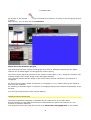
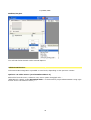
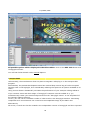
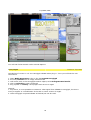
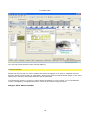
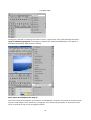
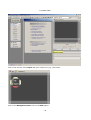
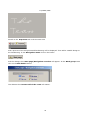
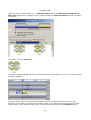
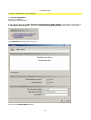
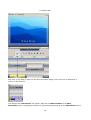
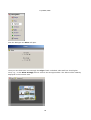
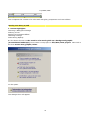
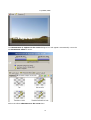
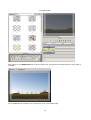
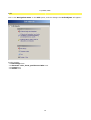
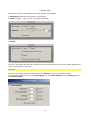
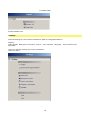
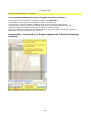
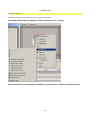
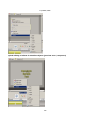
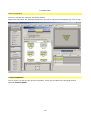
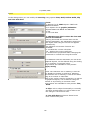
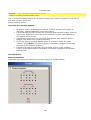
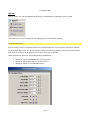
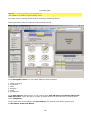
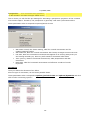
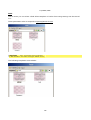
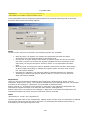
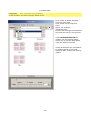
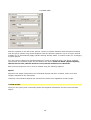
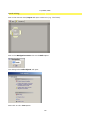
Now insert a new timeline object in File/New/New timeline object in the Timeline beneath
the Preview. This timeline object will be used to display a scenic image, e.g. a place of interest
along the route path. The slide will be stored in the Timeline.
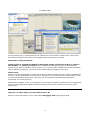
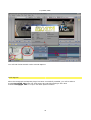
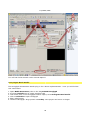
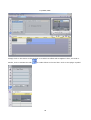
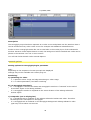
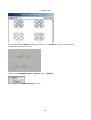
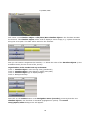
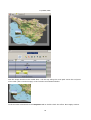
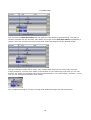
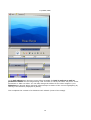
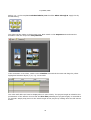
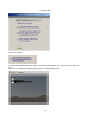
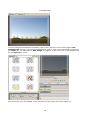
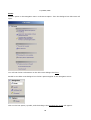
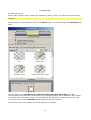
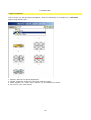
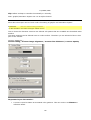
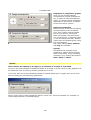
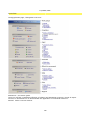
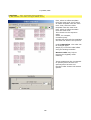
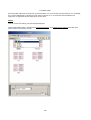
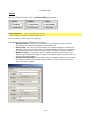
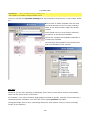
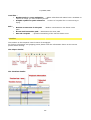
Now you will need to reorganize the Timeline, i.e. define the order of the timeline objects (in the
available tracks) for the course of the journey.
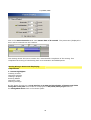
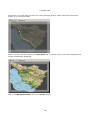
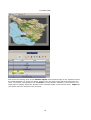
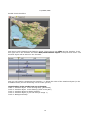
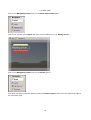
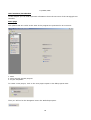
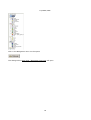
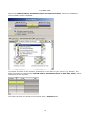
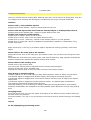
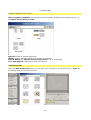
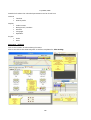
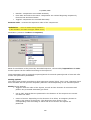
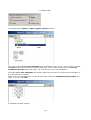
Organization of the tracks from top to bottom:
Track 1: timeline object route moving away (paintbrush)
Track 2: timeline object route drawing (white route path)
Track 3: timeline object (4) to display Image 1
Track 4: Background Map
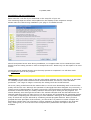
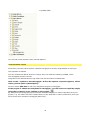
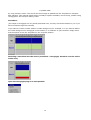
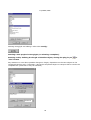
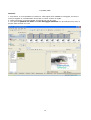
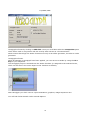
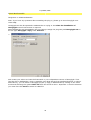
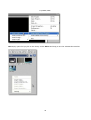
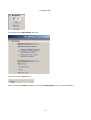
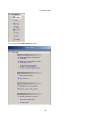
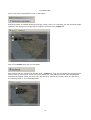
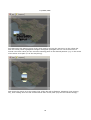
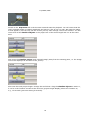
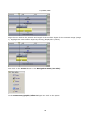
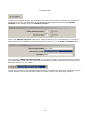
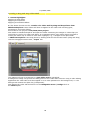
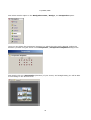
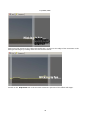
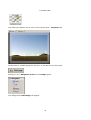
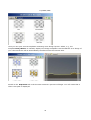
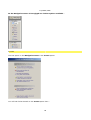
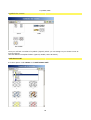
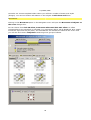
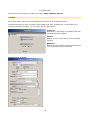
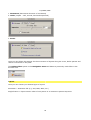
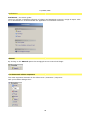
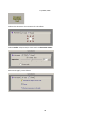
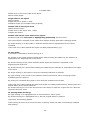
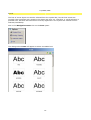
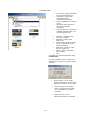
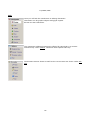
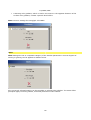
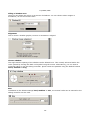
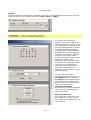
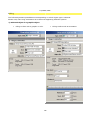
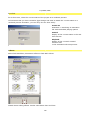
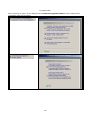
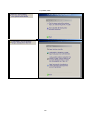
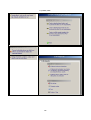
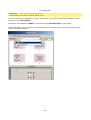
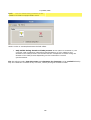
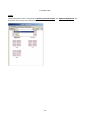
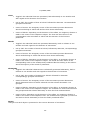
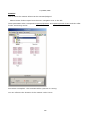
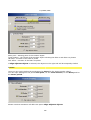
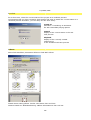
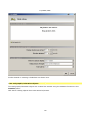
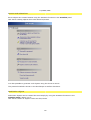
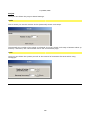
Next click on the Create button in the Navigation menu (See also), ensuring that the new
timeline object in the Timeline is activated (highlighted in yellow). The Create
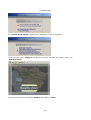
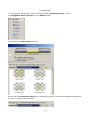
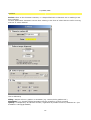
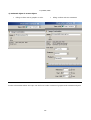
text/graphic/effect dialogue box will appear.
50