1
INSTALLING THE SOFTWARE (THAT ACCOMPANIES THE MACHINE)
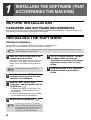
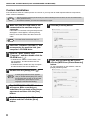
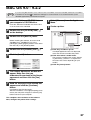
Custom installation
If the machine is used as a shared printer via a server or you only wish to install required software components,
select "Custom installation".
Note
1
• The PC-Fax driver uses the printer driver port. Before installing the PC-Fax driver, be sure to install the MFP
driver (printer/scanner).
• To install this software, you must have administrator's rights.
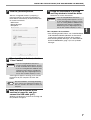
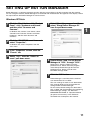
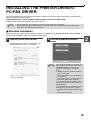
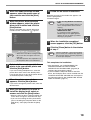
Make sure that the USB cable is not
connected to the machine and your
computer.
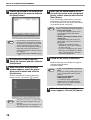
7
Click the [Custom] button.
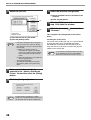
8
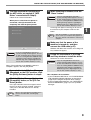
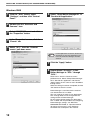
If you wish to install the MFP driver,
click the [MFP Driver (Printer/Scanner)]
button.
If the cable is connected, a Plug and Play window
will appear. If this happens, click the [Cancel]
button to close the window and disconnect the
cable.
Note
The cable will be connected in step 14.
2
Insert the "Software CD-ROM (1)" that
accompanies the machine into your
computer's CD-ROM drive.
3
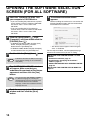
Click the "Start" button, click
"Computer", and then double-click the
CD-ROM icon ( ).
• In Windows XP, click the "start" button, click
"My Computer", and then double-click the
CD-ROM icon.
• In Windows 2000, double-click "My Computer",
and then double-click the CD-ROM icon.
4
Double-click the [Setup] icon (
Note
).
If the language selection screen appears
after you double click the [Setup] icon, select
the language that you wish to use and click
the [Next] button. (Normally the correct
language is selected automatically.)
5
The "SOFTWARE LICENSE" window
will appear. Make sure that you
understand the contents of the license
agreement and then click the [Yes]
button.
6
Read the message in the "Welcome"
window and then click the [Next]
button.
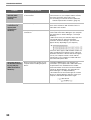
8
To view information on the software, click the
[Display Readme] button.

![2 Fare clic sul pulsante [start]](http://vs1.manualzilla.com/store/data/006118559_1-173242b46b2c9da737019e0375b2825a-150x150.png)