1
INSTALLING THE SOFTWARE (THAT ACCOMPANIES THE MACHINE)
7
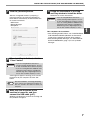
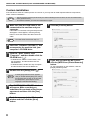
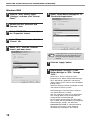
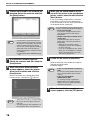
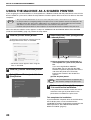
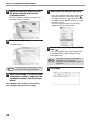
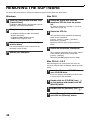
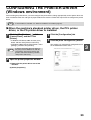
Click the [Standard] button.
After the "Integrated Installer is preparing..."
message appears, the software components
below will be automatically installed. Follow the
on-screen instructions.
• MFP Driver
• Button Manager
• Sharpdesk
10
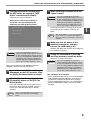
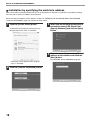
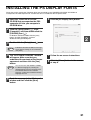
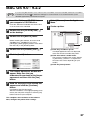
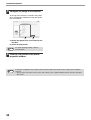
Follow the instructions in the Plug
and Play window to install the driver.
Follow the on-screen instructions.
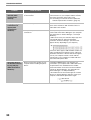
Caution
• If you are using Windows Vista and a
security warning window appears, be sure
to click "Install this driver software anyway".
• If you are running Windows 2000/XP and a
warning message appears regarding the
Windows logo test or digital signature, be
sure to click "Continue Anyway" or "Yes".
This completes the installation.
• After installing the MFP Driver, see "CONFIGURING
THE PRINTER DRIVER (Windows environment)"
(page 33) to configure the printer driver settings.
• After installing Button Manager, see "SETTING UP
BUTTON MANAGER" (page 11) to set up Button
Manager.
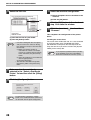
8
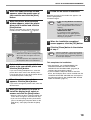
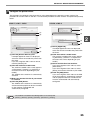
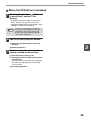
When installing is finished, click the
"Close" button.
Caution
• If you are using Windows Vista and a
security warning window appears, be sure
to click "Install this driver software anyway".
• If you are running Windows 2000/XP and a
warning message appears regarding the
Windows logo test or digital signature, be
sure to click "Continue Anyway" or "Yes".
A message will appear instructing you to connect
the machine to your computer. Click the "OK"
button.
Note
9
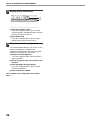
After the installation, a message prompting
you to restart your computer may appear. In
this case, click the "Yes" button to restart your
computer.
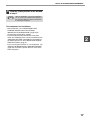
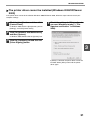
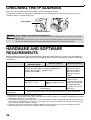
Make sure that the power of the
machine is turned on, and then
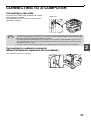
connect the USB cable (p.37).
Windows will detect the machine and a Plug and
Play window will appear.
7
1