1
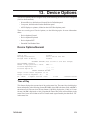
LINCS Configuration
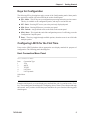
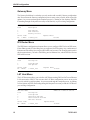
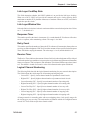
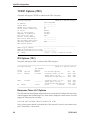
Inactivity Timeout
Allows you to specify the amount of inactive time allowed before the display is logically
disconnected from LINCS.
Enter the number of minutes; allowable values are 0000 through 1440. 0000 indicates no timeout.
LINCS warns the user by displaying a message on the status line one minute prior to disconnect.
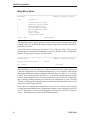
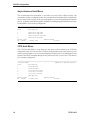
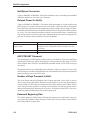
Synchronous Presentation
For devices that are slow to update, LINCS will discard earlier screens, and draw the latest
one. An example of this is if a user hits “next screen” fast 5 times. The user really wants to see
the 5th screen, so LINCS won’t draw the intervening screens.
DISABLE will activate this software, to get the user to the latest of a series of screens faster.
ENABLE of this option defeats LINCS’ optimization of screen updates for a flow of fast
screens. That is needed for instances where every screen buffer must be drawn fully, such as
ASCII file transfer.
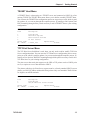
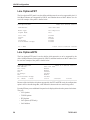
E/W Presentation Option
ENABLE of the Erase/Write Presentation Option will cause LINCS to ignore “clear screen”
commands from the host. When LINCS draws the next screen buffer, it always only updates
what has changed. With this option enabled, it ensures that is always the case. This option is
especially useful in making ASCII terminals act more like 3270 terminals.
DISABLE passes the “clear screen” commands unaltered.
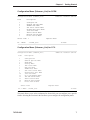
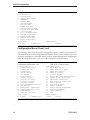
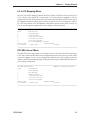
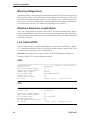
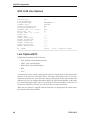
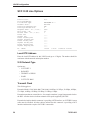
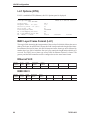
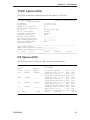
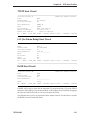
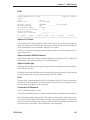
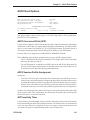
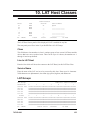
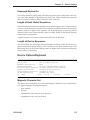
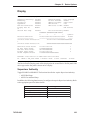
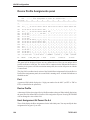
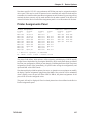
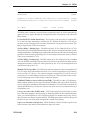
Device Profile - Printer
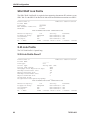
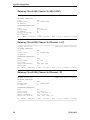
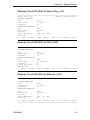
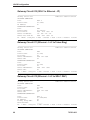
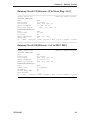
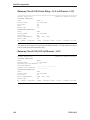
Device Profile 01/Printer
Printer Mode:
Print Buffering:
Shared
Disable
LINCS C8.2 Central Control
0
1
1234567890123456
Printer Class Assignment:1000000000000000
ASCII PRINTER OPTIONS
Printer Emulation:
Form Feed Support:
Forms Width:
Forms Length:
Generic
Disable
080
066
Count 2nd Transparent Order:
SCS Transparent Data Xlate:
LU1 Protocol Enveloping:
Enveloping Delay After CR:
Enveloping Delay After FF:
PF: 1-Menu
Printer Buffer Size:
LU3 Null Suppression:
Printer Character Set:
Local Print Form Feed:
Mod 2
Disable
NRC
Before & After
Disable
Disable
Disable
000
000
3-Def_Dflt 4-Add 5-Delete 7-Back 8-Forw 9-Default 10-Done
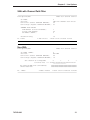
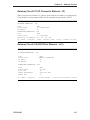
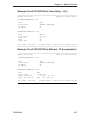
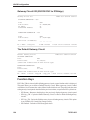
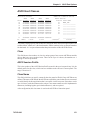
The Device Profile/Printer panel is displayed as the second panel of the device profile if the
Device Type on the first panel is chosen to be a printer.
190
707023-003