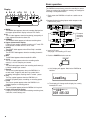
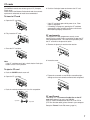
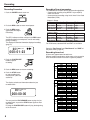
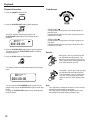
1
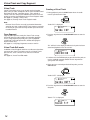
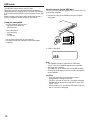
Entering Virtual Track Playback mode
Now that you have created a Virtual Track, to play it back you
must put the PMD560 into Virtual Track Playback mode.
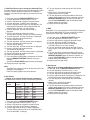
1. From stop mode, push the COPY button to enter Virtual
Track Playback mode.
Copy SEG?
[How to convert a Virtual Track to a new file]
When in Virtual Track Edit mode, “Copy SEG?” lets you copy a
single Virtual Track to a new file.
After identifying the track to copy:
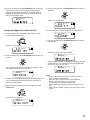
1. Select the “Copy SEG?” Edit menu choice:
While in Virtual Track playback mode, push and hold the
SHIFT button and then push the MENU/STORE/EDIT
button.“Copy SEG?” will appear in the display.
“V. Tr Play” will be shown on the display.
V01
STEREO 44.1K
MP3
2. Push the PLAY/PAUSE button to play the first Virtual Track.
If you have more than one Virtual Track, you can turn the
Jog wheel until the track you wish to play is displayed in the
upper numeric display. Then push the PLAY/PAUSE button.
2. Push the Jog wheel.
The display switches to the Track number blinking in the
upper numeric display.
3. Turn the Jog wheel until the Track number you want to copy
is flashing.
4. Push the Jog wheel.
“Executing” will be displayed while the copy process works.
Then “Completed” will be displayed for one second.
The display returns to step 3 so you can copy another track.
5. Push the STOP/CANCEL button to cancel.
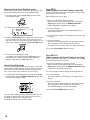
3. To exit Virtual Track Playback mode:
If a Virtual Track is playing, push the STOP button twice.
If the PMD560 is in Virtual Track Playback mode and
stopped, simply push the STOP button once.
Copy SEG A?
[How to convert all Virtual Tracks to new files]
Virtual Track Edit mode
1. Select the “Copy SEG A?” Edit menu choice:
While in Virtual Track playback mode, push and hold the
SHIFT button and then push the MENU/STORE/EDIT button.
“Copy SEG?” will appear in the display.
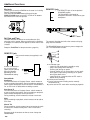
Just like regular playback mode, Virtual track has its own Edit
mode. Within this Edit mode, you have the ability to turn one of
your Virtual tracks into a new file, all Virtual Tracks into new
files, erase a Virtual Track, and erase all Virtual Tracks.
1. To enter Virtual Track Edit mode, push and hold the SHIFT
button and then push the MENU/STORE/EDIT button, while
in Virtual Track Playback mode.
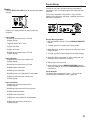
When in Virtual Track Edit mode, “Copy SEG A?” lets you copy
all of your Virtual Tracks to new files.
2. Turn the Jog wheel until the display reads“Copy SEG A?”
3. Push the Jog wheel.
The display switches to “All” blinking in the upper numeric
display.
4. Push the Jog wheel.
“Executing” will be displayed while the copy process works.
Then “Completed” will be displayed for one second.
The PMD560 and display returns to stop mode.
5. Push the STOP/CANCEL button to cancel.
See next Frame, How to convert a Virtual Track to a new file.
See page 16, How to convert all Virtual Tracks to new files.
See page 17, How to erase a Virtual Track.
See page 17, How to erase all Virtual Tracks.
16