1
Chapter 3: Controlling the Chart and Using the Default Soft Keys
•
29
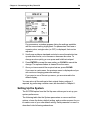
Press the SAVE & FOLLOW soft key to save the changes,
return to the default screen, and start navigating towards the first
waypoint.
Using a Route
Once you have set up or selected a route, you can perform the
following tasks:
• Follow or “initiate” the route (that is, start tracking towards the first
waypoint)
• Retrace a route by following it in reverse order
• Advance to the next leg of the route
• Erase the route
You can also edit the route, even if it is active, as described above.
Note: If you have two RayCharts on your system, the active route on
one unit is also displayed on the second unit, where it will always
appear as Route 00. You can use the Route menu options on the
second unit to control the route tracking on the first unit.
Following, Reversing and Stopping a Route
Once you have set up a route, you can start navigating towards the first
waypoint or, if you are retracing the route, the last waypoint.
➤ If you did not initiate the route using the SAVE & FOLLOW soft key from
MAKE/EDIT, you can do as follows:
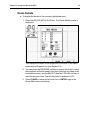
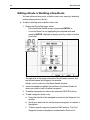
1. If the Route menu is not already displayed, press the ROUTE soft
key to display it.
2. If the required route is not displayed, press SELECT until the route
is displayed.
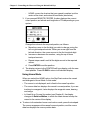
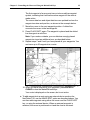
3. Check the route display to confirm which waypoint will become
active: this waypoint is displayed on the screen with a circle round it.
If you wish to follow the route in the reverse order, use the trackpad
or the ROUTE soft key to highlight the REVERSE option, and press
ENTER. The circle moves to the waypoint at the opposite end of the
route.
4. Use the trackpad or the ROUTE soft key to highlight the FOLLOW
option, and press ENTER.