1
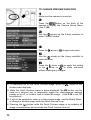
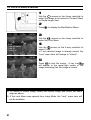
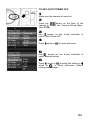
TO LOCK A SINGLE IMAGE
1
Use the
arrows on the 4-way controller to
select the image to be locked in Contact Sheet
or Single-Image View.
2
Press
to display the Modification Menu.
3
Use the
arrows on the 4-way controller to
select the Lock Menu.
4
Use the
arrows on the 4-way controller to
select “Lock”.
• If the selected image is already locked, the
“Lock” menu item will change to “Unlock”.
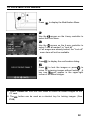
5
Press
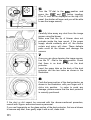
to lock the image. A key icon
will appear in the upper-right corner of the
image indicating that the image is locked.
TIP
•
•
91
To unlock a locked image, select the locked image and follow the same
steps as above.
If the Lock Menu was opened from Jump Mode, the “Lock” menu item will
not be available.