1
Play Mode
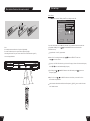
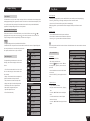
Chapter Editing
Play Process Control
In this section, we will introduce how to control the play process.
Operation Steps
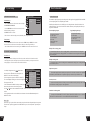
Select the title to be edited
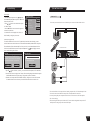
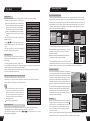
1. Enter the Editing Mode.
2. In the Editing Mode control bar menu, use the
Menu Operation
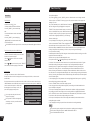
Most of the play process control operations can be done through the menu. The operations are as follows.
1. Enter the play control bar menu, use the arrow buttons to select the status-play item and press the SELECT
button.
DVD
button to select the title.
3.Press the SELECT button to make title selection option editable.
4.Enter the number of the title to be edited with number buttons, and then press the
will play the title. At this time, various operations can be done for this title.
SELECT
button, the system
Back Play
Editing Mode
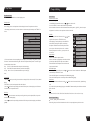
Split Title
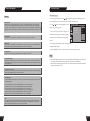
1.In the Editing Mode control bar menu, use the
or
button
Title 04/04
to split the title, and press the SELECT button.
2.When playing to a certain position, press the SELECT
Chapter 01/01
button, and the system begins to split the current chapter.
Play
The chapter is divided into two titles at this position, and the
current picture will be the title picture of the second title.
Chapter marker
When the split operation is under way, you may need to wait
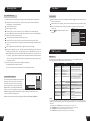
Hide Chapter
for some time.
Chapter Marker
Index picture
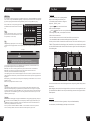
1.Insert a mark: Mark the chapter in the title.
2.Delete a mark: Delete a playing chapter and combine it with the
Split title
previous chapter. But the previous chapter won t be deleted
Time: 0 00 02
3.Delete all marks: Delete all chapters in the title. But the first
chapter cannot be deleted.
Hide/Unhide Chapter
1. In the Chapter Editing control bar menu, use the or button to move the cursor and select the Hide Chapter
item, and then press the “SELECT” button.
If the value is Hide Chapter, the current chapter will be hidden during playing.
If the value is Unhide Chapter, the current chapter will not be hidden during playing.
Index Picture
1.In the Program Mode control bar menu, use the
or
button to move the cursor and select the Index Picture
item.
2.If you find a favorite picture during playing, press the SELECT button and the picture will become the index
picture of the title.
Play
Play, Pause, FFx2, FFx4, FFx16, FFx32, FBx2, FBx4, FBx16, FBx32, Slow 1/2, Slow 1/4, Slow 1/8, Step.
1. Press the button of the remote control, the system will go back to the previous chapter (DVD) or the previous
track (VCD, etc.) and start playing.
2. Press the button, and the system will play fast backward. With each press, the backward play speed will reduce
gradually.
Exit the Chapter Editing
Press the STOP button to exit this mode.
When exiting, the system will write information to the disc. So the system might not respond for some time.
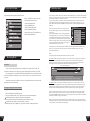
MODE
Normal
Trick mode:
TITLE
01/01
CHAPTER
02/14
AUDIO
01/03-OTH
SUBTITLE
01/01-OTH
ANGLE
01/01
T-TIME
00:02:48-00:51:25
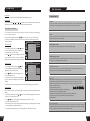
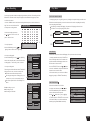
2. Use the arrow buttons to select corresponding values according to your need, and press the SELECT button.
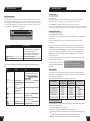
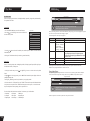
The Process Control Item has the following values. Each value corresponds with an operation. Some discs might
not contain all the values as follows.
Play,
FFx2~FFx32 (The numbers indicate the speed of fast forward play),
Stop,
FBx2~FBx32 (The numbers indicate the speed of fast backward play),
Pre-stop, Slow 1/2~ Slow 1/8(The fractions indicate the speed of slow play),
Pause,
Forward Play
1. Press the button, the system will go forward to the next chapter (DVD) or the next track (VCD, etc.) and start
playing.
For DVD discs, only the forward operation within a title is allowed.
2. Press the button, and the system will play fast forward. With each press, the forward play sp eed will increase.
For MUSIC discs, such operation is invalid.
32
or
21