1
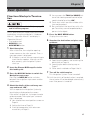
1
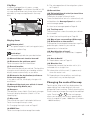
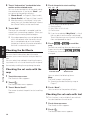
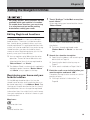
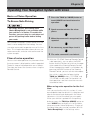
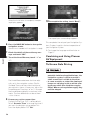
Press the NAVI MENU button to display
the main menu.
2
Touch “Address Search”.
Selects the method for searching the destination.
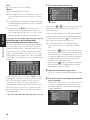
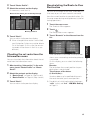
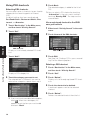
Touch “Zone code key”.
If the destination is in another zone, this
changes the zone setting.
❒ Once the zone has been selected, you only
have to change zones when your destination is outside of the zone you have
selected.
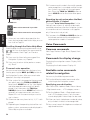
6
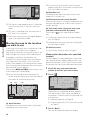
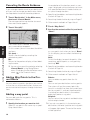
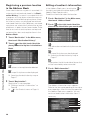
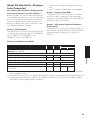
Input the street name.
Touch the letter you wish to input. If the next
screen is not automatically displayed even
though the street name is entered, try touching “OK”.
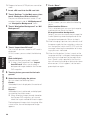
Zone code key
The input text.
The number of applicable candidates.
4
5
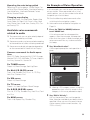
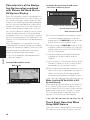
Touch the zone code of the destination
and touch “OK”.
Modifies the zone setting and returns you to
the previous display.
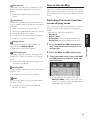
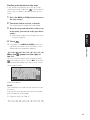
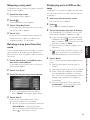
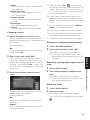
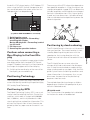
Input the house number and touch “OK”.
Touch the characters you wish to input.
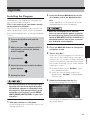
“City” :
Touch if you wish to first specify the destination
city or area.
:
The input text is deleted letter by letter for the end
of the text. Continuing to press deletes all of the
text.
“Sym.” :
You can input text with marks such as “&”and
“+”.
19
Basic Operation
3
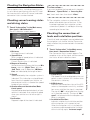
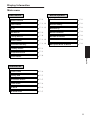
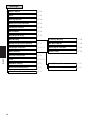
Return Home ➞ Page 31
Go to ➞ Page 31
POI Search ➞ Page 29
Vicinity Search ➞ Page 30
Address Book ➞ Page 32
Destination History ➞ Page 32
Freeway Search ➞ Page 31
Telephone Search ➞ Page 31
Cancel Route ➞ Page 36
Chapter 1
➲
➲
➲
➲
➲
➲
➲
➲
➲
:
The input text is deleted letter by letter from
the end of the text. Continuing to press
deletes all of the text.
“Back” :
Returns you to previous screen.
❒ Also input a prefix to the house number.
❒ If the house number you have input is not
found among subsequently selected
“Street” or “City” data, a message
appears saying that the address has not
been found. In that case, try inputting the
house number again.
❒ Touching “OK” with no input allows you to
specify and search a street name or the
name of the city or area first.