1
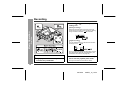
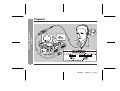
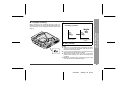
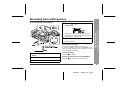
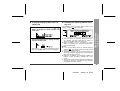
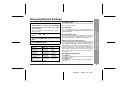
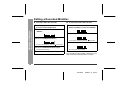
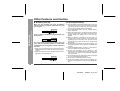
While recording, press the REC button at the point
where you want to create track numbers.
The track number will be increased by one.
z One track number will be added every time the REC
button is pressed.
z The BASS button on the remote control can also be
used to add track numbers.
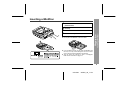
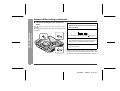
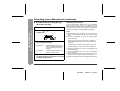
„ To prevent recorded MiniDiscs from
being erased accidentally
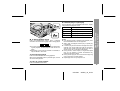
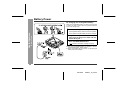
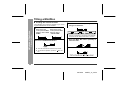
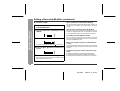
Slide the accidental erase prevention tab, located on the
side of the MiniDisc, in the direction indicated by the
arrow.
The MiniDisc will then be protected against accidental
erasure.
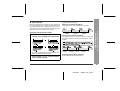
„ Recording tracks as a single track
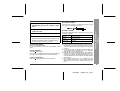
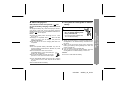
You can record several pieces of music as a single track
by disabling the auto marker function.
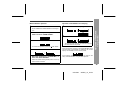
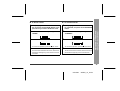
When a recording is paused or while recording...
Press the EDIT button.
Note:
When making digital recordings using a CD player or an
MiniDisc player, track numbers will be created automatically regardless of the setting of the auto marker function.
To add a recording to such a MiniDisc, slide the accidental erase prevention tab back to its original position.
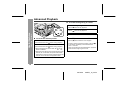
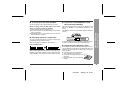
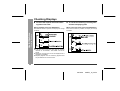
„ Helpful tip when attaching a label
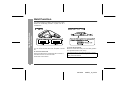
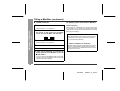
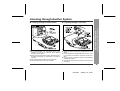
When attaching a label to a MiniDisc cartridge, be sure to
note the following. If the label is not attached properly, the
MiniDisc may jam inside the unit and it may not be possible to remove it.
z If the label peels off or partially lifts
away, replace it with a new one.
z Do not put a new label on top of an existing one.
z Attach the label only in the specified
location.
-Advanced Recording-
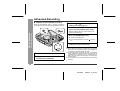
You can create your own track numbers at any point.
Useful Features
„ To create your own track numbers
21
00/12/26
90SEC_16_30.fm