1
Appendix D: HTTPS Cluster Certificates
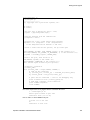
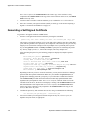
-----BEGIN CERTIFICATE----...
-----END CERTIFICATE---------BEGIN RSA PRIVATE KEY----...
-----END RSA PRIVATE KEY---------BEGIN CERTIFICATE----...
-----END CERTIFICATE----Add more certificates here if needed in the chain...
Make sure you save the file as a plain text file.
3.
Install the file into Equalizer as instructed in the section “Installing a Server or Client
Certificate for an HTTPS Cluster” on page 178.
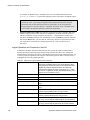
Installing a Server or Client Certificate for an HTTPS Cluster
Your certificate authority may issue you either a single signed client or server certificate, or a signed
certificate plus one or more chained root certificates (also called “intermediate” certificates). The
certificate or certificates you receive establish a chain of trust that ends at a trusted root certificate
installed on your web server (and on every client that interacts with the web server).
You must install all the certificates you receive on Equalizer to complete the installation process for
HTTPS clusters. To install them on Equalizer, certificates must be in a single file, in either x509
(.pem) or PKCS12 (.pfx) format; see the section “Preparing a Signed CA Certificate for Installation”
on page 177.
To install certificates onto Equalizer, follow these steps:
1.
Copy the file containing the certificate and private key information (clustercert.pem in the
examples above; clustercert.pfx if you used IIS) to the machine from which you will log into
the Equalizer Administrative Interface. Note the location.
2.
Log into the Equalizer Administration Interface.
3.
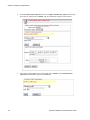
In the left frame, click the name of the HTTPS cluster for which you want to install a
certificate. The cluster’s parameters appear in the right frame.
4.
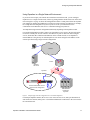
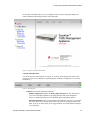
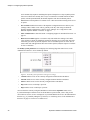
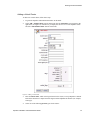
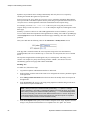
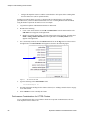
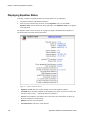
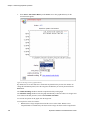
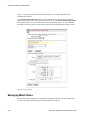
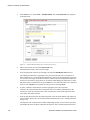
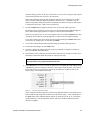
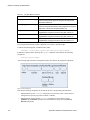
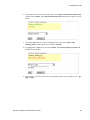
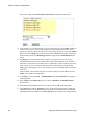
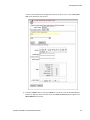
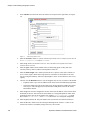
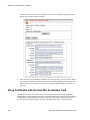
Select menu > Manage SSL Certificates. The install SSL certificate screen appears in the
right frame.
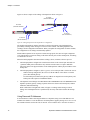
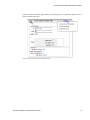
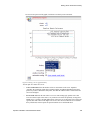
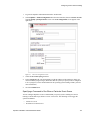
Figure 77
178
The install certificate screen
Equalizer Installation and Administration Guide