1
Item code: 00025164
Fitting your microfilters
Introduction
1) Plug a microfilter into your
telephone socket. If you had
to unplug something, you can
plug it back into the “Phone”
socket of the
microfilter. It’s best to leave it
out until you’ve got
everything working though.
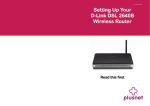
Hello, thanks for choosing our wireless router. With
this guide we’ll take you through the setup, don’t
let all the wires intimidate you, putting it together
is a piece of cake.
If at any time you do get stuck, there’s lots more
help on our website — http://support.plus.net
What’s in the box:
Microfilters look small and
unimportant but they’re what
keep your phone and Internet services from interfering with each other.
Follow these golden rules to keep your
broadband fast and reliable.
Item code: 00044217
Troubleshooting
Status Lights
Does a Windows dial-up networking screen
appear when trying to connect to the
Internet?
You need to stop your computer from trying to use
the dial-up settings, which are often used by USB
broadband modems.
2) Select Internet Options. or Network and
Internet Connections, then Internet Options.
Blinking
Green
Router is attempting to connect to the local telephone
exchange
Solid
Green
Broadband service is connected
3) Select the Connections tab. Select Never dial
a connection. Click LAN Settings… and select
Automatically detect settings.
[email protected]
[email protected]
Force9
[email protected]
Free-Online
[email protected]
Internet
State
Off
Authentication error - check your username and
password are correct
Solid Green
Broadband service connected
Blinking
Green
Attempting to connect to broadband service
LAN (Ethernet )
State
Off
No device connected
Solid Green
Device connected
Blinking Green
Device sending / receiving data
WLAN (Wireless)
State
Off
Wireless not configured
Solid Green
Wireless connected
Blinking Green
Wireless is operational and sending data
Resetting your router
Got your broadband username and
password?
You’ll need them to get connected. It’s in the
email we sent you, it looks like this:
Madasafish
Router is powered up
State
2) Plug the Power Adapter into the back of your
router, then plug the other end of the adapter into
the nearest wall power socket. Then screw the
wireless aerial into the socket on the back of the
router.
Has your service gone live?
Hold off using this guide until your broadband
service is ready to use. We send you an email
when it happens.
Broadband username format
Green
No DSL cable connected/ Microfilter or phone line problem
Before you start
Plusnet
Router is starting up, should turn green after a short time
Off
* Don’t plug one microfilter into the socket of
another microfilter.
Service
Red
DSL
* Avoid using old extension cables, the less internal
wiring involved the better.
You don't need the CD and quick install guide to
get started, but the user guide on the CD will help
you use the router's advanced features.
State
Router not powered, check power cable and power socket
In most version of Windows you would:
1) Click on the Start menu, then Control Panel.
* Put a microfilter on all the telephone extensions
that have something plugged into them.
You’ll also find:
The wireless aerial is packed separately.
Power
Off
Check your microfilters - there should be one in
each telephone extension on that has something
plugged into it. Remember not to use two
microfilters on the same extension.
Make sure you have note of your broadband
username and password before you start
3) Plug one end of the grey broadband cable into
the DSL socket on the back of the router, plug the
other end into the microfilter (attached to your
phone line in step 1).
If you are using a telephone extension cable, try
connecting your router to the main telephone
socket. Telephone extensions are a common cause
of connection problems, we recommend wireless
rather than a telephone extension cable.
4) Make sure power is switched on and watch the
lights on the front of the router.
Is the Internet light off or red?
5) The power light will first go red and the DSL light
will flash. Wait until the power light turns green and
the DSL light stops flashing before carrying on.
2
Is the DSL light flashing?
If you’re having problems with your router, you can
return everything to the default setting by using
the reset button.
1) Check the router is switched on (power light
green).
2) Use a paperclip, pen or pointed object to press
into the reset pin hole on the back of the router.
3) Keep the reset button pressed for at least 5
seconds. The power light will come back on to
confirm that the reset has completed.
Type your username and password in again.
Double check the email we sent you to confirm
you’ve got it right.
4) You now need to apply your settings again.
Just follow this guide again from the beginning.
7