1
EPSON AcuLaser C9200 Series
User's Guide
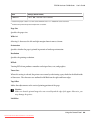
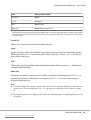
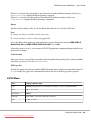
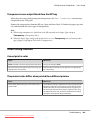
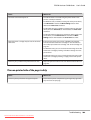
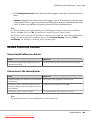
Cause
What to do
The RITech is set to Off.
Access the printer driver, click the Print Quality tab, then select On
for RITech from the drop-down list.
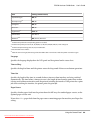
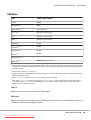
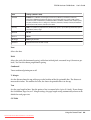
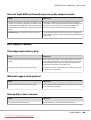
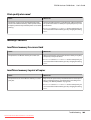
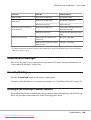
The printer does not print on transparencies
Cause
What to do
Paper Type is set to Transparency in the printer
driver.
Set Enable PJL to Off or access Setup Menu on your printer’s control
panel, and then set Paper Type to Transparency.
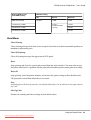
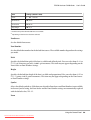
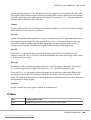
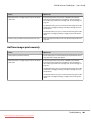
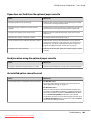
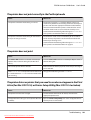
The printer does not print on the specified paper type
Cause
What to do
Paper Type in the printer driver is set to the type of
paper you want to print on.
Set Enable PJL to Off or access Setup Menu on your printer’s control
panel, and then set Paper Type to the type of paper you want to
print on.
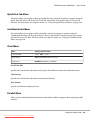
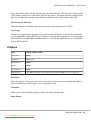
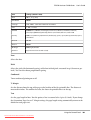
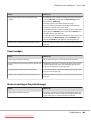
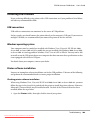
The Custom button is grayed out and the custom paper size cannot be created
(Windows Vista/Vista x64 only)
Cause
What to do
After right-clicking your printer icon in the Printers in
the Control Panel, you accessed the printer driver
from Printing Preferences….
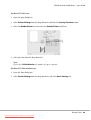
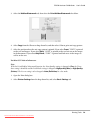
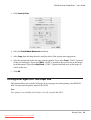
After you right-click your printer icon in the Printers in the Control
Panel, select Run as administrator and click Open. Select Printer
tab in the screen that appears and then click Printing
Preferences….
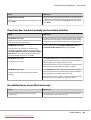
The items in the Tray tab/Printer tab are grayed out and these items cannot
be changed (Windows Vista/Vista x64 only)
Cause
What to do
After right-clicking your printer icon in the Printers in
the Control Panel, you accessed the printer driver
from Properties.
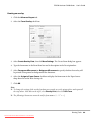
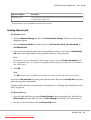
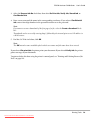
After you right-click your printer icon in the Printers in the Control
Panel, select Run as administrator and click Properties.
Troubleshooting
Downloaded from ManualsPrinter.com Manuals
215