1
Chapter 5 – Using the RouteFinder's Web Management Software
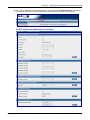
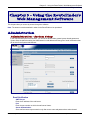
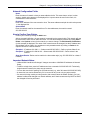
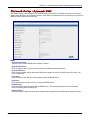
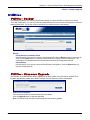
Proxy > Custom URL Filters
Proxy > Custom Filters
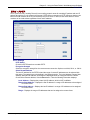
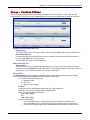
The custom URL list allows URLs to be filtered or forwarded by the RouteFinder. Custom URL lists are
configured here. Sets of URLs to be forwarded/filtered for a particular network/host can also be configured.
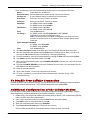
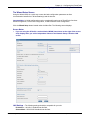
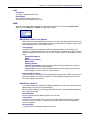
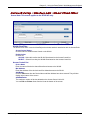
Default Action for Custom URL Lists
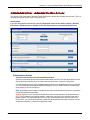
Default Action
The default action can be set to either Allow or Deny. Click the Save button to set the default action.
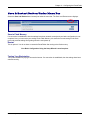
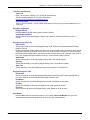
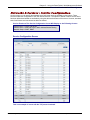
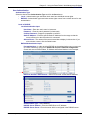
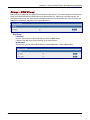
Add Custom URL List
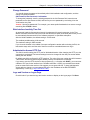
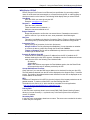
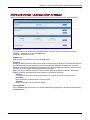
A custom URL list has to be defined before a rule is added. The name for the URL list is entered
here. Click the Add button to save the name.
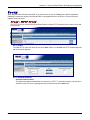
To enter URLs into the list, click the Edit button
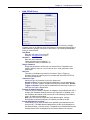
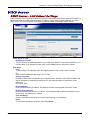
Add Custom URL List
URL List Name
A Custom URL List has to be named before defining a rule. Enter a name for the URL to include in
the list here. Click the Add button to save the name. The name will be added to the Custom URL List
on this screen. Once the name is listed, you can edit it and delete it.
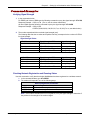
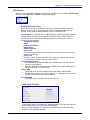
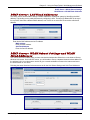
Access Rules
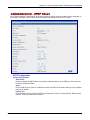
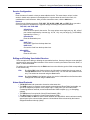
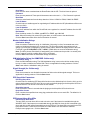
The Access Rules function enables you to define custom rules for the URL lists. With these custom
rules, networks/hosts can be allowed or denied access to certain URLs.
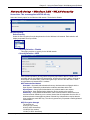
An access rule consists of three parts:
1. Network or Host
2. URL List
3. Allow or Deny Access
Example
List Name: URL List named list1 contains the URL www.google.com
Networks: There are two networks net1 and net2 defined.
Rules: Two rules have been configured:
net1 – list1 – allow
and
net2 – list1 – deny
What Does This Mean:
•
Users from net1 trying to access google.com will be allowed to access the site.
•
Users from net2 trying to access google.com will not be allowed to access the site.
•
Users from any other network will be allowed/denied access based on default action.
Multi-Tech Systems, Inc. RouteFinder RF825/RF825-AP User Guide (Document Number S000422B)
75