1
a different move whenever you want! When it’s your turn to
move, simply press TAKE BACK. The display shows the
move to be taken back, with the original to square flashing
and indicated by board lights. Press the piece down gently on
the indicated square, and the computer shows you where
that piece came from by flashing that display and using
board lights to point to that square. Press the piece down on
the from square to complete the take-back. Repeat this as
often as you’d like, taking back up to 50 individual moves (or
25 moves for each side). To continue playing at any point,
just make another move on the board!
After taking back a capture, the computer will make sure
your board is still set up correctly by reminding you to put the
captured piece back on the board! It does this by displaying
the piece symbol and its location, along with a “+” symbol,
and turning on the board lights for that square. Put the indicated piece back on the board and press that square to
complete the take-back.
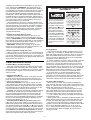
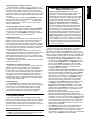
MAKING THE COMPUTER’S MOVE:
AN EXAMPLE!
After the computer moves,
it’s up to you to make its
move on the board! Here,
the display indicates the
computer wants to move
its Black pawn (]!) from
d7 to d5. Pick up the d7
pawn (indicated by the
board lights) and press it
down lightly on Square d7.
The board lights now point
to Square d5. Press the
pawn down on Square d5
to complete the computer’s
move. Now it’s your turn
again!
1.5 Game Over? Why Not Play Again!
Whenever you finish a game (or if you give up on your
current game), it’s easy to start over again! Reset the computer for a NEW GAME by pressing the CLEAR and ENTER
keys together, and a series of beeps tells you the computer is
ready. The same playing level will be in effect, but you can
change it if you’d like, as explained in Section 3.
IMPORTANT: Resetting the computer for a new game
clears your current game from the computer’s memory—be
careful not to press these keys by mistake!
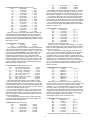
RrstuvwxyS
8jbielchd8
7agagagag7
6MmMmMmMm6
5mMmMmMmM5
4MmMAMmMm4
3mMmMmMmM3
2GAGmGAGA2
1DHCKFIBJ1
TrstuvwxyU
RrstuvwxyS
8jbielchd8
7agaMagag7
6MmMmMmMm6
5mMmgmMmM5
4MmMAMmMm4
3mMmMmMmM3
2GAGmGAGA2
1DHCKFIBJ1
TrstuvwxyU
2.3 Illegal Moves
Your computer will never accept an illegal move! If you try
to make one, you’ll hear a low double beep, and the board
lights and display will simply continue to show the square the
piece came from. Either move that same piece to another
square, or press the piece back down on the original from
square and move a different piece.
If you don’t make the computer’s move correctly, you’ll also
get an error beep. This means you are either moving the
wrong piece, or moving the computer’s piece to the wrong
square. If the computer wants to move its pawn from C7 to
C5, for example, and you press down on C7 and then C6, the
display shows :C5 briefly, pointing out your error. The display
then returns to showing the move again (C7-C5), and the
computer expects you to press C5 to complete its move.
If you press down on a piece and the from square is
displayed, but you decide not to make that move, simply
press down on that same square again to cancel. Then make
another move. If you change your mind after entering your
whole move, take the move back as described in Section 1.4.
1.6 Too Easy/Hard? Change the Level!
When you first turn your computer on, it’s automatically set
to Normal Playing Level A4 (five seconds a move). However,
you have 64 different levels to choose from—you’ll want to try
them all out! For descriptions of the playing levels and how to
change levels, see Section 3.
2. MORE FEATURES TO EXPLORE
2.1 Whose Move? Check the Display!
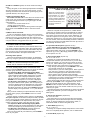
When the computer plays Black, it flashes a black square
in the display while it is thinking. After it has moved, a white
square shows that it is now White’s turn to move. You can tell
at a glance if the computer is currently thinking, and which
side is to move!
2.2 Special Chess Moves
Captures: To capture, press down on the piece you want
to move, remove the captured piece from the board, and
press your piece down on the square of the captured piece.
Captures are displayed as in E5•F4.
En Passant Captures: In this type of capture, the computer reminds you to remove the captured pawn by displaying the pawn’s position, along with a minus sign, and using
two board lights to indicate that square. Press down on the
captured pawn before removing it from the board.
Castling: The computer automatically recognizes castling
after the King is moved. After you have pressed the King
down on its from and to squares, the computer uses the
display and board lights to remind you to move the Rook.
Press down on the Rook’s from and to squares to complete
the move. Note that Kingside castling is displayed as 0-0,
and Queenside castling as 0-0-0.
Pawn Promotions: When you promote a pawn, first
make your move as usual, pressing your pawn down on its
from and to squares. Next, press the Piece Symbol Key for
your desired promotion piece (%, $, #, or @). The computer
recognizes your new piece immediately, and begins thinking
about its next move. Remember to change your piece on the
board! When the computer promotes a pawn, the display
shows both the pawn and the promoted piece. Don’t forget to
replace the computer’s pawn with its new piece.
2.4 Check, Mate, and Draw
When a King is in check, the computer first displays its
move as usual. After the move is made, CHECK flashes in the
display for a few seconds, along with the checking move. The
display then goes back to showing the clock.
If the computer discovers a forced mate against its opponent, it first displays its move as usual. After the move has
been made on the board, the computer flashes a mate announcement along with the move for several seconds (e.g.,
=in 2 for a mate in two moves). The display then goes back
to showing the clock.
When a game ends in checkmate, the display flashes MATE
(along with the mating move) for a short time after the move
is made. The display then goes back to showing the clock.
The computer recognizes draws by stalemate, three-fold
repetition, 50-move rule and insufficient material. After a draw
has occurred, the display flashes End,EnD:3,End:50,or
End:In (along with the drawing move) for a brief time after
the move has been made. The display then goes back to
showing the clock.
2