1
4.7.7.2
Maintenance ► Config Control
Important note: Record all original GeminiG3 radiomodem factory settings for possible future use.
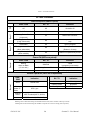
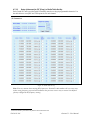
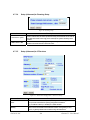
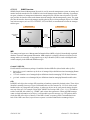
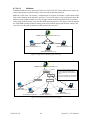
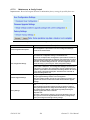
Figure 51 - Maintenance - Unit Configuration Control (Initial screen)
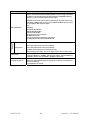
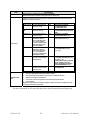
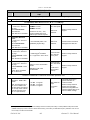
Item
Active Configuration Description
Description
Active Configuration Description Field – available by selecting “Checkpoint
User Configuration” option button in the “User Configuration Settings “
portion of this window below.
Checkpoint User Configuration (Save User Configuration) – saves a set of
the current user configuration settings in the GeminiG3 unit.
User Configuration Settings
Click on the “Checkpoint User Configuration” option button to activate the
“Active Configuration Description” field. Enter a descriptive title of up to 40
characters to help identify the configuration settings to be saved. Click on
“Proceed” to save the settings to the unit. The new configuration set overwrites the factory (or previously user saved) configuration settings.
Restore User Configuration Checkpoint (Load User Configuration) – the
option button is available if “User Configuration Settings” have been previously saved. To restore to user configuration, click the “Restore User Configuration” option button. Check the title of the settings about to be restored
in the “Active Configuration Description” field and click on “Proceed” to
restore the settings to the unit.
Merge settings bundled in upgrade package with current configurationmerges upgraded settings with the current configuration.
Firmware Upgrade Settings
Note: the "firmware update" process will end up replacing an existing configuration file with the one that came bundled with the firmware upgrade
package.
Restore Factory Settings: restores all settings to default factory configuration.
Factory Settings
Upon performing the firmware upgrade, should you decide to restore to
factory settings instead of to “merge with bundled settings”, simply select
the “Restore Factory Settings” option button right after performing the
firmware upgrade and click on “Proceed”.
Important note:
Activating “ Restore Factory Settings” will reset the IP address of the unit.
Have your record of all the original GeminiG3 unit factory settings handy
before proceeding with restoring to factory settings.
120 20131-301
56
Gemini G3 - User Manual