1
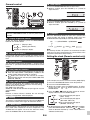
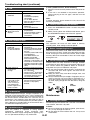
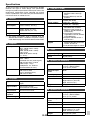
Listening to the iPod, iPhone or iPad
(continued)
■
Function Main unit
Dock/USB
Navigating the iPod, iPhone or iPad
menus
Remote control
Dock
Menu
____
Enter
____
Press to confirm the
selection.
Cursor
Up/Down
____
Press to select the
iPod menu.
iPod
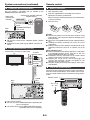
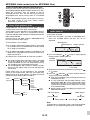
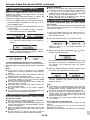
1 Press the MENU button to view the menu on iPod, iPhone or
iPad unit. Press it again to go back to previous menu.
or ) button to select an item on the
menu and then press ENTER button.
2 Use the PRESET (
Note:
When navigating the iPod, iPhone or iPad menu with remote
control, do not operate any of the buttons on the iPod or iPhone
unit. The volume level is adjusted by pressing the VOL (+ or –)
button on the main unit or the remote control. Adjusting the
volume on the iPod, iPhone or iPad units give no effect.
Operation
USB
Press to view the
iPod menu during
iPod function.
Listening to a CD or MP3/WMA disc
iPod, iPhone and iPad operations:
The operations described below depend on the generation iPod,
iPhone and iPad you are using.
System on operation:
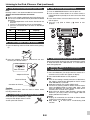
When the main unit is powered on, the iPod, iPhone or iPad units
will automatically power on when docked or connected in the unit.
System off (stand-by operation):
When the main unit is turned to stand-by mode, the docked iPod,
iPhone or connected iPad unit will automatically turn to stand-by
mode.
■
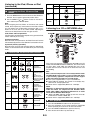
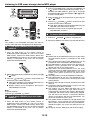
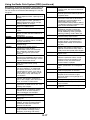
Various iPod, iPhone and iPad functions
Function Main unit
Dock/USB
Play
Pause
Remote control
Dock
USB
iPod
CD/USB
iPod
CD/USB
Operation
CD/USB
RDS
Press in the pause
mode.
This system can play back a standard CD, CD-R/RW in the CD
format and CD-R/RW with MP3 or WMA files, but cannot record
on them. Some audio CD-R and CD-RW discs may not be
playable due to the state of the disc or the device that was used
for recording.
Press in the
playback mode.
Track up/
down
Press in the
playback or pause
mode.
If you press the
button in the pause
mode, press the /
button to start the
desired track.
Fast
forward/
reverse
Press and hold
down in the
playback mode.
Release the button
to resume
playback.
Display
____
Repeat
____
Shuffle
____
iPod
Press for more than
2 seconds to toggle
the video out
display between
iPod or TV.
Press to toggle
repeat mode.
Press to toggle
shuffle mode.
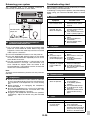
MP3:
MP3 is a form of compression. It is an acronym which stands
for MPEG Audio Layer 3. MP3 is a type of audio code which
is processed by significant compression from the original
audio source with very little loss in sound quality.
● This system supports MPEG 1 Layer 3 and VBR files.
● During VBR file playback, time counter in the display may
differ from its actual playback time.
● Bitrate which is supported by MP3 is 32 ~ 320 kbps.
WMA:
WMA files are Advanced System Format files that include
audio files which are compressed with Windows Media
Audio codec. WMA is developed by Microsoft as an audio
format file for Windows Media Player.
● “MP3” and “WMA” indicator will light up after the unit reads
information on an MP3 or WMA disc.
● Bitrate which is supported by WMA is 64 ~ 160 kbps.
■
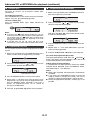
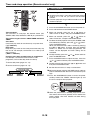
Disc playback
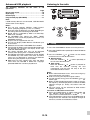
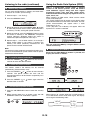
1 Press the ON/STAND-BY button to turn the power on.
2 Press the CD button on the remote control or FUNCTION
button repeatedly on the main unit to select CD function.
3 Press the OPEN/CLOSE button to open the disc tray.
4 Place the disc on the disc tray, label side up.
E-9