1
CHAPTER 2: LOCAL MANAGEMENT
2.3.2
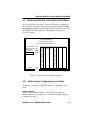
WPIM-SY Interface Configuration
This screen is accessed through the WAN Physical Configuration screen.
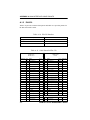
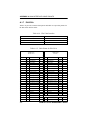
Refer to Figure 2-2 and proceed with the following steps to configure the
WAN Interface through Local Management.
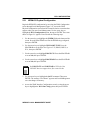
1. Use the arrow keys to highlight Interface Number. Set the WAN
connection Interface Number by typing the same number found in the
Interfaces field on the WAN Physical Configuration screen into the
Interface Number field, then press ENTER. In this example, the
Physical Configuration screen shown in Figure 2-1 uses Interface 002
for the WPIM-SY WAN connection.
2. Use the arrow keys to highlight Line Coding. Press the SPACEBAR
to select None, then press ENTER.
3. Use the arrow keys to highlight Active Protocol. Press the
SPACEBAR to select PPP, then press ENTER.
4. Use the arrow keys to highlight PPP Type. Press the SPACEBAR to
select BNCP, then press ENTER.
5. Use the arrow keys to highlight the SAVE command. Press ENTER.
The message “Save Done!” appears and Local Management saves the
changes to memory.
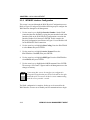
NOTE
Upon saving this screen, the interface just configured is
assigned to an application port (PT#) in the table on the right
hand side of the screen once the device starts communicating
with the service provider’s switch.
The WAN configuration is complete. It takes up to 60 seconds for the
WAN Interface to come out of standby and for communications to begin.
2-10
WPIM-SY LOCAL MANAGEMENT GUIDE