1
Basic Features
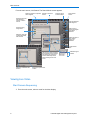
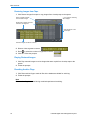
2 On the control tool bar, click Seq.
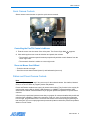
Display Mode
Stationary Live Images
Sequencing Images
Single
None.
Single pane displays the
sequencing cameras.
2×2
Panes 1–3 display stationary live
images from cameras 1–3.
Pane 4 sequences through live
images from cameras 4–16.
3×3
Panes 1–8 display stationary live
images from cameras 1–8.
Pane 9 sequences through lives
images from cameras
9–16.
4×4
Panes 1–16 display stationary live
images from cameras 1–16.
None.
Note
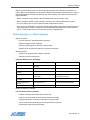
The example above illustrates basic mapping from cameras to panes. You can map cameras to
different panes (example: camera 1 to pane 16), and map the same camera to multiple panes
(example: camera 1 to all 16 panes). The sequencing pane sequences through all cameras not
currently displaying in a stationary pane.
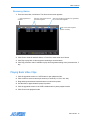
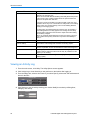
Stop Camera Sequencing
• On the control toolbar, click Seq. Sequencing stops and cameras display in the previous
stationary display mode.
• Click any mode button. Cameras display in an appropriate display mode.
• Click any camera button. The selected camera displays in single-pane display mode.
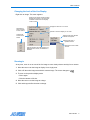
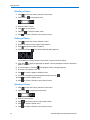
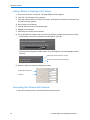
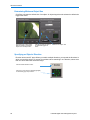
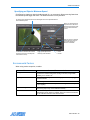
Controlling a Dome Camera
The dome symbol
appears with video from a camera with dome control.
Note
If another user is operating the dome, you may not be able to control it.
• Click
in the camera’s pane.
• Click the control item on the overlay.
User’s Guide
9