1
ii.
iii.
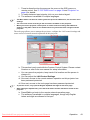
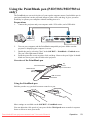
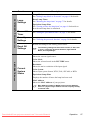
If you want to project your computer screen after connection, click
Directly. If you want to connect to the projector via Network Control
system, click Connect to webpage. The main page of Network Control
will be displayed after connection.
Click Connect.
•
To search for projectors, simply click Search to list all the projectors on the
same local area network. Click the desired projector in the Search result list, and
click Connect directly. You can also type a desired projector name and click
Search.
•
If you are the first time user, choose your identity as a Normal user or
Administrator. Both require no password. But if you choose to be an
Administrator, you have the authority to set a password for connecting to the
projector. That password should be kept and used next when you try to connect
to the same projector.
•
If there are multiple computers connected to the projector, you can decide a
display zone by clicking 1, 2, 3, 4, L, R, All, or Background.
2.
If you want to freeze the projected image on the screen, press
3.
movements will be not been seen on the screen until
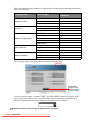
You can choose a capture mode from here.
. Any further
is pressed.
•
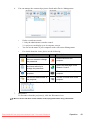
To display a full screen, click FullScreen.
•
To display a partial screen, click FixedSize. A square appears on your screen.
You can place it where you want to project. If you wish to change the square,
click Alterable.
Downloaded From projector-manual.com Viewsonic Manuals
Operation
47