1
Features & Components
Optical (CD/DVD) Device
There is a bay for a 5.25" optical (CD/DVD) device (12.7mm height). The actual device will depend on the module you purchased (see “Storage” on
page C - 3). The optical device is usually labeled “Drive D:” and may be used
as a boot device if properly set in the BIOS (see “Boot Menu” on page 5 - 13).
Loading Discs
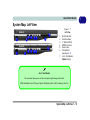
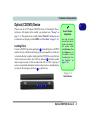
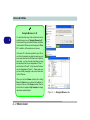
To insert a CD/DVD, press the open button 1 and carefully place a CD/DVD
onto the disc tray with label-side facing up (use just enough force for the disc
to click onto the tray’s spindle). Gently push the CD/DVD tray in until its lock
“clicks” and you are ready to start. The busy indicator 2 will light up while
data is being accessed, or while an audio/video CD, or DVD, is playing. If
power is unexpectedly interrupted, insert an object such as a straightened paper clip into the emergency eject hole 3 to open the tray.
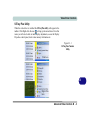
Sound Volume
Adjustment
How high the sound
volume can be set depends on the setting of
the volume control
within Windows. Click
the Volume icon on
the taskbar to check
the setting (see “Audio Features” on
page 2 - 12).
Figure 2 - 2
Optical Device
2
1
3
Optical (CD/DVD) Device 2 - 3
2