1
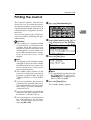
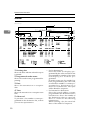
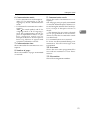
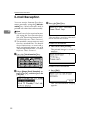
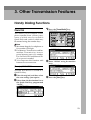
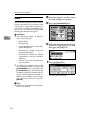
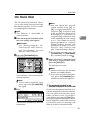
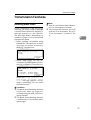
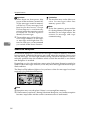
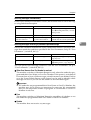
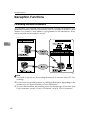
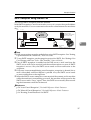
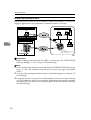
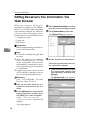
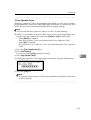
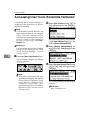
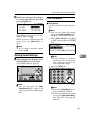
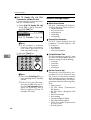
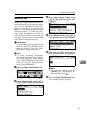
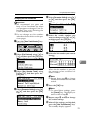
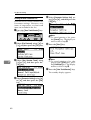
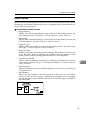
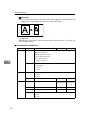
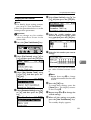
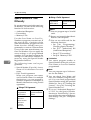
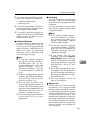
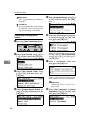
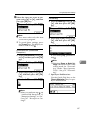
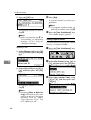
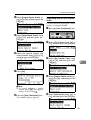
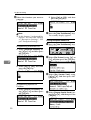
Using Fax with Computers Note Cover sheet data is stored in its own format (using "fcp" as its extension) A On the [Start] menu, point to [Pro- grams], [LAN-Fax Utilities], and then click [LAN-Fax Cover Sheet Editor]. The dialog box of LAN-Fax Cover Sheet Editor appears. B Edit the cover sheet. Note For details about operations, see Help. C Click [Save as...] on the [File] menu. D Select a folder, and then enter a 5 file name. E Click [Save]. Attaching a created cover sheet Use the following procedure to attach a created cover sheet file to a fax message. A On the [File] menu, click [Print...]. B Select “LAN-Fax M5” in “Printer Name”, and then click [OK]. The [LAN-Fax] dialog box appears. Note The setting method may differ depending on the application you are using. In all cases, select [LAN-Fax M5] for the printer. C Click [Cover Sheet...]. The [Cover Sheet...] dialog box appears. D Select a cover sheet file from the drop-down list or after clicking [Browse...] in [Select Cover Sheet]. 56 Note The selection made in [Select Cover Sheet] is not canceled unless you select another file. If you want to change only destination information, skip this step and proceed to step E. E Enter the destination informa- tion. Note You can select [Use Address Book], [To Whom It May Concern], [Edit Names], or [None]. Selecting [Edit Names] allows you to enter company, department, and person names. F To print the date, select the [With a Date] check box. G Enter the sender information. Note You can enter company, department, and person names, and telephone and fax numbers. To add a message, select the [With a Message] check box, and then enter a message. H Click [OK]. I Specify a destination. J Select the [Attach a Cover check box. K Click [Send]. Sheet]