1
cause it to lock up), use a paper clip or another sharp object
to press down into the hole marked ACL in the base of the
unit for at least one second. This will reset the computer.
TABLE OF CONTENTS
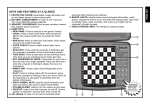
QUICK START
KEYS AND FEATURES
INTRODUCTION
1. LET’S GET STARTED!
1.1 First, Install the Batteries
1.2 Ready to Play? Here’s How to
Move!
1.3 Now It’s the Computer’s Turn
1.4 Change Your Mind? Take Back!
1.5 Game Over? Why Not Play
Again!
1.6 Too Easy/Hard? Change the
Level!
2. ADDITIONAL FEATURES
2.1 Whose Move? Check the
Display!
2.2 Special Chess Moves
2.3 Illegal Moves
2.4 Check, Mate, and Draw
2.5 Interrupting the Computer’s
Search
2.6 Changing Sides with the
Computer
2.7 Need Help? Ask for a Hint!
2.8 Chess Clocks
2.9 Built-In Openings
2.10 Auto Power Down
2.11 Game Memory
3. THE PLAYING LEVELS
3.1 Fun Levels
3.2 Fixed Depth Levels
3.3 Casual Levels
4. SPECIAL MODES TO
EXPLORE
4.1 Verify Mode
4.2 Non Auto Mode
4.3 Teach Mode
5. TECHNICAL DETAILS
5.1 The ACL Function
5.2 Care and Maintenance
5.3 Technical Specifications
TROUBLESHOOTING GUIDE
1.2 Ready to Play? Here’s How to Move!
Okay, it’s time to start a game! It’s so easy—just follow
these steps:
a. Press GO/STOP to turn the computer on, if you haven’t
already done so. You’ll see Little Alec’s face appear in
the display—he’ll be your constant playing companion
from now on!
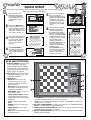
b. Press NEW GAME to reset the computer for a new
game of chess. Set up the pieces in their starting
positions, with the White pieces nearest to you, as
shown in the Quick Start .
c. To make a move, lightly press down on the piece you
want to move until you hear a beep—and the sensory
board will recognize your piece automatically. Check
out the display—it now shows the square that you
pressed, along with the piece and color symbols for
your chosen piece! This information flashes alternately
with the clock display.
d. Take your piece and gently press it down on the square
you are moving to. You’ll hear a second beep as the
computer confirms the move. You’ve just made your
first full move of the game! Next, it’s the computer’s
turn to move for Black.
At the start of a game, the computer will often move instantly because it is playing from memor y, using its built-in
“book” of opening moves. For details, see Section 2.9.
INTRODUCING…
ALEC, THE LITTLE ALCHEMIST!
So happy to meet you—and so glad that we’ll be enjoying
the wonderful world of chess together!
You might ask yourself, “What is this little guy doing inside
my computer?” It’s simple: I LOVE CHESS! And, what better
way to enjoy the game whenever possible, than to be here
every single time you turn your computer on! Chess is truly a
magical game—it’s fun, exciting, and intellectually stimulating.
You simply couldn’t ask for a better way to spend your time!
So, my goal in life is to be your constant companion, ready and
willing to play whenever you are!
If you see me grinning, don’t worry—I’m not making fun of
you… I’m just delighting in my own chess abilities! And, when
you see me cry after I lose a game, don’t feel too sorry for me—
I might just beat you the next time around!
Have a fabulous time, and be sure to explore this manual
to discover all the great features your chess computer has to
offer. Plus, watch out for the “stars” throughout the manual—
they’ll alert you to charts and diagrams that will help you to
understand your computer better! As for me, I’ll look forward to
enjoying many great games with you, now and for a long time
to come…!
Have fun!
1.3 Now It’s the Computer’s Turn
When the computer moves, it beeps and displays its
move, with the from square flashing. Press the indicated
piece down on the flashing from square until you hear a
beep. The display now flashes the square the piece is moving to. Move that same piece to the indicated to square and
press it down to complete the computer’s move. And it’s your
turn again…
Note that the following may sometimes occur while the
computer is thinking:
• Game keys may need to be pressed down for two to
three seconds before the computer responds.
• The clock display may occasionally skip a few seconds,
and the duration between consecutive seconds may
appear to be uneven. Game play will not be affected.
1.4 Change Your Mind? Take Back!
When you’re playing chess against this computer, nothing
is “set in stone”—you can change your mind or decide to
play a different move whenever you want! You can take back
two individual moves, or one move for each side.
To take back the last move played, press TAKE BACK.
The display will show the piece symbol, the color symbol,
and the move to be taken back, with the original to square
flashing. Press the piece down on that square. You now see
the from square flashing. Press the piece down on the
flashing from square to complete the take-back.
If the move taken back was a capture, the computer
reminds you to put the captured piece back on the board by
displaying the piece type and color, and flashing the square
location. Press this piece down on the indicated square. To
take back another move, press TAKE BACK again. To
continue the game, either make your next move or press
PLAY to have the computer move next.
1. LET’S GET STARTED!
Whether you’re just starting to learn about chess or you’ve
already discovered this great game, you’re going to benefit
from your new chess computer in so many ways! After all,
it’s a very unique combination of opponent and tutor! And, by
the way, your computer knows and follows all the rules of
chess—and you can be sure that it will never cheat! For
those who haven’t played before, we have included a brief
overview of the rules to get you started. For more detailed
information, why not visit your local library, where you’re sure
to find lots of interesting chess books!
1.1 First, Install the Batteries
Your chess computer runs on two “AA” (AM3/R6) batteries.
Insert the batteries into the compartment in the base of the
unit, as shown in the Quick Start . Use fresh alkaline batteries
for longer battery life (up to 1,000 hours)!
Turn the computer on by pressing GO/STOP, and a beep
will signal that the game is ready to play. If the computer
should fail to respond (static discharge can sometimes
1.5 Game Over? Why Not Play Again!
Whenever you finish a game (or if you give up on your
current game), it’s easy to start over again! Simply press
NEW GAME, and the computer will reset itself, putting all the
pieces back in their initial starting positions. The same
playing level will be in effect, but you can change it if you’d
2