1
like, as explained in Section 3.
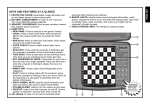
TYPICAL DISPLAYS AT A GLANCE!
IMPORTANT: Pressing NEW GAME clears the current
game from memory—be careful not to press this key by
mistake!
King is in check
(White/Black)
1.6 Too Easy/Hard? Change the Level!
Your computer offers 64 levels of skill, each of which
corresponds to one of the 64 board squares—making level
selection so easy! Together with the built-in Teach Modes,
you have a choice of 768 level setting combinations!
For complete details on all the playing levels, along with
instructions on selecting levels, see Section 3.
Checkmate
(for White/Black)
Game has ended in a draw
Clock showing Minutes/Seconds:
Steady colon, with leading zero
2. ADDITIONAL FEATURES
Display on entering Teach Mode
Computer is thinking for Black
2.2 Special Chess Moves
Captures: To capture, press down lightly on the piece you
want to move, take the captured piece off the board, and
press your piece down on the square of the captured piece.
En Passant: In an en passant capture, the computer
reminds you to remove the captured pawn from the board by
flashing the pawn’s location in the display. Press down on
the captured pawn before removing it from the board.
Castling: The computer automatically recognizes castling
after the King is moved. After you have pressed the King
down on its from and to squares, the computer displays the
Rook’s move, with the from square flashing. Press down on
this square, and the display flashes the square the Rook
should move to. Press down on the Rook’s to square to
complete the move.
Pawn Promotion: When you promote a pawn, first press
your pawn down on the from square, as usual. The computer will flash the from square and the symbols for the
pawn and Queen, along with the clock display. You now have
two choices: (a) To promote to a Queen, simply complete
your move by pressing your pawn down on the to square.
The promotion will take place automatically, accompanied by
a series of beeps. (b) To underpromote to a Knight, Bishop ,
or Rook, press the PIECE SYMBOL KEY for your desired
promotion piece (@, #, or $). That symbol will be displayed,
and pressing your pawn down on the to square will complete
your move. When promoting, always remember to change
your piece on the board! When the computer promotes a
pawn, the display shows its move, as usual, with the from
square flashing. You’ll notice, though, that the display shows
the symbol for the pawn plus the symbol for the computer’s
promoted piece. Press on the from square, and the to
square flashes. Press down on the to square, change the
computer’s piece on the board, and continue your game!
Player to move for White
Note: Random expressions are shown for Alec. His animated expressions will
change according to specific game situations!
displayed, but you decide not to make that move, simply
press down on that same square again to cancel. Then
make another move. If you change your mind after entering
your whole move, take the move back as described in Section 1.4.
Caution: Be careful when playing with the sound turned
off, since you won’t be able to hear the error beeps!
2.4 Check, Mate, and Draw
Check: When a King is in check, the computer first displays the move as usual. After the move is made, the display
alternates between the time and ch, along with [ if White is
in check or ] if Black is in check.
Checkmate: When a game ends in checkmate, you’ll hear
a series of beeps and the display will flash End, along with [
if White has won or ] if Black has won. Notice how delighted
Little Alec is when he wins—and how sad he gets when he
loses a game!
Draws: The computer recognizes draws by stalemate and
three-fold repetition. After a draw has occurred, the display
will flash End and both of the color symbols ([ and ]), along
with the drawing move.
2.5 Interrupting the Computer’s Search
Think the computer is taking too long to move? No problem—you can interrupt it any time! Simply press PLAY while
the computer is thinking, and it will stop and make the move
it is currently considering.
This feature can come in handy for those of you who are
impatient—especially when using Fixed Depth Levels C6
and higher, where the computer can occasionally take an
hour or more to make its move.
2.3 Illegal Moves
Your computer will never accept an illegal move! If you try
to make one, you’ll hear a low beep and the display will
alternate between showing the from square and the time.
Either move that same piece to another square, or press the
piece back down on its original from square and move a
different piece.
If you don’t move the computer’s piece correctly, you’ll
also hear an error beep. This means that you are either
moving the wrong piece, or moving the computer’s piece to
the wrong square. Check the display and make the move
again.
If you press down on a piece and the from square is
2.6 Changing Sides with the Computer
To change sides with the computer, press PLAY when it’s
your turn to move—and the computer will make the next
move for your side. Change sides as often as you wish!
Want the computer to play the first move for White at the
start of a new game? Press NEW GAME to reset the computer, and then press PLAY!
Want to watch the computer play chess against itself?
3
ENGLISH
Clock showing Hours/Minutes:
Flashing colon, no leading zero
2.1 Whose Move? Check the Display!
You can always tell at a glance if the computer is currently
thinking, and which side is to move—just by taking a look at
the color symbols (] for Black and [ for White)! Whenever
the computer is thinking, the color symbol for the side it is
playing flashes in the display. When it is your turn to move,
the color symbol for your side shows steadily.