1
ever, if you would rather not have the voice on, you have other options!
As noted in Section 4.1, you can choose to hear only beeps, or even
turn the sound off for completely silent operation, if desired.
By the way, if you don’t hear what the computer says, simply press
SAY AGAIN on your turn to have the last message repeated. Note the
following exceptions: If you press SAY AGAIN in Verify Mode or when
the computer is displaying a hint on your turn, the computer will simply
return to normal playing mode. Also, SAY AGAIN is disabled if the
Voice Coach Level is set to G or H, or when you are in Level Mode.
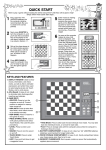
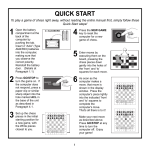
See the “QUICK START” for an example of how the board lights
would indicate a computer move from e7 to e5!
1.4 Change Your Mind? Take Back!
If you make a mistake or change your mind about a move, it’s easy
to take moves back! Press TAKE BACK when it is your turn, and the
computer will announce the move to be taken back (e.g., Black takes
back Knight move). The computer also uses board lights to guide you
through the take-back. The to square of the last move lights first—
press the indicated piece down on that square. The computer then
shows you where the piece came from. Press the piece down on the
from square to complete the take-back. Repeat this procedure to take
back more moves, up to a total of six individual moves.
When taking back captures or castling maneuvers, the computer will
remind you which pieces should be put back on the board! It does so
by turning on board lights to indicate the position. It also announces the
color and type of the captured piece.
2. ADDITIONAL FEATURES
2.1 Indication of the Side to Move
When Black is thinking about its move, board light 8 flashes. After it
has moved, the 1 light comes on steadily to show that it is now White’s
turn to move. Similarly, if the computer plays White, the 1 light flashes
during its turn, and the 8 light comes on steadily after it has moved. It’s
easy to tell whether the computer is thinking and whose turn it is!
2.2 Captures and Special Moves
During the game, the computer’s voice will normally alert you to
captures and special moves, such as castling or pawn promotions.
Captures: To capture, press down lightly on the piece you want to
move—the voice will identify that piece. Take the captured piece off the
board, and press your piece on the square of the captured piece. The
capture will be announced, as in takes Bishop.
En Passant: In an en passant capture, the computer uses board
lights to remind you to remove the captured pawn. Press down on the
captured pawn before removing it from the board. Although beginning
players are often confused when this type of capture occurs, the voice
output takes pawn en passant is heard after pressing the to square—
making this move unmistakable!
Pawn Promotion:
• When you promote a pawn, first press your pawn down on its
from square, as usual. As soon as you press down on the to square,
you will hear Pawn now Queen—and your pawn automatically becomes a Queen! If you would rather underpromote to a Knight, Bishop,
or Rook, first press the from square. Then, before pressing the to
square, press the Piece Symbol key for the Knight, Bishop, or Rook.
1.5 Game Over? Start a New Game
Whenever you finish a game (or if you decide to abort your current
game), press NEW GAME to reset the computer. The computer is then
ready for another game, using the currently selected level.
Caution: Since pressing NEW GAME clears your current game from
memory, be careful not to press this key by mistake!
1.6 Too Easy/Hard? Change Levels!
When the computer is first turned on, it is set to Level H4 (ten
seconds a move). However, you may choose any of the 64 playing
levels described in Section 3! Press LEVEL to enter Level Mode, and
the board lights will indicate the current level. To change levels, press a
board square to activate your desired level, using the Level Chart in
Section 3 as a guide. Press LEVEL again to exit Level Mode.
1.7 Voice On/Off? It’s Your Choice!
Your computer’s informative and entertaining voice output is on by
default, and the Volume Control Slider sets the desired volume. How-
3
ENGLISH
piece should go. Move the piece to the indicated square and press the
piece down. Once you have pressed this square, you have completed
the computer’s move!