1
MODEL:MX-B200
3. CONNECTING THE POWER CORD / POWER ON
If you use the unit in a country other than the country where the unit was purchased, you will need to make sure that your local power supply is
compatible with your model. If you plug the unit into an incompatible power supply, irreparable damage to the unit will result.
DIGITAL MULTIFUNCTIONAL SYSTEM
START GUIDE
1
This guide explains how to install the machine, and indicates important points to note for installation and usage. Read and understand this guide to
ensure that you install the machine correctly. The Operation Guide for the machine is on the accompanying CD-ROM. The procedure for viewing the
guide is explained in "4. HOW TO USE THE OPERATION GUIDE". After installation, read the Operation Guide to make full use of all the machine
has to offer.
Ensure that the power switch of the
unit is in the "OFF" position.
2
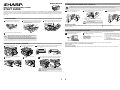
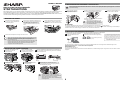
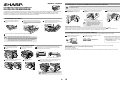
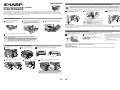
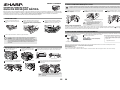
1. LOADING PAPER
1
Raise the handle of the paper tray and
pull the paper tray out until it stops.
2
Squeeze the lever of paper guide (A) and slide
the guide to match with the width of the paper.
Move paper guide (B) to the appropriate slot
as marked on the tray.
3
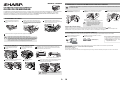
Insert the attached power cord into the power cord
socket at the rear of the unit.
3
Turn the power switch on the left side of the
unit to the "ON" position.
Plug the other end of the power cord into the
nearest outlet.
Fan the paper and insert it into the tray. Make
sure the edges go under the corner hooks.
• Only insert the power cord into a properly
grounded wall socket.
• Do not use extension cords or power strips.
OFF
ON
About the scan head
The scan head lamp remains on constantly when the unit is in the ready condition (when the start (
) indicator is illuminated).
The unit adjusts the scan head lamp periodically to maintain copying quality. At this time, the scan head moves automatically. This is normal and does not
indicate unit trouble.
(B)
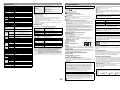
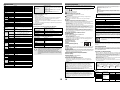
4. HOW TO USE THE OPERATION GUIDE
(A)
Detailed explanations of the functions that can be used on the machine are provided in the Operation Guide in PDF format.
4
1
Gently push the paper tray back into the unit.
Insert the supplied CD-ROM into your
computer's CD-ROM drive.
• Be sure that paper is free of rips, dust, wrinkles, and curled or bent edges.
• Make sure all the paper in the stack is the same size and type.
• When loading paper, ensure there is no space between the paper and the
guide, and check if the guide is not set too narrow causing the paper to bend.
Loading paper in these ways will result in document skew or a paper jam.
2
Display the contents of the CD-ROM, and open
the Operation Guide file.
Operation Guide file (PDF)
Manual
English
* To view the Operation Guide in PDF format,
Adobe® Reader® or Acrobat® Reader® of
Adobe Systems Incorporated is required.
Adobe® Reader® can be downloaded from the
following URL:
http://www.adobe.com/
Operation Guide CD-ROM
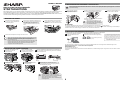
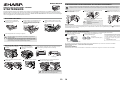
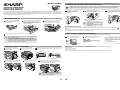
2. INSTALLING THE TONER CARTRIDGE
1
Open the multi-bypass tray, and
then open the side cover.
2
Push gently on both sides of the
front cover to open the cover.
3
Grasp the cartridge on both sides and shake it horizontally four or five
times. After shaking the cartridge, remove the toner seal.
4-5
2
3
1
4
7
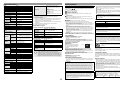
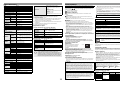
A paper form operation manual can be obtained from your authorized SHARP dealer or upon request by contacting SHARP.
SHARP Manufacturing France - Customer Documentation Department
Route de Bollwiller
68 360 SOULTZ - FRANCE
or by fax (+33) 3.89.74.87.78
Please inform the model name, the serial number of the machine and the language needed. Do not forget to add your name and your address.
Gently insert the toner cartridge until it
locks in place.
Shutter
5
Remove the tape from the
shutter.
6
Toner seal
Close the front cover and then the side cover by pressing
the round projections near the side cover open button.
When closing the covers, be sure to close the front
cover securely and then close the side cover. If the
covers are closed in the wrong order, the covers may
be damaged.
1
2