1
Chapter 2
Getting Started with CMS
Cluster View and Cluster Builder
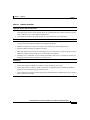
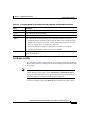
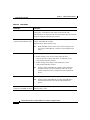
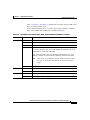
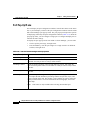
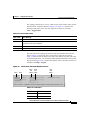
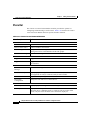
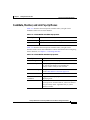
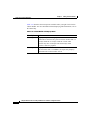
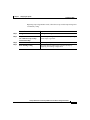
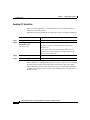
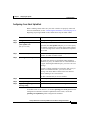
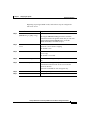
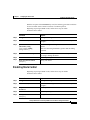
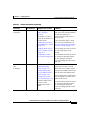
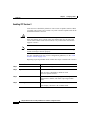
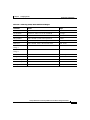
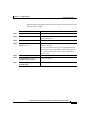
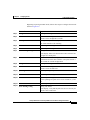
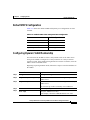
Table 2-15 Cluster View and Cluster Builder Menu (continued)
Menu Bar Options
Task
Options
Save Layout
Save the current arrangement in the topology.
Save Configuration
Save the current configuration of cluster members to Flash memory.
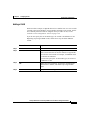
Help
Contents
List all of the available online help topics.
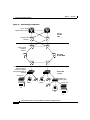
Legend
Display descriptions of the icons used in the topology.
About
Display the version number for Cluster Builder and Cluster View.
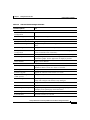
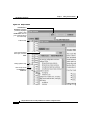
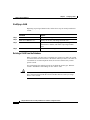
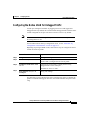
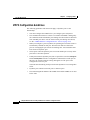
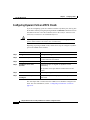
Toolbar
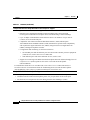
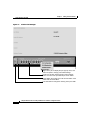
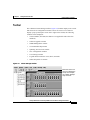
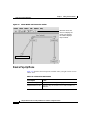
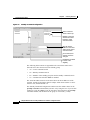
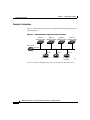
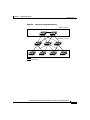
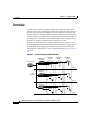
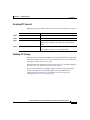
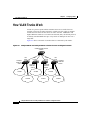
The Cluster Builder and Cluster View toolbar (Figure 2-9) buttons display some
cluster-level configuration windows. Hover the cursor over a button to display a
pop-up description. From left to right on the toolbar, the following windows can
be displayed:
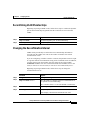
•
Launch Cluster Manager.
•
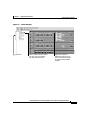
Toggle between Cluster Builder and Cluster View—You can also use Cluster
Builder and Cluster View to manage your cluster. When you are using Cluster
Builder, click the double-switch icon on the toolbar (Figure 2-9) to toggle
back to Cluster Manager.
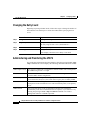
•
Toggle between switch names and IP or MAC addresses and connected port
numbers.
•
Save the arrangement of the cluster icons as you have arranged them.
•
Save the current configuration for all cluster members to Flash memory.
•
Set the user settings for Cluster Builder and Cluster View.
•
Display the legend that describes the icons, labels, and links that are used in
Cluster Builder and Cluster View.
•
List the online help topics for Cluster Builder and Cluster View.
Catalyst 2900 Series XL and Catalyst 3500 Series XL Software Configuration Guide
78-6511-05
2-27