1
Simrad PI50
B
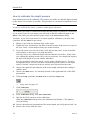
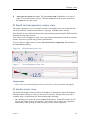
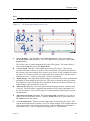
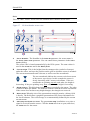
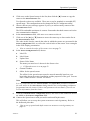
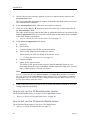
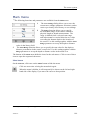
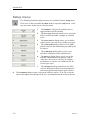
Choose Label Name.
•
Label Name
By default, the Label Name is the same as the sensor name listed with the
Available sensors.
Click in the field to enter another name.
If you do not have a computer keyboard connected to your PI50 system,
click the Keyboard button to open an on-screen keyboard.
The Label Name is only shown in this dialog.
C
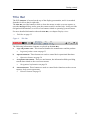
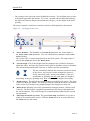
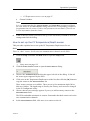
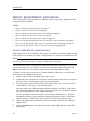
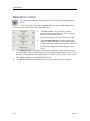
Choose Update Rate.
a
Update Rate
This parameter i used to select the sensor’s update rate.
This is how often the PI50 can expect to receive information from the
sensor.
Note
The Update Rate parameter is vital. The update rate you choose here must
comply to the update rate programmed into the sensor. If these do not
match, the communication will not work.
The default update rates for the various sensors are listed in chapter PI50
Sensors.
To change the channel number in the sensor, use the PI Configurator utility.
D
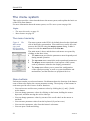
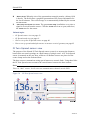
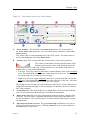
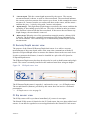
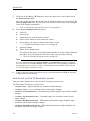
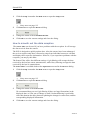
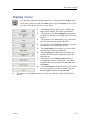
Choose Sensor Value Name.
a
Sensor Value Name
By default, the Sensor Value Name is the same as the sensor name listed in
the Available Sensors list. If you have a keyboard connected to the PI50
computer, you can click in the field, and enter another name. You can
also open the on-screen keyboard.
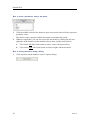
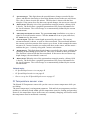
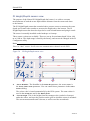
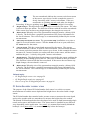
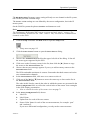
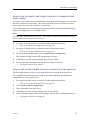
The Sensor Value Name is used in the Sensor views. If you are setting up a
dual sensor, you can enter two different names, for example “Port door”
and “Starboard door”.
→
Sensor views on page 37
Example: If you have three PI Catch sensors on your trawl, you can name
them “20 Ton”, “40 Ton” and “60 Ton”.
74
328457/A