1
Advanced features
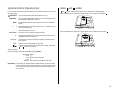
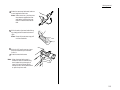
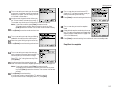
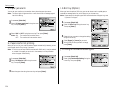
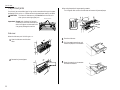
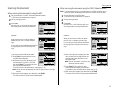
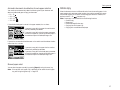
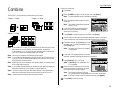
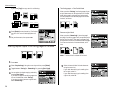
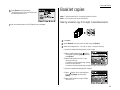
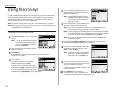
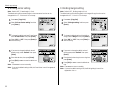
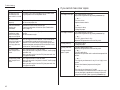
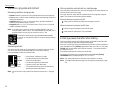
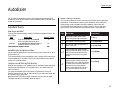
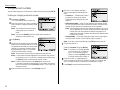
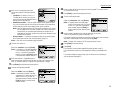
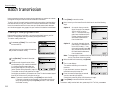
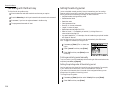
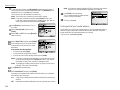
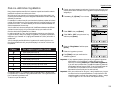
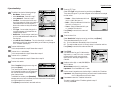
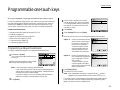
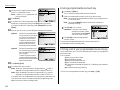
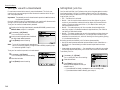
To make copy with repeat:
1
2
13
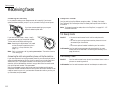
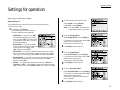
The Repeat icon will be displayed on the LCD.
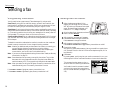
Press MENU.
Select “Repeat” using the cursor key, and
then press [Enter].
Note: The Auto Reduce/Enlarge is selected
automatically.
14
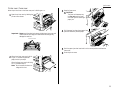
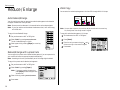
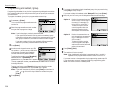
Set the documents.
Note: Set the documents with same direction as you see on the LCD in step 5.
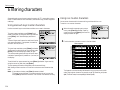
3
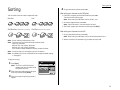
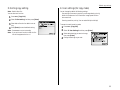
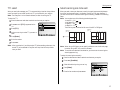
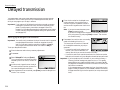
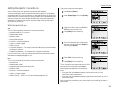
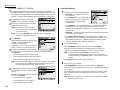
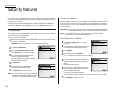
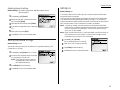
Select the desired repeat modes using the
cursor key.
Note: The number of documents repeated can be 2, 4 or 8.
4
5
6
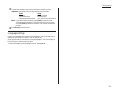
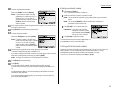
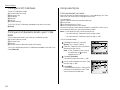
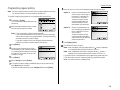
If you want to change the recording paper size for combining, proceed to next
step. Otherwise, skip to step 6.
7
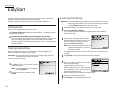
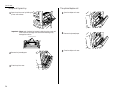
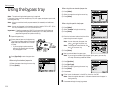
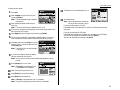
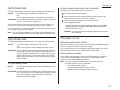
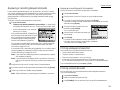
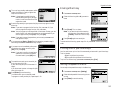
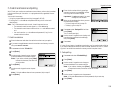
Press NEXT and then press [Line] to print the
separator lines. To cancel the separator lines,
press [Line] again.
Note: The width of the line can be changed.
⇒ See page 3.4.
8
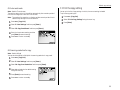
If you want to change the layout, proceed to
next step. Otherwise, skip to step 12.
Note: Use this function, when you set the reduction/enlargement ratio by
yourself.
9
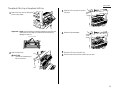
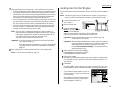
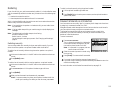
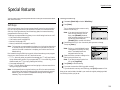
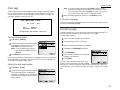
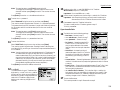
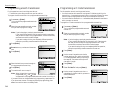
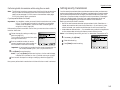
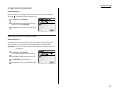
Press [Layout], the LCD will show:
Note: If [Layout] is not appeared on the
LCD, press NEXT until it appears.
10
11
12
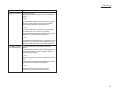
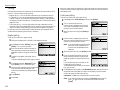
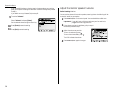
Press [Paper] to select the paper size, and then press [Enter].
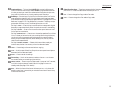
You can insert the separator lines between repeated images. If you want to
insert the separator lines, proceed to next step. Otherwise, skip to step 8.
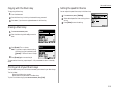
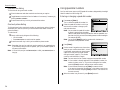
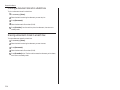
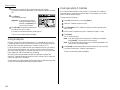
If you set your documents in the ADF:
Press START. After the all documents in the ADF are scanned, the copies will
be printed.
If you set your document on FBS glass:
Press START after setting the first page of your documents on the FBS glass.
Then set the next page of your document, then press [Start].
After all your documents are scanned, press [Exit].
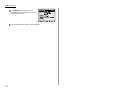
Select the layout using the cursor key.
Press [Enter] to save the layout setting.
Press [Enter] to save the setting.
Note: If [Enter] is not appeared on the LCD, press NEXT.
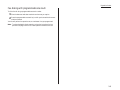
Note: To cancel the setting of the combine function, press CLEAR.
2.3