1
Controlling the Quality of Your Prints
Controlling the Quality of Your Prints
This section includes:
■
■
Selecting a Print-Quality Mode on page 4-2
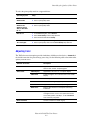
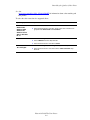
Adjusting Color on page 4-3
The print-quality mode and TekColor correction directly control the quality of your prints. The
print-quality mode and paper type directly control the print speed. You can change these
settings in the printer driver or on the control panel.
Note: Driver settings override the control panel settings.
See also:
Advanced Features Guide at www.xerox.com/office/8500_8550support
Selecting a Print-Quality Mode
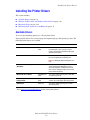
Print-quality modes available with the Phaser 8500/8550 printers include:
■
■
Fast Color, Enhanced (All printers)
Standard, High-Resolution/Photo (Phaser 8550 printers only)
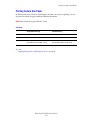
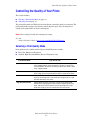
Print-Quality Mode
Type of Print Job
Fast Color
Fastest full-color mode, useful for many images and previewing your
work. Rapidly produces review documents; useful for rush jobs. Not
recommended for documents containing small text, fine detail, or large
areas of bright solid fill.
Standard
General-purpose mode for full-color printing. Produces crisp, bright
prints at high speed. Recommended for vibrant, saturated color prints.
Enhanced
Best mode for business presentations. Produces superior text resolution
and very smooth light colors. This mode takes longer to process and
print than Standard or Fast Color.
High-Resolution/Photo
Highest-quality mode for color prints. Provides the best detail and
smoothness for photographic images. Produces highest-quality color
prints, with the best text resolution and smoothest light colors. This
mode takes longer to process and print than the other modes.
Phaser® 8500/8550 Color Printer
4-2