1
Advanced View: Configuring Appliances
The icons in the Appliance Settings area of the Configuration view enable you to configure your
appliance.
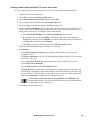
Backup
Use the Backup icon to save your appliance configuration to a password-protected, encrypted file. This
backup file includes all of the configuration settings for your appliance, including user account settings,
pod configurations, alert actions, and profiles. Once your appliance configuration is saved, you can use
the Restore icon to restore this configuration to your appliance at a later date.
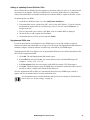
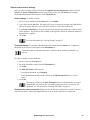
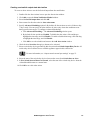
To save your appliance configuration:
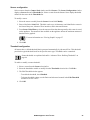
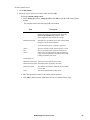
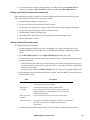
1. Double-click the Backup icon.
2. Enter a file name for the backup file in Backup File.
3. Click Browse to select a drive and directory in which to store the backup file. Click OK to return
to the Appliance Backup window.
4. Type the password used to protect this backup file in the Password field.
5. Type the password again in the Verify password field.
6. Click OK.
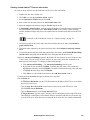
Clock
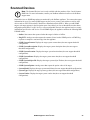
Use the Clock icon to view or change the date and time configured on the internal clock of the appliance
or to configure your appliance to obtain its internal clock settings from a Network Time Protocol (NTP)
server.
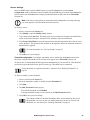
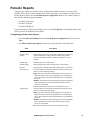
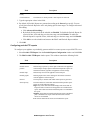
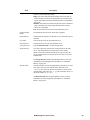
To change the Clock settings:
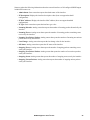
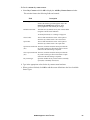
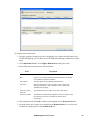
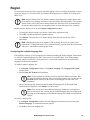
1. Double-click the Clock icon to open the Clock Configuration window.
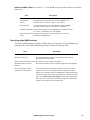
2. Change the Clock settings using the field descriptions below.
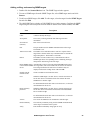
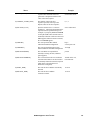
Field
Description
Enable NTP
Enable the NTP functionality. Clear this check box to enable the
clock and calendar controls in the Date/Time area.
Primary, Secondary,
and Tertiary NTP
servers
IP addresses of NTP servers that automatically set the appliance
clock.
Date/Time
Use the controls to configure the day, date, and time used by the
appliance clock.
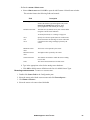
3. Click OK. A prompt to reboot the appliance appears.
4. Click Reboot. The appliance automatically reboots. This may take a few minutes, during which
time Advanced View will be unavailable.
NetBotz Appliance User’s Guide
67