1
Your Phone Display While on a Call
The display shows the line (L1, L2, etc.), the Caller ID information as available, the call status and
the call timer. Options for call handling are available on softkeys and hard keys, allowing you to
transfer, conference and place calls on hold.
Softkeys
The Aastra 480i has 6 softkeys, 3 on either side of the
display. Softkey menus change depending on the status
of your phone and will display only relevant softkeys. The
softkey layouts shown in this user’s guide are those set up
by default. Your administrator can overwrite your phone’s
softkey menus.
Your Phone in Idle State
When your phone is not in use, the default softkeys allow
you to make or pickup calls, check voicemail, manage
your extension and more. The envelope icon shows if you have messages waiting. Press the
“More” softkey for more options
When Softkeys are Configured as Speed Dial or
Line/call Appearances
Your administrator may override default settings so that
your softkeys function as line/call appearance softkeys.
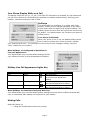
Softkey Line Call Appearance Lights Key
Activity
Idle
Connected
Action
Solid
Solid
Ringing
Flashing
On Hold
Flashing
Icon
Definition
No call activity
A call is connected to your phone
on this line/call appearance
softkey.
A call is ringing to your phone on
this line/call appearance softkey.
A call is on hold on your phone on
this line/call appearance softkey.
When Softkeys are Customized as Speed Dial Keys
Your administrator may override default softkey settings to set up custom softkeys as speed dial
keys. A customized label displays on the phone for each softkey.
Making Calls
Make calls either by:
• Lifting the handset and entering the number,
Page 2