1
•
•
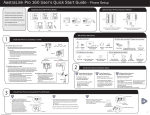
Pressing the speakerphone/headset button and enter the number or,
Pressing a line/call appearance button and enter the number.
Check with your administrator if you are unable to make calls to certain area codes. Toll
restrictions may have been set on your extension.
Using Handsfree Speakerphone or Headset Modes
The speaker light turns on when handsfree mode is in use.
• To make a call, press the speakerphone button and enter a number at the dial tone.
• To answer a call using handsfree speakerphone, press the speakerphone button or the
line/call appearance button.
• Press the speakerphone button to switch between handsfree and headset modes.
• Press the speakerphone button to disconnect a handsfree call.
Adjusting the volume on the headset microphone
Press Options and then 7 for Set Audio. Press the Advanced softkey, then the Change softkey
(scroll down if necessary). Press Done to save changes and exit.
Placing and Receiving Calls Using a Headset
Make sure you have selected the headset audio mode using the Options list on your phone. Plug
the handset into the jack. Press the speakerphone/headset key to get a dial tone or answer an
incoming call. Press the Goodbye key to end a call.
Answering Calls
•
•
•
For handsfree calls, press the Pickup softkey or the
line/call appearance button for the call.
Press the speakerphone/headset button for
handsfree or headset use. The Audio Mode you
selected in your Options list will determine whether
the call goes to handsfree or speakerphone.
For handset use, lift the handset.
Call Handling
Call Hold
When you place a call on hold, it can only be retrieved by your phone. To place a call on hold,
press the Hold softkey. The line/call appearance light will flash slowly and the screen will display
“Hold” on the call information display. Pick up the call by pressing the Pickup softkey.
Automatic Hold
When you are dealing with multiple calls, you do not have to press the hold button to go from one
call to the next. When you press a new line/call appearance button the phone automatically puts
your current call on hold. When you have more than one call on hold, scroll through held calls by
pressing the right and left arrow keys and press the Pickup softkey.
Transfer a Call
Unannounced Transfer
Press the Xfer button and enter the extension to receive the call and press Xfer again.
Announced Transfer
Page 3