1
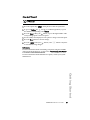
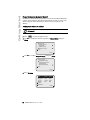
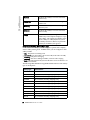
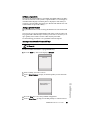
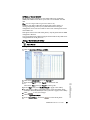
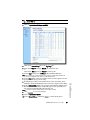
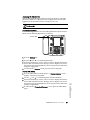
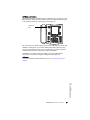
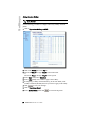
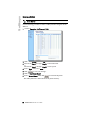
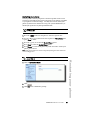
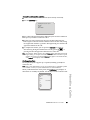
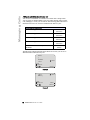
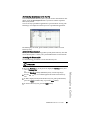
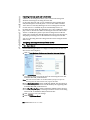
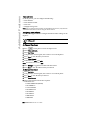
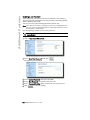
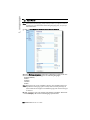
3. Enter a server value in the "Pickup Parked Call" field.
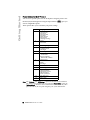
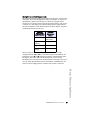
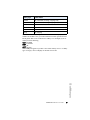
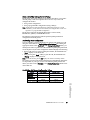
Note: For values to enter in this field, see the table "Park/Pickup Call Server Configuration Values" on page 47.
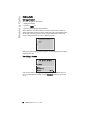
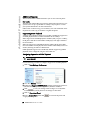
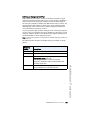
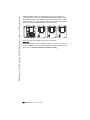
4. Click
to save your changes.
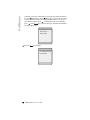
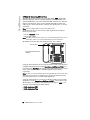
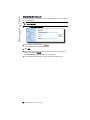
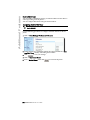
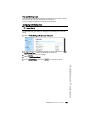
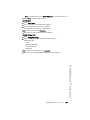
5. Click on Operation->Reset.
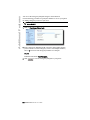
6. In the "Restart Phone" field click
to restart the IP phone.
Park/Pickup Softkey Configuration
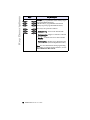
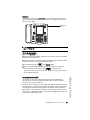
The programmable method of configuration creates park and pickup
softkeys that you can configure on the 57i phone.
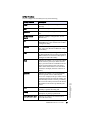
You can set a softkey as "Park" or "Pickup" and then:
• specify a customized label to display on the Phone UI
• specify a value
• specify which line to use
• specify the state of the park and/or pickup keys
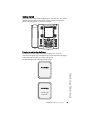
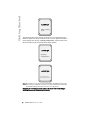
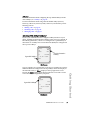
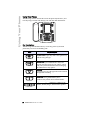
On the IP phone UI, the Park/Pickup feature displays the following:
• When a call comes in, and you pickup the handset, the custom label that
you configured for the Park softkey displays on the Phone UI.
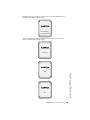
• After the call is parked, the label that you configured for the Pickup softkey displays on other phones in the network. You can then press the
"Pickup" softkey, followed by the applicable value to pickup the call on
another phone in your network.
You can configure a Park and Pickup programmable configuration using
the Aastra Web UI.
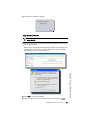
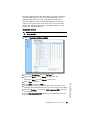
Softkey Configuration Using the Aastra Web UI
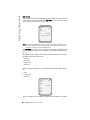
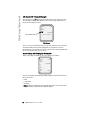
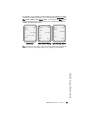
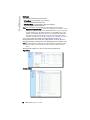
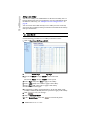
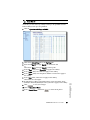
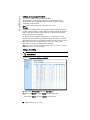
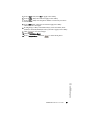
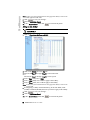
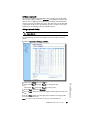
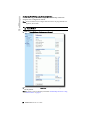
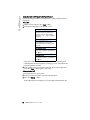
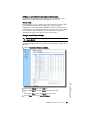
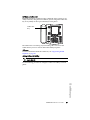
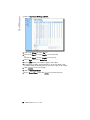
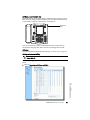
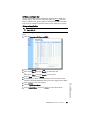
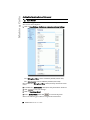
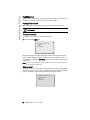
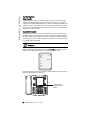
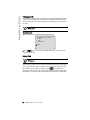
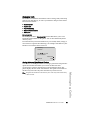
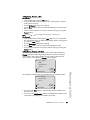
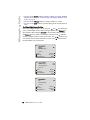
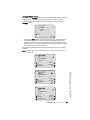
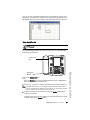
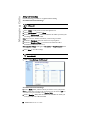
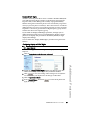
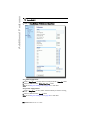
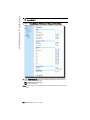
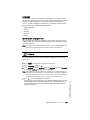
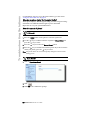
On the 57i, you configure a Park and/or Pickup key at Operation->Softkeys
and XML. You enter a key label, and value for a specific line on the phone.
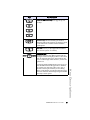
The default state of the Park configuration is "connected". The default state
of the Pickup configuration is "idle, outgoing".
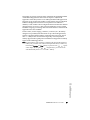
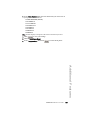
Note: Applicable values depend on the server in your network (Asterisk, BroadWorks, Sylantro, ININ PBX. See the table "Park/Pickup Call Server Configuration Values" on page 47.
Softkeys
Model 57i IP Phone User Guide
49