1
visualise | communicate | ENGAGE
The InstantAtlas ArcGIS Online Templates
M.3.2. Designing the ArcGIS Online Dynamic Report
M.3.4. Saving changes back to ArcGIS Online
You can edit the layout, settings and styles of the dynamic report as
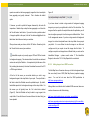
You can save the changes back to the Web Application you opened simply
described in section ’C.4. Creating a New Design’.
by clicking the ‘Save’ button or selecting ‘File’ and then ‘Save’. This will
g the InstantAtlas Area Profile Template User Guide
save both the configuration changes as well as the stylesheet changes so
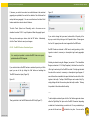
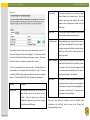
Please note: It is currently not possible to upload any custom files
such as logos, banners, downloadable datasets etc.to ArcGIS Online.
that the config.xml and the default.css files of the Web Application within
ArcGIS Online are updated.
Therefore if you wish to use custom files in your ArcGIS Online dynamic
report you will need to first upload them to a web server and then enter the
web link to the file into the URL field of the image or button component in
the Designer.
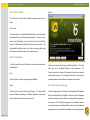
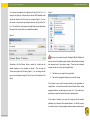
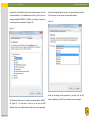
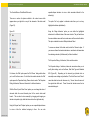
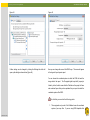
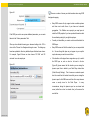
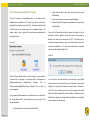
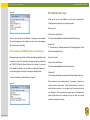
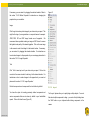
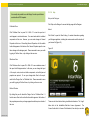
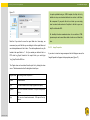
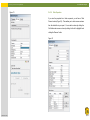
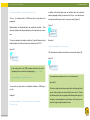
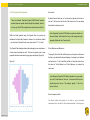
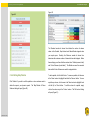
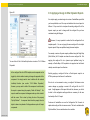
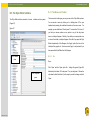
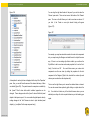
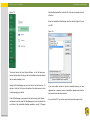
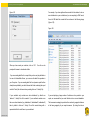
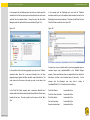
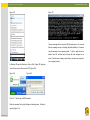
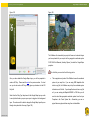
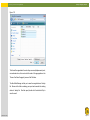
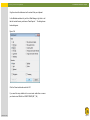
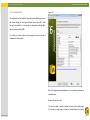
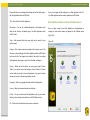
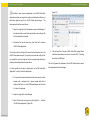
You can also save the changes to a different ArcGIS Online Web
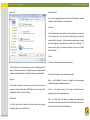
Application. To do this select ‘File from the main menu, then ‘Save
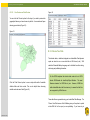
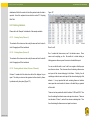
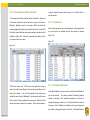
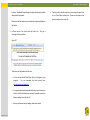
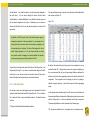
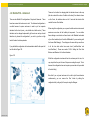
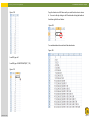
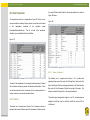
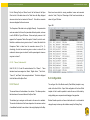
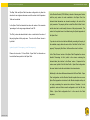
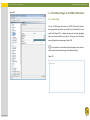
As/To…’ and then ‘ArcGIS Online Application’ (Figure 222).
Figure 222
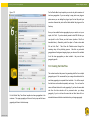
M.3.3. Styling the ArcGIS Online Dynamic Report
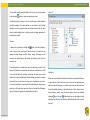
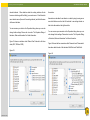
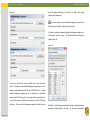
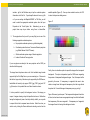
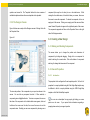
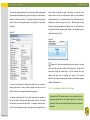
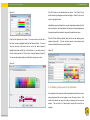
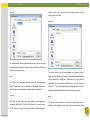
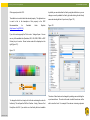
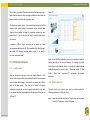
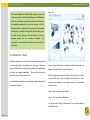
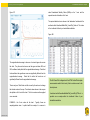
All style classes should be available through the ‘Styles’ tab of the
properties pane. This will list only those style classes that are relevant to
the selected component. If no component is selected it will list all style
classes that are relevant for the report as a whole. If you wish to see the
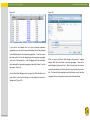
complete list of style classes you can open the Style Editor through the
main menu (select ‘Style’ and then on ‘Edit Styles’) or toolbar (third icon
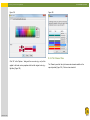
from the right) of the Designer. The Style Editor also allows a global find
and replace of style properties which cannot be achieved through the
Designer. Once you are happy with the changes in the Style Editor you
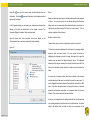
need to save them back to the Designer by selecting ‘File’ and then ‘Apply’
in the main menu of the Style Editor. Alternative you can use the
the toolbar. Then close the Style Editor.
icon in
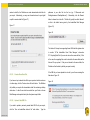
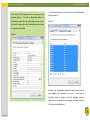
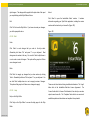
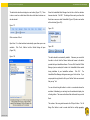
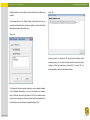
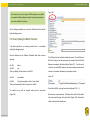
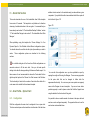
This will launch the ‘Choose ArcGIS Online Data’ dialog. Please find further
information on how to use this in section ‘M.2.1. Selecting Items from
ArcGIS Online’. You will need to ensure that you pick an Application that
was created with the same template that the configuration you are editing
belongs to.
© GeoWise
GeoWise Ltd.
Ltd. 2013
2011
©
Page 188