1
Bluetooth® Wireless Adapter
The Bluetooth wireless adapter connects to your computer and enables wireless communication
between your slate and your computer. For more information, see the instructions that came with
the adapter.
NOTE: You don’t need to install this adapter if your computer already has an installed Bluetooth
wireless adapter or built-in Bluetooth wireless support.
Rechargeable Battery
The slate uses a rechargeable lithium polymer battery. For information on installing the battery,
see page 5. For information on checking the battery’s charge, see page 8.
Power Adapter Cable
The power adapter cable has two parts: the adapter that connects to the slate’s Power Connector
port and the cable that connects to an external power outlet, enabling you to recharge the battery
or power the slate using an external power source. For information on recharging the battery, see
page 7.
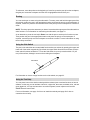
Battery-Free, Tethered Pen
The battery-free, tethered pen works like a mouse, enabling you to select, edit and erase objects,
images and text. For information on using the tethered pen, see page 17.
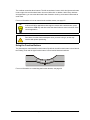
Side Switch
Replaceable
Pen Nib
The pen’s side switch has two customizable functions that you can select by pressing the upper or
lower half of the switch respectively. The default functions for this switch are Eraser and Black Ink,
but the other available functions include right-click, middle-click, next page, previous page, launch
Floating Tools, launch Notebook software and more. For information on customizing the side
switch, as well as the tethered pen’s other properties, see page 23.
CAUTION
Don’t leave the pen on the slate’s workspace when you aren’t using it. This may
interfere with pointer positioning. Instead, place the pen in the pen storage
compartment or lay it flat on your desk.
About the Slate
3