1
Audio interface manual
Tips to improve performance
4
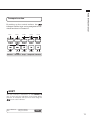
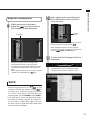
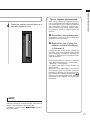
Raise the master channel fader to a
suitable playback level.
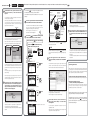
When using Cubase LE, application performance could become extremely delayed or
error messages such as “cannot synchronize
with USB audio interface” might be displayed. Should such things happen often,
the following measures might improve the
situation.
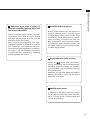
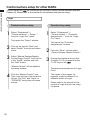
➊ Quit other running programs.
In particular, confirm that many background
applications are not running.
➋ Reduce the use of plug-ins
(effects, virtual instruments)
in Cubase LE
If a large number of plug-ins are running, the
computer processing capacity might not be
able to keep up. In addition, reducing the
number of simultaneous playback tracks
might be effective.
If the sound breaks up, please increase the
audio Buffer Size (Devices > Device Setup…
> R8 driver > Control panel).
For details, see Step 5 of the Cubase LE
Startup Guide.
Moreover, if the application performance
is extremely slow and regular computer
operation is affected, we recommend quitting Cubase LE and disconnecting the
USB port from the computer once, and then
reconnecting the USB port and relaunching
Cubase LE.
HINT
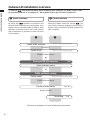
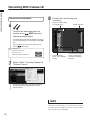
If no sound comes out after clicking the Play button
following recording, recheck the VST Connections
(step 6 in the Cubase LE Startup Guide).
In addition, confirm that the
BALANCE control is
set to the center.
21




![[PDF:4.2MB]](http://vs1.manualzilla.com/store/data/005828831_1-fe8cebe621cde38b99682d8c012568df-150x150.png)