1
INTERFACE - ZONES
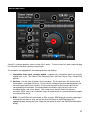
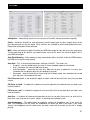
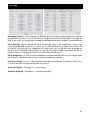
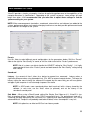
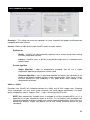
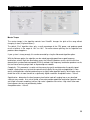
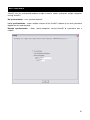
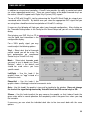
Before beginning to use VirtualDJ, familiarize yourself with the controls and “zones” of the software.
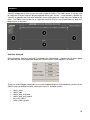
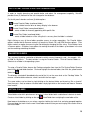
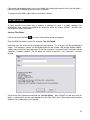
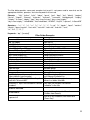
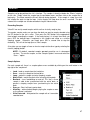
Upon opening the application, an interface menu is displayed. Interfaces called “skins” feature different
configurations, layouts and functionality of the software. Let’s begin by selecting “Internal mixer
interface” to become familiar with the most important features of the software. To change to a different
skin while the software is running, click on the “Config” menu and select the “Skins” tab.
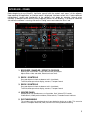
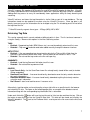
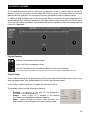
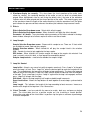
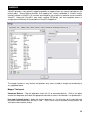
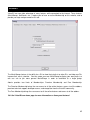
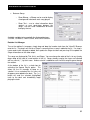
1. BROWSER I SAMPLER / EFFECTS I RECORD
Browse your music folders, Create, edit and save your playlists
Adjust effects video, and audio, Record and save mixes
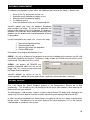
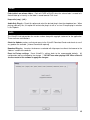
2. DECK 1 CONTROLS
Drag and drop music from the browser to this virtual deck.
Track title, beats per minute display, counters, Transport Control
3. DECK 2 CONTROLS
Drag and drop music from the browser to this virtual deck.
Track title, beats per minute display, counters, Transport Control
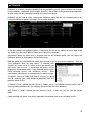
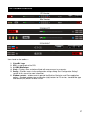
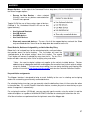
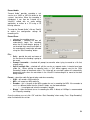
4. CENTER PANEL
Multiple panels can provide access to Crossfader, Gain, Volume PFL Controls,
Video controls, Video preview windows, Effect controls, Timecode Scratch Interface
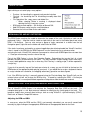
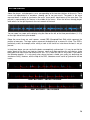
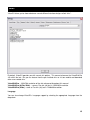
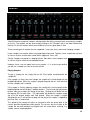
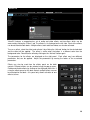
5. RHYTHM WINDOW
This window tracks the waveform of each song loaded or playing on a deck. This area also
features a Computer Beat Grid (CBG) used for visual mixing and beat-matching.
3