1
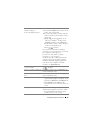
Problem (continued)
Partial, scrolling, or
incorrectly displayed image
Possible Solution (continued)
1 Press the Auto Adjust button on the remote
control or the control panel.
2 If you are using a Dell™ portable computer,
set the resolution of the computer to XGA
(1024 x 768):
a Right-click the unused portion of your
Microsoft® Windows® desktop, click
Properties and then select Settings tab.
b Verify that the setting is 1024 x 768 pixels
for the external monitor port.
c Press
(Fn+F8).
If you experience difficulty in changing
resolutions or your monitor freezes, restart all
the equipment and the projector.
If you are not using a Dell™ portable
computer, see your computer’s
documentation. The output signal from the
computer may not be according to industry
standards. Should this happen, upgrade the
video driver of the computer. For a Dell
computer, see support.dell.com.
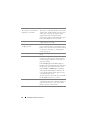
The screen does not display
your presentation
If you are using a portable computer, press
(Fn+F8).
Image is unstable or flickering Adjust the tracking in the OSD Display submenu (in PC Mode only).
Image has vertical flickering
bar
Adjust the frequency in the OSD Display submenu (in PC Mode only).
Image color is incorrect
• If the display receives the wrong signal
output from the graphics card, please set the
signal type to RGB in the OSD Display tab.
• Use Test Pattern in the Others menu.
Ensure that the colors of the test pattern are
correct.
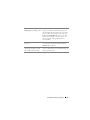
Image is out of focus
1 Adjust the focus ring on the projector lens.
2 Ensure that the projection screen is within
the required distance from the projector
(3.28 ft [1m] to 39.37 ft [12 m]).
Troubleshooting Your Projector
45