1
PC Configuration
5.3.1
Checking Workgroup Settings
The following sections include instructions on how to check the workgroup
settings on a PC using Windows XP or 2000.
Windows XP
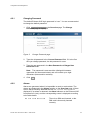
Follow the steps below to check the workgroup settings on a PC using
Windows XP:
1. In the Windows task bar, click the Start button, and then click Control
Panel. The Control Panel window is displayed.
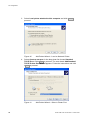
2. If you are using Category View, click Performance and Maintenance
and then See basic information about your computer. If you are
using Classic View, double-click System. The System Properties
window is displayed.
3. Click the Computer Name tab.
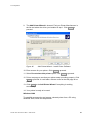
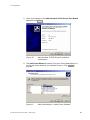
4. Click Change… . The Computer Name Changes window is displayed.
5. Make sure that the Workgroup name is exactly the same as on the
Ericsson W25 Sharing page. If not, you have to change the workgroup
either on the PC or on the Ericsson W25.
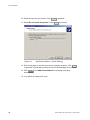
6. If you decide to change the workgroup on the PC, type the correct
name in the Workgroup field and click OK . If you do not want to make
any changes, click Cancel . The Computer Name Changes window is
closed.
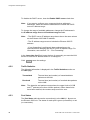
7. If you have changed the workgroup settings, follow the instructions on
the screen to restart the PC.
Windows 2000
Follow the steps below to check the workgroup settings on a PC using
Windows 2000:
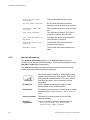
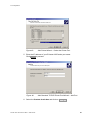
1. In the Windows task bar, click the Start button, and then click Settings
and Control Panel. The Control Panel window is displayed.
2. Double-click the System icon. The System Properties window is
displayed.
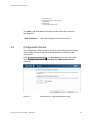
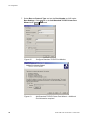
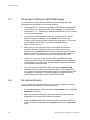
3. On the Network Identification tab, click Properties . The Identification
Changes window is displayed.
5/1551-CRH 102 167 Uen Rev C 2007-04-25
55