1
Chapter 3: Getting Started & Adjusting the Display
3-15
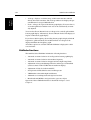
3.4 Fishfinder Display Control Functions
• Viewing databoxes
• Changing the scroll speed
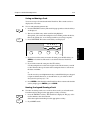
• Changing the range
• Selecting the power setting
• Selecting the frequency
In addition this section describes how to select the fishfinder display options.
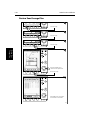
• Display Bottom Lock
• Display A-Scope
• Zoom an area of the image.
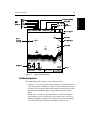
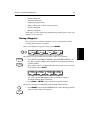
Viewing Data Boxes
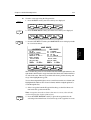
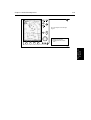
The cursor data box and a group of up to six data boxes can be displayed, if the
information is available on your system. You select which data is displayed
in the boxes during system set up as described in Chapter 7. The default
data box positions are along the bottom of the display. Each box can be moved
to the required position on the screen using the context-sensitive cursor.
To switch the data boxes on and off you need to go to Chart mode – see
Customizing the Screen Presentation Options on page 3-26. Switching the
databoxes on/off in Chart mode also affects their display in Fishfinder Mode.
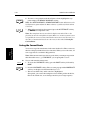
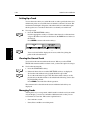
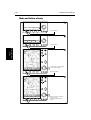
Changing the Scroll Speed
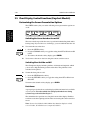
The standard fishfinder display is the scrolling bottom image; this is a
graphical representation of the echoes seen by the Fishfinder. New
information appears at the right hand side of the display and scrolls to the left.
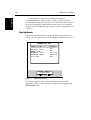
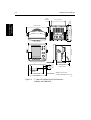
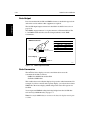
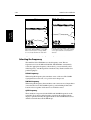
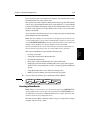
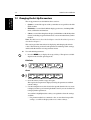
The speed at which the display scrolls is adjustable, but the same section of the
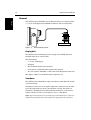
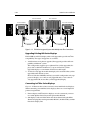
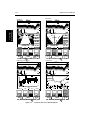
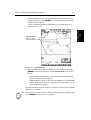
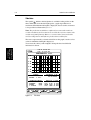
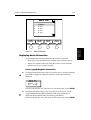
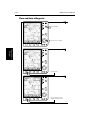
bottom is displayed regardless of scrolling speed. As illustrated in Figure 3-7,
if you select a faster speed, more detail is displayed and is useful when you are
looking for fish; if you select a slower speed the information remains on the
display for longer.
Fishfinder Display
Control Functions
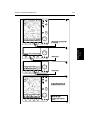
The Fishfinder automatically locates the bottom and displays the information
using an appropriate scroll speed and range. However, controls are provided
so you can adjust scroll speed and range. You can also select the transducer
frequency and select certain data for display. This section describes how to use
the controls to set-up your fishfinder display: