1
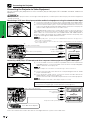
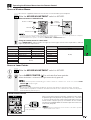
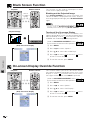
Black Screen Function
Projector
Remote control
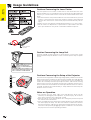
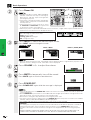
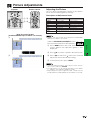
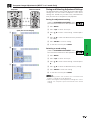
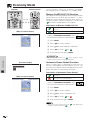
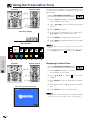
This function can be used to superimpose a black
screen over the projected image.
Blacking out the Projected Image
BLACK
SCREEN
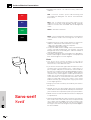
Press BLACK SCREEN. The screen turns black and
“BLACK SCREEN” is displayed on the screen. To return
to the original projected image, press BLACK SCREEN
again.
button
1, 5
2, 3, 4
MOUSE
ADJ.
• To use the remote control to operate this
function, slide the MOUSE/ADJUSTMENT switch to the
MOUSE position before pressing BLACK SCREEN.
Projected Image
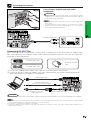
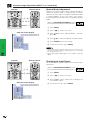
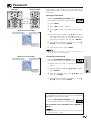
Turning off the On-screen Display
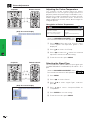
The On-screen Display (“BLACK SCREEN”) that
appears during black screen can be turned off. When
“BLK SCRN Disp” is set to “ ” in the GUI menu, “BLACK
SCREEN” will not be displayed during function.
sg
(Slide the MOUSE/ADJUSTMENT switch
on the remote control to the ADJ. position.)
(GUI) On-screen Display
MOUSE
ADJ.
1 Press MENU.
2 Press ß /© to select “Options”.
3 Press ∂/ƒ to select “BLK SCRN Disp”.
4 Press ß/© to select “ ” to turn on or “ ” to turn
off the On-screen Display.
Useful Features
5 To exit from the GUI, press MENU.
On-screen Display Override Function
Projector
Remote control
1, 5
2, 3, 4
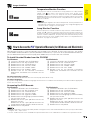
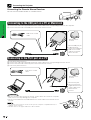
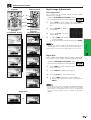
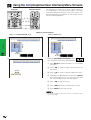
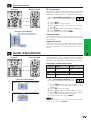
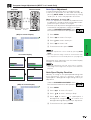
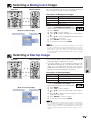
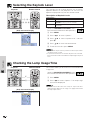
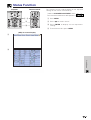
This function allows you to turn off the on-screen
messages that appear during input select. Once “OSD
Display” is set to “ ” in the GUI menu, the on-screen
messages will not appear when INPUT is pressed.
(Slide the MOUSE/ADJUSTMENT switch
on the remote control to the ADJ. position.)
MOUSE
ADJ.
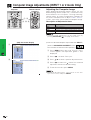
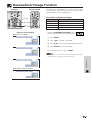
1 Press MENU.
2 Press ß/© to select “Options”.
3 Press ∂/ƒ to select “OSD Display”.
(GUI) On-screen Display
4 Press ß/© to select “ ” to turn on or “ ” to turn
off the On-screen Display.
5 To exit from the GUI, press MENU.
37