1
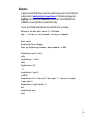
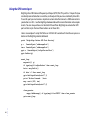
Run a terminal emulation program such as HyperTerminal (see Accessing the BrightSign
shell for details).
5 Insert the CF card into your BrightSign and apply power.
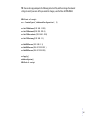
6 When the terminal prompt appears, type the following (where myscript.bas is the name of
your boot script):
4
writebootfile myscript.bas autorun.bas
7
Reboot your BrightSign.
NOTE: To restore the original boot files, reinstall the BrightSign software using UPDATE.ROK (see
Step 2: Get the latest BrightSign software for details).
Widescreen vs. 4x3 discussion
You can use BrightSign with widescreen or 4x3 displays. However, you may find that using
different display aspect ratios with the various BrightScreen options is confusing. In this section
we try to clarify what you can expect.
Displaying videos
BrightSign treats video and images a little differently. When a video is playing back, it is displayed
by default in what is known in BrightSignese as ViewMode 0. In other words, BrightSign scales the
video to fill the current output resolution (as set by the videomode command), whatever its
aspect ratio. What this means from a practical point of view is that you should author the content
for 16x9 if you intend to use a 16x9 display mode (any component mode). If you intend to use a
4x3 display mode (any VGA mode, for example 1024x768), then you should author the content
for 4x3. If you author your video for widescreen, but play it back at 1024x768 or 640x480, it will
look squashed. It isn’t automatically letter-boxed like when played on a DVD player. For example,
the aquarium video that is included in the BrightSign demo (that you can download from the
BrightSign web site) is widescreen video. When you view the demo on a VGA display, it appears
squashed, but it appears correct when you view it on a 720p display.
•
•
•
92 •
•
•