1
This is the second page of the Setup Guide. Start on the opposite side first.
TAP-EX
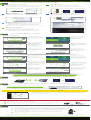
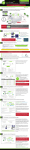
How to Connect to the Range Extender
Windows 7 & Vista
Windows 8
Click on the Wireless icon to see available wireless
networks (For Vista, click Start > Connect To). Select
the Amped TAP-EX network and click Connect.
Swipe in from the right edge to access the
charms bar, tap on Settings, select the Wi-Fi icon,
and select the Amped TAP-EX network.
Amped TAP-EX
Amped TAP-EX
Mac OS X
iPhone
Click on the Wireless icon to see available wireless
networks. Select the Amped TAP-EX network.
Tap on your Settings icon, select Wi-Fi, and
choose the Amped TAP-EX network.
Amped TAP-EX
Amped TAP-EX
iPad Tablet
A. Press the Home button to get to the homepage.
B. Tap the Settings app icon.
C. Tap on Wi-Fi to enter the iPad’s Wi-Fi settings.
D. Toggle the Wi-Fi On/Off selector switch to On.
E. Under "Choose a Network...", select: Amped TAP-EX.
Amped TAP-EX
Android Tablet
A. Tap the Apps menu on the tablet screen.
B. Locate and tap the Settings app icon.
C. Under "Wireless & networks," tap Wi-Fi settings.
D. Tap the Wi-Fi box to turn on Wi-Fi and scan.
E. Under "Wi-Fi networks", select: Amped TAP-EX.
Amped TAP-EX
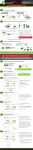
Accessing More Settings
Wi-Fi Settings
The Settings menu
can be accessed
from the Dashboard.
Tap Settings.
From the Settings
menu, tap Wi-Fi
Settings to access
additional Wi-Fi
features.
The Wi-Fi Settings menu allows you to access a number of settings:
Set up a Guest
Network with an ID
and Security Key
that’s different from
your primary
extended network.
Adjust the distance
(output power) of your
Wi-Fi network using
Wireless Coverage
settings.
Control when your
Extended Network is
on or off with Access
Schedule.
Restrict or allow
network access to
specific users via their
MAC address with
User Access.
Not all features listed. Access the menu for all settings.
Management Settings
The Settings menu
can be accessed
from the Dashboard.
Tap Settings.
From the Settings
menu, tap Management to access additional device management features.
The Management menu allows you to access a number of settings:
Set the timeout interval
for the screen to turn
off and set a passcode
to re-access the
screen using Screen
Settings.
Set the time and date
from the Clock/Date
settings. Set the clock
to appear on the
screen after the
Extender times out.
Check for the latest
software updates
using the Firmware
Update feature.
Share files locally from
any USB storage
device from the USB
Storage Sharing
menu.
Not all features listed. Access the menu for all settings.
More Detailed Settings are Available on the Web Menu
Connect your Internet Device to the Range Extender
Amped TAP-EX
Open your Web Browser & Access the Setup Menu
Enter the setup web address into your browser:
http://setup.ampedwireless.com
If the URL fails to open, then try: http://192.168.1.240
Recommended browsers: Google Chrome, Safari or Internet Explorer (8.0 and up). Do not use Firefox.
ACCESSING THE WEB MENU DOES NOT REQUIRE INTERNET ACCESS.
THE MENU IS SERVED FROM THE RANGE EXTENDER.
The web menu Dashboard will provide you with the current status of the
Range Extender. The More Settings tab on the left will give you access
to more extensive settings.
IF YOU HAVE PROBLEMS ACCESSING THE WEB MENU...
a Disconnect your PC from all Wi-Fi networks.
a)
b Attach an Ethernet cable (not included) between the PC and the Range Extender.
b)
c Open your web browser and go to http://setup.ampedwireless.com again.
c)
How to Reset the Range Extender to Default Settings
There are two options to reset the Range Extender back to factory default settings:
1
2
Access the physical Reset button on the right panel of the Range Extender.
Hold down the Reset button for five to ten (5-10) seconds. You may need to
use a pen tip or pin to access the button. Pressing the Reset Button for less
than five (5) seconds will simply reboot the Range Extender while saving
your existing settings.
Reset Button
Access the Reset button through the web menu on the left side under
More Settings > Management > Save/Reload Settings. Select Reset
Settings to Default.
If you continue to have issues setting up the Range Extender, give us a call — we’re here to help: 888-573-8820 or 909-217-3168
Visit our website for more support information and answers to frequently asked questions: www.ampedwireless.com/support
Amped Wireless
A Division of Newo Corporation
Copyright © 2014 Amped Wireless / Newo Corporation. All rights reserved.
Amped Wireless, Newo Corporation, Amped Wireless Logo are registered trademarks or trademarks of Newo Corporation.
v090814