1
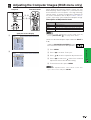
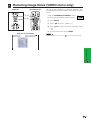
Adjusting the Computer Images (RGB menu only)
Projector
Remote Control
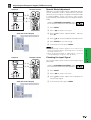
Special Mode Adjustment
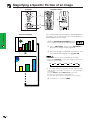
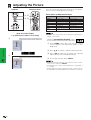
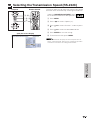
Ordinarily, the type of input signal is detected and the
correct resolution mode is automatically selected.
However, for some signals, the optimal resolution mode
in “Special Modes” on the “Fine Sync” menu screen
may need to be selected to match the computer display
mode.
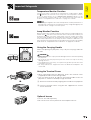
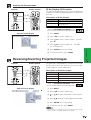
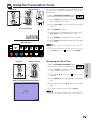
1, 6
2, 3, 4
5
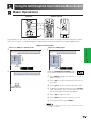
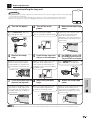
(Slide the MOUSE/ADJUSTMENT switch
on the remote control to the ADJ. position.)
1.2.3
4.5.6
MOUSE
ADJ.
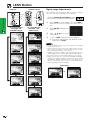
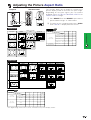
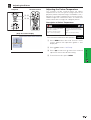
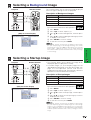
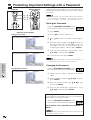
1 Press MENU.
2 Press ß/© to select “Fine Sync”.
3 Press ∂/ƒ to select “Special Modes”, and then
press ©.
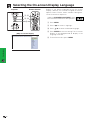
(GUI) On-screen Display
4 Press ∂/ƒ to select the optimal resolution mode.
5 Press ENTER to save the setting.
6 To exit from the GUI, press MENU.
Remote Control
Projector
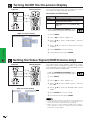
Checking the Input Signal
Basic Operation
• Avoid displaying computer patterns which repeat every
other line (horizontal stripes). (Flickering may occur, making
the image hard to see.)
• When inputting DTV 480P or 1080i signals, select the
corresponding type of signal in step 4 above.
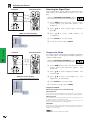
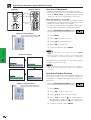
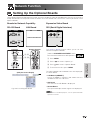
This function allows you to check the current input signal
information.
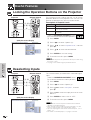
1, 4
(Slide the MOUSE/ADJUSTMENT switch
on the remote control to the ADJ. position.)
2, 3
MOUSE
ADJ.
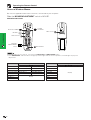
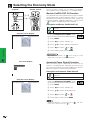
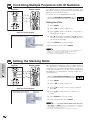
1 Press MENU.
2 Press ß/© to select “Fine Sync”.
1.2.3
4.5.6
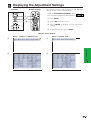
3 Press ∂/ƒ to select “Signal Info” to display the
current input signal.
(GUI) On-screen Display
4 To exit from the GUI, press MENU.
48