1
Watch PayTV
To decode PayTV channels you need a suitable Conditional Access
Module (CAM) and compatible SmartCard (not included in this package).
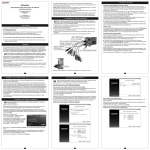
Make sure the WinTV-CI is plugged into a USB2 port.
Insert the SmartCard into the CAM as far as it will go, insure that the
SmartCard is the correct way up (typically the pins for the chip will be
facing upright), do not force the SmartCard in it should slide in smoothly.
Insert the CAM into the WinTV-CI as far as it will go, insure that the
CAM is the correct way up (typically the coloured label will be facing
upright), do not force the CAM in it should slide in smoothly.
You can now start the WinTV application (double click on the WinTV
icon on your desktop) and change to a PayTV channel, if everything is
correct the channel should now be displayed.
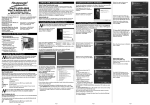
From here you can use the onscreen menu to check
Subscription Status, change
Parental Controls or change your
PIN numner.
I see the message "The CAM menu is only available while recording
or watching TV"
The WinTV-CI CAM Menu
Application is only available while
WinTV is running Live TV. Please
make sure WinTV is running and
is tuned to a Digital Channel and
retry.
I just received my new CAM and Card from my Pay-TV provider and
have plugged them into the WinTV-CI correctly but I am unable to
see any Pay-TV.
Most Pay-TV providers will require the Card to be activated before it
will function. You should contact your Pay-TV provider to ensure your
card is activated and able to decrypt Pay-TV.
I see the message "No CAM detected. Please re-insert your CAM and
try again"
Please check your CAM is fully
inserted into the WinTV-CI. Try reinserting your CAM, if the problem persists, please unplug/replug your WinTV-CI USB cable
and retry.
WinTV-CI CAM Menu Application
In order to perform some operations in your CAM such as Setting the
Parental Controls, changing your PIN Number or checking your subscription status you can access these functions from within the
WinTV-CI CAM Menu Application.
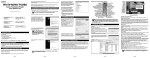
When WinTV is open an icon will appear in the
taskbar. To open the WinTV-CI CAM Menu
Application you can either double left click on the icon or single right
click and choose "Open".
Troubleshooting
I see the message "Please insert your smart card"
Check your smartcard is correctly
inserted into your CAM, check it
is inserted the correct way up.
The metal contact of the Smart
Card should generally be face up.
(If you are in doubt, please check
your CAM's User Guide).
For usage instructions of your
CAM, please refer to it's User
Guide.
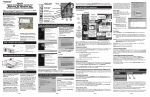
The following screen will appear.
I see the message "Please check your smart card"
If you see this message it may
mean the Smart Card does not
have a valid subscription for the
channel you are trying to view or
is not designed for the CAM you
are using. Please check with your
Pay-TV provider.
Page 9
FCC Statement
Radio Interference Statement:
WinTV have been tested and found to comply with the limits for a
Class B digital device, pursuant to part 15 of the FCC Rules. These
limits are designed to provide reasonable protection against harmful
interference in a residential installation. This equipment generates,
uses, and can radiate radio frequency energy and cause harmful
interference to radio communications. However, there is no guarantee
that interference will not occur in a particular installation. If this equipment does cause harmful interference to radio or television reception,
which can be determined by turning the equipment off and on, the
user is encouraged to try to correct the interference by one or more
of the following measures:
● reorient or relocate the receiving antenna.
● increase the separation between the equipment and receiver.
● connect the equipment into an outlet on a circuit different from that
to which the receiver is connected.
● consult the dealer or an experienced radio/TV technician for help.
FCC ID: H90WINTV
CAUTION: Changes or modifications not expressly approved by the
party responsible for compliance to the FCC Rules could void the
user's authority to operate the equipment.
CE Statement: This equipment has been tested and complies with
EN 55013, EN 55020 and IEC 801-3 part 3 standards.
Page 13
Page 10
Page 11
Page 12
Page 15
Page 16
Waste Electrical and Electronic Equipment
(WEEE)
The device may not be disposed of with household rubbish. This
appliance is labeled in accordance with European Directive
2002/96/EG concerning used electrical and electronic appliances
(Waste Electrical and Electronic Equipment - WEEE). The guideline
determines the framework for the return and recycling of used appliances as applicable throughout the EU. To return your used device,
please use the return and collection systems available to you.
Page 14